Why Is My Wireless Printer Only Printing Half a Page?
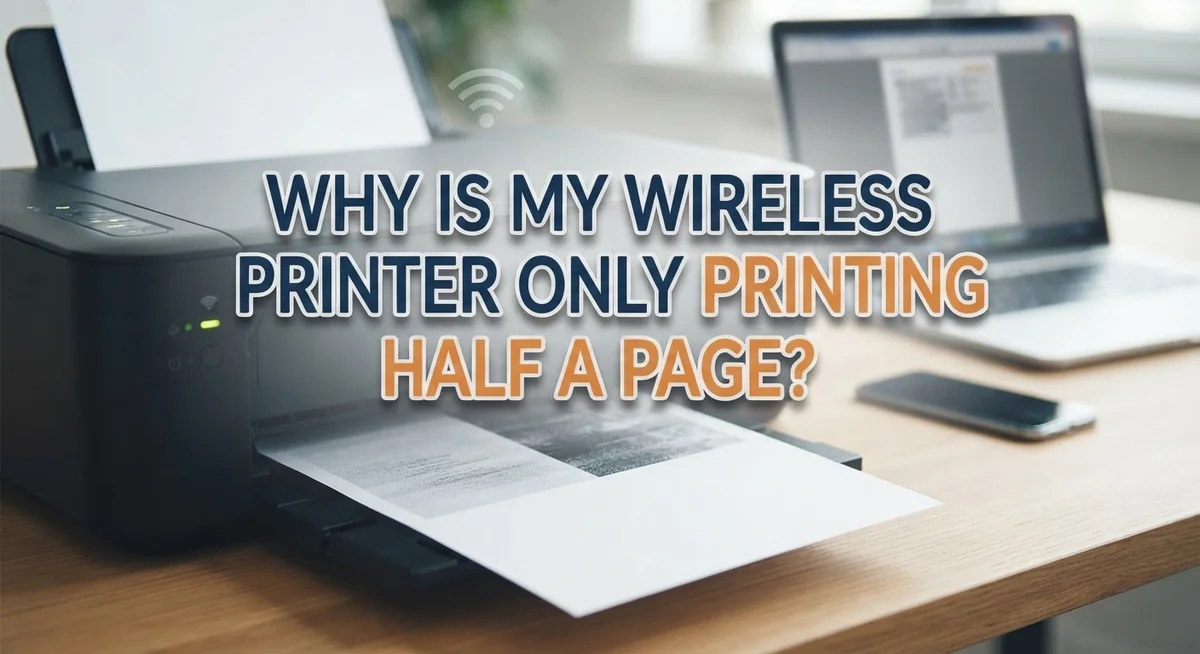
You hit print, but only half the page comes out. The rest stays blank, and your document looks incomplete.
This problem happens more often than you think. Many wireless printer users face this exact issue.
The good news? You can usually fix it without calling a technician.
Several things can cause this glitch. Clogged printhead nozzles often block ink flow. Low ink levels can also stop printing halfway.
Sometimes the issue sits in your computer, not the printer. A backed up print spooler on Windows can cut jobs short. On Mac, GPU overload sometimes causes the same problem.
Driver settings are another hidden culprit. The wrong “Preserve Layout” setting can chop your pages in half.
This guide walks you through every cause and fix. You will learn how to clean your printhead, clear the spooler, and check your driver settings.
By the end, you will know exactly why your printer stops halfway. More importantly, you will know how to make it print full pages again.
In a Nutshell
- Clogged nozzles or low ink often block the bottom half of your page. Run a cleaning cycle from your printer’s control panel to clear this.
- Print spooler backlogs on Windows can freeze jobs midway. Clearing the spooler queue usually solves this instantly.
- Mac users may see this from GPU overload during rendering. A simple restart often fixes it.
- Check your driver settings first. Set Preserve Layout to Yes so pages print in full.
- Loose or damaged cables cause incomplete prints too. Always plug your printer directly into a wall outlet, not a surge protector.
- If nothing works, do a hard reset. Restart your printer, computer, and router together.
- These issues affect most printer brands and both wired and wireless setups. Nutshell tip: fix the software side first, then check hardware connections.
Common Causes of Half-Page Printing Issues
Your wireless printer stops halfway through a page for specific reasons. Understanding these causes helps you fix the problem faster.
Clogged printhead nozzles are the most common culprit. Over time, dried ink builds up inside the nozzles. This blockage prevents ink from flowing to the lower part of your page. Your printer’s control panel usually has a cleaning cycle. Run this cycle to flush out the dried ink and restore full printing.
Low ink levels also trigger partial printing. When ink runs low, the printer cannot deliver enough color or black to complete the entire page. Check your ink status through your printer’s display screen or software. Refill cartridges when levels drop below the minimum line.
Print spooler problems cause Windows computers to send incomplete data to your printer. The spooler holds print jobs in a queue. If this queue gets stuck, your printer receives only part of the document. Clearing the spooler solves this issue quickly.
Driver settings hide another major cause. The “Preserve Layout” option in your printer driver controls how documents print. When this setting is incorrect, your printer cuts off the bottom half. Check this setting before you troubleshoot anything else.
Faulty connections matter too. A loose USB cable or weak wireless signal prevents complete data transfer. Your printer receives incomplete instructions and stops printing midway. Check that your cable sits firmly in the port. Test your wireless connection strength on your router.
GPU overload on Mac computers can cause rendering issues. When your graphics processor works too hard, it cannot process the full page. Restart your computer to reset the GPU and free up resources.
How Clogged Printheads and Low Ink Affect Print Output
Clogged printheads and low ink levels are the two most common reasons your wireless printer stops halfway through a page. When either problem exists, your printer cannot deliver ink evenly across the paper.
A clogged printhead happens when ink dries inside the nozzles. This blocks ink flow to certain areas of the page. You might see missing lines, streaks, or entire sections that print blank. Low ink levels create a similar problem. When your cartridge runs dry, pressure drops. The printer struggles to spray ink onto the lower portions of your page.
How to fix a clogged printhead: Most printers have a built-in cleaning cycle. Access this through your printer’s control panel or software on your computer. Run the cleaning cycle once or twice. This pushes fresh ink through the nozzles and clears blockages. If cleaning doesn’t work, try a more aggressive deep clean option if your printer offers one.
Checking your ink levels: Open your printer’s software on your computer. Look for an ink or supplies section. You will see the current level for each cartridge. If any cartridge shows low or empty, replace it. Even one empty cartridge can cause half-page printing.
Why this matters for wireless printers: The problem occurs whether your printer connects via WiFi or USB. Clogged heads and low ink affect all printers equally. Your wireless connection doesn’t cause this specific issue.
Prevention tip: Print something at least once per week. Regular printing keeps ink flowing and prevents nozzles from drying out. This simple habit stops most clogging problems before they start.
Print Spooler and Software Glitches to Watch For
Your print spooler acts as a holding area for all print jobs on your computer. When it gets stuck or corrupted, your printer receives incomplete data and stops printing halfway through the page.
On Windows computers, a backed up print spooler is a common culprit. Your computer queues multiple jobs, but the spooler fails to send complete information to your printer. The result is a half printed page. Clearing the spooler fixes this issue in most cases.
Mac users experience a different software glitch. Your graphics processing unit (GPU) can become overloaded while rendering large or complex documents. When this happens, your printer receives partial image data and stops midway through the page.
Driver software problems also cause half page printing. Your printer driver controls how your computer communicates with your wireless printer. If driver settings are wrong, your printer may cut off the bottom half of every page. Check your driver’s “Preserve Layout” setting first. This option should be set to “Yes” to prevent page clipping.
Software conflicts can happen too. Antivirus programs or firewall settings sometimes block complete data transfer between your computer and printer. This interruption causes incomplete print jobs.
Here’s what to do: Restart your computer, printer, and router in that order. Wait 30 seconds between each restart. This clears temporary software errors and resets your spooler. If half page printing continues, open your printer software and look for a “Clear Print Queue” or “Cancel All Jobs” option. This removes stuck jobs from your spooler.
Update your printer driver through your computer’s device manager or your printer manufacturer’s support website. Outdated drivers frequently cause printing glitches like this one.
Step-by-Step Guide to Diagnosing the Problem
Start by checking your ink levels first. Open your printer’s software on your computer and look at the ink gauge. Low ink can cause your printer to stop partway through a page. If ink is low, you know where to focus your efforts.
Next, run your printer’s cleaning cycle. Most printers have this built into their control panel or software menu. Access it through your printer’s display screen or the software on your computer. A cleaning cycle removes dried ink from the nozzles and often fixes half page printing immediately.
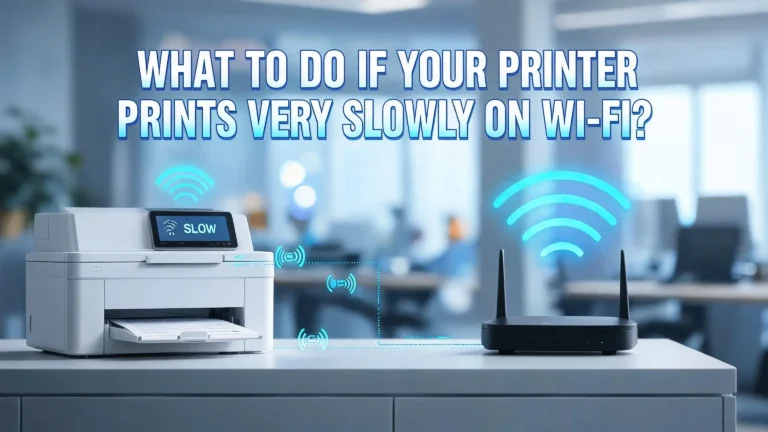
Check your wireless connection quality. Walk your printer closer to your router temporarily. Weak signals can interrupt data transfer to your printer. If moving it helps, you may need to reposition your router or printer permanently.
On Windows computers, clear your print spooler next. This is a temporary storage area for print jobs. When it backs up, incomplete data reaches your printer. Restart your computer, printer, and router in that exact order. This clears the spooler and resets connections.
For Mac users, restart all three devices the same way. Mac computers sometimes experience GPU rendering issues that cause incomplete printing.
Verify your driver settings before trying anything else. Open your printer preferences and look for a “Preserve Layout” option. Make sure it’s set to “Yes.” Wrong driver settings are often the hidden cause of half page printing.
Check your cables if you use a wired connection. Loose or damaged USB cables prevent complete data transfer. Plug your printer directly into a wall outlet instead of a surge protector. Surge protectors can interrupt power delivery to your printer.
If problems continue after these steps, your printer may need professional service.
Checking Driver Settings and Layout Options
Your printer’s driver settings and layout options control how documents get sent to your device. Wrong settings here often cause half page printing, so this is worth checking carefully.
Start by opening your printer’s software on your computer. Look for a tab labeled “Printing Preferences,” “Print Settings,” or “Advanced Options.” The exact name varies by printer brand. Inside this menu, find the “Preserve Layout” or “Fit to Page” option and make sure it’s set to “Yes” or “Enabled.”
This setting tells your printer to keep your document’s original formatting. When it’s turned off, your printer might scale or crop your pages unexpectedly. Half page printing often happens because this option got accidentally disabled.
Next, check your page orientation settings. Make sure your document orientation matches your printer’s paper setting. If your document is set to landscape but your printer expects portrait mode, you might see incomplete printing. Switch between these options in your print dialog to test.
Look for any scaling or zoom settings too. These sometimes default to percentages like 90% or 85%, which can cause content to shift and print incompletely. Set scaling to 100% for normal printing.
Also verify your paper size matches what’s actually in your printer. If your settings say “Letter” but you loaded “Legal” size paper, the printer gets confused and may only print part of your document.
After adjusting these settings, print a test page from your computer’s notepad or a simple document. This helps you confirm whether driver settings were the real problem. If half page printing continues, move on to checking your wireless connection quality and hardware issues.
Resetting Your Printer, Computer, and Network Connection
A hard reset clears temporary errors that cause half page printing. Start by turning off your printer completely and unplugging it from the power outlet. Wait for 30 seconds to let the device fully discharge its memory.
Plug your printer directly into a wall outlet. Avoid surge protectors during this step, as they can interfere with the reset process. Power the printer back on and wait for it to complete its startup sequence.
Next, restart your computer. Hold down the power button until your computer shuts off completely. Wait another 30 seconds, then turn it back on. This clears any stuck print jobs in your system’s memory.
Finally, restart your router or WiFi device. Unplug it for 30 seconds, then plug it back in. Your wireless printer needs a fresh connection to your network.
The order matters here. Reset your printer first, then your computer, then your router. This sequence prevents communication errors between devices.
After all three devices restart, print a test page immediately. Use a simple document like Notepad or a basic text file. Avoid complex graphics or unusual formatting for this test.
If half page printing continues, check your printer’s USB cable or WiFi signal strength. A weak connection causes incomplete data transmission to your printer. Move your printer closer to your router if it uses WiFi.
Document what happens after the reset. Does the problem occur with every document or just specific files? This information helps identify whether the issue is hardware related or software related. Keep this detail handy if you need professional support later.
Mistakes That Make Half-Page Printing Worse
Several mistakes can make your half page printing problem worse. Understanding these errors helps you avoid making the situation more complicated.
Using a surge protector instead of plugging directly into a wall outlet is one of the biggest mistakes. Surge protectors can interfere with your printer’s power supply and create connection instability. This instability makes half page printing more likely to happen repeatedly.
Ignoring your print spooler issues on Windows computers is another common error. Your spooler holds all print jobs waiting to process. When it gets stuck with old data, new print jobs fail to complete properly. Skipping this step means your printer keeps trying to print incomplete files.
Not checking your driver settings before troubleshooting wastes your time and effort. Many people restart their devices or clean printheads when the real problem sits in your driver settings. The “Preserve Layout” option controls whether your document keeps its original formatting. If this setting is wrong, your printer receives incorrect page instructions from the start.
Overlooking faulty cables or weak wireless connections makes things worse too. A loose USB cable or poor WiFi signal means your printer receives incomplete data. Your printer then prints whatever information it got before the connection dropped.
Another mistake is printing while your computer or router is still processing other tasks. High system load slows down data transfer to your printer. This delay causes incomplete page information to reach your device.
Finally, avoid printing immediately after turning on your printer. Give it 30 seconds to fully boot up. A printer that hasn’t completed startup often misreads page dimensions and prints partial pages.
Advanced Troubleshooting for Persistent Issues
When your printer keeps cutting off the bottom half of pages despite basic fixes, you need to dig deeper. Clogged printhead nozzles are often the culprit here. Your printer’s nozzles spray tiny ink droplets onto paper, and dust or dried ink blocks them over time.
Access your printer’s control panel or software on your computer. Look for a “Cleaning Cycle” or “Maintenance” option. Run this cycle once, then print a test page. If half page printing continues, run the cleaning cycle again. Sometimes you need two or three cycles to clear stubborn clogs.
Check your ink levels next. Low ink can cause incomplete printing. Your printer may stop mid page when it senses insufficient ink. Replace any cartridges that show low levels, even if they still have some ink left.
On Windows computers, your print spooler might have corrupted data stuck in it. This causes your printer to receive incomplete print jobs. Open your Services app and restart the Print Spooler service. This clears out bad data.
If you have a Mac, GPU overload might be the issue. Close unnecessary programs running in the background. This gives your computer more power to send complete documents to your printer.
Test your wireless connection strength. Weak signals cause data packets to drop, resulting in incomplete pages. Move your printer closer to your router or remove obstacles between them.
Finally, verify your USB cable works properly if using a wired connection. A faulty cable interrupts data flow mid print job. Try a different cable if you have one available.
Final Thoughts
Half page printing feels frustrating. But most fixes are simple.
Start with the basics. Check your ink levels first. Clean your printhead nozzles next.
Driver settings matter more than people think. Set “Preserve Layout” to “Yes” in your printer software. This one change fixes many half page issues instantly.
Your connection type plays a big role too. Weak WiFi signals drop data packets mid print job. A damaged USB cable causes the same problem.
Windows users should clear their print spooler regularly. Old data gets stuck and blocks new print jobs. Mac users need to watch for GPU overload instead.
The hard reset method works wonders for many people. Unplug your printer from the wall outlet. Wait thirty seconds before plugging it back in.
Remember this order: reset your printer, then your computer, then your router. This sequence clears temporary glitches across your whole system.
Avoid surge protectors during troubleshooting. Plug directly into a wall outlet instead. This small detail makes a real difference.
Most half page printing problems come from simple causes. Low ink, clogged nozzles, or wrong driver settings top the list. Connection issues and spooler backlogs cause the rest.
Test one fix at a time. This helps you find the exact cause. Print a test page after each change you make.
With patience, you’ll solve this problem quickly. Your printer will print full pages again. Keep these steps handy for future printing troubles too.
Frequently Asked Questions
Why does only the upper half of my page print?
This usually happens because of driver settings or a clogged printhead. Your printer’s driver controls how much of the page gets sent to print. If the “Preserve Layout” setting is wrong, the printer cuts off the bottom portion. A clogged printhead nozzle also stops ink from reaching the lower half of the page.
Run your printer’s cleaning cycle first. Then check your driver settings on your computer. Make sure “Preserve Layout” is set to “Yes” in your print preferences.
Does this problem affect all my documents or just some?
If all documents print half pages, you have a system wide issue. This points to your print spooler (Windows), GPU problems (Mac), or incorrect driver settings. If only certain documents have this issue, the problem might be with how those specific files are formatted.
Test by printing a simple document from your printer’s built-in test page option. This tells you if the issue is your printer or your computer.
Can landscape versus portrait orientation cause half page printing?
Yes, orientation can matter. The “Preserve Layout” driver setting works differently depending on whether you print landscape or portrait. If your document is set to landscape but your driver expects portrait, the printer may cut off content.
Check your document orientation in your software. Then verify it matches your print settings before sending the job.
What’s the fastest way to fix this right now?
Start with a hard reset. Turn off your printer completely. Unplug it from the wall for 30 seconds. Plug it back into a direct wall outlet, not a surge protector. Turn it on and try printing again.
This simple step fixes most half page printing problems within minutes.

I’m the voice behind Device Dossier. As a printing technology enthusiast, I spend my time testing printers, comparing specs, and writing honest reviews to help you find the perfect printing solution. When I’m not geeking out over print quality and page yields, you’ll find me exploring the latest in tech.