Why Is My Printer So Slow on Wi-Fi?
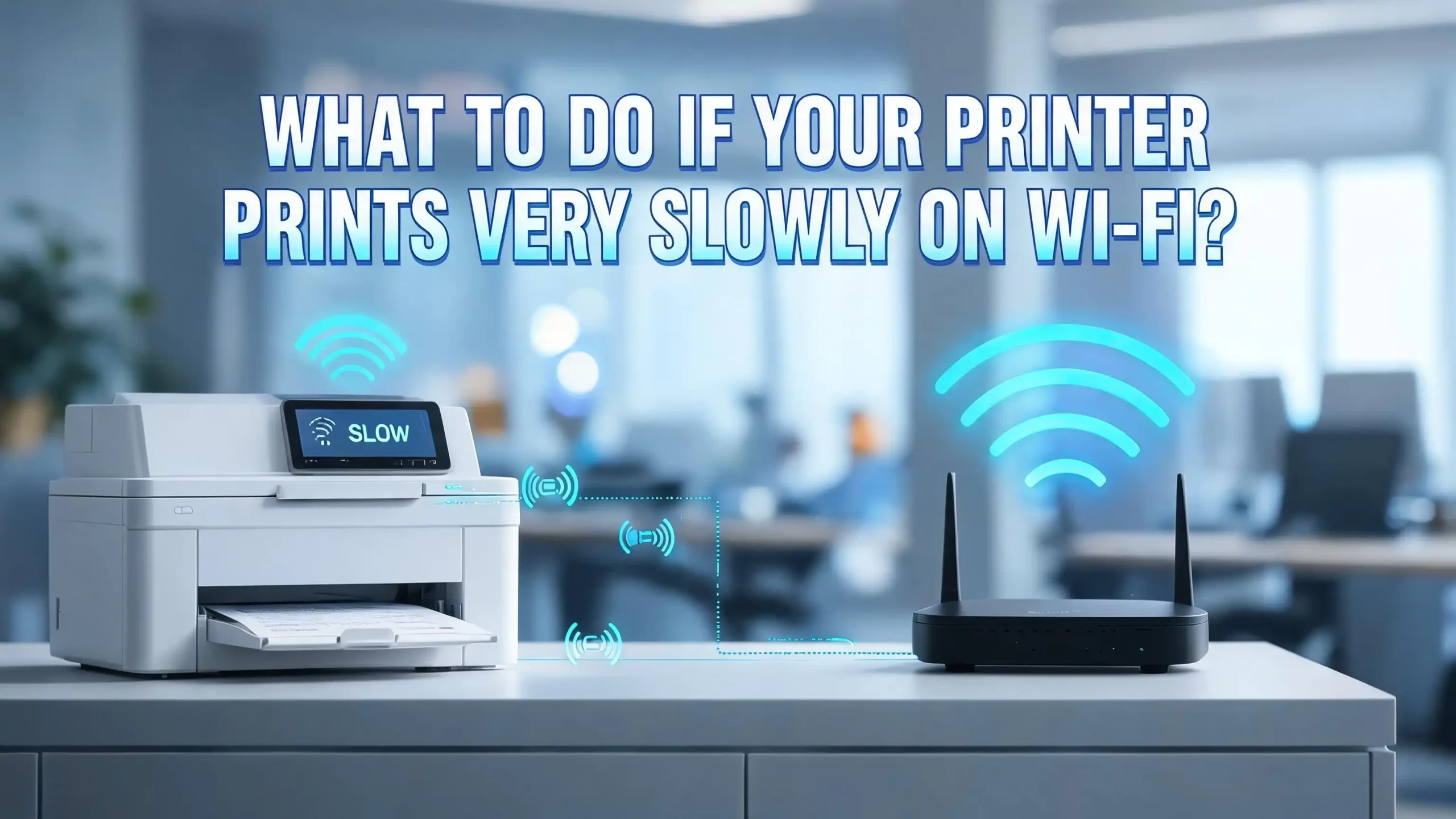
You hit print. You wait. You wait some more. Then you walk over to the printer and find it barely moving. If your printer is crawling on Wi-Fi, you are not alone. Millions of people deal with this exact problem every day, and the frustrating part is that it rarely has just one cause.
Slow wireless printing can happen because of a weak Wi-Fi signal, an overloaded print queue, outdated drivers, the wrong print quality settings, or even something as simple as Quiet Mode being turned on by accident.
The good news is that almost every one of these issues is fixable without buying new hardware or calling a technician.
This guide walks you through every practical solution, step by step. So before you give up and switch to USB, keep reading because the fix might take you less than five minutes.
Key Takeaways
- Weak Wi-Fi signal is the most common cause of slow wireless printing. Your printer and router need to be within a reasonable distance of each other, and physical obstacles like walls or appliances can cut signal strength significantly.
- Outdated or corrupted printer drivers slow down the communication between your computer and your printer. Updating or reinstalling your driver can restore full printing speed almost instantly.
- Print quality settings directly affect speed. Printing in “Best” or “Photo” quality takes far longer than printing in “Normal” or “Draft” mode. For everyday documents, lower quality settings are perfectly fine.
- The print spooler on your computer manages how print jobs are queued and sent. A stuck or bloated spooler queue can cause major delays. Clearing it and restarting the spooler service often resolves the problem immediately.
- Your router’s Wi-Fi band matters more than most people think. Many printers connect to the 2.4 GHz band by default, which is slower and more congested than the 5 GHz band. Switching bands can give your printer a noticeable speed boost.
- Printer firmware updates carry important performance improvements that manufacturers release over time. If your printer’s firmware is outdated, it may run slower than it was designed to, and a simple update can change that.
Why Does a Wi-Fi Printer Print Slowly in the First Place?
Before jumping into fixes, it helps to understand what is actually happening when your printer slows down. Your printer and computer are having a conversation over your wireless network. When something disrupts that conversation, the whole process slows to a crawl.
There are several layers to this process. Your computer prepares the print job, sends it through your Wi-Fi network, the router passes it to the printer, and the printer physically produces the output. A bottleneck at any one of these stages can make the whole thing feel unbearably slow.
Common culprits include network congestion, where too many devices are competing for bandwidth at the same time. Outdated drivers cause miscommunication between your operating system and the printer. A bloated print queue can clog the pipeline entirely. Even the distance between your printer and router plays a major role in how fast data moves between them.
According to research and official support documentation from HP and Microsoft, the most frequently reported causes of slow wireless printing are print quality settings, network delays, and outdated drivers. The fix is almost always one of these three things. Understanding the source of the problem helps you skip straight to the right solution instead of guessing.
Check Your Wi-Fi Signal Strength First
The very first thing to check is how strong the Wi-Fi signal is where your printer sits. A weak signal is the single most common cause of slow wireless printing, and it is also the easiest to verify.
Most printers have a built-in network status page you can print directly from the printer’s control panel. This page usually shows the signal strength as a percentage or in bars. If the signal is below 60 to 70 percent, you have found your problem.
Here is how to improve signal strength right away:
Move your printer closer to your router. Even a few feet can make a meaningful difference. Avoid placing the printer behind metal objects, inside cabinets, or near microwaves and cordless phones, as all of these can interfere with wireless signals.
If moving the printer is not practical, consider moving the router to a more central location in your home or office. Alternatively, a Wi-Fi range extender or mesh network node placed between the router and the printer can significantly boost the signal your printer receives.
Walls, floors, and furniture all weaken Wi-Fi signals. The thicker or denser the material, the more it absorbs the signal. Concrete walls are the worst offenders. If your printer is in a room separated from the router by concrete or brick, signal loss will be dramatic. Test the signal by temporarily placing the printer in the same room as the router and running a test print. If it prints fast in that location, signal strength is your confirmed issue.
Restart Your Printer, Router, and Computer
This sounds basic, but it genuinely works. Restarting your devices clears cached memory, refreshes network connections, and resolves temporary software glitches that can silently slow down printing.
Here is the proper way to do a full restart:
Start by turning off your printer using the power button. Once it is completely off, unplug the power cord from the wall outlet. Do not just use the power button. Wait a full 60 seconds before plugging it back in. This forces the printer to completely clear its internal memory and re-establish a fresh connection.
While the printer is off, restart your router as well. Unplug the router from the wall, wait 30 seconds, then plug it back in. Give it about 2 minutes to fully reconnect to the internet before turning your printer back on.
Finally, restart your computer. This clears the print spooler memory and any temporary driver issues that may have developed during the session.
HP’s official support documentation recommends this as the first troubleshooting step because it resolves a significant percentage of slow printing complaints without any further action needed. Many users report that their printer returns to normal speed immediately after a proper restart cycle.
Lower Your Print Quality Settings for Faster Output
One of the most overlooked causes of slow printing is using unnecessarily high print quality settings. When your printer is set to “Best” or “Photo” quality, it uses more ink passes and processes far more data per page. This dramatically slows print speed, even if you are just printing a plain text document.
Here is how to change print quality settings on Windows:
- Open the document you want to print and press Ctrl + P to open the print dialog.
- Click on “Printer Properties” or “Preferences.”
- Navigate to the “Paper/Quality” or “Quality” tab.
- Change the print quality from “Best” or “Photo” to “Normal” or “Draft.”
- Click OK to save the change and then print again.
On a Mac, open the print dialog, click the dropdown that says “Copies & Pages,” select “Quality & Media” or similar, and adjust the quality setting down.
For most everyday documents like emails, spreadsheets, and text files, “Normal” or “Draft” mode is completely adequate. Reserve “Best” quality for final versions of reports, photos, or anything you plan to present professionally. Switching from Best to Normal can cut print time by 50 percent or more in many cases.
Also, check that the paper type setting matches the actual paper in your tray. If your printer thinks it is printing on photo paper but you have plain paper loaded, it will slow down to apply ink more carefully. Setting it to “Plain Paper” immediately speeds things up.
Update or Reinstall Your Printer Driver
A printer driver is the software that allows your computer to communicate with your printer. An outdated, corrupted, or mismatched driver is one of the most reliable causes of slow wireless printing, and updating it can restore performance to full speed.
Manufacturers regularly release updated drivers that fix bugs, improve communication efficiency, and optimize performance for the current operating system. If you have not updated your driver in several months, it is worth checking for a newer version.
Here is how to update your driver on Windows:
- Press the Windows key, type “Device Manager,” and open it.
- Expand the “Printers” section and find your printer.
- Right-click on it and select “Update driver.”
- Choose “Search automatically for drivers” and let Windows find the latest version.
Alternatively, go directly to your printer manufacturer’s website, such as hp.com, epson.com, or canon.com, search for your printer model, and download the latest driver from the support section.
If updating does not work, try a full reinstall. Go to Settings > Bluetooth & devices > Printers & scanners, select your printer, and click “Remove device.” Then download a fresh copy of the driver from the manufacturer’s website and install it from scratch. A clean reinstall eliminates any corrupted files that an update might not have replaced.
Outdated drivers also leave behind monitoring services and background processes that consume system resources. Removing them entirely and starting fresh often speeds up not just printing but the overall responsiveness of your printer connection.
Fix the Print Spooler to Clear Bottlenecks
The print spooler is a Windows service that manages and stores print jobs in a queue before sending them to the printer. When the spooler becomes overloaded or gets stuck, print jobs pile up and nothing moves. This is a very common cause of sudden, unexplained slowdowns.
Here is how to clear and restart the print spooler on Windows:
- Press the Windows key + R to open the Run dialog.
- Type services.msc and press Enter.
- Scroll down and find “Print Spooler” in the list.
- Right-click on it and select “Stop.”
- Now open File Explorer and navigate to this path: C:\Windows\System32\spool\PRINTERS
- Delete all files inside this folder. Do not delete the folder itself, only its contents.
- Go back to Services, right-click Print Spooler, and select “Start.”
Deleting the files in the PRINTERS folder clears out any stuck or corrupted print jobs that were blocking the queue. Restarting the service creates a clean slate.
You should also configure the spooler settings for better performance. Go to Settings > Printers & scanners > select your printer > Printer Properties > Advanced tab. Enable the following settings:
- Spool print documents so program finishes printing faster
- Start printing after last page is spooled
- Print spooled documents first
These three settings work together to keep print jobs moving efficiently. They prevent a large job from blocking a small one, and they make sure your printer is always working from a clean, organized queue.
Switch Your Printer to the 5 GHz Wi-Fi Band
Most Wi-Fi routers broadcast on two frequency bands: 2.4 GHz and 5 GHz. Many printers connect to the 2.4 GHz band by default because it has a longer range, but this band is often slower and more congested because nearly every smart home device, microwave, and baby monitor also uses it.
The 5 GHz band offers faster speeds and significantly less interference. If your printer supports 5 GHz and you are still on 2.4 GHz, switching can produce an immediate improvement in print speed.
To check if your printer supports 5 GHz, look in the printer’s manual or on the manufacturer’s product page. Many modern printers do support it, though some budget models are still 2.4 GHz only.
Here is how to switch your printer to 5 GHz:
- On the printer’s control panel, go to Wireless Settings or Network Setup.
- Choose “Wireless Setup Wizard” or “Wi-Fi Setup.”
- Select your 5 GHz network. Your router likely shows both bands with names like “HomeNetwork” and “HomeNetwork_5G.”
- Enter the Wi-Fi password and confirm the connection.
If your router does not show separate bands, log into the router settings by typing your router’s IP address (usually 192.168.1.1 or 192.168.0.1) into a browser. Find the Wireless settings and enable band steering or split the two bands into separate networks with different names.
One thing to keep in mind: the 5 GHz band has a shorter range than 2.4 GHz. If your printer is far from the router, you may need to place it closer to benefit from the speed improvement.
Assign a Static IP Address to Your Printer
Every time your printer connects to your Wi-Fi, your router assigns it an IP address. If your router uses dynamic IP addressing, this address can change each time the printer reconnects. When the IP address changes, your computer may temporarily lose track of where to send print jobs, causing delays or connection timeouts before each print.
Assigning a static IP address to your printer eliminates this problem entirely. A static IP means the printer always has the same address on your network, so your computer can find it instantly without any negotiation delay.
There are two ways to do this:
Method 1: Set the static IP through the printer.
Go to your printer’s control panel, navigate to Network Settings or Wireless Settings, and find the TCP/IP settings. Manually enter an IP address, subnet mask, and default gateway. Choose an IP address outside your router’s DHCP range to avoid conflicts, such as 192.168.1.200 if your router typically assigns addresses in the 192.168.1.1 to 192.168.1.100 range.
Method 2: Reserve the IP through your router.
Log into your router’s admin page, go to DHCP settings, and look for “Address Reservation” or “Static DHCP.” Find your printer in the list of connected devices and reserve its current IP address. This tells the router to always assign the same address to that printer.
HP’s support community specifically recommends assigning a static IP to avoid conflicts that can slow down or interrupt print jobs. It is a simple one-time setup that prevents a recurring source of delay.
Turn Off Quiet Mode on Your Printer
This is one of the most easily missed causes of slow printing. Quiet Mode is a feature available on many HP, Epson, and Canon printers that reduces the noise the printer makes during operation. It does this by slowing down the print mechanism so it runs more quietly.
The downside is that Quiet Mode also significantly slows down your print speed. If someone in your house turned it on at some point, or if it was enabled by default during setup, your printer is running slower than it needs to be for no good reason.
Here is how to turn off Quiet Mode on HP printers:
- Open the HP app on your computer and tap the image of your printer.
- Click “Advanced Settings” and go to the “Settings” tab.
- Find “Quiet Mode” under Preferences.
- Select “Off” and click “Apply.”
On Epson printers, open the Epson printer software from your system tray or printer settings, navigate to Maintenance or Extended Settings, and look for Quiet Mode to disable it.
On Canon printers, open the printer driver properties window, look under the Maintenance or Device Settings tab, and find the Quiet Mode option to turn it off.
After disabling Quiet Mode, run a test print. Many users find that this single change restores their printer’s speed to exactly what it was when it was brand new.
Update Your Printer’s Firmware
Firmware is the built-in software that controls how your printer operates at a hardware level. Manufacturers regularly release firmware updates that fix performance bugs, improve wireless communication, and optimize how the printer processes print jobs. If your firmware is out of date, your printer may be running on old code that contains issues already fixed in a newer version.
According to Entrust’s documentation on printer firmware, using the latest firmware is the best way to prevent problems, enhance security, and keep your printer running smoothly. This applies directly to printing speed as well.
Here is how to update firmware on an HP printer:
- On the printer’s control panel, go to Setup > Printer Maintenance > Update Printer.
- Tap “Check Now” and follow the prompts to install any available updates.
Alternatively, you can update through the HP app by selecting your printer, clicking Advanced Settings, and finding the Printer Updates section.
For Epson printers: Download Epson Software Updater from the Epson website and run it. It will scan for available firmware updates for your specific model and install them automatically.
For Canon printers: Visit Canon’s support website, enter your model number, navigate to the Firmware section, and follow the download and installation instructions provided.
Never turn off your printer during a firmware update. Interrupting the process can permanently damage the printer. Give it a few minutes to complete. After the update is done, restart the printer and run a test print to check if speed has improved.
Reduce File Size Before Printing
Many people do not realize that large file sizes are a direct cause of slow printing, especially over Wi-Fi. When you send a 50 MB PDF with high-resolution images to your printer, it takes much longer for that data to travel over the wireless network than a simple 100 KB text document.
The printer also needs time to process and render complex graphics before it can start printing. This processing time shows up as a long pause before the printer even starts moving.
Here is how to reduce file size for faster printing:
For PDF files, use a PDF compressor tool or reduce the resolution of embedded images before printing. Many free online tools can shrink a PDF significantly without visible quality loss at standard print sizes.
For documents with images, consider reducing the image resolution or size inside your word processor before printing. An image sized at 72 to 150 DPI is usually sufficient for standard document printing, while 300 DPI is only necessary for professional-quality photo prints.
In your print settings, select “Print in Draft Mode” or lower the resolution from the printer preferences window. This reduces the amount of data the printer needs to process per page and significantly speeds up the output.
You can also print large documents in smaller batches. Instead of printing a 50-page report all at once, try printing 10 pages at a time. This gives the print spooler less to manage at once and can prevent bottlenecks that slow down the overall job.
Check for Network Interference and Congestion
Your home or office wireless network carries traffic from every connected device at the same time. If multiple people are streaming video, downloading files, or gaming while you try to print, your printer may not have enough bandwidth to receive data quickly. This competition for network resources is called network congestion, and it directly slows down wireless printing.
Additionally, wireless interference from neighboring networks, Bluetooth devices, cordless phones, and microwave ovens can disrupt your printer’s Wi-Fi signal even if your router is nearby.
Here is how to address network congestion:
Try printing at a time when fewer devices are actively using the network. If you consistently need to print during peak hours, consider setting up a separate Wi-Fi network specifically for your printer and work computer using a dual-band router.
Change your router’s Wi-Fi channel. Routers operate on specific channels within the 2.4 GHz or 5 GHz band. If your neighbors’ routers are using the same channel, your signals compete. Log into your router settings, go to Wireless settings, and manually select a less congested channel. Channels 1, 6, and 11 are the only non-overlapping channels in the 2.4 GHz band. Try each one to see which gives better performance.
You can also prioritize printer traffic using your router’s Quality of Service (QoS) settings. This feature, available in most modern routers, lets you assign priority to specific devices so they get bandwidth preference during periods of congestion. Find your printer in the QoS device list and set its priority to High or Medium.
Reinstall the Printer on Your Computer from Scratch
Sometimes the issue is not with the printer itself but with how it is set up on your computer. A corrupted installation, outdated port configuration, or incorrect printer settings on your PC can silently slow down every print job. A fresh reinstall solves these problems completely.
Here is how to do a clean reinstall on Windows:
- Go to Settings > Bluetooth & devices > Printers & scanners.
- Select your printer and click “Remove device.”
- Go to Control Panel > Programs > Uninstall a Program and look for any software related to your printer brand.
- Uninstall all of it, including any monitoring tools or utility software.
- Restart your computer.
- Visit your printer manufacturer’s website and download the latest full driver package for your model.
- Run the installer and follow the setup wizard to add the printer back.
On a Mac: Go to System Settings > Printers & Scanners, select your printer, and click the minus button to remove it. Then re-add it by clicking the plus button or by downloading the latest driver from the manufacturer’s site.
After reinstalling, make sure your printer is using a Standard TCP/IP Port rather than a WSD (Web Services for Devices) port. WSD ports can be slower because they rely on network discovery, which adds a communication delay before each print job. In Windows, you can check and change the port by going to Printer Properties > Ports tab and selecting or creating a Standard TCP/IP Port using your printer’s static IP address.
Use a Wired Connection to Diagnose the Problem
If you have tried multiple fixes and the printer is still slow, temporarily connecting it via USB or Ethernet is one of the best diagnostic steps you can take. This test immediately tells you whether the problem is with the printer itself or specifically with the Wi-Fi connection.
Plug a USB cable directly from your computer to the printer and run a test print. If it prints at normal speed over USB, the problem is definitely in the wireless connection and not in the printer hardware or driver. This narrows your focus and tells you exactly where to keep troubleshooting.
If an Ethernet port is available on both the printer and the router, connect the printer using a network cable instead of Wi-Fi. A wired Ethernet connection is always more stable and faster than wireless for printing purposes. If this is a practical permanent solution for your setup, it removes the Wi-Fi variable entirely.
If the printer is slow even over USB, the issue may be with the driver, the print spooler, the print queue, or even the printer’s internal hardware. In that case, focus on driver reinstallation and spooler fixes before considering a hardware issue.
This test takes about two minutes and saves hours of guessing. Always try the wired connection before spending more time on Wi-Fi related fixes.
When to Reset Your Printer to Factory Settings
If you have tried every fix above and your printer is still running slowly over Wi-Fi, a factory reset may be the most effective option. A factory reset wipes all custom settings, clears stored network configurations, and returns the printer to its original state, just like it was when you first took it out of the box.
This is especially useful if the printer was working fine before and suddenly started printing slowly after a settings change, a failed update, or an unusual configuration change.
Here is how to factory reset most printers:
On HP printers, go to the control panel, navigate to Setup > Printer Maintenance > Restore, and select “Restore Factory Defaults.”
On Epson printers, go to Setup > Restore Default Settings and select “Reset All Settings.”
On Canon printers, go to Settings > Device Settings > Reset Setting > Reset All.
After the reset, set up your Wi-Fi connection again from scratch. Run the wireless setup wizard from the printer’s control panel, connect to your network, install fresh drivers on your computer, and add the printer again. Also reassign your static IP address if you had configured one.
A factory reset is a clean slate. It eliminates any accumulated configuration errors or corrupted internal settings that could have been causing slow performance without leaving any obvious clue. Most users who reach this step find that printing returns to full speed after going through the full setup again.
FAQs
Why does my wireless printer take so long to start printing?
There is usually a communication delay between your computer and printer over Wi-Fi. This delay can be caused by a weak signal, a dynamic IP address that changes on reconnection, or the printer waking up from sleep mode. Assigning a static IP address to your printer and adjusting sleep mode settings usually fixes this startup delay.
Does Wi-Fi speed affect printer performance?
Yes, it does, but not in the way most people expect. Your printer does not need a fast internet connection. It needs a stable, low-latency local Wi-Fi connection to your router. Even a slow internet plan will not slow your printer if the local network signal is strong. The key factor is the Wi-Fi signal strength and stability between your printer and your router.
Can too many devices on Wi-Fi slow down printing?
Absolutely. If your network is congested with devices streaming video, downloading files, or syncing data, your printer has to compete for bandwidth. This competition can delay how quickly print job data reaches the printer. Printing during off-peak hours or setting up QoS on your router to prioritize your printer can help resolve this.
Is it better to connect my printer via USB or Wi-Fi?
USB connections are faster and more reliable for printing because there is no network latency or interference. However, Wi-Fi offers the convenience of printing from anywhere in the house or from multiple devices. If speed is your top priority and your printer is near your computer, USB is the better choice. For flexibility, Wi-Fi is worth optimizing properly.
How do I check if my printer driver is outdated?
Visit your printer manufacturer’s official support website, enter your printer’s model number, and compare the latest driver version listed there with the one installed on your computer. On Windows, you can check your current driver version through Device Manager > Printers > right-click your printer > Properties > Driver tab.
Why does my printer print slowly only on the first page?
The first page is slow because the printer is waking from sleep mode and establishing a fresh connection with your computer over the network. This handshake process takes a few seconds. You can reduce or eliminate this delay by disabling sleep mode in your printer settings, assigning a static IP to avoid reconnection delays, or keeping the printer active by printing small test jobs periodically.
Does print quality setting affect how fast a page comes out?
Yes, significantly. Higher quality settings like “Best” or “Photo” require more ink passes and more processing time, which directly slows down how fast each page is printed. Switching to “Normal” or “Draft” quality for standard documents can cut your print time in half or more without any visible difference for most text-based content.
Should I update my printer’s firmware regularly?
Yes. Manufacturers release firmware updates to fix bugs, improve performance, and address security issues. Updating firmware is one of the simplest things you can do to keep your printer running at its best speed. Check for firmware updates every few months, especially if you notice your printer has slowed down after a period of normal performance.

I’m the voice behind Device Dossier. As a printing technology enthusiast, I spend my time testing printers, comparing specs, and writing honest reviews to help you find the perfect printing solution. When I’m not geeking out over print quality and page yields, you’ll find me exploring the latest in tech.