How to Print Double-Sided When the Duplexer Option Is Missing?
You send a document to print. You want both sides of the paper used. But the duplex option is nowhere in your settings.
This is a common problem. It happens on Windows and Mac computers alike. It can feel confusing when you know your printer supports double sided printing.
The good news? This issue is often fixable. A missing duplex option does not always mean your printer lacks the feature. In many cases, it points to a driver problem or a setting hidden in a different menu.
This article will show you why the duplex option disappears. You will learn how to check your printer’s real hardware capability. We will walk through updating your printer driver step by step.
By the end, you will know exactly how to get double sided prints, no matter what your printer shows you.
In a Nutshell
- Check your driver first. A missing duplex option often points to an outdated or corrupted driver, not a broken printer.
- Look in unexpected places. Duplex settings often hide in the Options menu, Basic tab, or an expanded print window.
- Update from the source. Always grab fresh drivers from your printer manufacturer’s website to restore missing features.
- Try the manual method. If your printer lacks automatic duplexing, you can still print both sides by flipping the stack yourself.
- Match your paper settings. The correct paper type in your print settings helps duplex options appear and work properly.
- Test across apps. If duplex works in one program but not another, the issue is likely app specific, not a hardware fault.
Why the Duplex Option Might Be Missing
Your printer might hide the duplex option for several reasons. Understanding these causes helps you fix the problem quickly.
Software driver issues rank as the top reason. Your printer driver controls how your computer talks to the printer. If the driver is outdated, corrupted, or installed incorrectly, duplex settings simply vanish from your print menu. This doesn’t mean your printer lacks the hardware capability. It means the software isn’t communicating properly.
Application compatibility also plays a role. Some programs don’t fully support duplex printing through their native drivers. Your web browser, older software, or specialized applications might not show the duplex option even though your printer supports it.
Hardware limitations do exist, but less often than you think. Some older or budget printer models genuinely lack automatic duplex hardware. However, this is rare in modern printers. Most newer machines have the physical capability built in.
Operating system settings can hide duplex options too. Windows and Mac handle printer drivers differently. Your OS might not be displaying all available options, or you need to access a specific menu to reveal them.
Print driver installation problems occur when you upgrade your computer or operating system. The printer driver might not install completely or might conflict with existing software.
Printer settings locked by administrators sometimes restrict duplex access. In office or shared network environments, IT departments may disable certain printing options.
The key point: a missing duplex option usually signals a software problem, not a hardware failure. This means you can solve it without replacing equipment. Start by checking your driver version and reinstalling from the manufacturer’s official website. Then explore your printer’s settings menu thoroughly. These steps resolve most cases.
Checking Your Printer’s Hardware Capability
Before you assume your printer cannot print double sided, you need to verify what hardware you actually have. Many people skip this step and waste time on software fixes when the real issue is different.
Start by checking your printer’s manual or specifications sheet. Look for words like “duplex,” “automatic double sided,” or “two sided printing.” You can find this information on the manufacturer’s website by searching your exact printer model number. The model number is usually on the front or back of your machine.
Next, examine your printer physically. Open all access panels and doors. Look for a second paper tray or a special input slot labeled for duplex printing. Some printers have a small tray specifically for the return path of paper during automatic double sided printing. If you see this feature, your printer has the hardware capability.
Check your printer’s control panel or display screen. Navigate through the menu settings using the buttons on your machine. Look for options related to printing, paper handling, or advanced settings. Some printers show duplex capability right on the main screen. Write down what you find.
Also verify your printer’s age and model type. Older printers or basic budget models often lack duplex hardware. Professional grade or newer standard printers usually include this feature. This information helps you understand whether you need to pursue manual double sided printing as your solution.
Once you confirm what hardware exists, you can move forward with the right troubleshooting approach. This foundation prevents you from chasing solutions that won’t work for your specific machine.
Updating or Reinstalling Your Printer Driver
Your printer driver controls whether the duplex option appears in your print menu. When this option vanishes, updating or reinstalling your driver often fixes the problem.
Start by identifying your printer model and manufacturer. You need this information to find the correct driver. Check your printer’s physical label or open your device settings to locate these details.
Visit your printer manufacturer’s official website. Most brands have a support or downloads section. Enter your printer model number to access available drivers. Download the latest version for your operating system.
Before installing the new driver, remove the old one completely. On Windows, go to Control Panel, then Programs and Features. Find your printer driver in the list and uninstall it. On Mac, navigate to System Preferences, then Printers and Scanners. Select your printer and click the minus button to remove it.
Restart your computer after uninstalling. This clears any remaining driver files from your system.
Install the fresh driver from the file you downloaded. Follow the on-screen instructions carefully. The installation process usually takes just a few minutes. Restart your computer again when prompted.
Once your computer restarts, reconnect your printer and power it on. Open any document and try printing again. Access your print settings and look for the duplex option. It should now appear in your menu.
If the duplex option still doesn’t show up, the issue might involve your specific application. Try printing from a different program like Notepad or your web browser. This helps identify whether the problem is driver related or application specific.
Test your settings before printing important documents. Print a test page with duplex enabled to confirm everything works correctly.
Step-by-Step: Manual Duplex Printing Method
The manual duplex method works when your printer lacks automatic duplex hardware or when the software option remains unavailable. This approach requires you to print pages in two separate passes.
Start by opening your document. Go to File, then Print. Look for print settings or options within your printer dialog box. Find the setting labeled “Print on Both Sides” or “Duplex.” Select the option that says “Manually Print on Both Sides” or “Manual Duplex.”
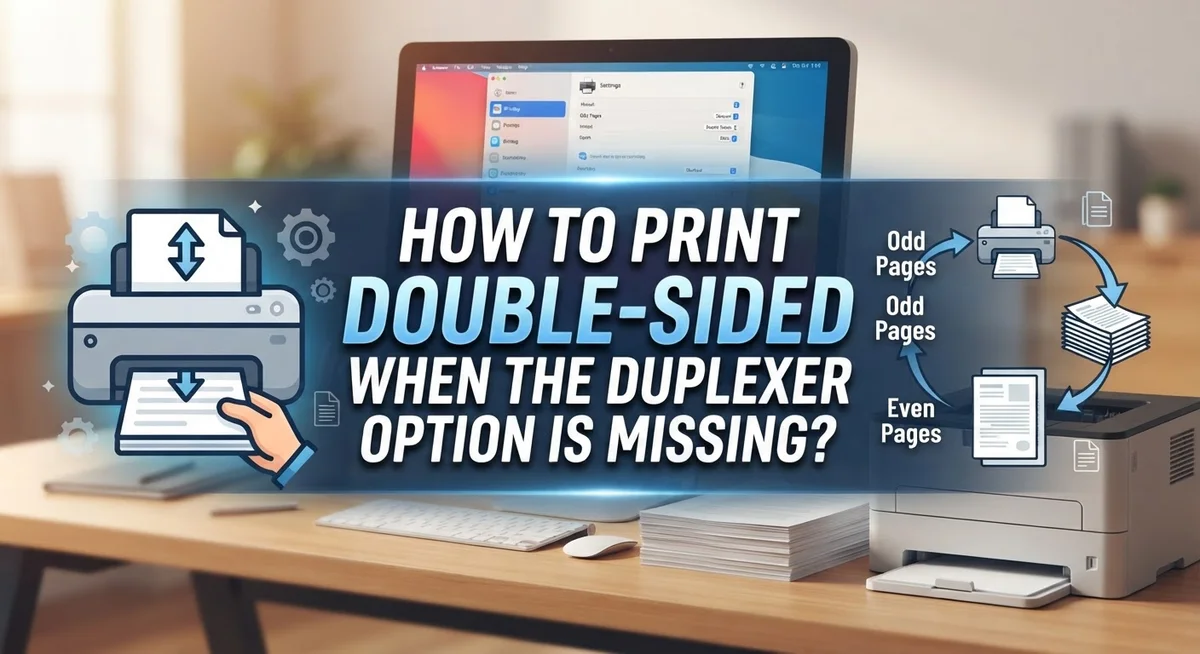
Some printers call this “Odd Pages Only” or “Front Side Only.” Choose this setting for your first print pass. This tells your printer to print only the odd numbered pages (1, 3, 5, and so on).
Print this first batch. Let all pages finish printing completely. Gather the printed stack and flip the entire pile over. The blank sides now face up. Tap the stack against a flat surface to align all edges properly.
Return the flipped stack to your printer’s tray. Insert the pages with the blank sides facing the print head. Some printers require specific tray placement. Check your printer’s manual if unsure about orientation.
Go back to your print settings. This time, select the option for “Even Pages Only” or “Back Side Only.” This ensures your printer prints only pages 2, 4, 6, and so on.
Print the second pass. Your printer now prints on the blank sides of your already printed pages. Once complete, you have fully printed double sided pages without automatic duplex hardware.
This method takes longer than automatic printing. However, it produces professional results when your equipment cannot support automatic double side printing.
Finding Duplex Settings on Windows and Mac
Windows and Mac handle duplex settings differently, so knowing your operating system helps you find the right option quickly.
On Windows, open your document and select File, then Print. Look for a button labeled “More Settings,” “Options,” or “Preferences.” This expands your print window to show additional choices. Scroll through the tabs you see. The duplex option often lives on a tab called “Basic,” “Features,” or “Advanced.” You might see it as a checkbox next to “Print on Both Sides” or “2-Sided Printing.” Click that box to enable it. Some printers label this as “Duplex Mode” with dropdown choices like “Long Edge” or “Short Edge.” Long edge means the paper flips along its longer side, like a book. Short edge means it flips along the shorter side, like a notepad.
On Mac, the process feels similar but uses different menu names. Open your document and select File, then Print. Look for a dropdown menu that says “Printer Features” or “Layout.” Click that dropdown to reveal more options. The duplex setting appears as a checkbox or dropdown menu. You might see “Two-Sided” with options for binding direction.
If you cannot find the duplex option on either system, your printer driver may need updating. Outdated drivers often hide features that your printer actually supports. Check your printer manufacturer’s website and download the latest driver for your specific model and operating system. After installing it, restart your computer and try the print menu again. The duplex option should now appear.
Tips for Consistent Double-Sided Print Results
Getting consistent results with double-sided printing takes a few key practices. First, always match your paper type in the printer settings to what you’re actually using. If you load cardstock but tell your printer it’s regular paper, the print quality suffers and pages may jam.
Check your paper weight and thickness before each print job. Thicker paper sometimes requires manual feeding rather than tray feeding. This prevents paper jams and ensures even ink application on both sides.
Keep your printer clean and well maintained. Dust buildup inside the printer affects how pages feed through. Use a soft brush or compressed air to gently clean the paper path every few months.
Test your settings on a small batch first. Print just 3 to 5 pages before running a full job. This catches any alignment issues or quality problems early.
When using manual duplex printing, stack your printed pages carefully. Don’t bend or crease them. Lay them flat on a table before reinserting into the tray. Bent pages cause misfeeds and poor print quality on the second side.
Pay attention to your printer’s feedback. If it displays error messages during double-sided printing, note them. These messages guide you toward the actual problem, whether it’s a paper jam, driver issue, or hardware limitation.
Store your paper in a dry location. Humidity affects how paper feeds through your printer. Damp paper wrinkles and causes double-sided printing failures. Keep paper in its original packaging until you use it.
Finally, adjust your printer’s speed settings if quality matters more than speed. Slower print speeds often produce better results on both sides of the page.
Common Mistakes to Avoid
Many people make mistakes when trying to print double-sided without a duplexer. Understanding these errors helps you avoid frustration and wasted paper.
The biggest mistake is assuming the missing option means your printer cannot do double-sided printing at all. Often, the duplex feature simply isn’t showing up in your software. This usually happens because your printer driver is outdated or corrupted. Your hardware might support it, but the software doesn’t display the option. Before you give up, update your driver from the manufacturer’s website.
Another common error is overlooking the manual duplex method as a real solution. Many people think manual printing is too complicated or unreliable. In reality, it works perfectly when done carefully. The key is flipping your paper stack correctly and reloading it into the tray with blank sides facing the print head.
Don’t ignore application-specific settings either. Your document software might have its own print dialog separate from your printer driver. Word, Adobe, and other programs sometimes hide duplex options in different places. Check both your application settings and your printer driver settings.
People also forget to verify their printer’s actual hardware before troubleshooting. Check your printer’s manual or manufacturer website to confirm it supports duplex printing at all. Some older or budget models genuinely lack this capability.
Finally, avoid rushing through the manual process. Misaligning your paper when reinserting it causes printing on the wrong side or skipped pages. Take time to stack pages neatly and insert them properly into the tray.
These mistakes are easy to prevent once you know what to watch for. Stay patient and systematic when troubleshooting your double-sided printing issues.
Troubleshooting Persistent Duplex Issues
When your duplex option vanishes from your printer settings, don’t panic. This problem usually stems from software issues, not hardware failure. Your printer likely still supports double sided printing, but something went wrong with your driver or settings.
Start by checking if your printer hardware actually supports duplex printing. Look at your printer’s manual or visit the manufacturer’s website. Search for your specific model number to confirm the capability exists. Many people waste time troubleshooting when their printer simply wasn’t built for this feature.
Next, update your printer driver. Download the latest version directly from the manufacturer’s website, not from Windows Update or Mac App Store. Outdated drivers frequently cause missing options. Uninstall your current driver completely, then install the new version fresh. Restart your computer after installation finishes.
Open your print dialog and look carefully for the duplex setting. On Windows, check the Basic tab first, then expand to see more options. On Mac, click Show Details to reveal additional settings. The toggle might say “2 Sided” or “Print on Both Sides” depending on your printer brand.
If the option still doesn’t appear, try reinstalling your printer. Remove it from your devices, restart your computer, then add it again using the manufacturer’s driver, not the generic Windows or Mac driver.
Consider using manual duplex as a temporary solution. Print odd numbered pages first, flip the stack carefully, then print even numbered pages on the back. This method works on any printer and requires no special settings.
Test on a few sheets before printing your full project. This confirms everything works properly before you commit your entire document.
Final Thoughts
Missing duplex options do not mean you are stuck with one sided printing. Your printer likely still supports double sided output. You just need the right steps to unlock it.
Manual duplexing remains your best backup plan. Print odd pages first. Flip the stack carefully. Reinsert the paper and print even pages.
This simple method works on almost every printer. It takes a bit more time. But it delivers the same professional results as automatic duplex printing.
Driver issues cause most missing duplex problems. Updating your printer driver often brings the option right back. Check your manufacturer’s website regularly for new versions.
Your operating system settings matter too. Windows and Mac handle print menus differently. Learning both systems helps you troubleshoot faster.
Small details make a big difference here. Paper weight, printer maintenance, and careful testing all affect your final results. Skipping these steps leads to jams or uneven prints.
Remember that application software can limit your options. Some programs support duplex settings better than others. Switching applications sometimes solves the problem instantly.
Patience pays off with double sided printing. Rushing through manual steps causes misaligned pages. Taking your time saves paper and frustration.
Most printing problems have simple solutions. Checking your hardware, updating drivers, and using manual methods covers almost every situation. You rarely need a whole new printer.
Double sided printing saves paper and money over time. It also makes documents look cleaner and more professional. A little effort now brings lasting benefits.
Keep this guide handy for future reference. Print settings can change after software updates. Knowing where to look saves you time later.
With the right approach, missing duplex options become minor obstacles. You have several reliable ways to print both sides. Your documents will look great every time.
Frequently Asked Questions
Why did my duplex option suddenly disappear from my printer settings?
Your duplex option likely vanished due to a driver corruption or outdated software. Printer drivers control how your computer talks to your printer. When a driver gets corrupted or updates incorrectly, settings can vanish from your print dialog.
Start by updating your printer driver from the manufacturer’s website. Download the latest version for your specific operating system. Restart your computer after installation. Check your print settings again to see if the duplex option returns.
If updating doesn’t work, try uninstalling and reinstalling the driver completely. This fresh install often fixes hidden settings that disappeared.
Can I print double-sided if my printer hardware doesn’t support automatic duplex?
Yes, absolutely. Manual duplex printing works on nearly every printer. This method lets you print both sides without automatic flipping hardware.
Here’s how it works: print all your odd pages first (1, 3, 5, etc.). Then physically flip your paper stack and reinsert it into the tray. Print all even pages next. Your document comes out double-sided.
This takes more time than automatic duplex, but it costs nothing and requires no special equipment.
Does the duplex option work the same way in all applications?
No, it doesn’t. Some applications like Microsoft Word show duplex settings easily. Others like Adobe Reader or older programs may not support the duplex toggle in their print dialogs.
If duplex doesn’t appear in one application, try printing from a different program. You can also print to a PDF file first, then print that PDF from another application that supports duplex.
How do I find the duplex setting on my printer driver?
Look in your print dialog for “Print Options,” “Preferences,” or “Settings.” On Windows, click the “Preferences” button. On Mac, check the dropdown menu below your printer name.
The duplex option usually appears on the Basic tab or under an expandable Options section. Look for terms like “2-Sided,” “Duplex,” or “Print on Both Sides.”

I’m the voice behind Device Dossier. As a printing technology enthusiast, I spend my time testing printers, comparing specs, and writing honest reviews to help you find the perfect printing solution. When I’m not geeking out over print quality and page yields, you’ll find me exploring the latest in tech.