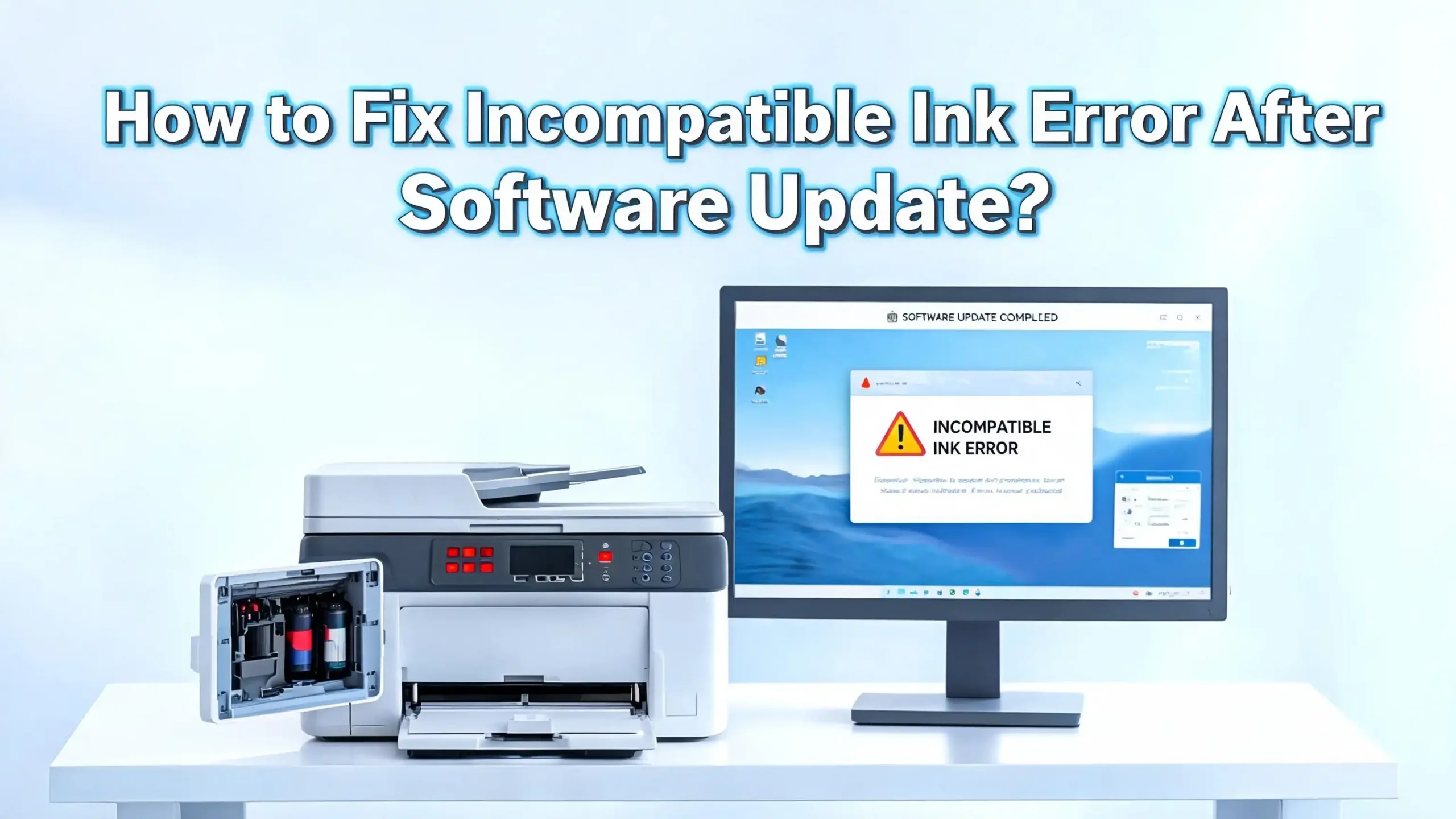
How to Fix Incompatible Ink Error After a Software Update?
You just updated your printer software, and now your printer refuses to recognize the ink cartridge you have been using for months. The screen flashes an “incompatible ink” error and nothing prints. Sound familiar? You are not alone.
Thousands of printer users face this exact problem every year, especially after a firmware or driver update from brands like HP, Epson, Canon, and Brother.
The good news is that this problem is almost always fixable. You do not need to buy a brand-new printer or spend hours on hold with customer support. This guide covers every proven solution, from a simple power cycle to rolling back your firmware, so you can get back to printing as fast as possible.
Whether you use a third-party ink cartridge or even an original manufacturer cartridge that suddenly stopped working, this post has the answer for you. Read every section carefully because the fix that works for one person may differ from the fix that works for you.
Key Takeaways
- Firmware updates are the #1 reason printers suddenly show an incompatible ink error. Brands like HP, Epson, and Brother regularly push updates that block third-party or older cartridges.
- A simple power cycle or cartridge reseating solves the problem for many users and should always be your first step before trying anything more advanced.
- Cleaning the cartridge’s electrical contacts removes dirt and oxidation that can trigger a false incompatibility reading, even with genuine cartridges.
- Rolling back your printer firmware to a previous version is one of the most effective fixes when a recent update is confirmed as the cause, and this process is possible on most major printer brands.
- Disabling automatic firmware updates is one of the best long-term habits you can build to prevent this error from happening again in the future.
- Reinstalling your printer driver from scratch can resolve software conflicts that make your printer misread a perfectly good cartridge as incompatible.
Why Does a Software Update Cause an Incompatible Ink Error?
Before fixing the problem, it helps to understand why it happens. Printer manufacturers regularly release firmware updates, which are small software programs stored inside the printer itself. These updates can change how the printer reads cartridge chips.
Some updates are designed to block non-original cartridges. HP, for example, uses a technology called Dynamic Security in many of its printers. When a firmware update activates or tightens this security layer, the printer may suddenly reject a cartridge it previously accepted without any issue.
Epson and Brother have also faced criticism for firmware updates that disabled third-party ink supplies. In 2025, Brother was publicly accused of using forced firmware updates to lock down third-party cartridges, which shows this is an industry-wide issue.
Even genuine manufacturer cartridges can trigger the error. If the printer’s chip-reading software changes after an update, the cartridge chip data may no longer match what the printer expects to see. This mismatch causes the incompatible ink message to appear.
The error can also show up if the update introduced a software bug, changed regional cartridge settings, or caused a conflict with your existing printer driver. Knowing the cause helps you pick the right solution.
Step 1: Power Cycle Your Printer First
This is the simplest fix and it works more often than people expect. A power cycle forces the printer to clear its temporary memory and reload its settings from scratch.
Here is how to do it properly. First, turn the printer off using its power button. Do not just put it in sleep mode. Next, unplug the power cord directly from the wall outlet or power strip. Wait for a full 60 seconds. Do not rush this step because the waiting period allows residual power to drain completely from the printer’s memory chips.
While you wait, also remove the ink cartridge from the printer. Hold it at the sides and avoid touching the copper or gold-colored electrical contacts on the bottom or back. After 60 seconds, reinsert the cartridge firmly until it clicks into place.
Reconnect the power cord, then turn the printer back on. Wait for the printer to fully initialize before checking the display. Many users report that this single step clears the incompatible ink error entirely, especially when the error appeared right after a restart during an update installation.
If the error comes back immediately, do not panic. This just means the issue runs a little deeper and one of the following steps will solve it.
Step 2: Reseat the Ink Cartridge Correctly
A cartridge that is not fully seated in its slot sends incorrect or incomplete data to the printer. The printer interprets missing data as an incompatibility signal. This is a very common cause of false errors.
Open the printer’s cartridge access door and wait for the carriage to move to the center access position. Gently press down on the cartridge and listen for a distinct click. If you do not hear a click, the cartridge is not fully locked in.
Remove the cartridge completely and look at it carefully. Check that you have removed all protective plastic strips and orange tabs. These shipping guards are easy to miss, especially on refilled or remanufactured cartridges. Leaving even one tab in place can block the ink nozzle or cover a contact point.
Also check that you are inserting the correct cartridge into the correct slot. Color cartridges have color-coded slots on most printers. A yellow cartridge placed in the cyan slot will always trigger an error. Refer to the diagram printed on the inside of the cartridge access door to confirm every cartridge is in its proper slot.
Once you have reseated each cartridge properly, close the access door and wait for the printer to run its self-check. Most printers run a small alignment or recognition sequence at this point. If the error disappears, you are done.
Step 3: Clean the Electrical Contacts on the Cartridge
Dirty electrical contacts are a major cause of the incompatible ink error, and this issue gets worse after a firmware update. Here is why: a firmware update increases the sensitivity of the chip-reading process. Contacts that used to work fine with a little dust on them may now fail the stricter reading check.
The electrical contacts are the small copper or gold-colored pads on the bottom or back of the cartridge. There are also matching contacts inside the printer on the carriage assembly. Both sets need to be clean.
To clean them, get a lint-free cloth or a cotton swab lightly dampened with distilled water or isopropyl alcohol (at least 90% concentration). Gently wipe the contacts in one direction. Do not scrub back and forth because this can scratch the pads.
Let everything dry completely for at least 10 to 15 minutes before reinserting the cartridge. This is important because moisture on the contacts can cause a short circuit or create a worse error.
To clean the contacts inside the printer carriage, use a dry cotton swab and gently wipe the small metal contact points. Be careful not to bend them. After cleaning both sets of contacts, reseat the cartridge and power the printer back on. This fix resolves the incompatible ink error in a large percentage of cases, even when the firmware was recently updated.
Step 4: Check Cartridge Compatibility With Your Printer Model
After a software update, your printer’s compatibility list sometimes changes. A cartridge that was listed as compatible with firmware version 1.0 may not appear on the compatibility list in firmware version 2.0.
Go to your printer manufacturer’s official website. Find your exact printer model number (usually printed on a sticker on the bottom or back of the printer). Then look up the list of supported cartridges for that model.
Make sure the cartridge number matches exactly. For example, an HP 65 cartridge is not the same as an HP 65XL, and using the wrong one can trigger an error. Similarly, a Canon PG-245 is different from a PG-245XL.
If you are using a third-party or remanufactured cartridge, check the third-party manufacturer’s website. They sometimes release updated chip versions specifically to work with newer printer firmware. Contacting their support team can get you a replacement cartridge with an updated chip at no extra cost.
For users in different countries, also check the regional cartridge version. Some printers use region-locked cartridges, and a cartridge purchased in one country may trigger an incompatibility error when used in a printer from a different region. If this is your situation, you will need to contact support for a regionalization reset.
Step 5: Roll Back Your Printer Firmware to the Previous Version
This is one of the most effective solutions for users whose printers started rejecting cartridges immediately after a firmware update. Rolling back the firmware restores the printer to the version that was working before the update.
The process varies by printer brand, but the general steps are similar across most models.
For HP printers: Visit the HP Support website and search for your printer model. Look in the firmware section and find older firmware versions available for download. Download the previous version as a file. Then open the HP Smart app or the EWS (Embedded Web Server) by typing your printer’s IP address into a browser. Navigate to the firmware update section and upload the older firmware file manually.
For Epson printers: Epson has become stricter about this. Some models allow a service mode reset. Hold specific button combinations during startup to enter service mode, then use Epson’s adjustment program tool to restore a prior firmware state. The specific button combination varies by model so check your model’s documentation.
For Canon printers: Canon allows firmware management through their IJ Network Device Setup Utility. Check the firmware history section to see if a previous version is available.
For Brother printers: Go to the Brother support website, find your model, and check if older firmware files are available. Brother also allows firmware updates through the printer’s built-in menu, which can sometimes be used in reverse.
Keep in mind that some manufacturers remove older firmware versions over time to prevent downgrading. Act quickly if you have just experienced the error after an update.
Step 6: Disable Automatic Firmware Updates
Once you have resolved the immediate error, the most important next step is preventing it from happening again. Automatic firmware updates are convenient but they can re-trigger the incompatible ink error at any time if the printer quietly updates itself overnight.
For HP printers: Open the HP Smart app on your computer or mobile device. Go to the printer settings and find the “Printer Update” or “Auto Update” option. Toggle it to “Off.” You can also access this through the printer’s Embedded Web Server (EWS) by typing the printer’s IP address into your browser. Go to Tools > Firmware Updates and disable automatic updates there.
On the printer’s control panel, navigate to Settings > Printer Maintenance > Firmware Update and switch automatic updates off.
For Epson printers: Open the Epson Software Updater on your computer. Go to the settings or preferences menu and uncheck the automatic update option. You can also block firmware updates by disabling the printer’s internet connection when you are not using it.
For Brother printers: On the printer’s control panel, go to the Settings or All Settings menu, then select Machine Info or Initial Setup, and find Firmware Update. Set Auto Update to Off.
Disabling automatic updates means you stay in control. You can choose to update firmware only after confirming that the new version does not break compatibility with your cartridges.
Step 7: Reinstall Your Printer Driver
A corrupted or outdated printer driver can cause software conflicts that make your printer show a false incompatibility error. This is especially true if the driver and the new firmware version are not aligned.
Start by completely uninstalling the current driver. On Windows, go to Control Panel, then Devices and Printers. Right-click on your printer and select “Remove device.” Then go to Settings > Apps and look for any printer software listed there. Uninstall everything related to your printer brand.
On Mac, go to System Settings > Printers and Scanners, select your printer, and click the minus button to remove it. Then open the Library folder and delete any residual printer files in the Printers subfolder.
After removing the old driver, restart your computer. Then visit the official printer manufacturer’s website and download the latest full-feature driver for your specific printer model and operating system. Install it fresh.
During installation, let the software fully complete its setup without interrupting it. Once complete, reconnect the printer and check whether the cartridge is now recognized correctly. A clean driver installation removes software conflicts that the original install may have accumulated over time.
Step 8: Reset Your Printer to Factory Settings
If none of the above steps have solved the incompatible ink error yet, a factory reset is the next best option. A factory reset wipes all custom settings and returns the printer to its original out-of-box state.
This can solve errors caused by corrupted configuration files that were introduced during the software update process.
On most HP printers: Press and hold the Wireless button and the Cancel button together for three seconds. On touchscreen models, go to Settings > Printer Setup > Restore Factory Defaults.
On Epson printers: Go to the Home screen, then Settings, then Restore Default Settings. Choose Reset All Settings and confirm.
On Canon printers: Navigate to Setup on the control panel, then Device Settings, then Reset Settings, and select Reset All.
On Brother printers: Go to Settings, then All Settings, then Initial Setup, then Reset, and select Factory Reset.
After the reset completes, the printer will restart automatically. You will need to re-enter your Wi-Fi password and any other custom settings. Once the setup is complete, test the cartridge again.
Note that a factory reset does not roll back the firmware version. It only resets configuration and settings data. If the firmware itself is the root cause, you will still need to roll it back using the method described in Step 5.
Step 9: Override the Incompatible Ink Warning (Temporary Fix)
Some printers allow you to override the incompatibility warning and continue printing even when the error is displayed. This is a temporary solution but it can be useful if you need to print urgently while you work on a permanent fix.
On HP printers: When the incompatible cartridge error screen appears, look for an “OK” or “Continue” button option on the display. On some models you can press and hold the Cancel or Resume button (the X or exclamation mark button) for five seconds to bypass the warning.
On Epson printers: Epson sometimes allows you to proceed by pressing the OK button repeatedly on the error screen. Some models require you to hold the Stop or Cancel button for several seconds to dismiss the error temporarily.
On Canon printers: A “Stop/Reset” button press can sometimes clear the error and allow one print cycle to complete.
This override does not fix the underlying issue, and the error will likely return the next time you power the printer on. Use this method only when you have an urgent print job and cannot wait for a full fix. Be aware that printing with a partially recognized cartridge can sometimes reduce print quality.
Step 10: Update Your Printer Firmware (For Genuine Cartridge Users)
This might seem counterintuitive after reading about rolling back firmware, but if you are using genuine manufacturer cartridges and they stopped working after a software update, the solution may actually be to install the latest available firmware rather than roll it back.
This situation happens because sometimes a buggy intermediate firmware version breaks cartridge recognition, and the manufacturer releases a follow-up patch that fixes the problem. If you are not on the very latest firmware, the bug may still be present in your version.
Go to your printer manufacturer’s official support page. Enter your printer model number and download the latest firmware file. Install it using the printer’s built-in update tool or the manufacturer’s desktop software.
After the update finishes, power-cycle the printer and test the cartridge again. Many users have reported that updating to the newest firmware immediately resolved the error that a slightly older firmware version caused.
This approach works best for users with genuine brand cartridges. If you use third-party cartridges, the newest firmware may make things worse. In that case, rolling back as described in Step 5 is the better route.
Step 11: Contact Printer Support for a Cartridge Region Reset
If you have tried every step above and the incompatible ink error still appears, there may be a region lock issue with your cartridge or printer. This is not something you can fix on your own. You need to contact the manufacturer’s support team.
HP in particular uses regional restrictions on some cartridges. A cartridge purchased in Europe may not work in a printer sold in North America, and vice versa. After certain firmware updates, these region checks become stricter.
Contact HP support and specifically ask for a “regionalization reset.” This is a service that HP provides free of charge and it removes the regional restriction from your printer. You will typically need to provide your printer’s serial number and proof of purchase for the cartridge.
Epson and Canon support teams can also remotely diagnose firmware-related cartridge errors through their service tools. Brother support has an escalation path for firmware-blocked cartridge issues.
When you contact support, be prepared to tell them the exact error code shown on the display, the firmware version currently installed (found in Settings > Printer Information on most models), the cartridge model number, and the date the error first appeared. Having this information ready speeds up the resolution process significantly.
Step 12: Check for Third-Party Cartridge Chip Updates
If you are using a third-party or remanufactured ink cartridge, the cartridge chip may simply be outdated. Printer manufacturers update the chip recognition requirements through firmware updates, and third-party cartridge suppliers need to update their chips in response.
Many third-party cartridge brands proactively release updated chip versions. These updated chips are programmed to be recognized by the latest printer firmware. Check the third-party brand’s website for announcements about firmware compatibility updates.
Contact the supplier and explain exactly which firmware version broke your cartridge. Many reputable third-party suppliers will send you replacement cartridges with updated chips at no cost if the incompatibility is caused by a printer firmware change they can verify.
If your third-party brand does not offer chip updates, it may be time to switch to a different supplier that actively maintains firmware compatibility. Look for suppliers who clearly list the printer firmware versions their cartridges support on their product pages.
Step 13: Prevent Future Incompatible Ink Errors Long-Term
Fixing the error today is only half the battle. Building good habits now prevents you from facing this same frustration every time an update rolls out.
First, always create a note of your current firmware version before any update. Go to Settings > Printer Information on your printer and write down the firmware version number. This way, if an update breaks something, you know exactly which version to roll back to.
Second, join your printer model’s user community on forums like Reddit’s r/printers subreddit or the manufacturer’s official support community. When a firmware update causes widespread cartridge issues, community members report it within hours. Checking the community before installing an update takes two minutes and can save you hours of troubleshooting.
Third, keep a spare original manufacturer cartridge on hand if you regularly use third-party cartridges. This lets you quickly test whether the issue is firmware-related or specific to your third-party cartridge.
Fourth, back up your printer settings if your model supports it. Some printers allow you to export settings through the EWS (Embedded Web Server). A saved backup means you can restore a working configuration quickly after any future update causes problems.
Frequently Asked Questions
Why did my printer suddenly say my ink is incompatible?
The most common reason is a recent firmware or software update that changed how your printer reads cartridge chips. Brands like HP, Epson, and Brother regularly update firmware that can block certain cartridges, particularly third-party ones. A dirty contact, a incorrectly seated cartridge, or a regional cartridge mismatch can also trigger this message.
Can a firmware update permanently block my third-party ink cartridge?
In some cases, yes. Certain firmware updates include permanent Digital Rights Management (DRM) restrictions that block non-original cartridges. However, rolling back to an earlier firmware version, obtaining an updated chip from your third-party supplier, or contacting the manufacturer for a bypass are all options that can restore functionality.
Is it safe to roll back printer firmware?
Yes, rolling back firmware is generally safe as long as you use the official firmware file from the manufacturer’s website and follow the correct process. Avoid interrupting the firmware flash process, as this can corrupt the printer’s software. Always download firmware files only from official manufacturer sources.
Will a factory reset fix the incompatible ink error?
A factory reset fixes errors caused by corrupted configuration files or software conflicts introduced during an update. However, if the firmware itself is blocking the cartridge, a factory reset alone will not solve the problem. You will still need to roll back the firmware or update it to a working version.
How do I know which firmware version my printer is using?
On most printers, go to the control panel and navigate to Settings > Printer Information or About This Printer. The firmware version number is listed there. On HP printers, you can also find this information through the HP Smart app or the Embedded Web Server (EWS) by typing the printer’s IP address into a browser.
Can I use my printer while the incompatible ink error is showing?
On some printer models, you can press OK or Continue to bypass the warning and complete a print job. However, this is only a temporary workaround. The error will typically return on the next power cycle, and print quality may be affected. It is better to resolve the root cause as soon as possible.
What is HP Dynamic Security and how does it affect my ink cartridges?
HP Dynamic Security is a feature built into many HP printers that verifies whether installed cartridges meet HP’s security requirements. Firmware updates can activate or strengthen this feature, causing previously working third-party cartridges to be rejected. HP includes a notice about Dynamic Security on most compatible product pages. If your printer uses Dynamic Security, you may need to use HP-original cartridges or roll back the firmware to a version before the feature was activated.
How can I stop my printer from updating its firmware automatically?
Most printers allow you to disable automatic firmware updates through the printer’s control panel settings or through the manufacturer’s desktop software. On HP printers, use the HP Smart app and go to Printer Update > Auto Update > Off. On Epson, use the Epson Software Updater settings. On Brother, go to Settings > Initial Setup > Firmware Update > Auto Update > Off.

I’m the voice behind Device Dossier. As a printing technology enthusiast, I spend my time testing printers, comparing specs, and writing honest reviews to help you find the perfect printing solution. When I’m not geeking out over print quality and page yields, you’ll find me exploring the latest in tech.