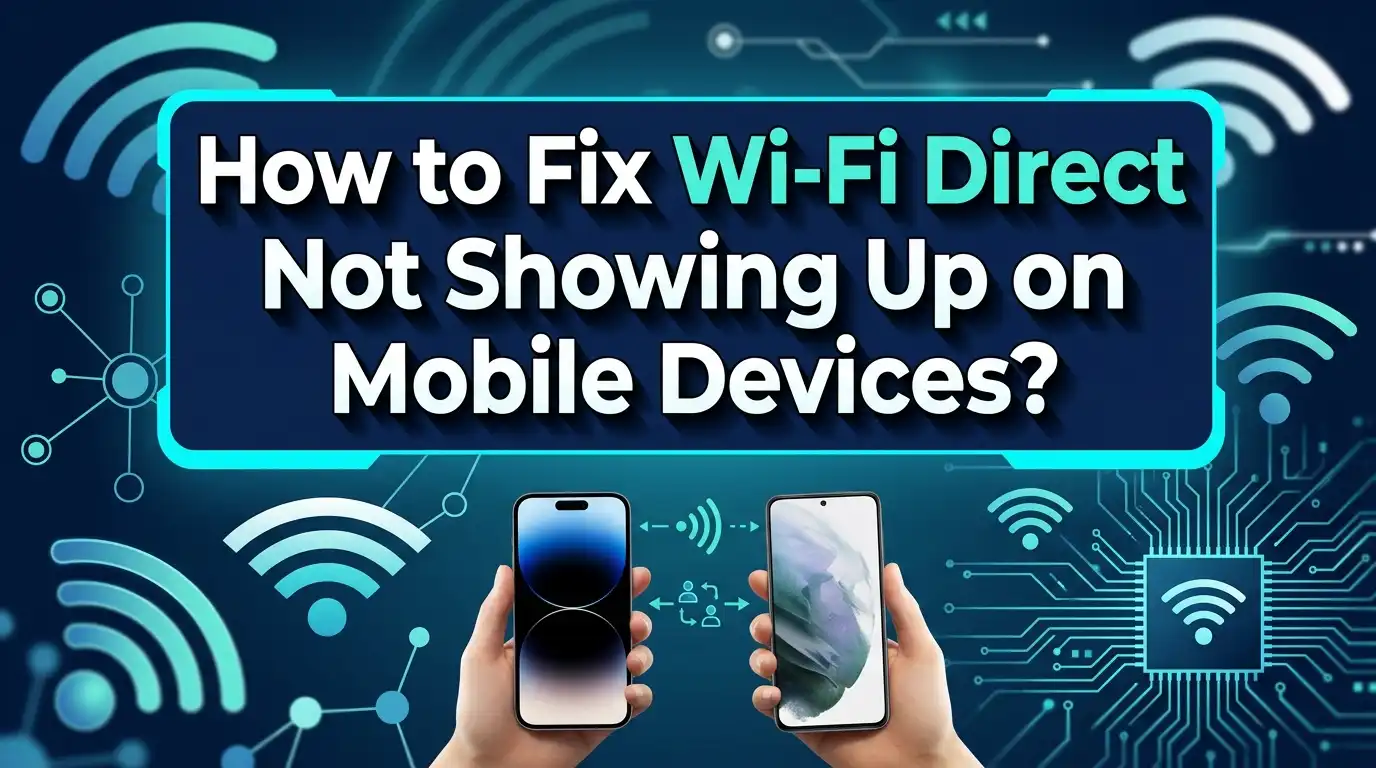
How to Fix Wi-Fi Direct Not Showing Up on Mobile Devices?
Wi-Fi Direct makes life easy. It connects your phone to a printer or another device in seconds. No router. No internet. Just a fast, direct link.
But sometimes this handy feature just disappears. You open your settings and Wi-Fi Direct is nowhere to be found. It feels frustrating when you need to share a file or print a photo fast.
This problem happens more often than you think. Many Android and iOS users face this exact issue. The good news is that it usually has a simple fix.
In this guide, we will explore why Wi-Fi Direct stops showing up on your device. We will walk you through easy, step by step solutions to bring it back.
In a Nutshell
- Check your Wi-Fi first. Make sure Wi-Fi is turned on for both devices. This simple step often solves the whole issue.
- Look in the right menu. On Android 11 and newer phones, find it under Network & Internet then Wi-Fi Preferences. Tap Advanced to see Wi-Fi Direct.
- Move devices closer. Distance can stop devices from finding each other. Keep your gadgets within a short range for the best connection.
- Restart your devices. A simple restart clears small glitches. This helps your phone find the Wi-Fi Direct feature again.
- Update your software. Old software can hide new features. Check for updates to keep your device running smoothly.
- Reset network settings if needed. Go to Settings then System to find reset options. This fixes deeper connection problems.
What Is Wi-Fi Direct and How Does It Work?
Wi-Fi Direct is a wireless technology that lets two devices connect directly to each other. You don’t need a router or internet connection to use it. Your phone talks straight to another device like a printer, laptop, or speaker.
This feature works by turning your device into a temporary access point. Think of it like creating your own mini network just for two devices. One device broadcasts a signal. The other device finds and joins that signal. Once connected, they can share files, photos, or data instantly.
How the connection actually happens is pretty straightforward. Your device scans for nearby devices that also have Wi-Fi Direct enabled. When it finds them, those device names appear on your screen. You tap the one you want. Both devices confirm the connection. Within seconds, you’re linked up and ready to go.
Wi-Fi Direct works on most modern smartphones, tablets, laptops, and smart devices. However, both devices must support this technology. Older phones might not have it. Printers and cameras usually have it built in.
The key requirement is that Wi-Fi must be turned on for Wi-Fi Direct to work. This confuses many people. Even though you’re not connecting to the internet, you still need Wi-Fi enabled on your device. It’s the radio that powers the connection.
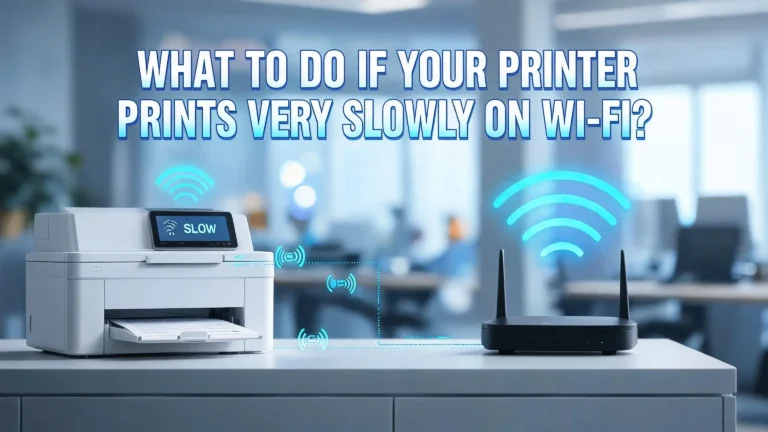
The range is typically around 100 meters in open space. Walls and obstacles reduce this distance. That’s why devices need to be relatively close to find each other. Once you understand these basics, troubleshooting becomes much easier. You’ll know exactly what should happen and when things go wrong.
Why Wi-Fi Direct Might Not Appear on Your Device
Wi-Fi Direct might not show up on your device for several common reasons. Understanding these causes helps you fix the problem faster.
Wi-Fi is turned off. This is the most frequent culprit. If Wi-Fi is disabled on your device, Wi-Fi Direct cannot function. Your phone or tablet needs Wi-Fi enabled in the system settings to detect other devices nearby.
Your device lacks compatibility. Not all devices support Wi-Fi Direct. Older smartphones and tablets may not have this feature built in. Check your device’s specifications to confirm it supports Wi-Fi Direct technology.
Software is outdated. Your operating system might need updates. Manufacturers release patches and improvements regularly. Running old software can prevent Wi-Fi Direct from appearing in your settings menu.
Airplane mode is active. This setting disables all wireless connections instantly. When airplane mode turns on, Wi-Fi Direct becomes unavailable. Check your quick settings panel to see if this mode is enabled.
The other device isn’t in discovery mode. Wi-Fi Direct requires both devices to search for connections simultaneously. If the target device isn’t actively looking for connections, your phone won’t find it.
Devices are too far apart. Distance matters for Wi-Fi Direct connections. If devices are beyond the typical range of 100 meters, they cannot detect each other.
Network settings need resetting. Sometimes your device’s wireless configuration gets corrupted. This prevents Wi-Fi Direct from working properly even when everything else seems fine.
Bluetooth interference occurs. Other wireless signals can block Wi-Fi Direct. Microwave ovens, cordless phones, and Bluetooth devices operating nearby may cause connection issues.
Identifying which reason applies to your situation is the first step toward getting Wi-Fi Direct working again.
Step-by-Step: Enabling Wi-Fi Direct on Android Devices
Enabling Wi-Fi Direct on Android devices is straightforward once you know where to look. The process varies slightly depending on your Android version, so we will cover both older and newer systems.
For Android 10 and Earlier
Start by opening your Settings app. Tap on Wi-Fi to access wireless options. Make sure Wi-Fi is turned on, as Wi-Fi Direct cannot function when Wi-Fi is disabled. Look for an option called Wi-Fi Direct in the menu. This might appear as a three-dot menu icon or under advanced settings. Tap Wi-Fi Direct and your device will begin scanning for other devices nearby that also have Wi-Fi Direct enabled.
For Android 11 and Later
The menu location changed in newer versions. Open Settings and navigate to Network and Internet. Select Wi-Fi Preferences from the list. Tap Advanced to expand more options. You should see Wi-Fi Direct listed here. Tap it to activate the feature and start scanning for available devices.
What Happens Next
Once you tap Wi-Fi Direct, your device enters discovery mode. It will display a list of nearby devices that support this feature. Select the device you want to connect to from the list. The other device must also be in Wi-Fi Direct mode for your phone to detect it.
Important Notes
Both devices must have Wi-Fi enabled before attempting to use Wi-Fi Direct. Keep devices within 100 meters of each other for reliable connections. If you do not see Wi-Fi Direct in your settings, your device may not support this feature. Check your device manual or manufacturer website to confirm compatibility.
Locating Wi-Fi Direct Settings on Android 11 and Newer
On Android 11 and newer devices, finding Wi-Fi Direct settings requires knowing the exact path through your phone’s menu system. The location differs slightly from older Android versions, so follow these steps carefully.
Start by opening your Settings app on your Android device. Look for the option labeled “Network & Internet” or “Connections.” This is usually near the top of your Settings menu. Tap on it to expand your network options.
Next, find and select “Wi-Fi” from the available choices. Once you’re in the Wi-Fi section, look for a menu icon, often represented by three vertical dots or lines. Tap this icon to reveal additional options.
From the dropdown menu, select “Advanced” or “Wi-Fi Preferences.” This submenu contains advanced Wi-Fi features that aren’t visible in the main Wi-Fi settings. You should now see “Wi-Fi Direct” listed as an option.
Tap on “Wi-Fi Direct” to activate it. Your device will immediately begin scanning for other compatible devices in the area. The scanning process usually takes a few seconds, and you’ll see a list of available devices appear on your screen.
If you don’t see Wi-Fi Direct in your Advanced menu, verify that Wi-Fi itself is turned on first. Some devices hide the Wi-Fi Direct option when Wi-Fi is disabled. Additionally, make sure your device actually supports Wi-Fi Direct by checking your phone’s specifications online.
Once you locate Wi-Fi Direct, keep this path bookmarked in your memory. You’ll need to return here whenever you want to connect devices directly without using a router or internet connection.
Common Mistakes That Prevent Wi-Fi Direct From Showing Up
People often make simple mistakes that stop Wi-Fi Direct from appearing. Understanding these errors helps you fix the problem quickly.
The most common mistake is leaving Wi-Fi turned off. Wi-Fi Direct cannot work without Wi-Fi enabled on your device. Check your settings immediately. Go to your Wi-Fi menu and verify the toggle is switched on. This single step solves most issues.
Another frequent error involves forgetting to enable Wi-Fi Direct mode on both devices. Wi-Fi Direct requires active participation from both phones or devices. One device sitting idle won’t connect. Make sure both devices are in discovery mode at the same time.
Outdated software creates hidden problems. Your phone’s operating system might lack the latest Wi-Fi Direct features or bug fixes. Check for pending updates in your settings. Installing updates often resolves connection issues immediately.
Distance between devices matters more than people realize. Placing phones too far apart prevents them from detecting each other. Wi-Fi Direct works best within close proximity. Move your devices closer together and try again.
Airplane mode is another sneaky culprit. This setting disables all wireless functions instantly, including Wi-Fi Direct. Swipe down from your screen to check the quick settings panel. Airplane mode should be off.
Some users forget that not all devices support Wi-Fi Direct. Older phones and budget devices sometimes lack this feature. Check your device specifications or manual to confirm compatibility.
Finally, poor timing causes connection failures. Both devices must search for connections simultaneously. If one device stops searching before the other appears, the connection fails. Activate Wi-Fi Direct on both phones within seconds of each other.
Troubleshooting Tips to Restore Wi-Fi Direct Visibility
Wi-Fi Direct visibility issues often stem from simple settings problems. Start by checking if Airplane mode is active on your device. Airplane mode blocks all wireless connections, including Wi-Fi Direct. Swipe down from your screen’s top to access quick settings and disable it.
Next, verify that Wi-Fi itself is turned on. Open Settings and navigate to Wi-Fi. Even if you plan to use Wi-Fi Direct, the Wi-Fi radio must be active for peer-to-peer connections to work. Toggle Wi-Fi on if it’s currently off.
Restart both devices completely. Power cycling clears temporary glitches that prevent Wi-Fi Direct from appearing. Turn off your phone and the device you want to connect to. Wait 10 seconds, then power them back on.
Check if your device actually supports Wi-Fi Direct. Older phones and some budget models lack this feature. Visit your device manufacturer’s website to confirm compatibility.
Reset your network settings if Wi-Fi Direct still doesn’t show up. Go to Settings, find System or General Management, then select Reset options. Tap “Reset Bluetooth and Wi-Fi” or similar wording. This action clears corrupted network data without affecting your files.
Move your devices closer together. Wi-Fi Direct has limited range, typically 30 feet maximum. Obstacles like walls and metal objects reduce this distance further.
Finally, check for software updates. Outdated operating systems sometimes hide Wi-Fi Direct functionality or contain bugs. Open Settings, find About Phone or System, and look for update options. Install any available updates and restart your device afterward.
These steps resolve most Wi-Fi Direct visibility problems quickly and effectively.
Resetting Network Settings and Performing a Hardware Reset
Resetting your network settings removes stored Wi-Fi data and clears connection conflicts. This action often fixes Wi-Fi Direct issues that simple restarts cannot solve.
To reset network settings on Android devices, open your Settings app and navigate to System. Look for Reset options or Reset Network Settings. Select the option to reset Wi-Fi and Bluetooth together. Your device will restart automatically after this process completes.
After resetting, you’ll need to reconnect to your regular Wi-Fi network and reconfigure Wi-Fi Direct settings. This fresh start eliminates corrupted network files that block Wi-Fi Direct detection.
A hardware reset goes deeper than network settings. This action restores your device to factory conditions. On smartphones, go to Settings, then System, then Reset options, and choose Factory Reset. Warning: This erases all personal data, so back up your files first.
For peripheral devices like printers or smart speakers, hardware resets work differently. Hold down the Cancel or Reset button for 5 to 10 seconds. Some devices require holding multiple buttons simultaneously. Check your device’s manual for exact instructions.
After performing either reset, allow your device several minutes to fully restart. Don’t interrupt the process or remove power during the reset.
Once your device restarts, enable Wi-Fi first. Then navigate to Wi-Fi Direct settings and activate it. Move both devices within 10 feet of each other. Attempt to connect again.
If Wi-Fi Direct still doesn’t appear, check for software updates before trying other solutions. Outdated firmware prevents Wi-Fi Direct from functioning properly. Updates often include fixes for connectivity problems that resets alone cannot address.
Ensuring Device Compatibility and Software Updates
Your device needs two things to use Wi-Fi Direct: hardware support and current software. Not all mobile devices support this feature, so checking compatibility is your first step.
Check your device model online to confirm Wi-Fi Direct capability. Most smartphones made after 2012 include this feature, but some budget models don’t. Visit your manufacturer’s official website to verify. Look for “Wi-Fi Direct” in the specifications section.
Your operating system version matters greatly. Older Android versions may not show Wi-Fi Direct options clearly. iOS devices handle Wi-Fi Direct differently than Android phones do. Check which Android version you’re running by opening Settings and scrolling to “About phone.”
Software updates fix compatibility issues that hide Wi-Fi Direct. Go to Settings and find “System update” or “Software update.” Tap “Check for updates” to see if newer versions are available. Install any pending updates before troubleshooting further.
Some manufacturers customize their Android systems. Your phone might label Wi-Fi Direct differently. Look for “Wireless Direct,” “Device Connection,” or “P2P” in your Settings menu. The feature exists but uses different naming.
Tablets and laptops also support Wi-Fi Direct, though setup varies by device type. Windows computers access this through Network settings. Android tablets follow the same steps as phones.
Verify both devices support the same Wi-Fi Direct standard. Older devices may use older standards that newer phones don’t recognize. Check documentation for both devices you want to connect.
Update your device’s firmware if it’s a peripheral like a printer or speaker. These devices need current software too. Outdated firmware prevents compatibility with newer phones. Check the manufacturer’s support page for firmware download links.
Final Thoughts
Wi-Fi Direct problems usually have simple fixes. Most issues come from basic settings, not broken hardware.
Start with the easy checks first. Turn Wi-Fi on. Restart your devices. Move them closer together.
If simple steps don’t work, try deeper fixes. Reset your network settings. Check for software updates. These solve most stubborn cases.
Patience matters during this process. Test one fix at a time. This helps you find what actually works.
Remember that both devices need Wi-Fi Direct support. Older gadgets may not have this feature. Check your device specs if problems continue.
Software updates play a big role in fixing visibility issues. Manufacturers often patch bugs that hide Wi-Fi Direct. Keep your devices updated regularly to avoid future problems.
Airplane mode causes many hidden issues too. Always double check this setting before troubleshooting further. It’s an easy step people often skip.
For printers and smart devices, hardware resets help often. Hold the right buttons for five seconds. This clears stuck connections quickly.
Most connection failures happen from small oversights. A forgotten setting or an old app version can block the feature. Going through each step carefully solves the mystery fast.
Wi-Fi Direct makes sharing files and connecting devices simple once it works properly. You won’t need internet or a router for quick transfers.
Try these steps in order whenever Wi-Fi Direct disappears again. Start simple, then move to deeper fixes if needed.
With a little patience, your devices should connect smoothly. Most users fix this problem within minutes using these methods.
Keep this guide handy for future troubleshooting. Wi-Fi Direct issues rarely need professional help when you follow these steps.
Frequently Asked Questions
Why doesn’t my device show any Wi-Fi Direct options?
Wi-Fi Direct might be hidden in your settings menu. On Android 11 and newer, the location moved to a different spot. Go to Settings, then Network & Internet, then Wi-Fi Preferences, then Advanced, and look for Wi-Fi Direct there. On older Android versions, you’ll find it directly in the Wi-Fi settings menu. Make sure Wi-Fi is turned on first before you search for Wi-Fi Direct options.
What should I do if I can’t find other devices to connect to?
Both devices must have Wi-Fi enabled and be in Wi-Fi Direct mode at the same time. Restart your mobile device completely. Move the devices closer together, as they need to be within range of each other. Check that the other device actually supports Wi-Fi Direct. Some older phones and accessories don’t have this feature built in.
Why does my connection fail right after I select a device?
A failed connection usually means your network settings need a reset. Go to Settings, then System, then Reset options, and choose Reset Bluetooth & Wi-Fi. This clears old connection data that might be blocking the new connection. Allow your device a few minutes to restart fully before trying again.
Can airplane mode prevent Wi-Fi Direct from working?
Yes, absolutely. Airplane mode disables all wireless features, including Wi-Fi and Wi-Fi Direct. Turn off airplane mode in your quick settings panel or in your main Settings app. Once you disable it, your device can search for and connect to other devices using Wi-Fi Direct.
How do I fix Wi-Fi Direct on my printer or smart speaker?
Peripheral devices like printers need a hardware reset. Hold down the Cancel button and the Wireless button at the same time for about 5 seconds. This performs a deeper reset than network settings alone. After the reset completes, enable Wi-Fi again and set up Wi-Fi Direct from scratch.

I’m the voice behind Device Dossier. As a printing technology enthusiast, I spend my time testing printers, comparing specs, and writing honest reviews to help you find the perfect printing solution. When I’m not geeking out over print quality and page yields, you’ll find me exploring the latest in tech.