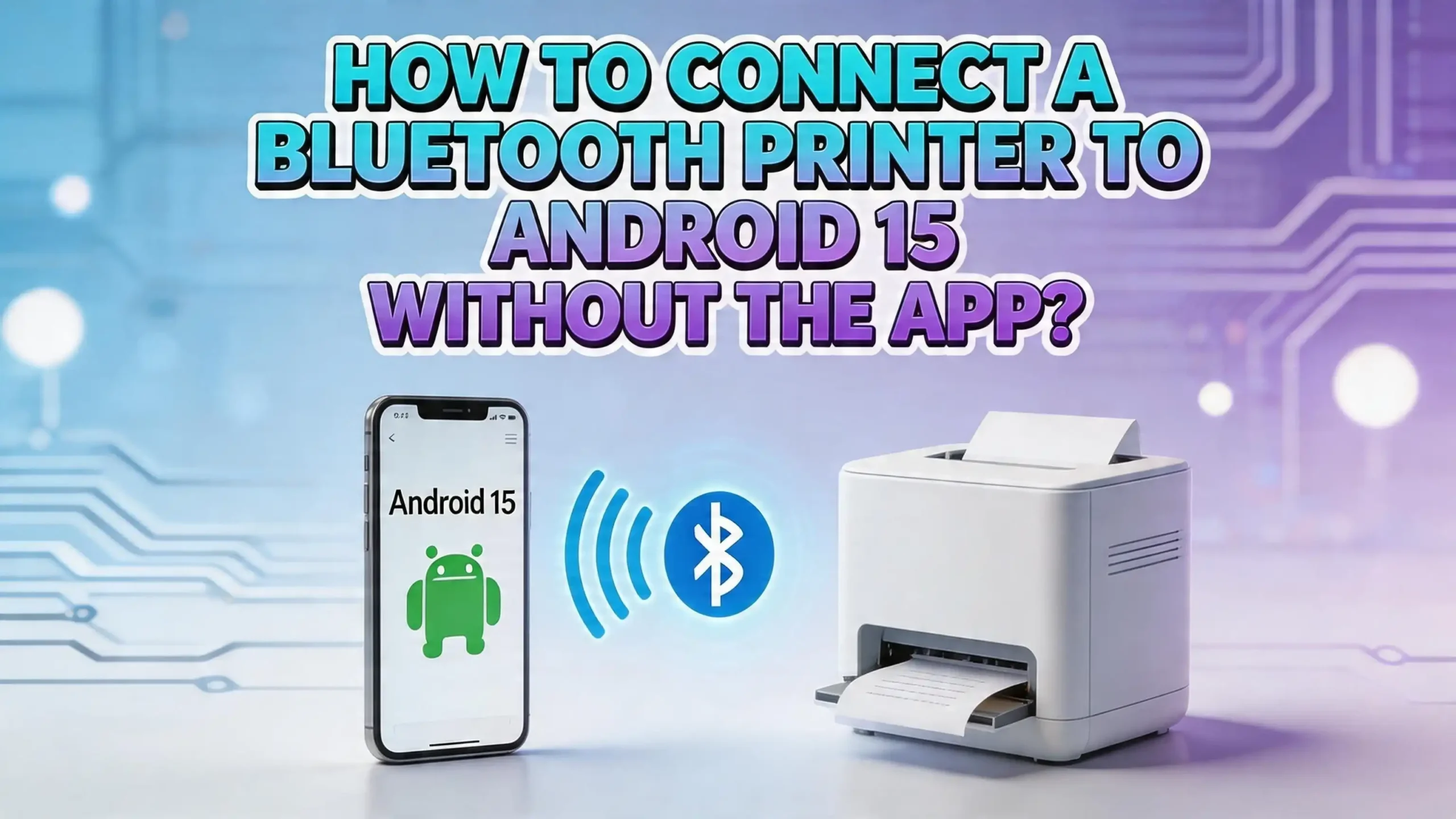
How to Connect a Bluetooth Printer to Android 15 Without the App?
You just got a Bluetooth printer, and you want to print directly from your Android 15 phone. But here’s the catch: you don’t want to download the manufacturer’s app. Maybe it takes too much storage. Maybe it keeps crashing. Maybe you just don’t want another app cluttering your phone.
Android 15 comes with a built in Default Print Service that detects compatible printers on your network. There’s also the Mopria Print Service, Wi-Fi Direct, USB OTG, and several other methods that let you skip the manufacturer’s bloated app entirely.
This guide walks you through every method available. You’ll learn how to pair your Bluetooth printer, enable the right settings, fix common errors, and print from any app on your phone. Let’s get your printer connected the easy way.
Key Takeaways
- Android 15’s Default Print Service can detect and connect to many Bluetooth and Wi-Fi printers without a separate manufacturer app. You just need to enable it in Settings under Connected Devices or Printing.
- Bluetooth pairing is the first step for any Bluetooth printer. Go to Settings, then Connected Devices, then Pair New Device. Your printer must be in discoverable mode for your phone to find it.
- Mopria Print Service works with hundreds of printer brands and acts as a universal print driver for Android. It supports Bluetooth and Wi-Fi printing and does not require a brand specific app.
- Wi-Fi Direct is a strong alternative if your printer supports it. This method creates a direct connection between your phone and printer without needing a router or internet connection.
- USB OTG printing is the most reliable fallback if Bluetooth or wireless methods fail. A simple OTG adapter lets you plug your printer directly into your Android 15 phone.
- Permission settings in Android 15 matter more than ever. You must grant Nearby Devices and Bluetooth permissions to your print service. Otherwise, your phone will not discover the printer at all.
Understanding How Bluetooth Printing Works on Android 15
Bluetooth printing on Android 15 uses a simple communication protocol. Your phone sends print data over a Bluetooth connection to the printer. The printer receives this data and converts it into a physical document. Android 15 supports Bluetooth printing through its Default Print Service, which is a system level feature built into every Android 15 device.
The Default Print Service uses a standard called Internet Printing Protocol (IPP) and also supports Bluetooth Object Push Profile (OPP) and Basic Printing Profile (BPP). These protocols let your phone talk to the printer without a manufacturer’s app serving as a middleman. The print service acts as a universal driver that handles the communication for you.
Android 15 also introduced stricter Bluetooth permissions. Your phone now requires you to grant “Nearby Devices” permission to the print service before it can scan for Bluetooth printers. This is a security improvement, but it also means you need to check your permission settings if the printer is not showing up. Without these permissions, the Default Print Service cannot discover any Bluetooth device.
One important thing to understand is that not all Bluetooth printers work the same way. Some thermal receipt printers use a raw data protocol that bypasses Android’s print framework entirely. Standard document printers from brands like HP, Canon, Epson, and Brother typically support the profiles that Android 15 can handle natively. Check your printer’s specification sheet to confirm it supports BPP or IPP over Bluetooth before attempting a connection.
Checking if Your Printer Supports App Free Bluetooth Printing
Before you try to connect, you need to verify that your Bluetooth printer is compatible with Android 15’s built in print services. Not every Bluetooth printer works without a dedicated app. Some printers rely on proprietary protocols that only the manufacturer’s software can understand.
Start by checking your printer’s manual or the manufacturer’s website. Look for mentions of Mopria certification, IPP support, or Bluetooth Basic Printing Profile (BPP). If your printer has any of these, it will likely work with Android 15’s Default Print Service. Mopria certified printers are your best bet because over 150 million printers from major brands carry this certification.
You can also check by simply trying the connection. Turn on your printer’s Bluetooth, go to your Android 15 settings, and see if the Default Print Service detects it. If the printer appears in the list, it is compatible. If it does not appear, the printer may require a proprietary app or may only support Wi-Fi printing.
Common brands that support app free Bluetooth printing include HP, Brother, Canon, Epson, Samsung, Xerox, and Lexmark. Most models released after 2018 from these brands include Mopria compatibility. Portable thermal printers from brands like Xprinter, MUNBYN, or PeriPage often need their own apps because they use custom data protocols. Always verify compatibility before assuming your printer will work without an app.
Pros: No extra storage used, quick verification process, works with most major brands.
Cons: Some budget printers lack support, proprietary thermal printers usually need apps, older models may not be compatible.
Pairing Your Bluetooth Printer with Android 15
The first physical step is pairing your Bluetooth printer to your Android 15 phone. This creates a trusted connection between the two devices. The process takes less than two minutes when everything is set up correctly.
Step 1: Turn on your Bluetooth printer and put it into pairing mode. Most printers have a Bluetooth button on the front or side panel. Press and hold it until the Bluetooth indicator light starts blinking. Some printers enter pairing mode automatically when powered on for the first time.
Step 2: On your Android 15 phone, open Settings and tap Connected Devices. Then tap Pair New Device. Your phone will start scanning for nearby Bluetooth devices. Make sure your printer and phone are within 30 feet of each other.
Step 3: When your printer’s name appears in the list of available devices, tap it. If the printer requires a PIN, enter it. The default PIN for most Bluetooth printers is 0000 or 1234. Check your printer’s manual if neither works.
Step 4: Wait for the pairing confirmation. A message on your phone will say “Paired” or “Connected” next to the printer name. Some printers also display a confirmation on their built in screen.
If the printer does not appear during scanning, restart both devices and try again. Also check that no other phone or computer is currently connected to the printer, because many Bluetooth printers only allow one active connection at a time. Move the printer closer to your phone if you are at the edge of Bluetooth range.
Enabling the Default Print Service on Android 15
After pairing, you need to enable Android 15’s Default Print Service. This service is preinstalled on every Android 15 phone, but it may be turned off by default on some devices. Without this service active, your phone will not know how to send print jobs to the paired printer.
Step 1: Open Settings on your Android 15 phone.
Step 2: Tap Connected Devices, then tap Connection Preferences, and then tap Printing. On Samsung devices, this path may be Settings > Connected Devices > Printing directly.
Step 3: You will see Default Print Service listed. Tap it and toggle the switch to On. The service will immediately begin scanning for available printers on your Bluetooth connections and local network.
Step 4: Your paired Bluetooth printer should appear in the list of detected printers. If it does, you are ready to print. If it does not, tap the three dot menu in the top right corner and select Add Printer. You can manually enter the printer’s address or search again.
One critical step that many people miss is granting the correct permissions. Go to Settings > Apps > Default Print Service > Permissions and make sure Nearby Devices is set to “Allow.” On Android 15, this permission controls Bluetooth device discovery. If it is set to “Don’t Allow,” the print service will silently fail to find your printer.
Pros: Built into the phone, no download required, works with many printer brands.
Cons: May not detect all Bluetooth printers, requires manual permission setup, limited advanced print settings.
Printing a Document Using Android 15’s Built In Print Feature
Now that your printer is paired and the Default Print Service is active, you can print from almost any app on your phone. Android 15’s print framework is accessible from any app that supports the Share or Print function.
To print a document or photo, open the file in any app. For example, open a PDF in Google Files, a document in Google Docs, or a photo in Google Photos. Tap the three dot menu (usually in the top right corner) and select Print. If you don’t see a Print option, try tapping Share first, then look for Print in the share menu.
A print preview screen will appear. At the top of this screen, you will see a dropdown menu showing available printers. Tap the dropdown and select your Bluetooth printer from the list. If the printer is not listed, tap All Printers to see every detected device.
You can adjust settings like paper size, number of copies, color or black and white, and page orientation directly on this preview screen. Android 15 supports A4, Letter, Legal, and several other standard paper sizes. Tap More Options to access additional settings if your printer supports them.
When you are satisfied with the preview, tap the Print button (the printer icon). Your phone will send the print job to the Bluetooth printer. Depending on the file size and Bluetooth speed, printing may take a few seconds to begin. Bluetooth transfers data slower than Wi-Fi, so larger documents with images will take longer. Stay within Bluetooth range until the entire job is complete.
Using Mopria Print Service as a Universal Solution
If Android 15’s Default Print Service does not detect your Bluetooth printer, Mopria Print Service is the next best option. Mopria is not a manufacturer’s app. It is a universal print service developed by an alliance of major printer companies. It works across brands and acts as a generic print driver for Android devices.
Mopria Print Service is available on the Google Play Store. Once installed, it integrates directly into Android 15’s printing framework. You use it the same way you use the Default Print Service. It replaces nothing and adds compatibility. Both services can run at the same time.
After installing Mopria, go to Settings > Connected Devices > Printing and enable Mopria Print Service. Grant it Nearby Devices and Location permissions when prompted. Then try printing again from any app. Mopria supports Wi-Fi, Wi-Fi Direct, and Bluetooth connections and works with over 150 million printers from brands including HP, Canon, Epson, Brother, Xerox, Ricoh, and Samsung.
The beauty of Mopria is that it does not require any configuration. You do not need to enter IP addresses, install drivers, or set up anything manually. It automatically detects compatible printers and makes them available in Android’s print menu. For many users, Mopria solves the printer detection problem that the Default Print Service sometimes has.
Pros: Works with nearly all major printer brands, free to use, no configuration needed, supports multiple connection types.
Cons: Requires a download from the Play Store, adds a small amount of storage usage, may conflict with Default Print Service on rare occasions.
Printing via Wi-Fi Direct Without a Router
If Bluetooth printing is unreliable or your printer supports Wi-Fi Direct, this method creates a direct wireless link between your phone and printer. Wi-Fi Direct does not need a router or internet connection. The printer broadcasts its own Wi-Fi signal, and your phone connects to it.
Step 1: Enable Wi-Fi Direct on your printer. This is usually done through the printer’s control panel or settings menu. Look for a Wireless or Network section and turn on Wi-Fi Direct. The printer will display a network name (SSID) and password.
Step 2: On your Android 15 phone, go to Settings > Wi-Fi and look for the printer’s Wi-Fi Direct network name. It often starts with “DIRECT” followed by the printer model. Tap it and enter the password shown on the printer’s display.
Step 3: Once connected, open any document and tap Print. Your printer should appear in the available printers list through the Default Print Service or Mopria.
Wi-Fi Direct is faster than Bluetooth for large print jobs because it uses Wi-Fi speeds rather than Bluetooth speeds. Photos, multi page documents, and high resolution files print significantly faster over Wi-Fi Direct. The downside is that your phone disconnects from your regular Wi-Fi network while connected to the printer, so you will not have internet access during printing.
Pros: Faster than Bluetooth, no router needed, works without internet, good for large files.
Cons: Disconnects phone from regular Wi-Fi, requires manual Wi-Fi network switching, not all printers support it.
Using USB OTG as a Reliable Backup Method
When wireless methods fail, a USB OTG (On The Go) connection offers the most reliable way to print from Android 15. This method uses a physical cable to connect your phone directly to the printer. It requires a USB OTG adapter and a standard USB printer cable.
Step 1: Get a USB OTG adapter that matches your phone’s charging port. Most modern Android 15 phones use USB C, so you need a USB C to USB A female adapter. These are affordable and widely available.
Step 2: Connect the USB OTG adapter to your phone. Then connect your printer’s USB cable to the adapter. Turn on the printer.
Step 3: Android 15 should detect the printer automatically through its Default Print Service. If it does not, you may need a third party print app like NokoPrint or PrinterShare to handle the USB connection. This is one case where a lightweight app may be necessary, but it is not the manufacturer’s app.
Step 4: Open any document and tap Print. Select the USB connected printer from the list. Adjust your settings and print.
USB OTG printing is the fastest connection method because it uses a wired data transfer. There is no signal interference, no pairing issues, and no network configuration. It works even in locations with no Wi-Fi or Bluetooth connectivity. The only limitation is that you must stay physically tethered to the printer with a cable.
Pros: Most reliable connection, fastest data transfer, works without wireless, no pairing needed.
Cons: Requires a cable and adapter, limits mobility, not all Android phones support OTG fully.
Fixing Common Bluetooth Printer Connection Errors
Even with the right setup, Bluetooth printer connections can fail. Here are the most common errors on Android 15 and how to fix each one.
“Printer Not Available” Error: This usually means the Default Print Service cannot communicate with the printer after pairing. Go to Settings > Apps > Default Print Service and tap Force Stop, then clear the cache. Re enable the service and try again. This simple reset fixes the issue about 70% of the time.
Printer Not Showing in Scan Results: Open Settings > Apps > Default Print Service > Permissions and confirm that Nearby Devices is set to Allow. On Android 15, this permission is essential for Bluetooth discovery. Also check that your phone’s Bluetooth is turned on and the printer is in range.
Print Job Stuck in Queue: Go to Settings > Connected Devices > Printing > Default Print Service and look for queued jobs. Tap the stuck job and cancel it. Then restart both the printer and your phone before sending the job again.
Pairing Fails Repeatedly: Remove the printer from your Bluetooth paired devices list. Restart both devices. Turn off Bluetooth on all other nearby devices that might be connected to the printer. Then attempt pairing again from scratch. Some printers require a factory reset of their Bluetooth settings if they have been paired with too many devices.
Slow Printing Speed: Bluetooth has limited bandwidth. Move the printer closer to your phone. Close other Bluetooth connections on your phone, such as wireless earbuds or smartwatches. This frees up bandwidth for the print job.
Granting the Right Permissions for Printing on Android 15
Android 15 made significant changes to how permissions work for Bluetooth and nearby device communication. If your permissions are not set correctly, no print service will detect your Bluetooth printer. This is the single most overlooked step.
Go to Settings > Apps and find the print service you are using (Default Print Service or Mopria Print Service). Tap Permissions and verify the following settings. Nearby Devices must be set to “Allow.” This controls whether the app can scan for Bluetooth and Wi-Fi Direct devices. Location should also be allowed, because Android uses location data to verify Bluetooth device proximity.
On some Samsung and Xiaomi devices running Android 15, there is an additional setting under Settings > Privacy > Permission Manager > Nearby Devices. Make sure your print service appears in the allowed list here as well. Manufacturer customizations sometimes add extra permission layers that override the standard Android settings.
If you changed permissions but the printer still does not appear, try revoking all permissions for the print service, then re enabling them one by one. This forces Android 15 to refresh its permission cache. You can also try toggling Airplane Mode on and off to reset all wireless connections simultaneously.
A quick test to confirm permissions are working: open Settings > Connected Devices > Pair New Device. If your phone scans and shows nearby Bluetooth devices, then Nearby Devices permission is working at the system level. If no devices appear, you have a broader Bluetooth issue that needs attention before printing will work.
Alternative Methods: Cloud Printing and Email to Print
If Bluetooth printing simply will not work with your specific printer model, cloud printing and email to print are two alternatives that do not require a manufacturer’s app on your phone.
Cloud printing works through services like PaperCut Mobility Print or ezeep Blue. These services connect your printer to the internet through a computer on the same network. Once set up, you can send print jobs from your Android 15 phone to the printer over the internet. The setup requires a computer for the initial configuration, but after that, printing from your phone is seamless.
Email to print is even simpler. Many modern printers from HP, Epson, and Brother have a unique email address. You send an email with your document attached to that address, and the printer prints it automatically. No app is needed on your phone at all. You just use your regular email app. HP calls this feature “HP ePrint,” Epson calls it “Epson Email Print,” and Brother calls it “Brother Web Connect.”
To find your printer’s email address, check the printer’s control panel under Web Services or Cloud Services. You may need to register the printer on the manufacturer’s website first. After that, simply compose an email, attach your file, and send it to the printer’s address. The document prints within minutes.
Pros: Works from anywhere with internet, no app needed on phone, simple to use once set up.
Cons: Requires internet connection, initial setup involves a computer, slight delay in printing, may not support all file types.
Tips for the Best Bluetooth Printing Experience on Android 15
A few practical tips can make your Bluetooth printing much smoother on Android 15. These small adjustments save time and prevent frustration.
Keep your printer firmware updated. Manufacturers regularly release firmware updates that improve Bluetooth compatibility with newer Android versions. Check the manufacturer’s website or the printer’s built in update function every few months. Outdated firmware is one of the leading causes of connection failures.
Reduce the file size before printing. Bluetooth transfers data at much lower speeds than Wi-Fi. A 10 MB photo will take significantly longer to reach the printer over Bluetooth. Compress large images or convert high resolution PDFs to lower resolution versions before printing. This single step can cut your wait time in half.
Disable battery optimization for the print service. Android 15’s battery management can put the Default Print Service to sleep in the background, which interrupts active print jobs. Go to Settings > Battery > Default Print Service and set it to “Unrestricted” or “No Restrictions.” This ensures the print service stays active during the entire job.
Use PDF format whenever possible. PDF files print most reliably across all printers and print services. If you are printing a web page, use the “Print to PDF” function first, then print the saved PDF. This avoids formatting issues that sometimes occur with direct web page printing. Stick to standard paper sizes like A4 or Letter to avoid scaling problems that waste paper and ink.
What to Do if None of These Methods Work
In some cases, a Bluetooth printer genuinely requires the manufacturer’s app to function. This is especially true for portable receipt printers, label printers, and some photo printers that use proprietary communication protocols. If you have tried every method in this guide and nothing works, the printer was likely designed to work exclusively with its companion app.
You have a few final options. First, check if a generic print app like NokoPrint or PrinterShare supports your printer model. These are not manufacturer apps. They are third party solutions that support a wide range of printers, including some that the Default Print Service and Mopria cannot handle.
Second, consider whether your printer supports Wi-Fi in addition to Bluetooth. Some printers that refuse Bluetooth connections without an app will work perfectly fine over Wi-Fi using the Default Print Service. Switch the printer to Wi-Fi mode and connect it to your home network instead of using Bluetooth.
Third, if you need to print occasionally and none of the wireless methods work, the USB OTG method described earlier in this guide is your most dependable option. A wired connection bypasses all the wireless protocol issues and works with the widest range of printers.
Finally, if you are shopping for a new printer, look for the Mopria certification logo on the box or product listing. This guarantees the printer will work with Android’s built in print services without a manufacturer’s app. Most printers from HP, Canon, Brother, and Epson released in the last five years carry this certification.
Frequently Asked Questions
Can I print from Android 15 without downloading any app at all?
Yes. Android 15 includes a Default Print Service that comes preinstalled. It can detect and print to many Bluetooth and Wi-Fi printers without any additional downloads. You just need to enable it in Settings under Connected Devices > Printing. However, if your specific printer is not detected by the Default Print Service, you may need Mopria Print Service, which is a free universal print service available on the Google Play Store.
Why is my Bluetooth printer not showing up on my Android 15 phone?
The most common reason is a missing Nearby Devices permission. Go to Settings > Apps > Default Print Service > Permissions and set Nearby Devices to “Allow.” Also confirm that your printer is in discoverable mode and within Bluetooth range. Restart both devices if the printer still does not appear. On some Android 15 phones, turning Location on temporarily helps with Bluetooth device discovery.
Is the Default Print Service on Android 15 safe to use?
Yes. The Default Print Service is a Google certified system component that comes preinstalled on every Android 15 device. It does not collect personal data or send documents to external servers. Your print jobs are transmitted directly from your phone to the printer over Bluetooth or Wi-Fi. It is completely safe to keep enabled.
What is the difference between Bluetooth printing and Wi-Fi Direct printing?
Bluetooth printing uses Bluetooth protocols to send print data and works at shorter range with lower speeds. Wi-Fi Direct printing creates a direct Wi-Fi connection between your phone and printer, offering faster transfer speeds and better range. Wi-Fi Direct is ideal for large files and photos, while Bluetooth is convenient for quick, small document jobs. Both methods work without a router or internet connection.
Can I print photos from my gallery without a printer app on Android 15?
Yes. Open the photo in Google Photos or your phone’s default gallery app. Tap the three dot menu and select Print. Choose your paired Bluetooth printer from the dropdown list and adjust settings like paper size and quality. Tap the print button. The entire process uses Android 15’s built in print framework and does not require any manufacturer app.
Does USB OTG printing work on all Android 15 phones?
Most Android 15 phones support USB OTG, but a few budget models may not. To check, connect a USB OTG adapter and a USB device like a flash drive. If your phone reads the flash drive, it supports OTG and should work for printing too. You will need a USB C to USB A adapter and a standard USB printer cable. The Default Print Service handles most USB connected printers, though some may require a lightweight third party print app.

I’m the voice behind Device Dossier. As a printing technology enthusiast, I spend my time testing printers, comparing specs, and writing honest reviews to help you find the perfect printing solution. When I’m not geeking out over print quality and page yields, you’ll find me exploring the latest in tech.