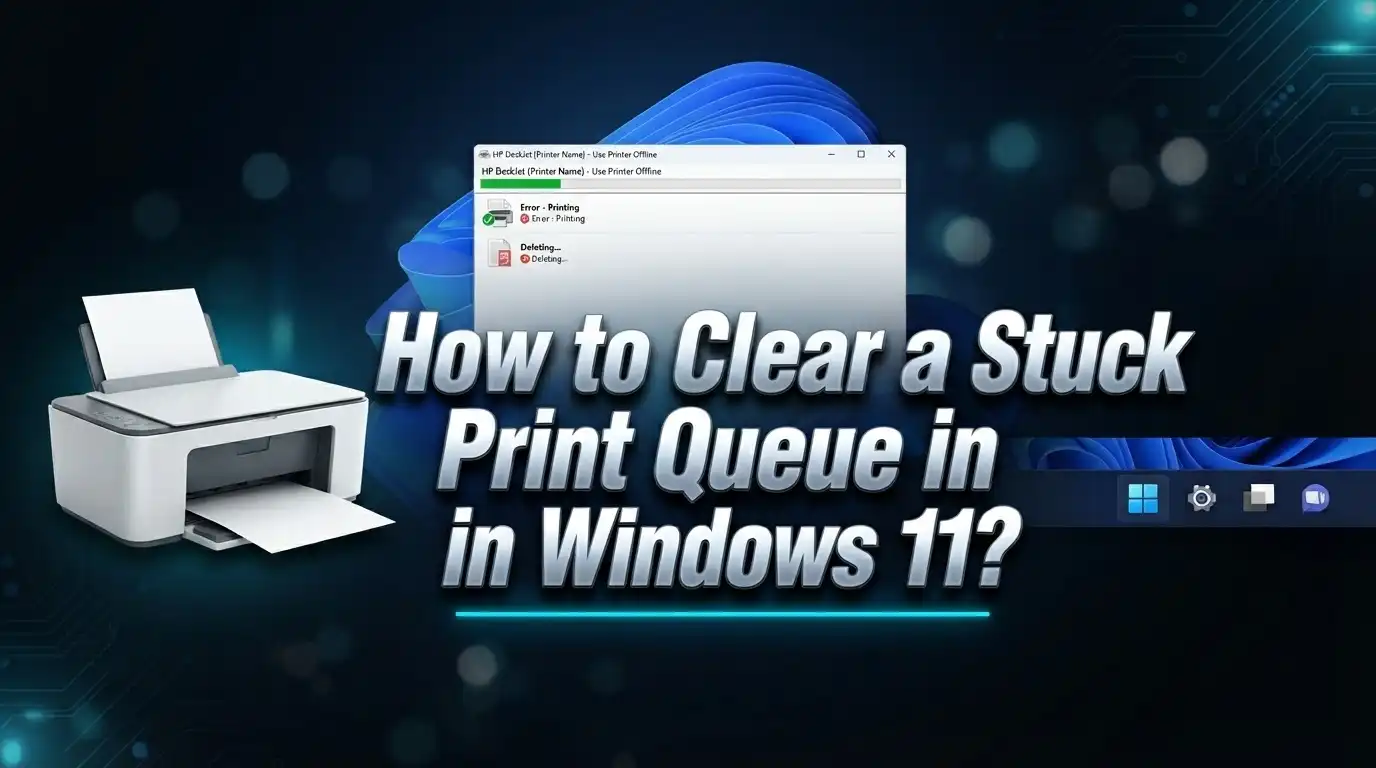
How to Clear a Stuck Print Queue in Windows 11?
Have you ever sent a document to print, only to watch it sit in the queue forever? A stuck print queue is one of the most common printer problems in Windows 11.
The good news is you can fix it yourself. You don’t need any technical background to get your printer working again.
This guide will show you simple ways to clear a stuck print queue. We will start with the easiest method first.
You will learn how to cancel print jobs directly from your Settings menu. This works for most minor printer glitches.
Sometimes, though, a print job refuses to leave the queue. When this happens, we will walk you through an advanced fix. This involves restarting the Print Spooler service and clearing hidden system files.
We will also cover common mistakes people make when troubleshooting. Avoiding these will save you time and frustration.
By the end of this article, you will know exactly how to get your printer back on track. Let’s clear that queue and get your documents printed.
In a Nutshell
Here is a quick summary to help you clear that stuck print queue fast.
-
Start simple. Go to Settings > Devices > Printers & scanners. Select your printer and open its queue.
-
Cancel the jobs. Right click each stuck document and choose Cancel. Look for a Cancel All Documents option to save time.
-
If jobs will not delete, you need a deeper fix. This means restarting a key Windows service.
-
Open Services by typing services.msc in your search bar. Find Print Spooler and stop it.
-
Clear the leftover files. Go to C:\Windows\System32\spool\PRINTERS and delete everything inside.
-
Restart the Print Spooler service once the folder is empty. This step is often skipped, but it is important.
-
Avoid a common mistake. Do not try printing again until the queue is fully clear. This can cause the same jam to happen again.
Following these steps in order will get your printer back to normal. Most stuck queues clear up with just a little patience and the right sequence.
Why Print Queues Get Stuck in Windows 11
Print queues get stuck when print jobs fail to complete properly. Your computer holds these jobs in a temporary storage area called the spooler. When something goes wrong, the jobs stay there and block new printing requests.
Several common causes lead to stuck print queues. A printer connection problem is the most frequent culprit. Your computer sends a job to the printer, but the printer never confirms it received the data. The job sits in the queue indefinitely, waiting for that confirmation.
Corrupted print files also cause blockages. Sometimes a document contains formatting or data that your printer cannot process. The printer rejects the job, but Windows keeps it in the queue anyway.
Driver issues create another major problem. Outdated or faulty printer drivers prevent proper communication between your computer and printer. The Print Spooler service cannot send jobs correctly, so they pile up in the queue.
Software conflicts sometimes trigger stuck queues too. Background applications or security programs may interfere with the spooling process. This interruption leaves jobs stranded.
A full hard drive can also be responsible. The spooler needs disk space to store temporary print files. When your drive runs low on storage, new jobs cannot be added to the queue properly.
Power interruptions during printing create stuck jobs as well. If your printer loses power or your computer shuts down unexpectedly, incomplete jobs remain in the queue.
Network printing adds complexity to the situation. If you use a network printer, connection drops between your computer and the printer can leave jobs stuck. The printer may go offline temporarily, leaving jobs waiting.
Understanding these causes helps you prevent future problems. Most stuck queues result from simple connection issues or corrupted files. The good news is that clearing them is straightforward once you know what went wrong.
Method 1: Clearing the Queue via Settings and Printer Menu
The simplest way to clear a stuck print queue is through your Windows 11 Settings menu. This method works well for most stuck jobs and requires no technical knowledge.
Start by opening Settings on your computer. Click on Devices from the left sidebar. Then select Printers & scanners to view all connected printers on your system.
Find the printer with the stuck job and click on it. A new window will open showing your printer details. Look for an option that says Open queue or See what’s printing. Click this button to view all jobs waiting to print.
You will now see a list of every document in your print queue. Each job will display the document name, status, and owner. Right click on any stuck job to see your options. A menu will appear with a Cancel button. Select this to remove the job from the queue.
If multiple jobs are stuck, you may see a Cancel All Documents option in the printer menu. This removes every job at once, which saves time when dealing with several blocked documents.
After canceling the stuck jobs, wait a few seconds for the queue to refresh. The jobs should disappear from your list. Your printer is now ready to accept new print requests.
This method works because it directly tells Windows to stop processing those specific jobs. The printer spooler receives your cancellation command and removes the files from memory.
If the jobs refuse to disappear after clicking Cancel, do not try printing again yet. This means the stuck files are still locked in your system. You will need to use the advanced method involving the Print Spooler service and manual file deletion. That approach forces your computer to release the stuck jobs completely, allowing fresh printing to begin.
Method 2: Manually Clearing Spooler Files and Restarting the Service
When stuck print jobs refuse to disappear through Settings, you need to go deeper into Windows. This method targets the actual files that store print job data on your computer.
Start by opening Services on your system. Type services.msc into your Windows search bar and press Enter. The Services window will open with a long list of running programs. Look for an entry called Print Spooler in this list. This service manages all printing activity on your computer.
Right click on Print Spooler and select Stop. Windows will halt the printing service completely. This action is safe because you are only pausing a service, not deleting anything permanent. Wait a few seconds for the service to fully stop before moving forward.
Now navigate to the spooler folder on your hard drive. Open File Explorer and go to C:\Windows\System32\spool\PRINTERS. This folder contains all the temporary files related to your print jobs. You may see several files here with confusing names. These are the stuck print jobs stored as data files.
Select all files in this folder and delete them. Use Ctrl+A to select everything, then press Delete. Empty your Recycle Bin afterward to ensure complete removal. Do not worry if the folder appears empty after deletion. An empty folder is exactly what you want.
Return to Services and restart Print Spooler. Right click on Print Spooler again and select Start. The service will restart with a completely clean slate. Your print queue is now empty and ready for new jobs.
Wait a minute before attempting to print. This gives Windows time to fully reinitialize the printing system. Your printer should now accept new print jobs without any blockages or delays.
Step-by-Step Guide to Restarting the Print Spooler Service
Restarting the Print Spooler service is a powerful way to fix stuck print jobs. This service manages all printing tasks on your computer. When it gets stuck, restarting it clears the problem completely.
Open the Services application first. Press the Windows key and type “services.msc” into the search box. Hit Enter to launch the Services window. This shows every system service running on your computer.
Find Print Spooler in the list. Scroll down until you see “Print Spooler” displayed. This service handles all communication between your computer and printer. Right click on it and select “Stop” from the menu. Windows will shut down the spooler immediately.
Wait a few seconds before proceeding. Give the service time to stop completely. This ensures all temporary files are released. Then navigate to the spooler folder on your hard drive.
Access the spooler folder location. Open File Explorer and type “C:\Windows\System32\spool\PRINTERS” into the address bar. Press Enter to go directly to this folder. You will see all temporary print files stored here.
Delete every file in this folder. Select all files using Ctrl+A, then press Delete. These are the stuck print jobs causing your problems. Removing them clears the queue completely.
Restart the Print Spooler service. Go back to the Services window. Right click on Print Spooler and select “Start.” The service will restart fresh with no stuck jobs remaining.
Test your printer now. Try printing a test page to confirm everything works. Your printer should respond normally. The stuck queue is now completely cleared.
This method is more effective than the Settings menu approach. It removes corrupted files that prevent normal printing. Use this when simple cancellation fails to work.
Tips to Prevent Future Print Queue Jams
Preventing print queue jams saves you time and frustration. Regular maintenance is your best defense against future problems.
Keep your printer drivers up to date. Outdated drivers cause communication errors between your computer and printer. Check your printer manufacturer’s website monthly for new driver versions. Installing updates takes just a few minutes and prevents many queue issues.
Restart your printer weekly. Power off the device completely, wait 30 seconds, then turn it back on. This clears temporary memory and resets the printer’s internal systems. A simple restart often prevents jobs from getting stuck before they cause problems.
Monitor your print queue actively. Don’t send multiple jobs at once if you’re unsure about your printer’s status. Send one job, wait for it to finish, then send the next. This approach helps you catch problems early before they snowball into larger jams.
Clear old print jobs from your queue regularly. Even completed jobs sometimes linger in the system. Open your printer settings weekly and remove any lingering documents. This keeps your queue clean and running smoothly.
Avoid printing to the wrong printer by accident. Double check your printer selection before clicking print. Sending jobs to offline or unavailable printers causes queue backups. Take two seconds to verify you’ve selected the correct device.
Keep your Windows 11 system updated. Microsoft releases printer service updates regularly. Go to Settings, then Update and Security to check for new patches. These updates fix bugs that cause print queue problems.
Don’t print extremely large files repeatedly. Large documents strain your printer’s memory. If you need to print big files, do it one at a time with breaks between jobs. Your printer needs time to process and cool down.
Finally, maintain your printer physically. Dust accumulation inside printers causes hardware errors that jam queues. Clean your printer’s exterior monthly and follow the manufacturer’s cleaning instructions. A clean printer is a reliable printer.
Common Mistakes When Clearing a Stuck Print Queue
People make several mistakes when clearing a stuck print queue in Windows 11. Understanding these errors helps you avoid repeating them.
The biggest mistake is printing again too soon. Many users clear their queue and immediately send a new print job. Your printer needs time to reset after you remove stuck files. Wait at least 30 seconds after restarting the Print Spooler service before attempting to print anything new.
Another common error involves incomplete service restarts. Users stop the Print Spooler service but forget to start it again after deleting files. Your printer cannot function without this service running. Always complete the full restart cycle: stop the service, delete files, then start the service again.
Some people skip the file deletion step entirely. They use only the Settings menu to cancel jobs, but stubborn files remain in the spooler folder. These leftover files can cause the same problems to happen again. Always combine the GUI method with manual file deletion for stuck jobs.
Deleting files from the wrong folder creates another issue. The spooler folder location is specifically C:\Windows\System32\spool\PRINTERS. Users sometimes navigate to similar sounding folders and delete nothing important. Double check your folder path before deleting anything.
Restarting your computer instead of the service is inefficient. A full system restart works, but stopping and starting just the Print Spooler service is faster and more direct. You do not need to close all your programs.
Ignoring printer driver updates leads to recurring queue problems. Outdated drivers cause print jobs to fail and get stuck. Check for driver updates regularly through your device settings.
Finally, users often send multiple print jobs while troubleshooting. This adds more stuck files to your queue and makes the problem worse. Wait until your printer functions normally before sending new jobs.
Troubleshooting Persistent Print Queue Issues
When print jobs refuse to leave your queue, you face a real problem. Your printer sits idle while stuck files block everything else. This section shows you how to fix persistent issues that keep coming back.
Stuck jobs often return because the root cause remains untouched. You clear the queue once, but the same problem appears days later. This happens when temporary files don’t fully delete or when your printer driver has conflicts.
Start by checking if one specific printer causes all your problems. Open your Settings and go to Devices, then Printers and scanners. Look at your printer list and see which device shows stuck jobs repeatedly. Sometimes the issue points to one printer rather than your entire system.
Next, examine your print history. Jobs that fail repeatedly teach you something important. If a particular file type always jams your queue, that’s your clue. Large PDF files or image heavy documents might need different settings.
Consider your printer’s memory limits. Older printers handle fewer simultaneous jobs than newer models. If you send ten jobs at once, some devices simply can’t manage the load. Space out your printing instead.
Check your printer’s web interface if it has one. Many modern printers let you access settings through a browser. You can see job history, clear queues directly, and restart the printer remotely. This often fixes issues faster than Windows settings alone.
Update your printer driver regularly. Outdated drivers cause stubborn queue problems that keep repeating. Visit your printer manufacturer’s support page monthly to download fresh drivers.
Finally, restart your printer itself. Power it off completely for 30 seconds, then turn it back on. This simple step clears your printer’s memory and often resolves persistent issues that Windows alone cannot fix.
Final Thoughts
A stuck print queue feels annoying, but you now know how to fix it. Two simple methods solve this problem every time.
The GUI method works for quick fixes. It handles most everyday queue jams without much effort.
The advanced method tackles stubborn jobs. Stopping the Print Spooler service and deleting files clears even the toughest stuck documents.
Remember to restart the Print Spooler service after deleting files manually. Skipping this step leaves your printer unable to process new jobs.
Patience matters here too. Give your system a moment to fully clear the queue before sending new print jobs.
Windows 11 users face this issue often. Printers, drivers, and spooler services sometimes conflict with each other.
Knowing both methods gives you flexibility. You can choose the simple approach first, then move to advanced steps if needed.
Regular maintenance prevents most queue problems. Updated drivers and a healthy spooler service keep printing smooth.
Think of this guide as your go to reference. Bookmark it for those frustrating moments when printing stops working.
Every Windows user deals with print queue issues eventually. Now you have the tools to fix them fast.
The steps are straightforward once you know them. Stopping a service, deleting a few files, and restarting takes just minutes.
Don’t let a stuck queue ruin your day. Quick action and the right method get your printer back on track.
Keep this process in mind for future printing troubles. You’ll save time and reduce stress whenever your queue jams up again.
Printing should feel simple and reliable. With these fixes, you can trust your printer to work when you need it most.
Frequently Asked Questions
Why does my print queue get stuck in Windows 11?
Print jobs get stuck when files don’t process correctly. This happens due to printer driver errors, corrupted job files, or communication problems between your computer and printer. Sometimes a job fails partway through, and Windows can’t remove it automatically.
Your printer’s memory also plays a role. Older printers handle fewer simultaneous jobs than newer models. When you send too many jobs at once, the queue overwhelms the system.
Can I clear the queue without using Services?
Yes, the Settings method works for most situations. Go to Settings, then Devices, then Printers and scanners. Select your printer and open the queue. Right-click each stuck job and choose Cancel.
This approach works well for recent jobs. However, stubborn files sometimes resist this method. If jobs remain after canceling, you’ll need the advanced approach using Services.
What happens if I restart my computer instead of just the Print Spooler?
A full restart works, but it’s inefficient. Restarting your entire system takes much longer than stopping and starting the Print Spooler service alone.
The service restart approach targets only the printing system. This saves time and causes less disruption to your other open applications. Both methods clear the queue, but the service method is faster.
Should I print immediately after clearing the queue?
No, wait a moment before printing again. Give Windows time to fully reset the printing system.
Print too soon, and your new job might fail the same way. Wait about 30 seconds after restarting the Print Spooler service. Then send your print job normally.

I’m the voice behind Device Dossier. As a printing technology enthusiast, I spend my time testing printers, comparing specs, and writing honest reviews to help you find the perfect printing solution. When I’m not geeking out over print quality and page yields, you’ll find me exploring the latest in tech.