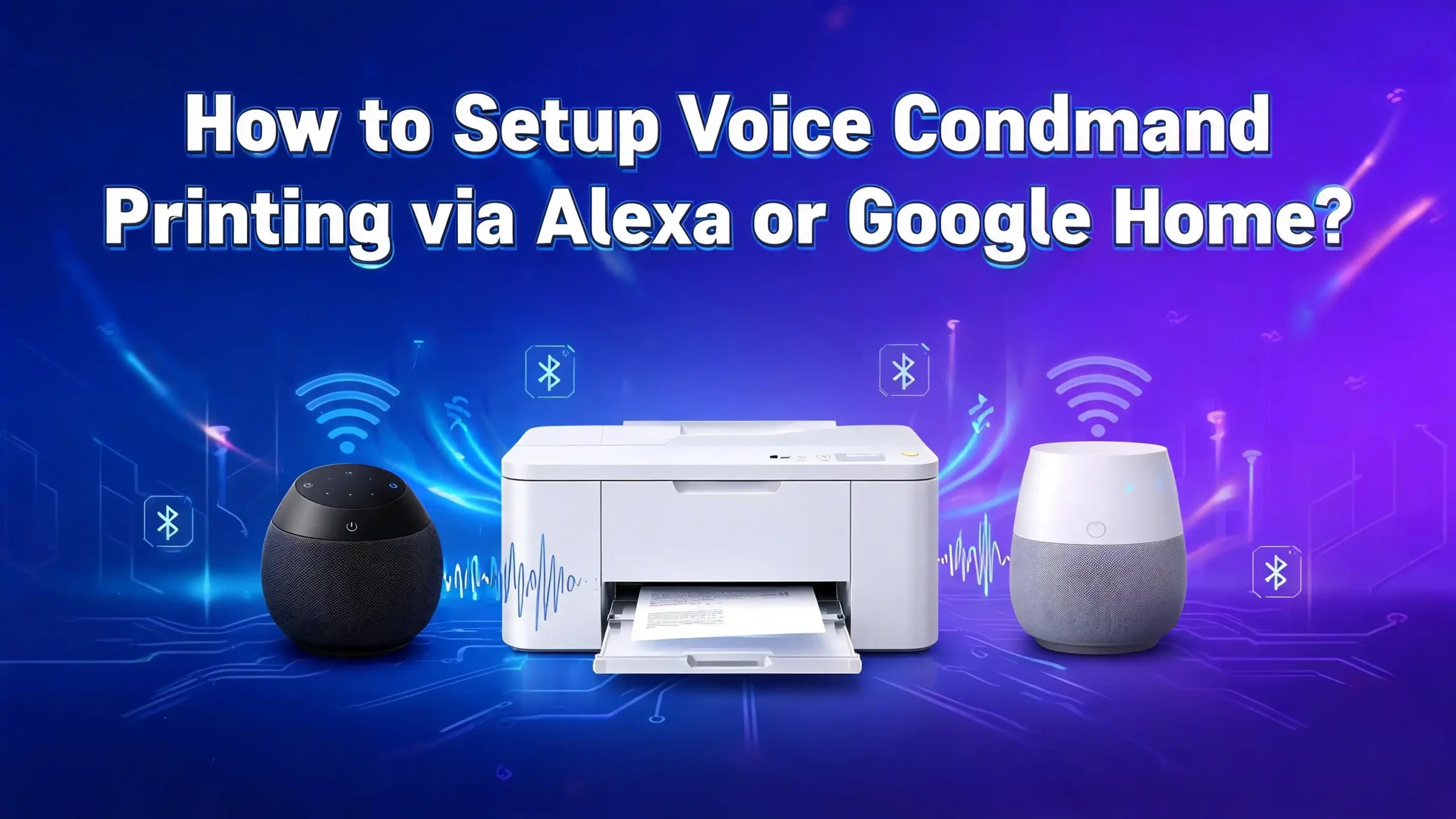
How to Setup Voice Command Printing via Alexa or Google Home?
Imagine asking your smart speaker to print a shopping list while your hands are covered in flour. Or telling Google Home to print your kid’s homework worksheet while you finish your morning coffee.
Voice command printing turns this small dream into a daily reality. It saves time, reduces clicks, and makes printing feel almost effortless.
This guide walks you through every step you need to set up voice command printing on Alexa and Google Home. You will learn which printers work, how to link your accounts, what you can print, and how to fix common errors.
In a Nutshell
- Your printer must support IPP printing and connect to the same Wi-Fi network as your Alexa or Google Home device. Most modern HP, Canon, Epson, and Brother models qualify.
- Alexa Print lets you print shopping lists, to-do lists, recipes, coloring pages, puzzles, and educational worksheets using simple voice commands through the Alexa app.
- Google Assistant works through manufacturer skills like Canon Inkjet Cloud Printing Center or HP Print, which you link inside the Google Home app.
- You will set up the printer once. After that, voice commands like “Alexa, print my shopping list” or “Hey Google, ask Canon Print to print a coloring page” work instantly.
- Troubleshooting usually involves Wi-Fi checks, app updates, or relinking accounts. Most issues fix themselves with a restart.
What Voice Command Printing Means
Voice command printing is a feature that lets you control your printer using spoken instructions. You speak to a smart speaker, and the speaker sends the print job to your printer over Wi-Fi. No buttons. No screens. Just your voice.
This feature uses cloud printing technology. Your printer connects to the internet through your home Wi-Fi. Then it links to a voice assistant account such as Amazon Alexa or Google Assistant. When you say a command, the assistant matches it to a print action and sends the file to your printer.
The technology behind this is called IPP (Internet Printing Protocol). Most modern printers from HP, Canon, Epson, and Brother support IPP. This protocol allows printers to receive jobs over the internet without needing a direct USB or local connection.
Voice printing works best for short documents. Think shopping lists, recipes, kids activities, daily planners, and coloring sheets. It is not built for complex print jobs like photo books or large PDFs from your computer. For those, you still need traditional printing methods.
The biggest benefit is hands-free convenience. Parents, busy professionals, and people with mobility challenges find this feature especially useful. It removes the need to open files, search for documents, or click print buttons.
Which Printers Support Voice Command Printing
Not every printer works with Alexa or Google Home. You need a smart printer with Wi-Fi and IPP support. The four major brands that support voice printing are HP, Canon, Epson, and Brother.
For Alexa Print, supported brands include HP Envy, HP OfficeJet, HP LaserJet, Canon PIXMA, Canon imageCLASS, Epson EcoTank, Epson WorkForce, and most Brother wireless models. Amazon keeps adding new models, so check the Alexa app for the latest list.
For Google Assistant, Canon and HP lead the support list. Canon offers the Canon Inkjet Cloud Printing Center skill, while HP provides HP Print actions. Epson supports Google Assistant for select models in some regions.
Before you buy a new printer for voice command printing, check the manufacturer website. Look for terms like “works with Alexa,” “Hey Google compatible,” or “voice activated printing.” These labels confirm support.
How to Setup Alexa Print on Your Echo Device
Setting up Alexa Print takes about ten minutes. You need an Echo device, the Alexa app on your phone, and a compatible printer connected to your Wi-Fi. Make sure both devices use the same network.
Open the Alexa app on your phone. Tap the More menu at the bottom, then select Settings. Scroll down and tap Printers. The app will scan your network for compatible printers. When your printer appears, tap it and follow the prompts to add it.
Alexa will send a test page once setup completes. If the test page prints, you are ready to use voice commands. If it does not, check that your printer is powered on and connected to Wi-Fi.
You can now say things like:
- “Alexa, print a shopping list.”
- “Alexa, print a coloring page.”
- “Alexa, print a sudoku puzzle.”
- “Alexa, print my to-do list.”
How to Setup Google Assistant Printing on Google Home
Google Home does not have a native print feature like Alexa. Instead, you link a printer skill or action through the Google Home app. Canon, HP, and Epson offer official integrations.
Start by downloading the Google Home app on your phone. Sign in with the same Google account linked to your Google Home speaker. Then, depending on your printer brand, you will install the matching cloud service.
For Canon, open the Google Home app and tap Add. Search for Canon Inkjet Cloud Printing Center. Tap Link and sign in with your Canon ID. If you do not have a Canon ID, create one through the Canon website first.
For HP, search for the HP Print action inside the Google Home app. Sign in with your HP Smart account and link your printer. Once linked, your printer will appear under the Devices tab.
After linking, you can say:
- “Hey Google, ask Canon Print to print a coloring page.”
- “Hey Google, print a shopping list.”
- “Hey Google, ask HP to print a worksheet.”
Setting Up an HP Printer for Voice Printing
HP printers offer some of the smoothest voice printing experiences. Most HP Envy, OfficeJet, and LaserJet models support both Alexa and Google Home. You will need the HP Smart app to start.
Download the HP Smart app on your phone. Add your printer to the app by following the on-screen Wi-Fi setup. Once added, your printer connects to HP’s cloud service. This cloud service is what links to Alexa or Google Home later.
For Alexa, open the Alexa app and search for the HP Printer skill in the Skills & Games tab. Tap Enable, then sign in with your HP account. Choose your printer from the list. Alexa will confirm the connection.
For Google Home, the process uses the HP Print action inside the Google Home app. Link your HP account and select the printer you want to control by voice.
Once setup is complete, test it. Say “Alexa, print a grocery list” or “Hey Google, ask HP to print a coloring page.”
Setting Up a Canon Printer for Voice Printing
Canon printers shine with Google Assistant integration. Canon PIXMA models like the TS8320, G4270, and E4570 work well with voice commands. Canon also supports Alexa for many of the same models.
First, install the Canon PRINT app on your phone. Add your printer through the app and confirm it connects to Wi-Fi. Create a Canon ID if you do not have one already. This ID links your printer to the Canon Inkjet Cloud Printing Center.
For Google Home, open the Google Home app and add the Canon Inkjet Cloud Printing Center service. Sign in with your Canon ID. The app pairs your printer with your speaker.
For Alexa, enable the Canon Printing skill in the Alexa app. Sign in with the same Canon ID and link your printer.
Try saying “Hey Google, ask Canon Printer to print a calendar” or “Alexa, ask Canon to print a writing template.”
Setting Up an Epson Printer for Voice Printing
Epson supports voice printing through the Epson Connect service. Compatible models include EcoTank and WorkForce series printers. Epson works with Alexa and Siri, with Google Assistant available in select regions.
Begin by registering your printer with Epson Connect. Use your printer control panel or the Epson website to create an Epson Connect account. Your printer will receive a unique email address that the cloud uses to send print jobs.
For Alexa, enable the Epson Printer skill in the Alexa app. Sign in with your Epson Connect account and choose your printer. Alexa will print a test page.
Once linked, you can say “Alexa, ask Epson Printer to print a coloring page” or “Alexa, print a recipe.” The skill supports many of the same templates as HP and Canon.
What You Can Print With Voice Commands
Voice printing is not just about random documents. Each voice assistant offers a curated list of items you can print on demand. Knowing this list helps you use the feature better.
With Alexa Print, you can print shopping lists, to-do lists, notes, recipes, coloring pages, puzzles like sudoku and crosswords, educational worksheets, ruled paper, graph paper, and gift tags. Alexa also prints calendars and trivia games for family fun.
With Google Assistant, the printable items depend on the brand skill. Canon offers coloring pages, music sheets, calendars, postcards, and stationery. HP supports lists, worksheets, and educational printables. Epson focuses on similar everyday items.
Both assistants let you print shopping and to-do lists that you create through their apps. Add items by voice during the day, then print the full list when you are ready to leave.
You cannot print custom files like Word documents or PDFs from your phone using voice alone. For that, you still need to use the print function inside the file app. Voice printing is best for ready-made templates and lists.
If you want to print homework or coloring activities for kids, voice printing saves real time. Just ask, and the page comes out without any taps or clicks.
Troubleshooting Common Voice Printing Issues
Voice printing sometimes fails. Most problems trace back to Wi-Fi, account linking, or printer firmware. Here are the most common fixes.
If your printer does not respond, first check that it is powered on and connected to your Wi-Fi network. Both the printer and your smart speaker must use the same network. Open your printer app to confirm the connection.
If the voice command is not recognized, make sure you used the right phrase. Alexa needs phrases like “print a shopping list.” Google Home often needs “ask Canon Print to…” or similar phrasing.
If the printer skill stops working, try disabling and re-enabling it in the Alexa or Google Home app. Sign out of your printer account, then sign back in. This refresh fixes most token errors.
Update your printer firmware regularly. Manufacturers release updates that fix voice printing bugs. Use the HP Smart, Canon PRINT, or Epson Connect app to check for updates.
If lists print with too much extra info, edit them in the app first. Remove headers, checkboxes, or footers manually. Some users wish for cleaner print options, and this is the current workaround.
Restarting your smart speaker and printer often clears small glitches. Unplug both for thirty seconds, then plug them back in. This solves a surprising number of problems.
Privacy and Security Tips for Voice Printing
Voice printing uses cloud services, which means your data passes through company servers. Knowing how to protect your privacy keeps your home network safe.
First, use strong passwords on your Wi-Fi, Amazon, Google, and printer accounts. Enable two-factor authentication on each account. This stops attackers from linking your printer without permission.
Review which skills and actions have access to your printer. Open the Alexa or Google Home app and remove any skill you no longer use. Fewer linked services means fewer ways for data to leak.
Be careful about what you ask to print in shared homes. Voice commands are processed in the cloud and may be reviewed for quality improvement. Avoid speaking sensitive details aloud near smart speakers.
Keep your printer firmware updated. Updates often fix security holes that attackers could use. Most printer apps notify you when an update is ready.
If you sell or donate a printer, factory reset it first. This removes Wi-Fi credentials and any linked accounts. A reset prevents the next owner from accessing your network.
Finally, place your printer behind a router firewall. Most home routers do this by default. Avoid exposing your printer directly to the internet through port forwarding unless you understand the risks.
Tips to Make Voice Printing Faster and Smoother
A few small tricks can make voice printing feel even more natural. Try these tips to improve your daily experience.
Place your smart speaker within hearing distance of where you usually stand. Kitchens and home offices are great spots. The clearer the speaker hears you, the fewer mistakes the system makes.
Use shopping lists in the Alexa or Google Home app. Add items by voice throughout the week. When ready, ask the assistant to print the full list before grocery shopping.
Pre-load your printer with paper and check the ink level once a week. Voice printing fails if the paper tray is empty. A quick check saves frustration later.
Create routines in the Alexa or Google Home app. For example, set a routine that prints your daily calendar every morning at 7 AM. Routines combine voice printing with other smart home actions.
Train your assistant to recognize your voice. Both Alexa and Google support voice profiles. This helps the assistant understand your accent and skip wrong matches.
Keep the printer skill updated by reviewing settings monthly. Manufacturers add new printable templates over time. You might find a new favorite item to print by voice.
Frequently Asked Questions
Can I print any document using voice commands?
No. Voice command printing supports pre-made templates and lists only. You cannot print custom files like PDFs or Word documents using voice alone. For custom files, use the print option inside the file app on your phone or computer.
Does voice command printing work without internet?
No. Voice printing depends on cloud services from Amazon, Google, or your printer brand. If your Wi-Fi or internet is down, voice printing will not work. Local printing from a computer still works during internet outages.
Is voice command printing free to use?
Yes. Both Alexa Print and Google Assistant printing are free features. You only pay for paper, ink, and your existing internet plan. Some printer brands offer optional ink subscription services, but these are not required for voice printing.
How do I add a printer to my Alexa app?
Open the Alexa app and tap More, then Settings, then Printers. The app scans your network for compatible printers. Tap the printer name and follow the steps to confirm. Make sure your phone and printer are on the same Wi-Fi network.
Can multiple people in my house use voice printing?
Yes. Anyone in your home can use voice commands to print as long as the smart speaker hears them. You can also set up voice profiles so each person gets personalized lists. Voice printing is shared across the household by default.
Why does my Alexa print lists with extra headers and checkboxes?
Alexa uses a built-in template that includes those elements. There is no native option to remove them through voice. You can edit the list in the Alexa app first, or copy items to a cleaner format before printing.
Which voice assistant is better for printing, Alexa or Google Home?
Alexa offers a wider range of native print features and supports more printer brands directly. Google Home feels more natural for voice but requires extra skill setup. Choose Alexa if you want easy setup, and Google Home if you already use Google services heavily.

I’m the voice behind Device Dossier. As a printing technology enthusiast, I spend my time testing printers, comparing specs, and writing honest reviews to help you find the perfect printing solution. When I’m not geeking out over print quality and page yields, you’ll find me exploring the latest in tech.