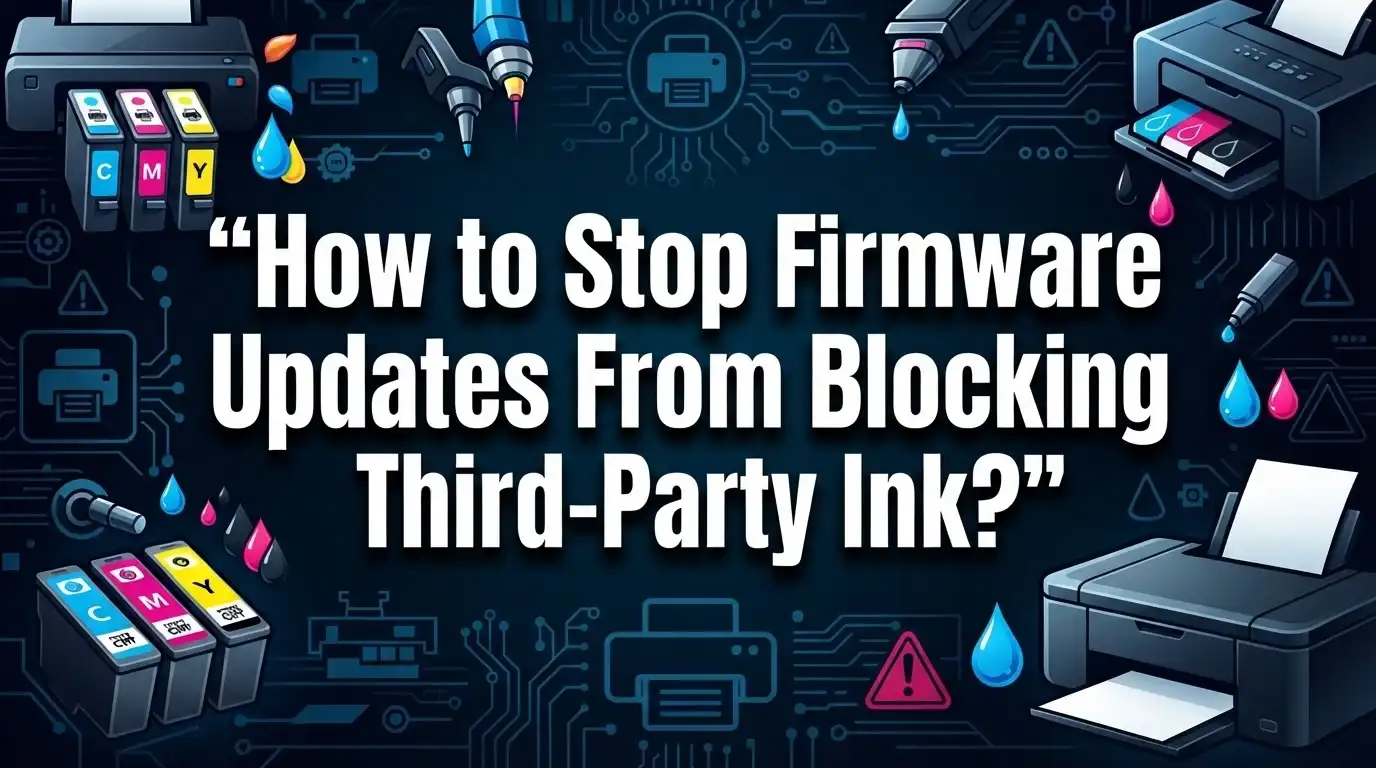
How to Stop Firmware Updates From Blocking Third-Party Ink?
Have you ever installed a printer update, only to see your third-party ink stop working? You are not alone.
Many printer brands, including HP, Epson, and Brother, use firmware updates to detect refilled or non-original cartridges. Once detected, the printer may block the cartridge or disable it completely.
The good news is you can take control of this situation. You can stop firmware updates from blocking your third-party ink, and this article shows you exactly how.
By the end, you will understand simple steps to protect your printer setup. You will know how to avoid unnecessary interruptions and keep your printing costs low.
In a Nutshell
- Turn off automatic updates in your printer settings. This stops unwanted changes from installing without your knowledge.
- Check your firmware version regularly. This helps you spot changes before they cause cartridge problems.
- Download and save older firmware versions early. Manufacturers often remove these from support pages later.
- Roll back firmware if your printer suddenly stops recognizing cartridges. Older versions often restore compatibility.
- Block updates through router settings for extra protection. This works well for Epson printers and stops silent downloads.
- Restart your printer and reinstall the cartridge if issues appear. This simple step often fixes recognition problems fast.
Why Printer Manufacturers Block Third-Party Ink via Firmware
Printer manufacturers block third-party ink through firmware updates for several key reasons. First, they want to protect their profit margins. Original cartridges cost much more than refilled or compatible alternatives, so blocking third-party options pushes customers back to buying brand-name supplies.
Second, manufacturers claim they protect print quality and warranty coverage. They argue that non-original cartridges may leak, clog printheads, or produce poor results. When you use third-party ink, the manufacturer can deny warranty claims if something goes wrong. This protects their reputation but also locks you into their ecosystem.
Third, firmware updates let manufacturers control your hardware remotely. When you connect your printer to the internet, updates happen automatically. These updates contain code that detects third-party cartridges and disables them. Some updates even reset chip compatibility or refuse to recognize refilled cartridges entirely.
The detection works through cartridge chips. Every cartridge has a microchip that communicates with your printer. Manufacturers update firmware to reject chips from third-party makers or to flag refilled cartridges as invalid. Your printer then displays error messages and stops printing.
This practice became so common that EPEAT 2.0 now bans firmware updates that intentionally brick third-party ink. This environmental certification recognizes that blocking compatible supplies creates unnecessary waste and frustration.
Manufacturers also remove older firmware versions from their support websites. This forces users to accept the latest update, which includes blocking features. If you cannot access previous versions, you cannot downgrade to restore third-party ink compatibility.
Understanding these motivations helps you fight back. You now know why updates happen and how they work against your interests.
Signs a Firmware Update Has Blocked Your Cartridges
Your printer may suddenly reject third-party ink cartridges after a firmware update. Recognizing these signs early helps you take action before losing access to affordable supplies.
The most obvious sign is an error message on your printer’s display. You might see warnings like “cartridge not recognized,” “incompatible cartridge detected,” or “cartridge failure.” These messages appear immediately after you install a third-party cartridge that worked fine before the update.
Your printer may also refuse to print entirely. The device stays powered on but shows a red light or warning icon. Some printers enter a locked state where you cannot access basic functions until you remove the flagged cartridge.
Another key indicator is sudden performance changes. Your printer might print at reduced speed, skip color channels, or produce low-quality output. These issues happen even though the cartridge was working perfectly the day before.
Check your printer’s firmware version in the settings menu. Compare it to the version you had previously. If the number changed without your permission, an automatic update likely triggered the blocking.
You may also notice your printer downloaded updates overnight. Check your printer’s update history in the maintenance section. Look for recent firmware changes that coincide with when cartridge problems started.
The timing is critical here. Blocking typically occurs within hours or days after a firmware update installs. If your cartridge worked yesterday and stopped working today, a firmware change is the likely culprit.
Pay attention to these warning signs. They tell you exactly when manufacturer interference happened. Once you identify blocking, you can move forward with solutions like rolling back firmware or preventing future automatic updates.
How to Disable Automatic Firmware Updates on Your Printer
Disabling automatic firmware updates stops your printer from installing software that blocks third-party ink. Here’s how to take control of your device.
Access your printer’s main menu by pressing the settings or menu button on the control panel. Look for options labeled “Maintenance,” “Device Settings,” or “Printer Settings.” The exact name varies by brand, but you’ll find firmware update controls in this area.
Find the automatic update option and turn it off completely. Some printers call this “Auto Update,” “Download Schedule,” or “Automatic Firmware Download.” Disable every automatic setting you find. This prevents your printer from installing updates without your permission.
Check your current firmware version before making changes. Write down the version number displayed on your screen. This helps you know if an update has already installed and blocked your cartridges.
Download and save older firmware versions to your computer right now. Visit your printer manufacturer’s support website and download previous firmware files. Save these files to a folder you can easily find later. Manufacturers often remove old versions, so grab them while available.
Block updates through your router for extra protection. Log into your router settings and restrict your printer’s internet access. This prevents any updates from downloading, even if your printer tries to connect automatically.
Test your third-party cartridges after disabling updates. Install your refilled or compatible cartridges and print a test page. If your printer recognizes them without error messages, your settings are correct.
Restart your printer once you’ve completed these steps. Power it off for 30 seconds, then turn it back on. This ensures all your new settings take effect properly.
Step-by-Step: Rolling Back to a Previous Firmware Version
Rolling back your firmware means installing an older version of your printer’s software. This process reverses the blocking that newer updates created.
First, check your printer’s current firmware version. Look in your settings menu and find the “About” or “System Information” section. Write down the exact version number. You’ll need this to confirm the rollback worked.
Next, visit the manufacturer’s support website. Search for your exact printer model. Look for a “Downloads” or “Drivers & Software” section. Find older firmware versions listed there. Download the version from before your cartridge problems started. Save it to a folder on your computer you can easily find.
Connect your printer to your computer with a USB cable. Some printers allow firmware updates only through direct connection, not wireless. Check your printer manual if you’re unsure about connection requirements.
Access the firmware update tool on your printer. This is usually in the maintenance or settings menu. Select the option to manually update firmware. Choose the older version file you downloaded. Follow the on-screen prompts carefully and do not turn off your printer during this process.
Wait for the rollback to complete. Your printer may restart automatically. This can take several minutes. Leave everything connected and powered on.
Restart your printer completely once the process finishes. Turn it off, wait 30 seconds, then turn it back on. Insert your third-party cartridge and test printing.
Important note: Manufacturers increasingly remove old firmware versions from their websites. Download backup copies of older versions now, before you need them. Store these files safely on an external drive for future use.
Blocking Updates at the Network Level
Your router controls all internet traffic on your network. You can use this power to stop firmware updates before they reach your printer. This method works especially well for Epson printers and other connected devices.
First, log into your router’s admin panel. Open a web browser and type your router’s IP address (usually 192.168.1.1 or 192.168.0.1). Enter your username and password to access the settings.
Look for a section called “Device Management,” “Connected Devices,” or “MAC Address Filtering.” Find your printer in the list of connected devices. Note its MAC address, which is a unique identifier for your device.
Next, locate the “Parental Controls” or “Access Control” settings. Many routers have these features built in. You can block specific devices from accessing certain websites or services.
Add your printer’s MAC address to a blocked list. Then specify the manufacturer’s update servers as blocked destinations. For example, you might block Epson’s firmware server or HP’s update portal. Check your printer’s manual or the manufacturer’s website to find the exact server addresses.
Some routers let you set time restrictions instead. You can allow your printer internet access only during specific hours when you monitor it. This prevents overnight updates from installing without your knowledge.
Test this setup by checking if your printer can still print. It should work normally for printing tasks. The printer simply won’t download new firmware files.
Remember to back up your router settings. If something goes wrong, you can restore them quickly. This network level approach provides continuous protection without repeatedly adjusting printer settings.
Best Practices for Backing Up Firmware Before Updating
Backing up your firmware before updating is one of the smartest steps you can take. This backup acts as a safety net if something goes wrong during the update process.
Start by identifying your printer’s current firmware version. Open your printer’s settings menu and look for “About,” “System Information,” or “Device Information.” Write down the exact version number and date. This information matters because you’ll need it to find the correct backup file.
Next, visit your printer manufacturer’s support website while the older firmware is still available. Search for your exact printer model number. Look for a “Downloads” or “Support” section. Find the firmware file that matches your current version. Download it to a folder on your computer that you’ll remember easily.
Create a backup folder on your computer specifically for printer files. Store the firmware file there along with any documentation or instructions you find. Don’t just save it to your Downloads folder where it might get deleted accidentally.
Consider storing a copy on an external drive or cloud storage as well. Manufacturers sometimes remove older firmware versions from their websites, making them impossible to find later. Having multiple copies protects you against this.
Label your backup files clearly with the printer model, firmware version, and download date. This prevents confusion if you need to restore it months later.
Before you proceed with any new update, verify that your backup file downloaded completely. Check the file size against what the manufacturer lists. A corrupted download won’t help you if problems occur.
Taking these backup steps takes only minutes but saves you hours of frustration if you need to restore your printer’s software later.
Mistakes to Avoid When Managing Printer Firmware
Making mistakes when managing printer firmware can leave you stuck with cartridge compatibility issues. Here are the most common errors to avoid.
Allowing automatic updates without checking first is the biggest mistake. Many printers download and install firmware updates silently in the background. You won’t know an update happened until your third-party cartridges stop working. Check your printer settings today and disable the automatic update feature.
Not backing up older firmware versions creates another major problem. Manufacturers sometimes remove old firmware files from their support websites. Once they’re gone, you can’t roll back if a new update blocks your cartridges. Download and store older versions now, before you need them. Label each backup clearly with your printer model and version number.
Assuming cartridge failure is hardware-related wastes your time and money. Before replacing a cartridge, restart your printer and reinstall it. The issue might be a firmware update, not a broken cartridge. Check your printer’s firmware version first to confirm this.
Mixing updates with cartridge changes creates confusion. Don’t install new cartridges right before or after a firmware update. Wait a few days between these changes so you know which action caused any problems.
Ignoring security patches entirely leaves your printer vulnerable. While blocking updates prevents cartridge blocking, you miss important security fixes. Find a balance by manually checking for updates occasionally and choosing which ones to install.
Overlooking network level controls means you’re missing an easy solution. Your router can block your printer from accessing update servers. This prevents unwanted updates without touching printer settings.
Take time now to disable automatic updates and back up your current firmware version. These simple steps prevent most cartridge blocking problems before they start.
Troubleshooting: Printer Still Rejects Cartridges After Rollback
Your printer still rejects third-party cartridges even after you rolled back the firmware? This happens more often than you’d think. Let’s fix it step by step.
First, restart your printer completely. Power it off for at least 30 seconds. This clears temporary memory and resets the cartridge detection system. Power it back on and wait for all lights to stop blinking.
Next, remove the cartridge and reinstall it. Make sure it clicks into place firmly. Sometimes the printer needs a fresh recognition cycle after a firmware change. Wait a few minutes for the printer to scan and accept the cartridge.
If rejection continues, check your firmware version again. Go to your printer’s settings menu and look for “About Printer” or “Device Information.” Confirm you’re actually running the older firmware version you intended to install.
The cartridge chip might still have old data stored on it. Try cleaning the cartridge contacts gently with a dry, lint-free cloth. Dust or residue can prevent proper communication between the printer and cartridge.
Still blocked? Perform a factory reset on your printer. This erases all settings and forces the system to recognize cartridges fresh. Check your printer’s manual for the exact reset procedure, as it varies by model.
One more option: contact your printer manufacturer’s support team. Explain that you rolled back firmware intentionally. They may provide a manual override or workaround specific to your situation.
If nothing works, the cartridge itself may be incompatible with that particular firmware version. You might need to try a different brand or contact the cartridge supplier for assistance.
Final Thoughts
Stopping firmware updates from blocking third-party ink takes proactive steps, not luck. You now know the main causes and fixes. Manufacturers push updates to detect non-original cartridges and disable refilled chips.
The good news? You control most of this process. Disabling automatic updates stops surprise firmware changes. This single step prevents most cartridge blocking issues before they start.
Router level blocking works well for Epson printers too. You can stop update downloads at the network level. This gives you another layer of protection against unwanted firmware changes.
Remember to check your firmware version regularly. Do this before you experience any cartridge problems. Early checks help you stay ahead of compatibility issues.
Backing up older firmware versions matters more than most people realize. Manufacturers often remove older versions from their support portals. Once removed, you cannot get them back easily.
The EPEAT 2.0 registry now bans firmware updates that brick third-party ink. This regulatory change helps protect consumers like you. However, you still need personal safeguards in place.
Rolling back firmware works when blocking occurs. Restart your printer and reinstall the cartridge afterward. This combination solves most cartridge recognition problems quickly.
Keep in mind that bypassing updates has tradeoffs. You gain cartridge compatibility but lose some security patches. Weigh this decision based on your specific printing needs.
Your printer should work with the cartridges you choose. Following these steps gives you that control back. Stay informed, stay prepared, and your printer will serve you well for years ahead.
Frequently Asked Questions
Can I downgrade my printer firmware to an older version?
Yes, you can downgrade firmware in most cases. Visit your printer manufacturer’s support website and look for older firmware versions in their download archive. Download the version you want before manufacturers remove it from their servers.
Downgrading works best when you have the file saved on your computer. Connect your printer via USB cable during the process. Follow the manufacturer’s specific steps for your model.
Important note: Some manufacturers delete older versions quickly. Back up your current firmware file now, even if you don’t plan to downgrade yet.
What happens if I disable automatic firmware updates?
Disabling automatic updates stops your printer from installing new versions without your permission. You keep control over when and if updates happen. This prevents surprise blocking of third-party cartridges.
The tradeoff? You won’t receive security patches automatically. You’ll need to manually check for important security updates occasionally. This is a reasonable choice if you use third-party ink regularly.
Will my printer stop working if I block firmware updates?
No. Your printer continues working normally without new firmware. Blocking updates doesn’t damage your device or reduce printing quality.
The main concern is security. Older firmware versions may have vulnerabilities. Balance this risk against your need to use third-party cartridges.
What should I do if my printer rejects cartridges after a firmware update?
First, restart your printer completely and power it off for 30 seconds. Remove the cartridge, wait a moment, then reinstall it firmly. Check your firmware version to confirm the update installed.
If rejection continues, roll back to the previous firmware version. Most cartridge rejection issues resolve after downgrading. Contact manufacturer support if problems persist after rollback.

I’m the voice behind Device Dossier. As a printing technology enthusiast, I spend my time testing printers, comparing specs, and writing honest reviews to help you find the perfect printing solution. When I’m not geeking out over print quality and page yields, you’ll find me exploring the latest in tech.