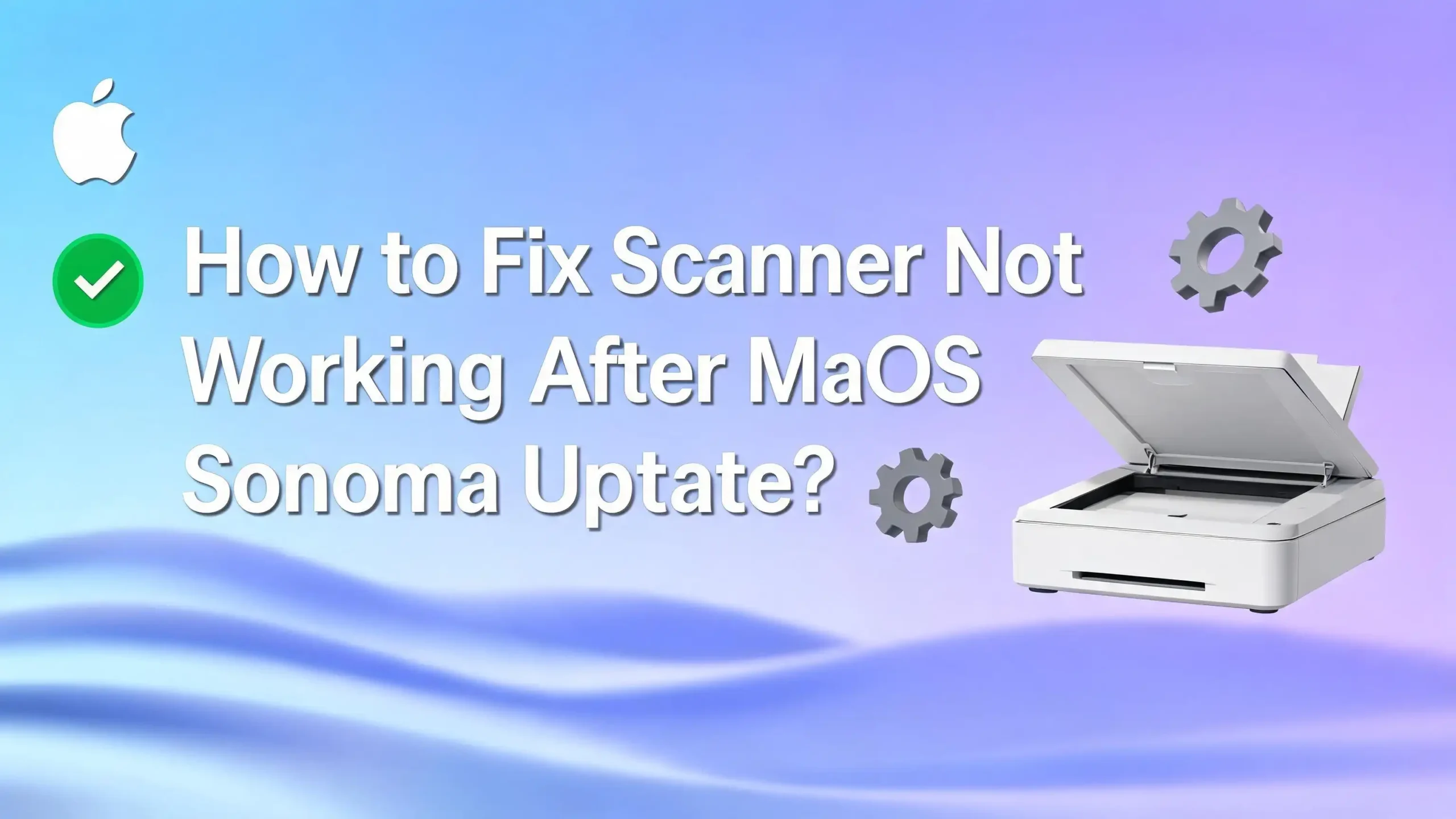
How to Fix Scanner Not Working After macOS Sonoma Update?
If your scanner stopped working after the macOS Sonoma update, you are not alone. This issue shows up in many forms. Your Mac may see the printer but miss the scanner. The scan button may stay gray.
The good news is that this problem is often fixable. In many cases, the cause is a broken driver, a lost network connection, a firewall rule, or an old scanner app that Sonoma does not like. You do not need to guess your way through it.
This guide walks you through clear steps in the right order. Start with the easy checks. Then move to the settings that solve deeper software issues. By the end, you should know exactly what to try next and what to do if one fix does not work.
Key Takeaways
- Start with the fastest checks first. Turn the scanner off and on. Restart your Mac. Check the cable or WiFi connection. These small steps often fix a scanner that vanished right after the update.
- Use the built in Mac tools before you panic. Image Capture and Preview can often scan even when the brand app fails. This matters a lot after a major macOS update because built in tools tend to stay more stable.
- Remove and add the scanner again if your Mac sees only part of the device. Sonoma can keep an old device entry from the earlier system. A fresh setup often brings back the missing scanner side.
- Update both sides of the setup. Your Mac may need the latest Sonoma patch. Your scanner may need a new driver, app, or firmware from the maker. One update without the other may leave the problem in place.
- Network settings matter more than most people think. If you use a wireless scanner, the issue may come from router changes, firewall access, AirPrint setup, or the scanner getting a new IP address.
- If basic fixes fail, move to the deeper steps. Reset the printing system, test in Safe Mode, and try another user account. These steps help you find out if the problem comes from background software, old settings, or damaged device files.
Why This Happens After a Sonoma Update
A macOS update changes more than the look of your Mac. It also updates how the system talks to printers, scanners, drivers, and network devices. That is why a scanner that worked yesterday can suddenly stop after Sonoma installs.
One common cause is an old scanner driver. The update may leave the driver installed, but the driver may no longer work well with the new system. Your Mac may still print because printing uses a more basic path, while scanning often needs extra software support. That is why many people can print but cannot scan.
Another common cause is a broken device entry in Printers and Scanners. Sonoma may keep an old setup from the earlier version of macOS. The scanner then appears half connected. You may see the printer name, but the scan option is gone or inactive.
Wireless scanners can fail for a different reason. After a system update, the Mac, router, or scanner may stop talking the same way. The firewall can also block device discovery. In some brands, the old scan utility opens but cannot save files or cannot find the scanner at all.
Pros: Knowing the cause helps you pick the right fix fast. It also stops random trial and error.
Cons: The same symptom can come from more than one cause, so you may need to try a few steps in order.
The good part is this: most scanner problems after Sonoma fall into a small group. That makes the fix process much easier once you follow a clean plan.
Do the Fast Power and Connection Checks First
Start with the small checks. They sound basic, but they solve more scanner problems than most people expect. If you skip them, you may waste time on deeper fixes you do not need.
First, make sure the scanner is fully on. If it has a sleep mode, wake it up. If it is a printer scanner combo, check the screen for errors like paper jam, cover open, or network lost. A device with a small hardware issue may still print but block scanning.
Next, check the connection. If you use USB, unplug the cable and plug it back in. Try a different port if you can. If you use a hub or adapter, connect the scanner straight to the Mac for a test. Hubs can cause odd scanner issues after a system update.
If you use WiFi, make sure the scanner and Mac are on the same network. This matters a lot if you have both 2.4 GHz and 5 GHz bands or more than one router name in the house. A scanner on one network and a Mac on another may look online but never appear for scanning.
Then open System Settings, go to Printers and Scanners, and see whether your device still appears. If it does, click it and look for an option like Open Scanner.
Pros: This method is fast, free, and safe. It can fix simple hardware and connection faults right away.
Cons: It will not solve a damaged driver or an app problem, so you may need the next steps if nothing changes.
Restart Your Mac, Scanner, and Router
A full restart clears temporary faults that often appear right after a system update. If your scanner stopped working after Sonoma, this is one of the best early fixes because it resets the communication path between the Mac, the scanner, and the network.
Start by shutting down the scanner. If it is a printer scanner combo, turn off the whole device. Wait about 30 seconds. Then restart your Mac. If the scanner uses WiFi or Ethernet, restart your router too. Once the router is back, turn the scanner on and wait until it fully reconnects to the network.
Now try scanning again. Open Image Capture or Preview and see whether the scanner shows up. If you use a brand app, test that too. In many cases, the Mac sees the scanner again after the network stack refreshes.
This works because updates can leave background services in a bad state. The Mac may keep an old device address in memory. The scanner may also hold a stale network session. A restart on all sides clears that old session and forces a clean handshake.
If your scanner only fails after sleep, this step is even more important. Sonoma may wake your Mac faster than the scanner reconnects, and the app may then think no scanner exists.
Pros: This step is easy, safe, and often fixes device discovery problems. It is one of the best first moves for wireless scanners.
Cons: The result may be temporary if the root issue is an old driver, firewall rule, or broken app.
Still, if you have not done a full restart cycle, do it now. It is simple, and it often saves a lot of time.
Remove and Add the Scanner Again
If your Mac sees the device but will not scan, remove the scanner entry and add it again. This is one of the most useful fixes after a major macOS update because it forces Sonoma to build a fresh device profile.
Go to System Settings and open Printers and Scanners. Select your device. Remove it from the list. Then click Add Printer, Scanner, or Fax and let your Mac search again. If your scanner appears, add it back and test scanning before you open any old brand software.
If you see more than one version of the same device, choose carefully. In many cases, AirPrint works well for basic printing and scanning. If you also see a brand driver, test the one that fits your needs. AirPrint is often more stable. Brand drivers may offer more scan settings, but they can also break after a macOS update.
If the device does not appear in the main list, try adding it by network address if your scanner supports IP setup. This helps when the scanner is on the network but not showing in auto discovery.
Pros: This step often fixes missing scan buttons, broken device profiles, and half connected printer scanner combos. It is cleaner than endless app restarts.
Cons: You may lose old presets. If your setup uses special brand features, you may need to add them again after the fresh setup.
This fix is especially helpful when your Mac prints fine but the scan side has disappeared.
Try Image Capture or Preview Instead of the Brand App
Many scanner problems after Sonoma are really app problems, not hardware problems. The scanner may work, but the brand utility may not. That is why testing with Image Capture or Preview is such a smart move.
Open Image Capture from Applications. Look in the sidebar under devices or shared devices. If your scanner appears there, select it and try a basic scan. You can choose where the file saves, pick PDF or image output, and scan one or more pages. If you use Preview, go to File, then choose Import from Scanner.
This step matters because the built in Mac apps often keep working even when the older scanner utility fails. Some users find that the brand app crashes, cannot save files, or cannot detect the scanner, while Image Capture scans with no trouble at all.
The built in tools may also help you figure out where the problem lives. If Image Capture works, your hardware and connection are likely fine. That means the issue is probably the maker app or driver layer. If Image Capture also fails, then the cause may be deeper, such as system settings, network access, or device support.
Pros: This method is built in, free, and quick. It is a very good test after a macOS update. It can also become your long term fix if you only need simple scanning.
Cons: Some built in tools offer fewer options than brand software. You may miss advanced presets, batch naming, or special image controls.
Still, do not skip this step. It often tells you more in two minutes than twenty minutes of guesswork.
Update macOS Sonoma and the Scanner Software
If you updated to the first Sonoma release and stopped there, you may still be dealing with a bug that Apple or the scanner maker fixed later. Small system updates matter. Driver and app updates matter too.
On your Mac, open System Settings, choose General, then open Software Update. Install any Sonoma update that appears. A minor release can improve device compatibility, stability, and background services. That can be enough to bring scanning back.
Then visit the support page for your scanner maker. Look for a Sonoma compatible driver, scan utility, firmware update, or setup tool. Download the newest version made for your exact model. Do not assume the older app is still fine just because it opens. Many scan issues come from software that launches but fails during the actual scan or save step.
If your device is older, check whether the maker clearly supports Sonoma. Some brands stop full driver support for older models. In that case, built in Mac tools or AirPrint may work better than the old brand app.
Pros: Updates can fix real compatibility bugs and often give the cleanest long term result. This is one of the best steps if the scanner broke right after the system change.
Cons: Some older scanners never get a new Sonoma driver. In those cases, you may need to use built in tools or a different setup method.
This step is important because a major macOS update changes the rules. Old scanner software may need new code to keep up.
Remove Old Driver Files and Reinstall Cleanly
If updating did not help, do a clean reinstall of the scanner software. This is different from simply installing a new version over the old one. Old support files can remain behind and keep the problem alive.
First, remove the scanner from Printers and Scanners. Then uninstall the brand app if the maker provides an uninstall tool. If there is no uninstall tool, move the app to Trash and restart the Mac. After that, download the newest scanner package from the official support page for your model and install it fresh.
This matters because some scan apps keep older components in the system. Sonoma may read those older pieces and fail. A clean reinstall gives the Mac a fresh set of files and often restores communication between the scanner and the app.
Be careful with very old downloads you find on random sites. The safest path is always the official support page for your brand and model. If the maker offers separate print and scan packages, install the scan part too. Some people assume the printer package covers scanning, but that is not always true.
Pros: A clean reinstall can fix broken save errors, missing scanner detection, and app crashes. It is often the best answer when a scan utility opens but does not finish the job.
Cons: It takes more time. You may need to set preferences again. If the model is no longer supported, reinstalling may not help.
If you suspect the app itself is damaged, this is a very strong next step.
Fix Wireless Scanner Discovery and Add It by IP or AirPrint
Wireless scanners fail more often than USB models after a system update because there are more points where communication can break. The Mac has to find the device, trust it, and keep the connection stable. If one part slips, scanning stops.
First, print or view the scanner network info page from the device screen if possible. Check the IP address. Then compare it with your router and Mac network. Make sure the device and Mac are on the same local network. If your scanner supports AirPrint, try removing the old setup and adding it again through AirPrint.
If the scanner does not show up automatically, add it by IP in Printers and Scanners. Enter the device address and choose the right protocol if needed. This step often works when auto discovery fails but the scanner is clearly online.
It also helps to keep the scanner on a stable address. If your router gives the device a new address after restart, the old Mac setup may point to the wrong place. A reserved IP in the router can help if this problem keeps coming back.
Pros: This fix is very useful for home and office wireless scanners. It can restore discovery without changing the whole system. AirPrint can also be more stable than older brand drivers.
Cons: AirPrint may offer fewer advanced features. Manual IP setup can feel technical if you have never done it before.
If your scanner works by USB but fails on WiFi, this section is where you should focus.
Check Firewall and App Access Settings
Your Mac firewall can block device traffic in some cases. This is less common than a driver issue, but it is still worth checking if the scanner is on your network and nothing else explains the failure.
Open System Settings, then go to Network and Firewall. If the firewall is on, open its options and review which apps or services are allowed. If your scanner app or brand utility appears, make sure it is allowed to accept network connections. If it is blocked, scanning may fail even while the printer side still works.
For testing, you can briefly turn the firewall off and try a scan. If the scanner suddenly appears, you know the firewall or related network access is part of the problem. Turn the firewall back on after the test, then adjust the allowed apps list instead of leaving protection off.
This issue shows up more often with wireless scanners and office printer scanner combos. A direct USB scanner usually does not depend on the same network discovery path.
Pros: This step can solve a hidden network block that many users miss. It is especially useful when the scanner disappears only on WiFi.
Cons: It will not help with cable issues or broken drivers. You also need to be careful and turn protection back on after testing.
Think of this step as a smart check, not a first fix. Use it when the device is online but still invisible to scanning apps.
Reset the Printing System on Your Mac
If nothing has worked so far, reset the printing system. This sounds like a printer fix, but it often helps scanner problems too because macOS stores both printer and scanner device data in the same settings area.
Go to System Settings, open Printers and Scanners, then control click in the printer list and choose the reset option. After the reset, the list becomes empty. You then add your device back from the start.
This step clears saved printers, completed job data, and old presets. More importantly, it clears damaged device entries that may keep Sonoma tied to the wrong scan profile. If the Mac has been upgraded several times over the years, old setup pieces can pile up. A reset wipes that clutter.
Do this only after easier fixes fail, because it removes all printers and scanners from the list. If you use more than one device, you will need to add them again.
Pros: This is one of the strongest built in fixes for stubborn device problems. It can remove old settings that normal reinstall steps leave behind.
Cons: It is more disruptive than the earlier steps. You lose saved printer presets and must re add every device.
If your scanner issue feels stuck and strange, this reset often gives the Mac the clean slate it needs.
Test in Safe Mode and Another User Account
When a scanner still fails after re adding, updating, and resetting, the next question is simple. Is the problem in macOS itself, or is it in the software that loads with your account?
Safe Mode helps answer that. Start your Mac in Safe Mode, then test the scanner there. Safe Mode prevents some extra software from loading and clears certain system caches. If the scanner works in Safe Mode, the cause may be a login item, helper tool, old extension, or damaged cache in your normal setup.
You should also test the scanner in a new user account on the same Mac. If it works there, your main account may hold the problem. That gives you a much clearer path. You can then look at startup items, background tools, and old scanner settings tied to your main account.
This step is very useful for users who have installed many printer tools, menu bar apps, or security utilities over time. Those extras can interfere after a system update.
Pros: Safe Mode and a new user test help you find the real layer of the problem. They stop blind troubleshooting and point you to the right area.
Cons: These tests take longer and feel less simple than the earlier fixes. They also do not directly solve the issue unless the blocked software is easy to remove.
If your scanner works in Safe Mode, you have learned something important. The hardware is likely fine. The conflict is in the software environment around it.
Brand Specific Tips for HP, Brother, Canon, and Epson
Some scanner issues after Sonoma are brand specific. That means the best fix can depend on the maker and the age of the model.
For HP, a common pattern is this: printing still works, but scanning disappears or the old HP tool stops working. In that case, test Image Capture first. Then look for the latest HP app or macOS driver support for your exact model. If the model is older, built in Mac tools may work better than the old HP utility.
For Brother, support pages for some models say that older TWAIN scanner drivers and ControlCenter2 are not supported on Sonoma. Brother often points users to Brother iPrint and Scan or Apple Image Capture instead. That means the old workflow may be the problem, not the scanner itself.
For Canon, some users report that the scan utility opens but fails while saving. If that happens, remove the older app and install the latest version from Canon support. Then test with Image Capture to confirm whether the hardware is still fine.
For Epson, scan utility issues can appear after Sonoma as well. If the Epson app behaves oddly, update it first. If the scanner still fails, test using the built in Mac tools while you check for a newer Epson release.
Pros: Brand focused steps save time because they match the known behavior of each app family.
Cons: Support can vary by exact model, so one fix for one device may not help another from the same brand.
When in doubt, always check the support page for your exact model before you assume the scanner is dead.
When Nothing Works and You Need the Best Last Steps
If you have tried every fix above and your scanner still does not work, do not give up yet. At this point, you need to decide whether the problem is a temporary Sonoma compatibility issue or the end of official support for your device.
First, test the scanner on another Mac if you can. If it fails there too, the issue may be with the scanner hardware or the scanner software itself. If it works on another Mac, your own Mac setup still holds the problem.
Next, use a temporary workflow so you can keep working. Image Capture, Preview, or an iPhone scan into PDF can keep your tasks moving while you finish troubleshooting. This is a practical short term answer, especially if you need to send documents right away.
If your scanner is older and the maker no longer supports Sonoma, the most realistic long term fix may be to use AirPrint, a built in Mac tool, or a newer official app from the maker if one exists. In some cases, reinstalling the current macOS can also help if the scanner issue continues even in Safe Mode.
Pros: These final steps help you separate a true hardware limit from a fixable software issue. They also give you a backup path so work does not stop.
Cons: Some older models will never regain full feature support under Sonoma, especially if the maker has ended driver updates.
The key is to stop guessing. Test, compare, and move from simple fixes to clear proof. That is how you get to the real answer.
FAQs
Why does my Mac find the printer but not the scanner?
This usually means printing is using a basic system path, while scanning still depends on a driver, helper app, or network discovery method that broke after Sonoma. Re adding the device and testing with Image Capture often helps.
Can I scan on Sonoma without the brand app?
Yes. Many users can scan with Image Capture or Preview even when the maker app fails. This is one of the best first tests because it shows whether the scanner hardware still works with your Mac.
Is AirPrint good enough for scanning?
For many home users, yes. AirPrint can handle basic scanning and printing well. The downside is that you may lose some advanced options, presets, or special image controls that come with brand software.
Will resetting the printing system delete my files?
No. It does not delete your documents. It removes saved printers, scanners, completed jobs, and presets from macOS. After the reset, you need to add your devices again.
What if my scanner model is old and has no Sonoma driver?
Try the built in Mac tools first. Then test AirPrint if your device supports it. If the maker has ended support, full scan features may not come back, but basic scanning may still work through the Mac system tools.
Should I reinstall macOS if nothing else helps?
Only after you test the easier fixes, Safe Mode, and another user account. Reinstalling macOS can help if the problem stays even in Safe Mode and the scanner still should be supported on Sonoma.

I’m the voice behind Device Dossier. As a printing technology enthusiast, I spend my time testing printers, comparing specs, and writing honest reviews to help you find the perfect printing solution. When I’m not geeking out over print quality and page yields, you’ll find me exploring the latest in tech.