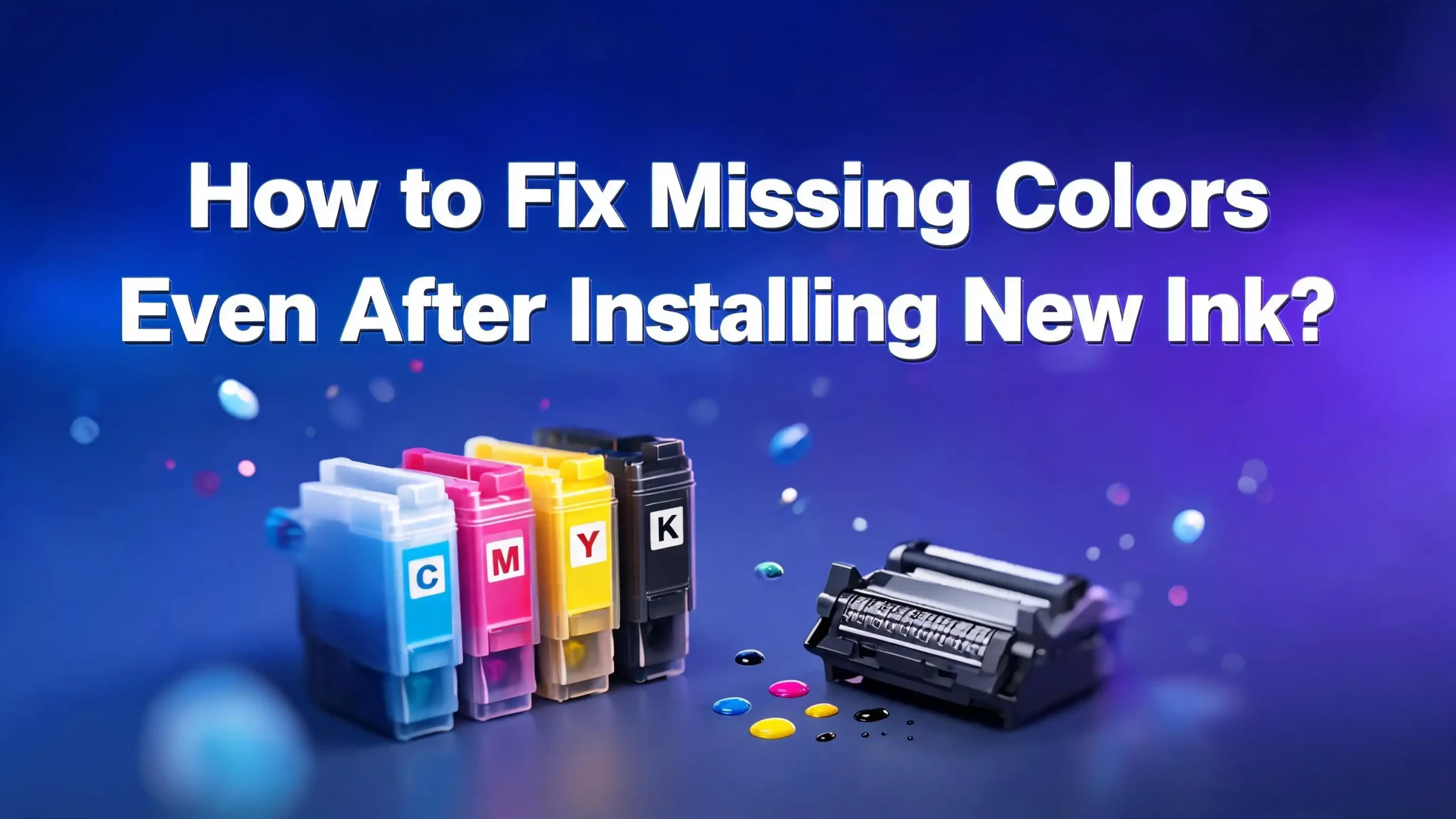
How to Fix Missing Colors Even After Installing New Ink?
You just replaced your ink cartridges. You expected bright, vibrant prints. Instead, your printer is still missing colors, printing faded pages, or skipping entire color channels like cyan, magenta, or yellow. Sound familiar?
This problem is more common than most people think, and the good news is that it is almost always fixable at home. You do not need to buy a new printer or call a technician just yet. Whether you own an HP, Epson, Canon, or Brother printer, the root causes and solutions tend to follow the same patterns.
This guide breaks down every possible reason why colors go missing after a new ink installation, and gives you clear, step-by-step instructions to fix each one. By the end, your printer will be back to producing full, accurate colors.
Key Takeaways
- Protective tape left on the cartridge is one of the most overlooked causes of missing colors after a new ink installation. Always check that you have fully peeled off the orange, yellow, or pink pull tab from every cartridge before loading it.
- Clogged printhead nozzles are the most common technical reason for missing or faded colors. Running the printer’s built-in nozzle check and cleaning cycle fixes this in most cases without any tools.
- Dirty cartridge contacts or chip connectors can prevent the printer from reading a new cartridge correctly, causing it to report the color as empty or absent even when it is brand new and full.
- Incorrect print settings such as grayscale mode or black-and-white only mode can make your printer ignore color ink entirely, making it appear as though the colors are missing when they are actually being bypassed by a software setting.
- Outdated or corrupted printer drivers can cause color miscommunication between your computer and the printer, resulting in wrong or missing colors on the final printed page.
- Print head misalignment can cause colors to shift, overlap incorrectly, or appear missing from certain areas of the page, and running the alignment utility from your printer’s settings menu resolves this quickly and accurately.
Check If the Protective Tape Was Fully Removed
This sounds almost too simple, but it is one of the most common reasons people experience missing colors right after installing brand new ink. Every new ink cartridge comes with a protective seal, usually a strip of orange, yellow, or pink tape, that covers the ink nozzles to prevent leaking during shipping.
If this tape is not completely removed before installation, the ink cannot flow to the printhead. The result is that the printer acts as if the cartridge is empty or missing a color channel entirely. Many people pull part of the tape off and assume the rest comes away with the packaging, but often it does not.
Here is what you should do. Remove each cartridge that is showing a missing color. Look at the bottom of the cartridge, specifically at the nozzle area. Check for any remaining adhesive tape, thin plastic film, or pull tabs. Some cartridges have two separate tape pieces, and it is easy to miss the second one.
Also check that you did not accidentally remove the top vent label, which is a small sticker on top of some cartridges that must stay on. Removing this can cause air pressure problems and ink leakage. If you are unsure, compare the cartridge to the installation diagram that came in the box.
Once you confirm all protective tape is removed, reinstall each cartridge firmly until it clicks into place, then run a test print to check if the missing color has returned.
Confirm the Cartridge Is Properly Seated
Even if the protective tape is off, a cartridge that is not fully seated cannot make a proper connection with the printer. Loose cartridges are a surprisingly frequent cause of missing colors, especially after a quick or rushed installation.
When a cartridge sits slightly crooked or does not click all the way into its slot, the printer may not detect it at all, or it may detect it intermittently. This causes it to skip that color channel during printing, which shows up as a missing color on the page.
To fix this, open the ink cartridge access door and wait for the carriage to stop moving. Then press down on each cartridge firmly. You should feel a noticeable click when it is fully seated. Do not just press lightly. Use steady, even pressure. If the cartridge feels wobbly or loose after pressing, try removing it completely and reinserting it from scratch.
For some printer models, particularly Canon and HP, the cartridge compartments are color-coded or labeled. Make sure each cartridge is installed in its correct slot. Placing a cyan cartridge in the magenta slot, for example, will cause color output to look completely wrong even if all cartridges are full.
After reseating all cartridges, close the access door, wait for the printer to recognize everything, and then print a nozzle check page to confirm all colors are reading correctly.
Run a Nozzle Check Test Page
Before you do anything else technical, you need to know exactly which color is missing and whether the problem is in the cartridge or the printhead. The fastest way to find this out is by printing a nozzle check test page, which most printers can do in under two minutes.
A nozzle check page prints a series of colored lines or patterns, one for each ink color in your printer. If a color is missing entirely, you will see a blank space in that color’s row. If a color is partially missing, you will see gaps or broken lines in the pattern. This tells you exactly which nozzle or color channel is blocked or not working.
Here is how to run a nozzle check on the most common printer brands:
For Epson printers, go to the printer software on your computer, click Maintenance, then select Nozzle Check. You can also access this directly from the printer’s control panel by navigating to Setup, then Maintenance, then Nozzle Check.
For HP printers, open the HP Smart app or the printer’s control panel, go to Tools or Setup, and look for Print Quality Tools or Print Diagnostic Report.
For Canon printers, open the printer driver on your computer, click the Maintenance tab, and select Nozzle Check. You can also access this from the printer’s menu under Maintenance.
Once you see the test page results, you know exactly where to focus your troubleshooting. A fully blank color row almost always means a clogged nozzle or an unseated cartridge.
Clean the Printhead Nozzles Using the Printer Utility
If the nozzle check revealed missing or broken color lines, the printhead nozzles are clogged. This is the most common technical cause of missing colors, even after installing fresh ink. Ink dries inside the tiny nozzles when the printer sits unused for days or weeks, and the new ink cannot push through the dried residue.
Most modern printers have a built-in cleaning utility that solves this without any manual work. The utility pushes ink through the nozzles at higher pressure to clear the blockage.
To run the cleaning cycle on Epson printers, go to Maintenance in the printer software, select Head Cleaning, and follow the on-screen instructions. The process takes about two to three minutes. After it finishes, print another nozzle check page to see if the blocked color has cleared.
For HP printers, open the HP Smart app or the printer’s control panel, navigate to Printer Maintenance or Tools, and run the Clean Printhead or Print Quality Toolbox option.
For Canon printers, open the printer driver, click the Maintenance tab, and select Cleaning. Choose the specific color that was missing from the nozzle check.
Run the cleaning cycle one time, then print a nozzle check page before running it again. Do not run the cleaning cycle multiple times back to back. Each cleaning cycle uses a significant amount of ink, and running it repeatedly without checking in between can drain your cartridges faster than necessary. If one cycle does not fix the problem, wait 30 minutes and run it once more.
Perform a Manual Printhead Cleaning for Stubborn Clogs
If the printer’s built-in cleaning utility does not resolve the missing color after two or three cycles, you may have a stubborn clog that requires manual cleaning. This step is a little more hands-on, but it is very effective and much cheaper than replacing the printhead.
Before you start, gather distilled water or a printhead cleaning solution. Do not use tap water, as the minerals can cause further clogging. Also have a few lint-free cloths or coffee filters ready.
For printers with a removable printhead, like many Epson EcoTank and HP OfficeJet models, remove the printhead from the printer carefully. Place it nozzle-side down on a folded lint-free cloth dampened with distilled water or cleaning solution. Let it soak for 10 to 15 minutes. The warm moisture will dissolve the dried ink. Then blot it gently on a fresh dry cloth to remove the dissolved ink. Repeat if needed.
For printers where the printhead is built into the cartridge, like many Canon models, place the cartridge nozzle-side down on a lint-free cloth slightly dampened with distilled water. Let it sit for five to ten minutes, then blot gently. Never rub the nozzle plate, as this can damage the tiny openings.
Reinstall everything after cleaning, run another nozzle check, and you should see the blocked color returning. If the clog is very old or very severe, you may need to repeat the soaking process two or three times.
Clean the Ink Cartridge Electrical Contacts
Even when the nozzles are clear and the cartridge is properly seated, the printer may still fail to read a specific color if the electrical contacts on the cartridge or inside the printer are dirty. These contacts are the small gold-colored metal pads on the side or bottom of the cartridge. They allow the printer to communicate with the chip on the cartridge to read ink levels and color identity.
Dust, fingerprints, dried ink, or oxidation on these contacts can break the connection. When the printer cannot read the cartridge chip, it may report that color as missing, empty, or not detected.
To clean the contacts on the cartridge, remove the affected cartridge from the printer. Dampen a lint-free cloth or a cotton swab lightly with distilled water or isopropyl alcohol. Gently wipe the gold contact pads on the cartridge. Do not scrub. Use light strokes and let the cloth do the work. Allow the contacts to dry completely before reinstalling the cartridge.
To clean the contacts inside the printer, look inside the cartridge slot for corresponding metal pins or pads. Use a dry cotton swab or a very lightly moistened one to clean them. Be especially careful not to bend or damage the pins.
After cleaning both sets of contacts, reinstall the cartridge and power cycle the printer by turning it off, unplugging it from the wall for 60 seconds, and plugging it back in. This resets the printer’s memory and allows it to reread the cartridge correctly.
Check and Fix Printer Color Settings
Sometimes the issue has nothing to do with the ink or the printhead at all. The printer may simply be set to print in grayscale or black-and-white mode, which tells it to completely ignore color ink. This setting can be accidentally switched during a previous print job or after a software update.
Here is how to check and fix this in Windows:
Go to the Control Panel, click Devices and Printers, right-click your printer, and select Printing Preferences. Look for a Color Mode or Output Color setting. If it is set to Grayscale, Black and White, or Monochrome, change it to Color or Full Color. Click Apply and OK to save the change.
On a Mac, open System Preferences, go to Printers and Scanners, select your printer, and click Open Print Queue. In the print dialog, look under the Color Options or Quality and Media section and confirm the color setting is not set to Grayscale.
Also check the settings inside whatever application you are printing from. Microsoft Word, Adobe PDF, and photo editing apps all have their own print settings that can override the system-level printer settings. In the print dialog of each application, look for a Color or Grayscale toggle and make sure it is set to color.
This fix takes less than two minutes and is often the reason why brand new cartridges appear to produce no color output at all.
Update or Reinstall the Printer Driver
Printer drivers are the software layer between your computer and the printer. When a driver is outdated, corrupted, or improperly installed, it can cause color output problems that have nothing to do with the ink itself. After installing new ink, some people experience color shifts or missing colors because the driver is not communicating the correct color information to the printer.
To update your printer driver on Windows, open Device Manager, expand the Printers section, right-click your printer, and select Update Driver. You can also go directly to the printer manufacturer’s website and download the latest driver for your printer model.
For HP printers, visit hp.com/support and search for your model. For Epson, visit epson.com and navigate to the support section. For Canon, visit usa.canon.com/support. Always download the driver that matches your operating system version.
If updating does not help, try a clean reinstall. First, uninstall the current driver completely. In Windows, go to Control Panel, Programs and Features, and remove all software related to your printer. Then restart the computer and install the fresh driver from the manufacturer’s website. This clears any corrupted files that may be causing the color problem.
On a Mac, go to System Preferences, Printers and Scanners, remove the printer by clicking the minus button, then add it again using the updated driver from the manufacturer’s site.
Run the Print Head Alignment Utility
Print head alignment is a step that many people skip after installing new ink, but it plays an important role in color accuracy. When the printhead is misaligned, different color channels can print in the wrong position, causing colors to look shifted, washed out, or missing from certain areas of the page.
Most printers prompt you to run an alignment after installing new cartridges, but this prompt is easy to dismiss or miss. If you did not run alignment after your last cartridge change, it is worth doing now.
For Epson printers, go to the printer maintenance settings on your computer, click Print Head Alignment, and follow the instructions. The printer will print an alignment sheet and either align automatically or ask you to input which pattern looks best.
For HP printers, open the HP Smart app or navigate to the control panel, go to Printer Maintenance, and select Align Printer. The printer will print a test page and process the alignment automatically.
For Canon printers, open the printer driver, click the Maintenance tab, and select Print Head Alignment. Place the alignment sheet on the scanner glass if prompted, and let the printer complete the process.
Running alignment takes about three to five minutes and is a completely safe process that costs very little ink. It often resolves subtle color issues that persist even after cleaning and cartridge checks.
Check the Ink Level Readings and Reset if Needed
After installing new cartridges, the printer sometimes does not reset its ink level counter correctly. This can cause the printer to believe a cartridge is still empty or critically low, preventing it from using that color even though the cartridge is physically full.
This happens most often when you use refilled cartridges or third-party ink, but it can also occur with genuine cartridges if the chip does not reset properly during installation.
First, check the ink levels by going to your printer’s software on your computer or the display panel on the printer itself. If a color that you just replaced still shows as empty or very low, the chip likely did not reset.
To attempt a reset, remove the cartridge, wait 30 seconds, and reinstall it. Turn the printer off, unplug it for 60 seconds, and power it back on. This forces the printer to rescan all installed cartridges.
Some HP printers have a known issue where the chip memory needs a manual reset. HP has an official printhead reset procedure that involves holding specific buttons during power-up. Check your printer’s manual or the HP support page for your specific model number.
For Epson EcoTank printers, ink levels are tracked by the printer’s internal counter rather than a chip on a cartridge. After refilling the tank, you must manually reset the ink level counter through the control panel or Epson software to let the printer know the tank is full again.
Verify You Installed the Correct Cartridge Type
It seems obvious, but installing the wrong cartridge is more common than people expect, especially with printers that have multiple versions of the same model. Cartridges that look identical can have completely different chip configurations, and a mismatched cartridge will not perform correctly even if it physically fits in the slot.
For example, some HP printers have both a standard yield and a high-yield version of the same color cartridge. The cartridge numbers may differ by only a few digits. Installing the wrong version can cause the printer to misread the ink type, resulting in color errors or missing colors.
To verify your cartridges are correct, check the cartridge number printed on the side of each cartridge and compare it to the number listed in your printer’s manual or on the printer’s inside cartridge door panel. Most printers label each slot with the cartridge number that belongs there.
Also check whether your printer requires XL cartridges, standard cartridges, or a specific ink series. Using an older series cartridge in a newer printer model can result in color reading errors.
If you find a mismatch, purchasing the correct cartridge for your printer model is the only reliable fix. Using a compatible but incorrect cartridge can cause recurring color problems and in some cases can void the printer’s warranty.
Check the Paper Type and Media Settings
Incorrect paper settings can make colors appear washed out, inaccurate, or partially missing, even when everything else is working correctly. The printer adjusts how much ink it applies to the page based on the paper type you select in the settings. If you tell the printer you are using plain paper but you are actually printing on photo paper, the ink distribution will be wrong and colors will look off.
To fix this, open the print dialog from any application before printing. Look for the Media Type or Paper Type setting. Select the option that matches the actual paper loaded in your printer tray.
Common paper type options include Plain Paper, Inkjet Paper, Matte Photo Paper, Glossy Photo Paper, and Premium Photo Paper. Each setting instructs the printer to use a different ink volume and layering pattern. Selecting the correct type ensures the colors are applied at the right density for the surface.
Also check the print quality setting. If the quality is set to Draft or Economy mode, the printer deliberately reduces ink usage, which can make colors look faint or incomplete. Switch to Normal or Best quality for color-critical prints.
On HP printers, the media setting is found in the Printing Preferences under the Paper and Quality tab. On Epson printers, look in the printer driver dialog under the Main tab. On Canon printers, find it under the Quality and Media section of the print dialog.
Try a Factory Reset on the Printer
If you have tried all the steps above and colors are still missing, a factory reset on the printer can clear any persistent software or firmware errors that are blocking color output. A factory reset returns all printer settings to their original defaults, which eliminates any incorrect configurations that may have built up over time.
Note that a factory reset will erase all custom settings, saved Wi-Fi networks, and any stored preferences. You will need to reconnect the printer to your Wi-Fi network and reconfigure any custom settings after the reset.
For most HP printers, press and hold the Wireless button and the Cancel button at the same time for three seconds, or go to the control panel, navigate to Setup, then Tools, and select Restore Factory Defaults.
For Epson printers, go to Setup or Settings from the home screen, then navigate to Restore Default Settings. Select all options or just the ones related to print settings.
For Canon printers, go to the device settings menu, scroll to Reset Setting, and choose to reset all settings.
After the reset, reinstall the printer on your computer using the manufacturer’s setup utility, run a nozzle check, and test a color print. In most cases, a factory reset combined with a fresh driver install resolves stubborn color problems that did not respond to other fixes.
When to Consider Replacing the Printhead
If you have worked through every step in this guide and one or more colors are still missing, the printhead itself may be damaged or permanently clogged beyond recovery. The printhead is the component that actually sprays ink onto the paper, and like any mechanical part, it can wear out or fail after years of use.
Signs that the printhead may need replacement include colors that never improve even after multiple cleaning cycles, missing color lines that stay identical across every nozzle check, burning smells during printing, or visible physical damage on the printhead surface.
For printers with user-replaceable printheads, such as many HP OfficeJet Pro and Epson WorkForce models, you can purchase a replacement printhead directly from the manufacturer or an authorized parts retailer. The printhead is installed by opening the printer lid, releasing the old head, inserting the new one, and running the alignment utility.
For Epson printers with an integrated printhead (such as many compact EcoTank models), replacing the printhead requires more technical knowledge and is usually performed by an authorized service technician.
Before deciding to replace the printhead, consider the age and cost of your printer. If the printer is more than five years old and a new printhead costs nearly as much as a new budget printer, it may make more financial sense to invest in a new unit. However, if you have a high-end model or a wide-format printer, printhead replacement is almost always worth doing.
Prevent Missing Colors From Happening Again
Once you have fixed the missing color problem, a few simple habits will keep it from coming back. Prevention is always faster and cheaper than troubleshooting, and most color problems are completely avoidable with minimal effort.
Print regularly. The single most effective way to prevent clogged nozzles is to print at least one color page every week or two. This keeps ink flowing through the nozzles and prevents it from drying inside. Even printing a small test page counts.
Store cartridges properly. If you keep spare cartridges, store them at room temperature, sealed in their original packaging, and away from direct sunlight or heat sources. Heat accelerates ink evaporation and degrades the chip.
Do not leave the printer exposed. Keep the printer covered when not in use to reduce dust buildup on the printhead and contact points. A simple dust cover or even a cloth over the printer goes a long way.
Run maintenance cycles periodically. Most printers allow you to schedule automatic nozzle checks or run a light cleaning once a month. Setting this up takes less than five minutes and keeps your printhead in good condition.
Keep your drivers updated. Check for printer driver updates every few months, especially after major operating system updates on your computer. Outdated drivers are a quiet but consistent cause of color output problems.
By building these habits into your routine, you will spend far less time troubleshooting and far more time enjoying clean, accurate, full-color prints from your printer.
Frequently Asked Questions
Why are colors still missing after I installed a brand new ink cartridge?
The most likely causes are a clogged printhead nozzle, protective tape left on the cartridge, a cartridge that is not fully seated, or dirty electrical contacts. Run a nozzle check first to identify which color channel is missing, then follow the cleaning and reseating steps in this guide.
How many times should I run the printhead cleaning cycle?
Run the cleaning cycle once, then print a nozzle check page before running it again. Do not run it more than two or three times in one session, as each cycle uses a considerable amount of ink. If three cycles do not resolve the issue, move on to manual printhead cleaning.
Can a wrong printer setting really cause missing colors?
Yes, absolutely. If the printer is set to Grayscale or Black and White mode, it will completely bypass the color ink cartridges even if they are full. Always check your printer settings and the print dialog settings inside your software application before assuming there is a hardware problem.
Why does my printer say the color cartridge is empty when it is new?
This usually means the cartridge chip did not register correctly during installation. Remove the cartridge, wait 30 seconds, and reinstall it firmly. Then turn the printer off, unplug it from the wall for 60 seconds, and power it back on. This forces the printer to re-read all installed cartridges.
Is it safe to manually clean the printhead at home?
Yes, it is safe when done carefully. Use distilled water or a printhead cleaning solution. Never use tap water, alcohol that is above 70%, or any abrasive materials. Handle the printhead gently and allow it to dry completely before reinstalling it.
How do I know if the printhead needs to be replaced instead of cleaned?
If you have run three or more cleaning cycles, performed manual cleaning, and the same color is still completely absent from the nozzle check pattern, the printhead may be permanently damaged. Also watch for consistent identical gaps across multiple nozzle checks, which suggests physical damage rather than a simple clog.
Will third-party ink cartridges cause missing colors?
They can, particularly if the chip on the cartridge is incompatible with your printer model. Third-party cartridges can also dry out faster if they sat in a warehouse for a long time before you purchased them. Always verify compatibility and check the cartridge for any protective seals before installing.
How often should I run a nozzle check to prevent color problems?
Running a nozzle check once a month is a good practice, especially if you do not print very often. It takes less than a minute and gives you an early warning about clogging before it becomes a serious problem that requires multiple cleaning cycles.

I’m the voice behind Device Dossier. As a printing technology enthusiast, I spend my time testing printers, comparing specs, and writing honest reviews to help you find the perfect printing solution. When I’m not geeking out over print quality and page yields, you’ll find me exploring the latest in tech.