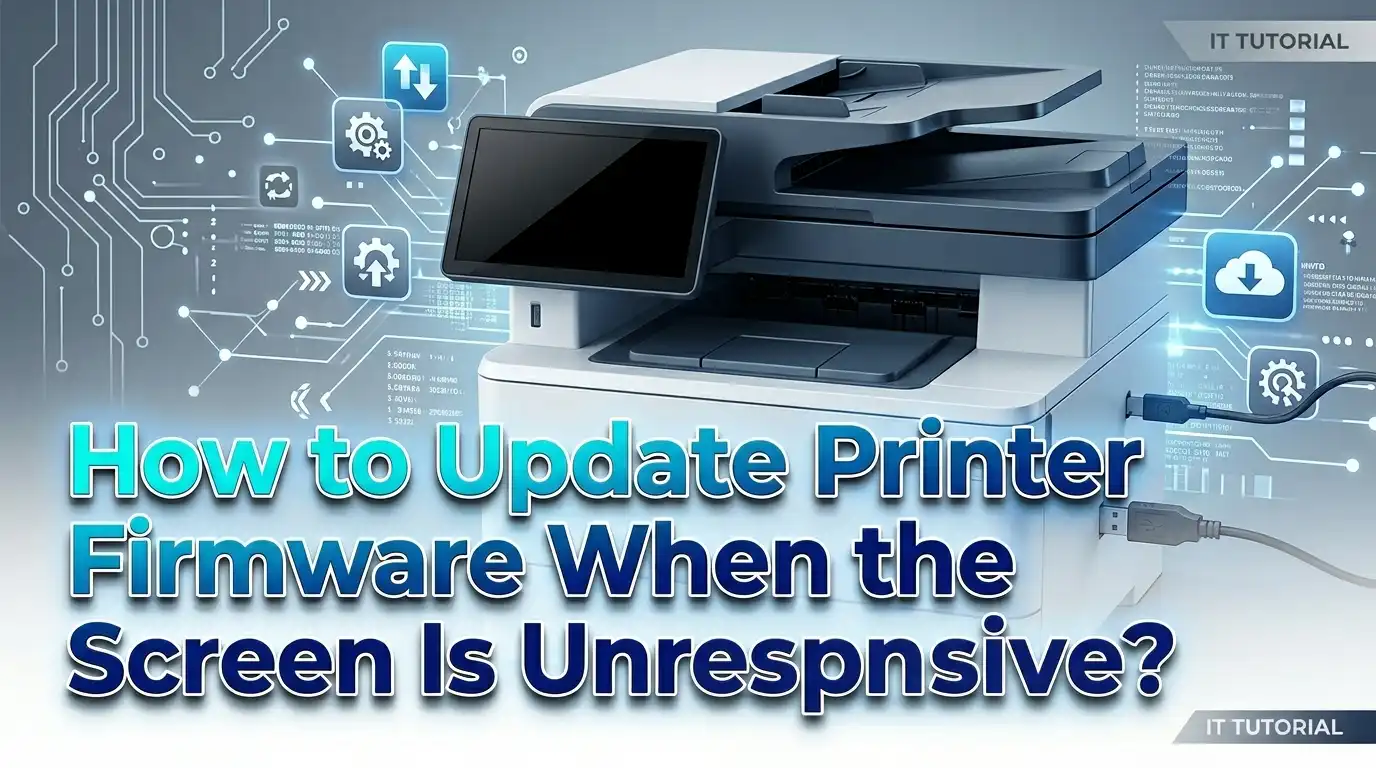
How to Update Printer Firmware When the Screen Is Unresponsive?
A frozen or unresponsive printer screen can feel like a dead end. You need to update the firmware, but the very tool you rely on to start the process is broken. The touchscreen does not react. The menu buttons do nothing. You stare at a blank or stuck display and wonder if the printer is done for good.
The good news? You do not need a working screen to update your printer firmware. Several proven methods let you bypass the display entirely and push a firmware update through a computer, a USB flash drive, a web browser, or even a recovery mode built into the printer itself.
This guide walks you through every practical solution available. Each method includes step by step directions, its strengths and weaknesses, and tips to avoid common mistakes. By the end of this post, you will have your printer updated and working again.
Key Takeaways
- A dead screen does not mean a dead printer. Multiple firmware update methods exist that completely bypass the touchscreen or control panel. You can use a USB cable, a USB flash drive, a web browser, or manufacturer software to complete the update without touching the screen at all.
- The Embedded Web Server (EWS) is one of the best alternatives. If your printer connects to your network, you can open its control panel in a web browser by typing its IP address. From there, you can upload and install firmware files directly.
- USB flash drives work on many enterprise and home printers. You download the firmware file to a flash drive, plug it into the printer, and the printer reads and installs the update automatically. This method requires no screen interaction on most models.
- Manufacturer update tools handle the heavy lifting. HP, Canon, Epson, and Brother all offer desktop software that detects your printer and pushes firmware updates through a USB cable or network connection. These tools are free to download from official support sites.
- Recovery mode can save a bricked printer. If a failed firmware update caused the unresponsive screen, most printers have a built in recovery mode. This mode accepts a fresh firmware file and restores normal operation.
- Always back up your settings and avoid power interruptions. A power loss during a firmware update can permanently damage the printer. Use a stable power source and never unplug the printer while an update is in progress.
Why Does a Printer Screen Become Unresponsive?
A printer screen can stop responding for several reasons. A failed firmware update is one of the most common causes. If power was lost during a previous update or the update file was corrupted, the printer may boot into an incomplete state. The screen stays blank or frozen because the software that drives the display did not install correctly.
Hardware faults also cause unresponsive screens. A loose ribbon cable between the control board and the display panel can break the connection. Heat, humidity, and general wear over time degrade these internal components. Physical damage from a drop or impact may crack the digitizer layer that detects touch input.
Electrical surges and static discharge sometimes damage the control board. A power spike during a storm or from an unstable outlet can fry sensitive circuits. The printer may still power on, and the print engine may still function, but the display remains dark or unresponsive.
Software glitches are another possibility. A corrupted settings file or a conflicting configuration can lock the display in a loop. The printer firmware itself may contain a bug that freezes the interface under certain conditions. Manufacturers release firmware updates specifically to fix these kinds of issues.
Understanding the root cause helps you pick the right solution. If the screen failed after a firmware update attempt, recovery mode is likely your best path. If the screen stopped working randomly, a hard reset or a fresh firmware push from a computer may resolve the problem.
How to Perform a Hard Reset Before Updating
Before you try any firmware update method, a hard reset is worth attempting. This simple process clears temporary errors and restores the printer to a functional boot state. Many unresponsive screen issues resolve with this step alone.
Turn off the printer using the power button. If the power button does not respond, unplug the power cable directly from the back of the printer. Wait at least 60 seconds. This pause allows capacitors inside the printer to fully discharge. Some technicians recommend waiting a full two minutes for stubborn issues.
While the printer is unplugged, disconnect any USB cables, Ethernet cables, and remove any memory cards or USB flash drives. This eliminates external interference during the restart. Press and hold the power button on the unplugged printer for 15 to 30 seconds. This drains any residual charge in the system.
Reconnect only the power cable and turn the printer on. Watch the screen carefully during the boot sequence. If the display shows any activity, even briefly, the screen hardware is likely functional. The issue is probably software related, and a firmware update should fix it.
If the screen remains completely dark after the hard reset, try a different power outlet to rule out electrical problems. Also check if any indicator lights or LEDs on the printer body illuminate. Active LEDs with a dark screen often indicate a display cable issue or a corrupted firmware state that requires a recovery update.
Pros: Simple, requires no tools or software, and often resolves temporary glitches.
Cons: Does not fix hardware damage or deeply corrupted firmware. Only addresses surface level issues.
How to Update Firmware Using a USB Cable and Computer Software
This is one of the most reliable methods for updating firmware with an unresponsive screen. You connect the printer to a computer using a USB cable and run the manufacturer’s firmware update tool. The tool communicates directly with the printer’s internal hardware and does not need the screen at all.
Step 1: Identify your exact printer model. Check the label on the front or back of the printer for the full model number. You need this to download the correct firmware file.
Step 2: Visit the official support website for your printer brand.
Step 3: Download the firmware update utility or firmware file to your computer. Most manufacturers offer a combined tool that includes both the updater application and the firmware data. Save it to a location you can easily find, like your desktop.
Step 4: Connect a USB cable from your computer directly to the printer. Make sure the printer is powered on. The indicator lights should be active even if the screen is not working.
Step 5: Run the firmware update tool. The software will detect the connected printer, verify the model, and begin the update process. Do not disconnect the USB cable or turn off the printer during this process. The update can take anywhere from 5 to 20 minutes depending on the file size and printer model.
Pros: Works even with a completely dead screen. Direct USB connection is stable and fast. Manufacturer tools handle compatibility checks automatically.
Cons: Requires a computer and a USB cable. Some wireless only printers lack a USB port. The correct driver may need to be installed first.
How to Update Firmware Using the Embedded Web Server
The Embedded Web Server (EWS) is a built in web interface that exists on most network connected printers. You access it through a web browser on any computer or device connected to the same network. This method completely bypasses the printer screen.
Step 1: Find your printer’s IP address. If you cannot read it from the screen, check your router’s connected devices list. Log into your router’s admin panel (usually at 192.168.0.1 or 192.168.1.1) and look for the printer in the list of connected devices. The printer name or MAC address will help you identify it.
Step 2: Open a web browser on your computer and type the printer’s IP address into the address bar. Press Enter. The printer’s EWS page will load. This page shows status information, settings, and maintenance options.
Step 3: Look for a Firmware Update option. On HP printers, check under the “General” or “Printer Maintenance” tab. On Lexmark printers, click “Device” and then “Firmware Update.” On other brands, explore the settings or tools menu.
Step 4: Download the latest firmware file from the manufacturer’s support site. Save it to your computer. Return to the EWS firmware update page and click “Browse” or “Choose File.” Select the downloaded firmware file and click “Upload” or “Install.”
Step 5: Wait for the update to complete. The printer will restart automatically. Do not close the browser, disconnect the network, or power off the printer during this process.
Pros: No USB cable needed. Works from any device with a browser. Clean interface with clear options.
Cons: Requires the printer to be connected to the network. If the network connection is also broken, this method will not work. Not all home printers support EWS.
How to Update Firmware Using a USB Flash Drive
Many printers accept firmware updates directly from a USB flash drive. This is especially common on HP LaserJet Enterprise printers, but several consumer models also support it. The printer reads the firmware file from the drive and installs it without any screen input.
Step 1: Format a USB flash drive to FAT32 file system. Use a drive that is 8 GB or smaller, as some printers do not recognize larger drives. Remove all other files from the drive to avoid confusion during the update.
Step 2: Download the correct firmware file from the manufacturer’s website. Copy the firmware file to the root directory of the USB drive. Do not place it inside a folder. The file should be the only item on the drive.
Step 3: Turn off the printer. Insert the USB flash drive into the USB port on the printer. This is usually a Type A port found on the front or side of the device.
Step 4: Turn the printer back on. Many printers will detect the firmware file automatically and begin the update. You may see indicator lights blink in a specific pattern during the process. On HP printers, the control panel may display a “Firmware Update” message even on non touch displays with basic LED screens.
Step 5: Wait until the printer fully restarts and the indicator lights return to normal. Remove the USB drive only after the update is complete and the printer is idle.
Pros: No computer needed after downloading the file. Quick and straightforward. Works well for printers in remote locations or without network access.
Cons: Not all printers support USB flash drive updates. Drive must be formatted correctly. File placement errors can prevent detection.
How to Use Recovery Mode for a Failed Firmware Update
If your unresponsive screen was caused by a failed or interrupted firmware update, your printer may have entered recovery mode. This is a safety feature built into many printers. Recovery mode accepts a fresh firmware installation to restore the device to working condition.
For Epson printers, recovery mode is often indicated by alternating power and error lights. Connect the printer to a computer via USB cable. Visit the Epson support site and download the Firmware Recovery Tool for your model. Run the tool, and it will detect the printer in recovery mode and push the correct firmware automatically.
For HP printers, a failed firmware update may trigger a pre boot menu. On enterprise models, you can access this by holding specific button combinations during startup. Once in the pre boot menu, insert a USB flash drive containing the firmware file. Select “Firmware Upgrade” from the pre boot options.
For Canon printers, download the Printer Update Utility from the Canon support site. Connect the printer via USB while it is powered on. The utility will detect the printer even in a failed state and push the firmware update through the cable.
For Brother printers, download the Firmware Update Tool from the Brother support site. Connect the printer using a USB cable. The tool communicates directly with the printer hardware and does not require the screen or control panel to function.
How to Find Your Printer’s IP Address Without the Screen
Accessing the Embedded Web Server or using network based update tools requires your printer’s IP address. With an unresponsive screen, you cannot read it from the display. Here are several ways to find it.
Check your router’s admin page. Open a browser and type your router’s gateway address (commonly 192.168.0.1 or 192.168.1.1). Log in with your router credentials. Navigate to the connected devices list. Look for your printer by its name, manufacturer, or MAC address. The IP address will be listed next to it.
Use the manufacturer’s desktop software. HP Smart, Canon IJ Network Tool, Epson Printer Finder, and Brother iPrint&Scan can all detect printers on your local network. Install the relevant application and let it scan. It will display the printer’s IP address along with its status.
Print a network configuration page. Some printers let you print this page by pressing a physical button combination, even without a working screen. For many HP printers, pressing and holding the Resume or Cancel button for 5 to 10 seconds will print a configuration page. Check your printer’s manual for the exact combination.
Use a network scanning tool. Free applications like Advanced IP Scanner (Windows) or Angry IP Scanner (Windows, Mac, Linux) scan your local network and display all connected devices. Identify your printer from the list by its hostname or MAC address.
Once you have the IP address, write it down. You will need it for EWS access and for any network based firmware update method.
Precautions to Take Before Starting a Firmware Update
Firmware updates change the core software of your printer. A mistake during this process can make the situation worse. Taking a few precautions protects your printer and your data.
Never interrupt a firmware update. This is the single most important rule. Do not unplug the printer, disconnect the USB cable, turn off your computer, or close the update software while the process is running. A partial firmware write can corrupt the entire system and brick the printer permanently.
Use a stable power source. Plug the printer directly into a wall outlet. Avoid power strips shared with high draw devices like space heaters or microwaves. If you live in an area with frequent power outages, consider using an uninterruptible power supply (UPS) during the update.
Download firmware only from the official manufacturer website. Third party sites may host outdated, modified, or malicious firmware files. Always verify the file is intended for your exact printer model and hardware revision.
Back up your printer settings if possible. Some EWS interfaces let you export the printer’s configuration before updating. This allows you to restore your custom settings after the firmware update completes.
Close other applications on your computer that might compete for the USB port or network bandwidth. Print jobs, scanning software, and printer monitoring utilities can interfere with the update process. Pause or cancel any active print jobs in the print queue before starting.
Brand Specific Methods for HP Printers
HP offers several tools and methods for updating firmware without a working screen. HP Smart is the primary application for consumer printers. Install it on your Windows or Mac computer, and it will detect HP printers on your network or connected via USB. The app includes a firmware update option under the printer settings menu.
HP Web Jetadmin is available for enterprise environments. It manages multiple printers across a network and can push firmware updates in bulk. This tool is ideal for IT administrators handling large fleets of HP printers.
For HP LaserJet Enterprise and Managed printers, the pre boot menu is a powerful recovery tool. Turn off the printer. Press and hold the power button while simultaneously pressing a specific key combination (varies by model; check the HP support page for your device). The pre boot menu appears on the basic display and allows USB firmware loading even if the touchscreen is completely non functional.
The HP EWS method described earlier works well for HP printers. Navigate to the General tab, find Firmware Update, and upload the downloaded .ful or .bdl firmware file. HP’s support site provides detailed instructions for each model family.
HP also provides a direct firmware download as an executable file (.exe) for Windows. Running this file on a computer connected to the printer via USB or network will automatically detect the printer and install the update. No screen interaction is required on the printer side.
Brand Specific Methods for Canon, Epson, and Brother Printers
Canon offers the Printer Update Utility for firmware updates. Download it from the Canon support site for your specific model. Connect the printer to your computer with a USB cable. The utility detects the printer, downloads the latest firmware from Canon’s servers, and installs it directly. The printer screen is not needed for any part of this process.
Epson provides two important tools. The Epson Software Updater checks for and installs firmware updates on printers connected via USB or network. If the printer is stuck in recovery mode, the Epson Firmware Recovery Tool is the correct choice. This recovery tool specifically addresses printers that failed during a previous update. Download it from your model’s support page on the Epson website, connect via USB, and follow the on screen prompts on your computer.
Brother provides a Firmware Update Tool available on its support site. Download the tool for your specific model and operating system. Connect the printer via USB cable. Run the tool and it will detect the printer, check the current firmware version, and install the update. Brother also supports firmware updates through its BRAdmin Professional utility, which is useful for managing multiple Brother printers on a network.
For all three brands, the process follows a similar pattern: identify your model, download the correct tool from the official site, connect via USB, and run the updater. Each brand’s tool handles detection and installation automatically. You do not need to interact with the printer screen at any point during these updates.
What to Do if the Firmware Update Does Not Fix the Screen
Sometimes the firmware update completes successfully, but the screen remains unresponsive. This indicates the problem is likely hardware related rather than software related. Here are the next steps to consider.
Check the display ribbon cable. On many printers, the control panel connects to the main board through a flat ribbon cable. Over time, this cable can loosen or corrode. If you are comfortable opening the printer’s casing, locate the ribbon cable and reseat it firmly. Power off and unplug the printer before doing this. Some printers use a ZIF (zero insertion force) connector that requires lifting a small latch before reinserting the cable.
Test with an external display if supported. Some enterprise printers support external monitor connections or diagnostic modes accessible through a serial port. Check your printer’s technical documentation for these options.
Contact the manufacturer’s support team. If the printer is under warranty, the manufacturer may repair or replace the control panel at no cost. Even out of warranty, the support team can confirm whether a replacement display panel is available and provide a cost estimate.
Consider a third party repair service. Independent printer repair technicians often stock common replacement parts like display panels and control boards. They can diagnose and fix the issue faster and sometimes cheaper than the manufacturer’s official service.
Evaluate whether replacement makes sense. If the printer is old and the repair cost approaches the price of a new printer, it may be more practical to replace the unit. Check the total cost of repair against the current market price for your model or a comparable new printer.
How to Prevent Firmware Issues in the Future
Prevention saves time and money. A few habits can reduce the risk of firmware related screen failures and update problems.
Enable automatic firmware updates if your printer supports this feature. Most modern printers can check for and install updates automatically when connected to the internet. This keeps the firmware current without manual intervention. You can usually enable this feature through the EWS or the manufacturer’s desktop application.
Keep your printer connected to a surge protector. Power surges are a leading cause of firmware corruption and hardware damage. A basic surge protector costs very little and provides significant protection for electronic devices.
Do not turn off the printer during startup or shutdown sequences. The printer writes temporary data during these transitions. Interrupting the process can corrupt system files that affect the display and other components.
Regularly check for firmware updates even if automatic updates are enabled. Visit the manufacturer’s support page for your model every few months. Read the release notes to understand what each update fixes. Some updates address specific screen freezing bugs or display driver improvements.
Keep a record of your printer’s model number, serial number, and current firmware version. Store this information in a safe place. If the screen fails, you will need these details to download the correct recovery tools and firmware files. You can often find this information on a label on the back or bottom of the printer.
Document your printer’s network settings. Write down the IP address, subnet mask, gateway, and Wi Fi network name. This information is critical for accessing the EWS and performing network based updates when the screen is not available.
Pros: Preventive measures are easy to implement and cost almost nothing.
Cons: Automatic updates may occasionally cause compatibility issues with third party supplies. Manual checks require periodic effort.
When to Seek Professional Help
Some situations go beyond what you can fix at home. Knowing when to call a professional saves you from accidentally causing more damage.
If you have tried every method in this guide and the printer still does not accept a firmware update, the internal storage or main board may be damaged. A qualified technician has diagnostic equipment that can test individual components and pinpoint the failure.
Printers that emit unusual sounds, produce burning smells, or show scorch marks on internal components need immediate professional attention. These symptoms indicate electrical damage that could pose a safety risk. Do not attempt to power on or update a printer showing these signs.
Enterprise and office printers often have service contracts that include firmware support. Check whether your printer’s warranty or service agreement covers the issue. Many manufacturers offer next day on site service for business printers.
If the printer is a critical part of your workflow and downtime costs money, calling a professional right away is the smart choice. The time spent troubleshooting on your own may cost more in lost productivity than a service call.
Certified repair technicians from the manufacturer or authorized service centers have access to proprietary diagnostic tools and genuine replacement parts. They can perform a complete firmware recovery, replace damaged components, and test the printer thoroughly before returning it to you.
Pros: Professional repair offers the highest chance of complete recovery. Warranty claims can cover the full cost.
Cons: Service calls take time to schedule. Out of warranty repairs can be expensive depending on the issue.
Frequently Asked Questions
Can I update my printer firmware without a working screen?
Yes. You can update printer firmware without a working screen using several methods. The most common options include connecting the printer to a computer via USB cable and running the manufacturer’s firmware update tool, accessing the printer’s Embedded Web Server through a web browser, or using a USB flash drive loaded with the firmware file. Each method bypasses the screen entirely and communicates directly with the printer’s internal hardware.
Will a firmware update fix my unresponsive printer screen?
It depends on the cause. If the screen became unresponsive due to a failed or corrupted firmware update, installing fresh firmware will likely fix the issue. However, if the screen problem is caused by a loose ribbon cable, a cracked digitizer, or a damaged control board, a firmware update will not resolve it. Try the firmware update first, and if the screen remains unresponsive, investigate hardware causes.
What happens if the firmware update fails midway?
A failed firmware update can leave the printer in an unusable state. Most modern printers have a built in recovery mode that activates automatically after a failed update. You can use this recovery mode to push a clean firmware file through a USB cable. If recovery mode is not available, contact the manufacturer’s support team for model specific recovery instructions.
How do I know which firmware version my printer needs?
Visit the official support website for your printer brand and enter your exact model number. The support page will list all available firmware versions along with release notes. Always download the latest version unless the manufacturer recommends a specific earlier version for your situation. The update tool will verify compatibility before installing.
Is it safe to download printer firmware from third party websites?
No. Always download firmware from the official manufacturer website. Third party sites may host outdated, modified, or infected files that can damage your printer or compromise your network security.
Can a power outage during a firmware update brick my printer?
Yes. A power interruption during a firmware update is one of the most common causes of bricked printers. The firmware write process modifies critical system files, and an incomplete write can leave the printer unable to boot. Always use a stable power source during updates. If a power outage does occur, try the manufacturer’s recovery mode or firmware recovery tool before assuming the printer is permanently damaged.

I’m the voice behind Device Dossier. As a printing technology enthusiast, I spend my time testing printers, comparing specs, and writing honest reviews to help you find the perfect printing solution. When I’m not geeking out over print quality and page yields, you’ll find me exploring the latest in tech.