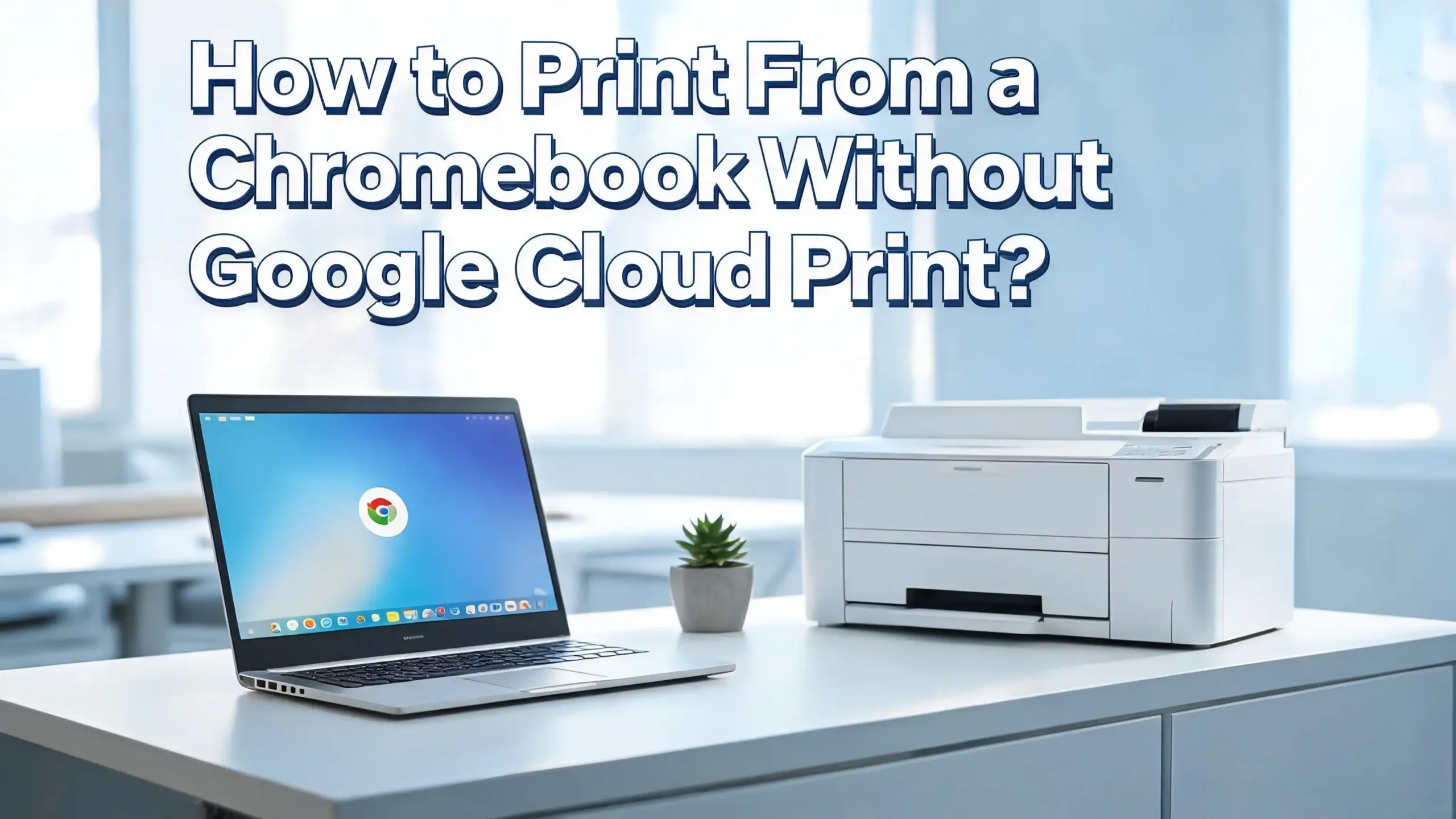
How to Print From a Chromebook Without Google Cloud Print?
If you own a Chromebook and recently discovered that Google Cloud Print is gone, you are not alone. Google shut down Cloud Print on December 31, 2020, leaving many users confused and frustrated.
The good news? You do not need Google Cloud Print to print from your Chromebook anymore.
ChromeOS has built-in printing support that works with most modern printers. This guide covers every method, step by step, so you can start printing today without stress.
Key Takeaways
- Google Cloud Print was permanently shut down on December 31, 2020, and it will not be coming back. You need to switch to one of the modern alternatives covered in this guide.
- ChromeOS has had native printing support since 2017, which means your Chromebook can connect to most modern printers without any third-party service. You just need to set it up through the Settings menu.
- Wi-Fi printing is the most popular method for Chromebook users. Your printer and Chromebook must be connected to the same Wi-Fi network for this to work smoothly. Once set up, printing becomes as simple as pressing Ctrl + P.
- USB printing works as a reliable backup for older or incompatible Wi-Fi printers. Simply plug the USB cable into your Chromebook and follow the on-screen prompts to add the printer.
- Manufacturer apps like HP Smart, Epson iPrint, and Canon PRINT are available as Android apps on the Google Play Store and work directly on Chromebook, giving you extra features and easier setup.
- If nothing else works, you can always save your document as a PDF and print it from another device, giving you a universal fallback option that never fails.
Why Google Cloud Print Is Gone and What Changed?
Google Cloud Print was created in 2010 as a temporary fix for a real problem. Back then, ChromeOS had no printer drivers at all. Google needed a workaround so Chromebook users could print. Cloud Print worked by routing print jobs through Google’s servers, which then forwarded them to printers connected to a Windows PC or a printer with built-in Cloud Print support.
The service was clever but also dependent on Google’s infrastructure. By 2017, Google added native CUPS-based printing directly into ChromeOS. This meant Chromebooks could finally communicate with printers the same way Windows or macOS computers do. With native printing available, Google no longer had a reason to maintain Cloud Print.
Google officially announced the shutdown in November 2019 and pulled the plug at the end of 2020. Any printer you previously used with Cloud Print now needs to be set up using one of the native methods described in this guide. The transition is not hard at all, and most users find the new methods are actually simpler and faster than the old Cloud Print setup.
Understanding How Chromebook Printing Works Today
ChromeOS uses a printing system called CUPS, which stands for Common Unix Printing System. This is the same backend that Linux computers use to manage printers. You do not need to install any drivers in the traditional sense. Instead, ChromeOS uses files called PPDs, or PostScript Printer Descriptions, to understand how to communicate with a specific printer model.
When you try to print on a Chromebook, the system checks if your printer is already known and compatible. If it is, setup takes just a few clicks. If your printer is not in the database, you can still add it manually using its IP address or by uploading a PPD file from the manufacturer’s website.
Google maintains a list of compatible Chromebook printers on its support page. Most printers made after 2017 with Wi-Fi and IPP (Internet Printing Protocol) support will work automatically. Older printers may need manual setup or a USB connection. Knowing which method fits your printer will save you time and frustration from the start.
Method 1: Print Over Wi-Fi Using Native ChromeOS Settings
The most common and recommended way to print from a Chromebook is over Wi-Fi. This works with any modern printer that supports wireless printing. The key requirement is that your printer and Chromebook must be on the same Wi-Fi network.
Step 1: Turn on your printer and make sure it is connected to your home or office Wi-Fi network. Check your printer’s control panel or manual for Wi-Fi setup instructions specific to your model.
Step 2: On your Chromebook, click the time display in the bottom-right corner of the screen. This opens the quick settings panel.
Step 3: Click the Settings gear icon to open the full Settings menu.
Step 4: Scroll down to the Device section and click on Printers and scanners.
Step 5: Under “Other available printers,” your Chromebook will automatically scan for nearby printers on the same network. This may take a moment, so be patient.
Step 6: When your printer appears in the list, click Save next to it. Your Chromebook will perform a quick compatibility check.
Step 7: Once saved, open any document or web page, press Ctrl + P, select your printer from the destination dropdown, and click Print.
This method is fast, wireless, and works consistently once set up. If your printer does not appear automatically, move on to the manual setup section below.
Method 2: Add a Printer Manually Using Its IP Address
Sometimes your Chromebook does not detect your printer automatically. This is common with older network printers or printers in office environments. Adding the printer manually using its IP address solves the problem.
First, find your printer’s IP address. You can usually find it by printing a configuration page from the printer itself. On most printers, go to the control panel, select Setup or Network, and print a Network Configuration Report. The IP address will be clearly listed.
Step 1: Click the time in the bottom-right corner and open Settings.
Step 2: Go to Device, then Printers and scanners.
Step 3: Click the Add Printer button or the plus (+) icon.
Step 4: In the dialog box that appears, fill in the following details:
- Name: Enter any name you want for the printer, like “Office Printer” or “Kitchen Printer.”
- Address: Type the printer’s IP address exactly as it appears on the configuration page.
- Protocol: Select IPP (Internet Printing Protocol) for most modern printers. Use LPD or Socket only if IPP does not work.
- Queue: Type ipp/print for most IPP-compatible printers.
Step 5: Click Add to proceed. Your Chromebook will then ask you to select the manufacturer and model. Choose the correct options from the dropdown menus.
Step 6: If your printer model is not listed, select Generic PostScript Printer as a fallback option. This works for many printers but may not support all features like duplex printing or custom paper sizes.
Step 7: Click Add Printer to complete the setup. Test it by pressing Ctrl + P and printing a test page.
Method 3: Connect a Printer via USB Cable
USB printing is a simple and reliable option, especially for users with older printers that do not support Wi-Fi. Most modern Chromebooks have USB-A or USB-C ports that support direct printer connections.
Step 1: Turn your printer on and make sure it has paper and ink loaded.
Step 2: Connect one end of a USB cable to your printer and the other end to your Chromebook. If your Chromebook only has USB-C ports, use a USB-C to USB-A adapter.
Step 3: A notification will appear at the bottom of your screen saying a new printer has been detected. Click the notification to open the printer setup prompt.
Step 4: Follow the on-screen instructions to finish adding the printer. Your Chromebook will identify the printer model and load the correct PPD file automatically in most cases.
Step 5: Once the printer is added, go to Settings > Device > Printers and scanners to confirm it appears under “Your saved printers.”
Step 6: Press Ctrl + P from any document, select the USB-connected printer from the list, and print.
USB printing does not require an internet connection, which makes it useful in situations where your Wi-Fi network is down or unreliable. Keep a USB cable nearby as a backup even if you primarily use Wi-Fi printing.
Method 4: Use Your Printer Manufacturer’s Android App
One of the most underrated methods for Chromebook printing is using the printer manufacturer’s Android app from the Google Play Store. Chromebooks support Android apps, and most major brands offer dedicated printing apps that simplify the entire process.
For HP printers: Open the Google Play Store on your Chromebook and search for HP Smart. Install the app, open it, and follow the guided setup. HP Smart can discover printers on your network automatically and even walk you through Wi-Fi setup step by step.
For Epson printers: Search for Epson iPrint in the Play Store. Install it and follow the prompts. Epson printers are widely compatible with ChromeOS, and the app gives you access to features like scanning, ink level monitoring, and print preview.
For Canon printers: Install the Canon PRINT Inkjet/SELPHY app from the Play Store. This app supports most Canon inkjet and photo printers and provides a clean, easy-to-use interface.
For Brother printers: Look for the Brother iPrint&Scan app, which supports a wide range of Brother printers and multifunction devices.
Step 1: Open the Google Play Store on your Chromebook.
Step 2: Search for your printer brand’s app and install it.
Step 3: Open the app and follow the in-app instructions to add your printer.
Step 4: Once set up, you can print directly from the app or use the Chromebook’s native print dialog, which will now recognize the printer.
Using the manufacturer’s app often gives you access to advanced features that are not available through the standard ChromeOS print dialog, such as borderless printing, photo quality adjustments, and maintenance tools.
Method 5: Save and Print as a PDF
Sometimes you just need a quick way to save a document and print it later on a different device. The “Save as PDF” option built into ChromeOS is a fast and universally compatible solution.
Step 1: Open the document, web page, or image you want to print.
Step 2: Press Ctrl + P to open the print dialog.
Step 3: Under the “Destination” field, click the dropdown arrow and select Save as PDF.
Step 4: Click Save and choose where to store the PDF file on your Chromebook’s local storage or Google Drive.
Step 5: Transfer the PDF to a device with a printer connected, or take it to a print shop, and print from there.
This method is incredibly useful when you are away from your printer or when your Chromebook and printer are having compatibility issues. PDF files preserve formatting perfectly, so your printed document will look exactly the way it appears on screen regardless of what printer you use later.
Method 6: Use Google Drive and Print from Another Device
If you have access to another computer connected to a printer, you can use Google Drive to share files seamlessly between your Chromebook and that computer.
Step 1: On your Chromebook, save the document you want to print to Google Drive. If it is a Google Docs file, it is already saved there automatically.
Step 2: On the computer that is connected to the printer, open a web browser and go to drive.google.com.
Step 3: Sign in with the same Google account you use on your Chromebook.
Step 4: Open the file you want to print, then use that computer’s standard print function to send it to the connected printer.
This method works well in office environments where you may be using a Chromebook but shared printers are connected to Windows or macOS machines. It requires no special setup and works anywhere you have internet access and a Google account.
Method 7: Use a Third-Party Cloud Printing Solution
If you need the ability to print from anywhere, similar to what Google Cloud Print offered, there are third-party services that fill that gap.
PaperCut Mobility Print is one of the most recommended free alternatives. It lets you print from ChromeOS to printers on your organization’s network without needing to be physically connected to that network. It is popular in schools and businesses where students and employees use Chromebooks.
Ezeep Blue is another service worth considering. It provides cloud-based printing and even connects with automation tools. Users can set up automated workflows where files from Google Drive or email attachments are sent to a printer automatically.
Step 1: Choose the service that fits your needs. PaperCut is best for schools and offices. Ezeep works well for automation-focused users.
Step 2: Visit the service’s website and sign up for a free account.
Step 3: Follow the installation and configuration instructions provided by the service. For PaperCut, you will install a client on the print server machine. For Ezeep, you install a connector on the computer attached to the printer.
Step 4: On your Chromebook, the printer will appear as an available option in the print dialog once the connection is established.
These solutions are especially valuable for remote workers and students who need to print to a specific printer from outside the building.
How to Set Up Printing on a Chromebook for School or Work
Many students and employees use Chromebooks managed by a school or organization. In these cases, the IT administrator controls printer settings through the Google Admin Console. You may not be able to add printers yourself if your device is managed by an institution.
If you are an administrator, you can deploy printers to all Chromebook users in your organization using the Google Admin Console. Navigate to Devices > Chrome > Settings > Printers and add the printers you want to push to users’ devices.
For students, the best approach is to contact the school’s IT department. They can add the correct school printers to your managed Chromebook remotely. Do not try to bypass printer restrictions on a school-managed device, as this may violate your school’s policies.
For general office use, ask your IT team to add the network printer to your device profile. They can do this without needing physical access to your Chromebook. Most modern schools and offices already have a printer management system that works seamlessly with ChromeOS.
How to Fix Common Chromebook Printing Problems
Even after setup, you may run into issues. Here are the most common problems and how to fix them quickly.
Problem: Printer appears in the list but says “Not Connected.”
This usually means the printer and Chromebook are on different networks, or the printer lost its Wi-Fi connection. Restart both the printer and the router. Then confirm that both devices are on the same Wi-Fi network by checking the network name (SSID) on both.
Problem: Print job is sent but nothing prints.
Check if the printer shows any error lights or messages on its own display. Try turning the printer off and back on. Delete the pending print job from your Chromebook by going to Settings > Printers, removing the printer, and re-adding it.
Problem: Printer is not detected even after setup.
Update your Chromebook by going to Settings > About ChromeOS > Check for updates. An outdated ChromeOS version can cause printer compatibility issues. After updating, restart your Chromebook and try adding the printer again.
Problem: Print quality is poor or pages print incorrectly.
This may be a PPD file mismatch. Go to Settings > Printers, click on your printer, and select Edit. Try changing the manufacturer or model to a more accurate match. You can also download the correct PPD file from the manufacturer’s website and upload it manually.
Problem: Chromebook says the printer is incompatible.
Check Google’s list of compatible Chromebook printers. If your printer is not listed, try the generic PPD option, connect via USB, or use the manufacturer’s Android app as a workaround.
Tips to Keep Chromebook Printing Running Smoothly
Following a few simple habits will prevent most printing problems before they start.
Keep your Chromebook updated at all times. Google regularly releases ChromeOS updates that improve printer compatibility and fix bugs. Enable automatic updates in your settings so you never fall behind.
Assign a static IP address to your printer through your router settings. When printers use dynamic IP addresses (DHCP), the address can change, causing the printer to disconnect from your Chromebook. A static IP ensures the connection stays stable.
Restart your printer once a week to clear its memory and refresh its network connection. Many minor printing problems are solved by a simple restart. Also, make sure your printer’s firmware is up to date. Visit the manufacturer’s website and check for firmware updates for your specific model.
If you use multiple printers, set the one you use most often as your default printer. This saves time because the correct printer will already be selected every time you press Ctrl + P. Saving your printer to your Chromebook profile ensures it stays as your default even after restarting.
Frequently Asked Questions
Does Google Cloud Print still work in 2025?
No, Google Cloud Print was permanently shut down on December 31, 2020. If you try to access it, you will receive a “not found” error. You need to use one of the native ChromeOS printing methods or a third-party alternative like PaperCut Mobility Print.
Can I print from a Chromebook using Bluetooth?
Currently, ChromeOS does not support Bluetooth printing. Google’s official support page confirms this limitation. You will need to use Wi-Fi, USB, or a manufacturer’s Android app to print from a Chromebook.
How do I find my printer’s IP address for manual setup?
You can find your printer’s IP address by printing a Network Configuration Report from the printer’s own control panel. On most printers, go to Setup > Network > Print Network Report. The IP address will appear on the printed page.
What do I do if my printer is not compatible with my Chromebook?
First, check Google’s official list of compatible printers. If your printer is not listed, try adding it manually using its IP address with a Generic PostScript PPD. You can also connect via USB or use the manufacturer’s Android app from the Google Play Store. If none of these work, consider upgrading to a printer that natively supports IPP or AirPrint protocols.
Can I print from Google Docs on a Chromebook?
Yes. Open your Google Docs file, click File > Print, or press Ctrl + P. Select your printer from the destination dropdown and click Print. You can also download the file as a PDF first and then print it.
Do I need an internet connection to print from my Chromebook?
It depends on the method. Wi-Fi printing requires both devices to be on the same local network, but you do not necessarily need active internet access for local network printing. USB printing works completely offline. Saving as PDF and printing later also does not require internet access on the Chromebook side.
Can a managed Chromebook from school add printers?
Usually not without administrator permission. If your Chromebook is managed by a school or organization, contact your IT administrator or help desk. They can push printer configurations to your device remotely through the Google Admin Console.
What is CUPS and do I need to install it on my Chromebook?
CUPS stands for Common Unix Printing System. It is already built into ChromeOS, so you do not need to install anything. It runs in the background and handles all printer communication. You only interact with it indirectly through the Settings > Printers menu.
Which printer brands work best with Chromebooks?
HP, Epson, Canon, and Brother all have strong ChromeOS compatibility. HP printers with the HP Smart app tend to have the smoothest setup experience. Epson and Canon also provide dedicated Android apps that work well on Chromebooks. Check the manufacturer’s website for a list of Chromebook-compatible models before buying.
How do I set a default printer on my Chromebook?
Go to Settings > Device > Printers and scanners. Find the printer you want to use as default and click the three-dot menu next to it. Select Set as default. From then on, this printer will be pre-selected every time you open the print dialog with Ctrl + P.

I’m the voice behind Device Dossier. As a printing technology enthusiast, I spend my time testing printers, comparing specs, and writing honest reviews to help you find the perfect printing solution. When I’m not geeking out over print quality and page yields, you’ll find me exploring the latest in tech.