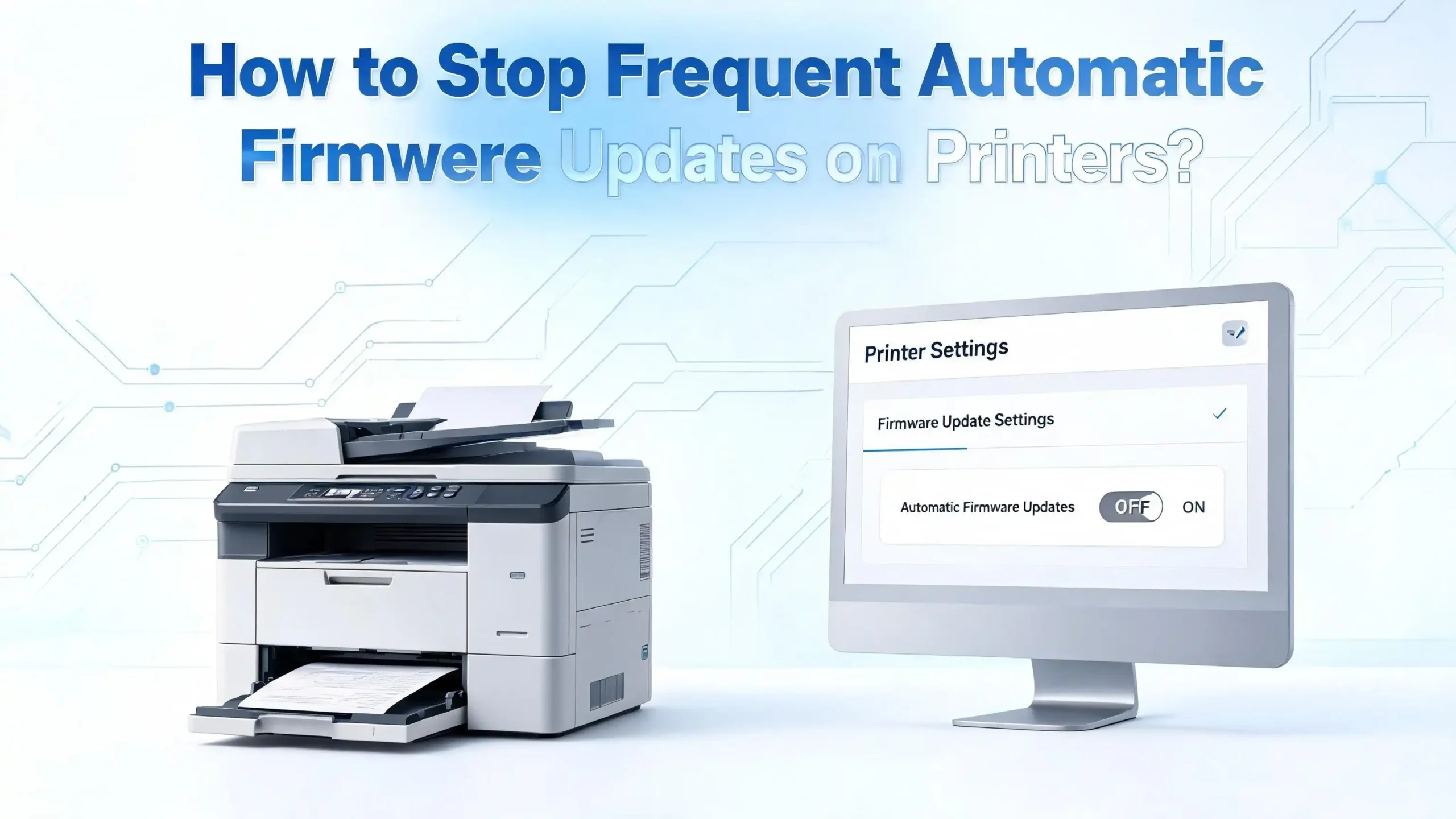
How to Stop Frequent Automatic Firmware Updates on Printers?
Has your printer ever stopped working right in the middle of an important print job because of a firmware update you never asked for? You are not alone. Millions of printer owners deal with this exact problem every year.
Automatic firmware updates on printers from HP, Epson, Canon, and Brother can cause serious headaches. They interrupt your workflow, change settings you already set up, and sometimes even block the ink cartridges you have been using without any issues.
The worst part? Many of these updates happen silently in the background. One day your printer works fine, and the next day it refuses to recognize your cartridges or starts showing error messages. Printer manufacturers say these updates improve performance and security. But for many users, these forced updates create more problems than they solve.
The good news is that you can take back control. This guide will walk you through every method available to stop, disable, or block automatic firmware updates on your printer. Whether you own an HP, Epson, Canon, or Brother printer, you will find the exact steps you need right here.
In a Nutshell
- Automatic firmware updates on printers can block third party cartridges, change your settings, and interrupt your workflow without warning. Disabling them gives you full control over your printing experience.
- Every major printer brand offers a way to turn off auto updates through the printer’s control panel, its built in web server, or a companion app on your phone or computer. The exact steps vary by brand and model.
- Blocking firmware update servers at your router level is the most effective method for users who want a permanent solution. This prevents the printer from even checking for updates, regardless of the printer’s own settings.
- You can still update firmware manually whenever you choose after disabling automatic updates. This lets you research each update before installing it and confirm it will not cause problems with your setup.
- Downgrading firmware is possible on some models if an update has already caused issues. HP printers in particular have community resources and tools that allow you to roll back to a previous firmware version.
- Disconnecting your printer from the internet entirely is a simple but effective last resort. USB or local network connections without internet access will keep your printer running exactly as it is right now.
Why Do Printers Update Firmware Automatically
Printer manufacturers push automatic firmware updates for several reasons. They claim these updates fix bugs, patch security holes, and improve the overall performance of the printer. In some cases, this is true. A firmware update might fix a paper jam issue or improve print speed.
However, there is another side to this story. Many firmware updates include code that blocks third party or refilled ink cartridges. Manufacturers use a feature called dynamic security to detect cartridges that do not carry their proprietary chip. Once the update installs, your previously working cartridge suddenly shows an error.
This practice has drawn criticism from consumers and regulators around the world. In early 2026, legal pressure increased on major brands like HP to stop using firmware updates as a tool to block remanufactured cartridges. Despite this, updates continue to roll out. Understanding why these updates happen helps you make an informed decision about whether to allow them on your printer.
Manufacturers also use updates to push new features tied to subscription services. Some updates change the printer’s interface or add prompts to sign up for ink delivery programs. For users who prefer a simple printing experience, these changes feel unwelcome.
Common Problems Caused by Automatic Firmware Updates
Automatic firmware updates create a range of issues that affect everyday printing. The most reported problem is cartridge rejection. Users install a firmware update and immediately find that their third party ink or toner cartridges no longer work. The printer displays messages like “cartridge not recognized” or “non genuine cartridge detected.”
Another frequent issue is workflow disruption. Updates can start downloading and installing at the worst possible moment. If you are printing a batch of documents on a deadline, a firmware update can pause your entire queue for several minutes or longer.
Some users report that updates change their printer’s default settings. Print quality preferences, network configurations, and paper tray settings may revert to factory defaults after an update. This forces you to reconfigure everything from scratch.
In rare cases, firmware updates can even cause the printer to malfunction. A failed update might leave the printer in a loop or render it unresponsive. Recovery from a bad firmware flash can be difficult and sometimes requires professional service. These risks make a strong case for taking control of when and how your printer receives updates.
How to Disable Auto Updates on HP Printers
HP printers are among the most common printers to receive automatic firmware updates. Fortunately, HP provides several ways to turn off this feature.
From the Printer’s Control Panel:
Open the printer’s home screen and tap the Setup or gear icon. Select Printer Maintenance and then choose Update the Printer. Look for the option called Manage Updates or Printer Update Options. Set Allow Updates to Off. Also disable Automatic Checking if that option appears.
Using the HP Smart App:
Download and open the HP Smart App on your phone. Connect to your printer and tap Estimated Supply Levels or the printer settings area. Select Advanced Settings and then Security. Go to Administrator Settings and scroll to the bottom. Find Printer Updates and uncheck all boxes. Tap Apply to save.
Through the Embedded Web Server (EWS):
Find your printer’s IP address by going to Network Settings on the printer’s control panel. Type that IP address into any web browser on your computer. Go to Settings and then Printer Update. Disable all automatic update options. This method works well for printers connected to your local network.
Note that some HP printers may still attempt to contact update servers even after you disable the setting. For a more permanent solution, consider blocking update servers at your router, which we cover in a later section.
How to Turn Off Firmware Updates on Epson Printers
Epson printers handle firmware updates through the Epson Software Updater tool installed on your computer. This makes the process slightly different from other brands.
Using the Epson Software Updater:
Open the Epson Software Updater application on your PC or Mac. Select your printer model from the list. Click on Auto Update Settings and change the update interval to Never. This tells the software to stop checking for and downloading firmware updates automatically.
From the Printer’s Control Panel:
On newer Epson models with a touchscreen, press the Home button and go to Settings. Look for Firmware Update Settings or a similar option. Select Download Schedule and set it to Off or Do Not Check. Confirm your selection and exit the settings menu.
Disabling Notifications:
Even after you turn off automatic updates, Epson may still show update notifications. You can dismiss these each time they appear, or you can disable notification popups in the Epson Software Updater preferences. The key step is making sure the actual download and install functions are turned off, not just the reminders.
If you use Epson’s mobile app, check its settings as well. Some Epson apps have their own update check feature that operates independently of the desktop software.
How to Stop Auto Firmware Updates on Canon Printers
Canon printers also receive automatic firmware updates, though the process varies between inkjet and laser models.
For Canon PIXMA and MAXIFY Inkjet Printers:
Open the printer’s Setup menu from the home screen. Look for Device Settings and then Firmware Update. Find the option for Auto Update or Notification Settings and set it to Off or Do Not Notify. On some models, you access this through the printer’s built in web interface by typing the printer’s IP address into a browser.
For Canon imageCLASS Laser Printers:
Navigate to the printer’s control panel menu. Go to Management Settings or Device Management. Look for Firmware Update and disable the automatic check feature. On models like the MF656Cdw, this setting may be located in the Remote UI interface, which you access through a web browser using the printer’s IP address.
Important note for Canon users: Some Canon laser printers include a setting that restricts cartridge usage to Canon branded toner only. This setting is sometimes turned off by default but could be enabled by a future firmware update. Disabling automatic updates helps ensure this setting stays in the position you chose.
If you cannot find the firmware update setting on your specific Canon model, check the printer’s full manual. Canon sometimes places this option in different menu locations depending on the model series and firmware version already installed.
How to Disable Firmware Auto Updates on Brother Printers
Brother printers provide a straightforward way to disable automatic firmware checks. The process works on most Brother inkjet and laser models.
From the Printer’s Touchscreen Display:
Tap the wrench or tool icon on the printer’s home screen. Select All Settings from the menu. Scroll down and choose Machine Info or Machine Information. Look for Firmware Auto Check and tap it. Select Off to disable the automatic firmware check.
For Brother Printers Without a Touchscreen:
Use the navigation buttons to access the Menu. Scroll to Machine Info or General Setup. Find the Firmware Update option. Select Auto Update Setting and use the arrow keys to choose Off. Press OK to confirm.
Through Brother Utilities on Your Computer:
Open the Brother Utilities application. Find the option for Software Update Notification. You can enable or disable update notifications from this screen. While this controls the desktop notification, you should also turn off the auto check on the printer itself for complete protection.
Brother printers are generally less aggressive with firmware updates than some competitors. However, updates have been known to cause compatibility issues with third party cartridges on Brother machines as well. Turning off the auto check feature is a simple precaution that takes less than a minute.
Block Firmware Updates at the Router Level
Disabling updates on the printer itself is a good first step. But some printers continue to check for updates even after you turn off the setting. Blocking firmware update servers at your router gives you an extra layer of protection that the printer cannot override.
Identify the Update Server Domains:
For HP printers, the primary domains to block include: fwupdate.hp.com, h20648.www2.hp.com, hprc.external.hp.com, and ftp.hp.com. For Epson, block the Epson update server domains. Canon and Brother have their own update servers, which you can identify by monitoring your printer’s network traffic.
Block Domains Through Your Router:
Log in to your router’s admin panel (usually at 192.168.1.1 or 192.168.0.1). Look for settings labeled Parental Controls, Firewall Rules, Access Restrictions, or DNS Filtering. Add the update server domains to the block list.
Using a DNS Based Blocker:
If you use Pi hole, AdGuard Home, or NextDNS on your network, simply add the firmware update domains to your deny list. This method is clean and easy to manage. You can add or remove domains at any time without changing router settings.
Assign a Static IP to Your Printer:
For even more control, assign your printer a static IP address in your router’s settings. Then create a firewall rule that blocks all outbound internet traffic from that IP address. This prevents the printer from reaching any external server while still allowing it to receive print jobs from your local network.
Use the Printer’s Embedded Web Server for Advanced Control
Most modern network printers have a built in web server that gives you detailed control over the printer’s settings. This is often called the Embedded Web Server (EWS), and it provides options that may not be visible on the printer’s physical control panel.
How to Access the EWS:
Find your printer’s IP address. You can usually find this on the printer’s display under Network Settings or by printing a network configuration page. Open a web browser on your computer and type that IP address into the address bar. Press Enter, and the printer’s web interface will load.
Navigate to Update Settings:
Once inside the EWS, look for sections labeled Administration, Settings, or Security. Within these sections, find Firmware Update or Printer Update options. Disable automatic update checking and automatic installation. Some printers also let you set administrator passwords through the EWS, which can prevent other users on the network from re enabling updates.
Set an Admin Password:
If you share the printer with others, set an administrator password through the EWS. This ensures that no one can change the update settings without your approval. It also prevents the printer from being accessed by unauthorized users on your network. The EWS is one of the most powerful tools available for managing your printer, and many users do not even know it exists.
Disconnect Your Printer from the Internet
The simplest and most reliable way to prevent automatic firmware updates is to remove your printer’s internet access entirely. A printer does not need internet access to print documents from your computer or local network.
Switch to a USB Connection:
Connect your printer directly to your computer using a USB cable. This eliminates any possibility of the printer contacting external servers. You lose wireless printing convenience, but you gain complete control over the printer’s firmware.
Use a Local Network Without Internet:
If you need wireless printing, you can set up your printer on a local network that does not have internet access. Some routers allow you to create a guest network or VLAN with no internet gateway. Connect your printer to this isolated network, and your computers can still send print jobs to it.
Disable Wi Fi on the Printer:
If you connect your printer using an Ethernet cable, turn off the printer’s Wi Fi radio. Go to the printer’s wireless settings and disable the wireless connection. This reduces the number of ways the printer can reach the internet.
Turn Off Web Services:
HP printers often require Web Services or ePrint to be active for automatic updates to work. Disabling Web Services on your HP printer can stop the update process. Go to the printer’s settings, find Web Services, and turn the feature off. This also disables cloud printing features, so weigh this trade off before making the change.
Downgrade Your Printer’s Firmware After a Bad Update
If an automatic firmware update has already caused problems, you may be able to roll back to an earlier firmware version. This process is called a firmware downgrade, and it is most commonly done on HP printers.
Find the Previous Firmware Version:
Search for your printer model followed by “firmware downgrade” to find resources. Community forums and support sites often share links to older firmware files. Make sure you download firmware files only from trusted sources to avoid security risks.
Prepare for the Downgrade:
Before you start, disable automatic updates on the printer so the new firmware does not immediately get replaced. Connect your printer to your computer using a USB cable for the most stable connection during the process. Ensure your printer has enough ink or toner and paper loaded, as some firmware installers print a test page.
Run the Firmware Installer:
Download the older firmware file, which is usually an executable (.exe) or a .ful file for HP printers. Run the installer and follow the on screen prompts. The process typically takes five to fifteen minutes. Do not turn off the printer or disconnect it during the downgrade, as this can permanently damage the printer’s firmware.
After the Downgrade:
Once complete, verify that your cartridges are recognized and that the printer functions properly. Immediately disable automatic updates using the steps described earlier in this guide. This prevents the printer from updating itself back to the problematic firmware version.
When You Should Allow Firmware Updates
While this guide focuses on stopping unwanted updates, there are times when updating your printer’s firmware is the right choice. Security patches are a legitimate reason to update. Printers connected to networks can be targets for cyberattacks, and firmware updates sometimes address real security flaws.
If your printer has a known bug that affects print quality, paper handling, or connectivity, a firmware update may fix the issue. In these cases, check the release notes for the update before installing it. Manufacturer websites usually list what each update changes.
The ideal approach is manual firmware management. Turn off automatic updates so you control the timing. Then check for updates periodically on the manufacturer’s website. Read the release notes carefully. If an update addresses a problem you actually have, install it. If it does not, skip it.
This balanced approach gives you the benefits of important updates without the risks of automatic installations. You get to decide what goes on your printer and when.
Tips to Protect Your Printer Settings Long Term
Keeping your printer free from unwanted updates requires some ongoing attention. Here are practical steps to maintain your setup over time.
Document your current firmware version. Write down or take a screenshot of your printer’s current firmware version number. You can find this in the printer’s settings under About or Machine Info. If something changes unexpectedly, you will know whether an update slipped through.
Check your settings after power outages. Some printers reset certain settings after losing power. Verify that your update preferences are still set to Off after any unexpected shutdown or power interruption.
Monitor your network traffic. If you use a DNS based blocker like Pi hole, check the query log occasionally to see if your printer is trying to contact update servers. This helps you confirm that your blocking rules are working.
Keep a backup of your current firmware file. If you find a stable firmware version that works well with your setup, save the firmware file to your computer. If something goes wrong in the future, you will have the file ready for a quick restore.
Be cautious with manufacturer apps. Printer companion apps on your phone or computer sometimes trigger updates without clear warnings. Review app settings carefully and disable any auto update features within the app itself.
What to Do If Your Printer Forces an Update
Some users report that their printers install firmware updates despite having the auto update setting turned off. This is frustrating but not hopeless.
First, check if Web Services or cloud features are enabled. These features maintain an active internet connection and can trigger updates independently of the main update setting. Disable all cloud printing services on the printer.
Second, verify your router level blocks are in place. If you set up domain blocks or firewall rules, confirm they are still active. Router firmware updates or configuration changes can sometimes reset your custom rules.
Third, consider filing a complaint. Consumer protection agencies in many countries have taken interest in forced firmware updates on printers. If your printer updates against your expressed preferences, document the incident. Organizations like the FTC in the United States and consumer rights bodies in the EU have investigated these practices.
Fourth, explore alternative printer brands for your next purchase. Some manufacturers are more aggressive than others with forced updates. Research this topic before buying your next printer. Community forums and consumer review sites are excellent resources for finding printers that respect user preferences.
If the forced update has already caused damage, such as blocking your cartridges, try the firmware downgrade process described earlier. Many users have successfully restored their printers to a working state using older firmware files.
Frequently Asked Questions
Will disabling firmware updates void my printer warranty?
No. Disabling automatic firmware updates does not void your printer’s warranty in most countries. You are simply choosing to manage updates manually rather than allowing them to happen automatically. Manufacturers may have specific terms in their warranty agreements, so review your printer’s documentation if you want to be sure. Consumer protection laws in many regions also prevent manufacturers from voiding warranties simply because you declined an optional software update.
Can I still print wirelessly after blocking firmware updates?
Yes. Blocking firmware updates does not affect your printer’s ability to receive print jobs over your local wireless network. The blocks only prevent the printer from contacting external update servers on the internet. Your computer, phone, and tablet can still send documents to the printer as long as they are on the same local network. The only features you might lose are cloud based printing services that require an active internet connection.
How do I know if my printer installed a firmware update without my permission?
Check the firmware version number on your printer. Go to the settings menu and look for About, Printer Information, or Machine Info. Compare the version number to what you recorded previously. If the number has changed, an update was installed. You can also check the printer’s event log, if available, which may show the date and time of the last firmware installation. Setting up DNS monitoring on your network can alert you to update attempts in real time.
Will a firmware downgrade damage my printer?
A firmware downgrade carries a small risk, similar to any firmware installation. If the process is interrupted by a power failure or disconnection, the printer could become unresponsive. However, when done correctly using proper files and a stable connection, firmware downgrades are generally safe. Thousands of users have successfully downgraded their printers without any damage. Always use a USB cable connection during the process and make sure the printer stays powered on throughout.
Do all printer brands push automatic firmware updates?
Most major printer brands, including HP, Epson, Canon, and Brother, offer automatic firmware updates. However, the frequency and aggressiveness vary. HP has been the most prominent brand associated with forced updates that affect cartridge compatibility. Epson and Canon also push updates but generally provide clearer options to disable them. Brother tends to be less aggressive with update prompts. Regardless of the brand, checking and disabling auto update settings on any new printer is a smart first step.
Is it legal to block printer firmware updates?
Yes. You own the hardware, and you have the right to control what software runs on it. Blocking firmware updates is a personal choice that falls within your rights as a consumer. Several legal rulings and regulatory actions around the world have supported the consumer’s right to use their purchased hardware as they see fit. There is no law that requires you to accept firmware updates on a printer you own.

I’m the voice behind Device Dossier. As a printing technology enthusiast, I spend my time testing printers, comparing specs, and writing honest reviews to help you find the perfect printing solution. When I’m not geeking out over print quality and page yields, you’ll find me exploring the latest in tech.