Why Is My Printer Printing Hieroglyphics and Gibberish Text?
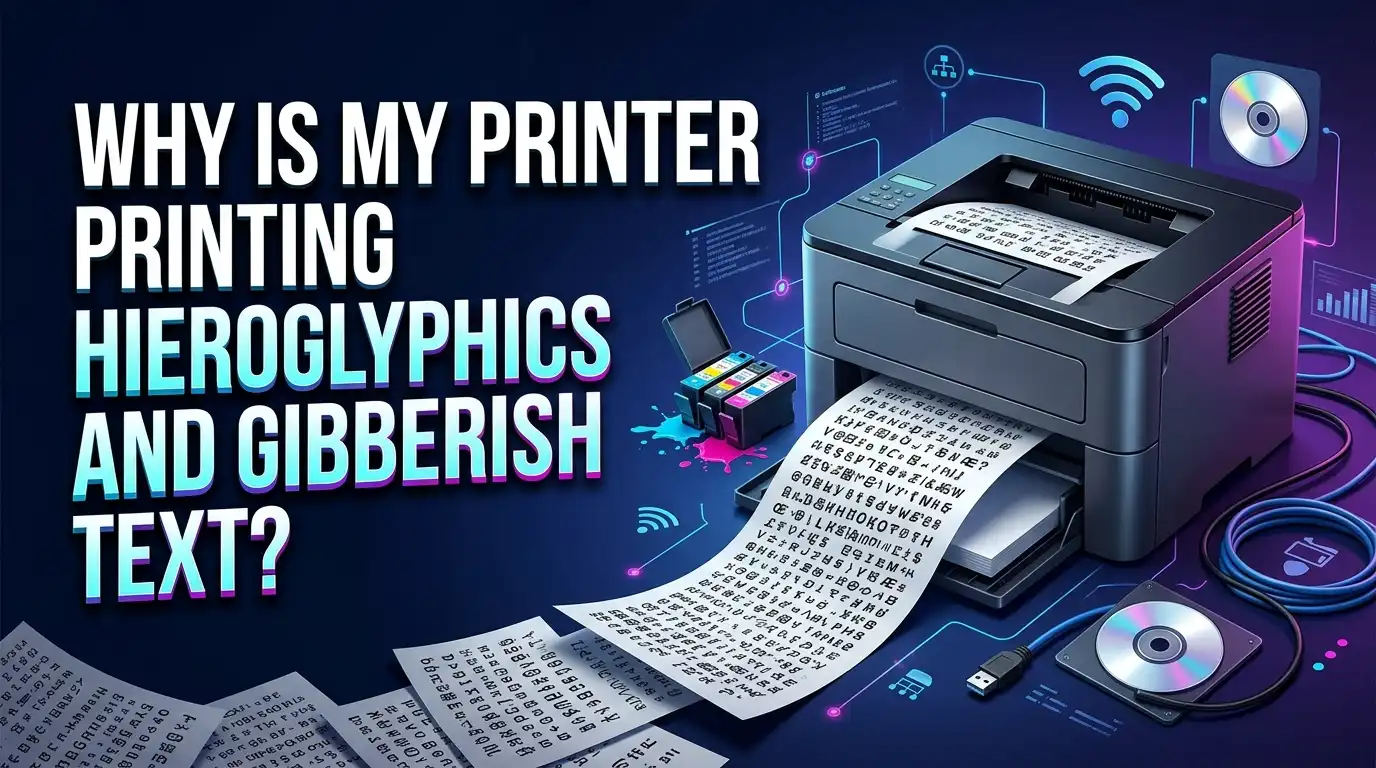
You send a document to print. But instead of your report, you get a page full of strange symbols and random characters.
This is a common printer problem. Many people call it “printing hieroglyphics” because the output looks like ancient code, not real text.
Don’t worry, you are not alone. This issue happens to almost every printer user at some point.
The good news is that this problem usually has a simple fix. In most cases, the cause is a corrupted printer driver, a loose cable, or a small software glitch.
Sometimes, the document itself may have an issue. Other times, your printer settings might need a quick adjustment.
In this guide, we will explore why your printer prints gibberish text. We will walk through the core causes, from outdated drivers to connection problems.
By the end, you will know exactly how to stop the gibberish and get clear, readable prints again.
In a Nutshell
- Driver problems: An outdated or corrupted printer driver often causes strange symbols and random text. Updating or reinstalling the driver fixes this in most cases.
- Connection issues: A loose cable or weak network link can confuse your printer. Always check your connections before troubleshooting further.
- Document errors: Sometimes the file itself is corrupted. Try printing a different document to see if the problem follows the file or the printer.
- Print queue trouble: Old or stuck print jobs can cause new prints to come out wrong. Clearing the print queue often solves this instantly.
- Wrong printer settings: Incorrect settings can send bad data to your printer. Double check your print settings match your document type.
- Software conflicts: Background programs sometimes interfere with printing. Restarting your computer and printer can clear this issue quickly.
What Causes Printers to Print Gibberish or Strange Symbols
Your printer produces gibberish text when data doesn’t transfer correctly between your computer and the device. Understanding the root causes helps you fix the problem fast.
Corrupted printer drivers are the most common culprit. Drivers act as translators between your computer and printer. When they become outdated or damaged, your printer receives scrambled instructions. This results in strange symbols, random characters, and unreadable text appearing on your pages.
Faulty connections also trigger this issue. A loose USB cable or unstable network connection interrupts data flow. Your printer then misinterprets incomplete information and prints garbage instead of your document.
Software conflicts happen when background programs interfere with printing tasks. Antivirus software, firewalls, or other applications sometimes block or alter print data. Your printer receives corrupted information and outputs gibberish.
Incorrect printer settings can cause similar problems. When resolution, color mode, or paper type settings don’t match your document’s requirements, the printer struggles to process the data correctly. This mismatch leads to strange output.
Corrupted documents are another possibility. A damaged file may contain bad data that confuses your printer. The device tries to print corrupted code instead of readable text.
Print queue issues occur when old or stuck print jobs remain in your system. These leftover jobs can interfere with new printing tasks and cause garbled output.
The key is identifying which cause applies to your situation. Test with a different document to determine if the problem is file related. Check your cables for loose connections. Verify your printer settings match your needs. These simple checks isolate the real issue and point you toward the right solution.
Is It a Document Problem or a Printer Problem?
Figuring out whether your printer or document caused the gibberish is the first smart move. This distinction saves you time and effort during troubleshooting.
Start by printing a different document. Use a simple file like a basic text document or a fresh email. If this new document prints clearly, your original file is likely corrupted. The problem sits with the document, not your printer.
If the second document also prints as gibberish, the issue belongs to your printer or its connection to your computer. This points toward driver problems, connection issues, or software conflicts.
Pay attention to what the gibberish looks like. Random symbols, strange characters, or repeated patterns suggest a driver or connection problem. Completely blank pages or partial prints indicate different issues like print queue problems or incorrect settings.
Check your printer’s physical connection next. If you use a cable, make sure it connects firmly at both ends. For network printers, verify your WiFi connection is stable and strong. A weak or interrupted connection frequently causes scrambled output.
Test printing from different programs too. Try printing from your web browser, a word processor, and an email client. If gibberish appears in all programs, the problem is likely your printer driver or connection. If only one program produces gibberish, that specific software may have a conflict.
Document problems usually show up only with certain files. Printer problems affect almost all documents equally. This simple observation helps you narrow down the cause quickly.
Once you identify whether the issue is document or printer related, you can focus your troubleshooting efforts in the right direction and resolve the problem faster.
Step-by-Step Fix: Canceling Jobs and Clearing the Print Queue
A stuck print queue is one of the most common reasons your printer outputs gibberish. Your computer stores print jobs in a queue, waiting to send them one by one. When a job gets corrupted or stuck, it can jam up the entire system and cause all following prints to come out as random symbols.
Canceling the current print job is your first step. Most printers have a cancel button on the device itself. Look for a button labeled “Cancel,” “Stop,” or “X” on your printer’s control panel. Press it to halt whatever is printing right now.
Next, you need to clear the print queue on your computer. On Windows, open your Settings menu. Go to Devices, then Printers and Scanners. Find your printer in the list. Right click it and select “Open queue.” Look for any jobs listed there. Select each job and delete it.
Mac users should go to System Preferences. Click Printers and Scanners. Select your printer. Click “Open Print Queue.” Remove any stuck jobs you see there.
After clearing the queue, restart your printer completely. Turn it off, wait 30 seconds, then power it back on. This fresh start helps clear any remaining confusion in the printer’s memory.
Now test with a simple document. Print a basic text file or a fresh document from your word processor. If your printer now produces clean, readable text, the stuck queue was your problem.
If gibberish still appears, the issue likely stems from drivers, connections, or your document file itself. Move forward with testing different documents and checking your printer’s physical connections to your computer.
Checking and Fixing Cable or Network Connection Issues
Your printer’s connection is often the culprit behind gibberish output. A loose cable or unstable network link prevents your computer from sending correct data to the printer.
Start by checking your physical cable. If you use a USB connection, unplug the cable from both your computer and printer. Wait 10 seconds, then reconnect firmly. Make sure the cable isn’t bent, frayed, or damaged. A faulty cable stops data from traveling properly.
For network printers, verify your wireless connection first. Check that your printer appears in your device list. Your computer and printer must connect to the same network. If your printer keeps dropping offline, move it closer to your router or remove obstacles between them.
Restart both devices completely. Turn off your printer for 30 seconds, then power it back on. Restart your computer too. This simple step fixes many connection hiccups.
Test your connection by printing a basic document. Use a simple text file or a fresh document from your word processor. If text still appears scrambled, the connection issue may be deeper.
Check your printer’s settings on the device itself. Look for a network or connection status screen. Some printers show signal strength or connection errors. This helps you spot problems immediately.
If you use a wired connection, try a different USB port on your computer. Sometimes ports malfunction. Switching ports eliminates this possibility.
For persistent issues, temporarily disconnect any other devices from your printer’s network. Other devices sometimes interfere with data transmission. This narrows down whether the problem is your printer or your network setup.
After confirming your connection is solid, move forward with driver updates if gibberish continues.
Updating, Reinstalling, or Rolling Back Printer Drivers
Your printer driver acts as a translator between your computer and printer. When drivers become corrupted or outdated, your printer receives garbled instructions. This causes it to print gibberish instead of your actual document.
Updating your driver is often the quickest fix. Visit your printer manufacturer’s support website. Look for a downloads or drivers section. Enter your printer model number to find the correct driver version. Download the latest driver available for your operating system. Run the installation file and follow the on screen prompts. Restart your computer when finished. Test printing a simple document to see if the issue resolves.
If updating doesn’t work, reinstalling the driver may help. First, uninstall your current printer driver completely. Go to your computer’s control panel or settings menu. Find the printer or devices section. Right click your printer and select uninstall. Restart your computer. Then download and install the driver fresh from the manufacturer’s website. This removes any corrupted files that updating might have missed.
Rolling back your driver works if gibberish started after a recent update. Access your device manager. Find your printer in the list. Right click it and look for a rollback option. This restores your previous driver version. Restart your computer afterward.
During this process, avoid using your printer. Keep it powered on but don’t send print jobs. Once you complete driver changes, restart both your computer and printer before testing.
If gibberish continues after driver updates, reinstallation, or rollback, your issue likely stems from connection problems or document corruption rather than driver issues. Move forward with testing different documents or checking your printer’s physical connections.
Adjusting Printer Settings to Prevent Garbled Output
Your printer’s settings often control how documents are processed and displayed. Incorrect settings can cause your printer to misinterpret data and produce gibberish instead of readable text.
Start by accessing your printer’s settings menu directly on the device. Look for options labeled “Print Quality,” “Resolution,” or “Output Settings.” These controls determine how your printer reads and processes incoming data. Set your resolution to standard or normal rather than a custom value. Custom settings sometimes conflict with your computer’s default output.
Check your printer’s language or character set settings. Some printers allow you to select specific character encoding formats. If your printer is set to an incompatible language or encoding, text will appear as random symbols. Return this setting to your system’s default language.
Review your print driver settings on your computer as well. Open your printer properties through your computer’s control panel or system preferences. Look for tabs labeled “Advanced,” “Graphics,” or “Output.” Disable any special formatting options you don’t actively use. Features like “TrueType font downloading” or “PostScript printing” can sometimes cause conflicts if enabled unnecessarily.
Reset your printer to factory settings if you’ve made multiple custom adjustments. This action clears all personalized configurations and returns everything to default values. Most printers have a reset option in their settings menu or a physical reset button.
After adjusting these settings, print a test page from your printer’s menu. This helps you verify that your changes worked correctly. Test with a simple document from your computer afterward. If gibberish still appears after these adjustments, your issue likely involves drivers or connection problems rather than settings alone.
Common Mistakes That Make Gibberish Printing Worse
Many people make mistakes that actually make gibberish printing worse. Understanding these errors helps you fix the problem faster.
Assuming the document is fine without testing is a common mistake. You might blame your printer when the file itself is corrupted. Always print a different document first. Try a simple text file or a basic image. This tells you if the problem is your document or your printer.
Neglecting driver updates is another frequent error. Your printer driver needs regular updates to work properly with your computer’s operating system. Many people skip updates thinking they don’t matter. Outdated drivers cause communication breakdowns between your computer and printer, resulting in garbled text.
Ignoring connection issues before troubleshooting other areas wastes your time. Some people jump straight to reinstalling drivers when a loose cable or weak wireless signal is the real problem. Check your connections first. This simple step solves many cases immediately.
Not clearing your print queue before trying fixes creates confusion. Old print jobs stuck in the queue can interfere with new ones. Cancel all pending jobs before you start any troubleshooting steps. This gives your printer a clean slate.
Assuming one solution will fix everything is also problematic. Gibberish printing has multiple possible causes. You may need to test your document, check connections, update drivers, and adjust settings. Work through each step systematically instead of trying random fixes.
Finally, using your printer while troubleshooting complicates the process. Wait until you complete each step before printing again. This prevents new corrupted jobs from mixing with your troubleshooting efforts and making diagnosis harder.
When to Restart, Reset, or Reinstall Your Printer Setup
Sometimes your printer needs more than just a quick fix. If gibberish continues after checking connections and adjusting settings, it’s time to consider a restart, reset, or full reinstallation of your printer setup.
Start with a simple restart. Turn off your printer completely and unplug it from power. Wait at least 30 seconds, then plug it back in and power it on. This clears your printer’s memory and often fixes temporary glitches that cause garbled text.
If restarting doesn’t work, perform a factory reset on your printer. Most printers have a reset option in their settings menu. Check your printer’s manual for the exact steps, as each model differs. A factory reset removes all custom settings and returns your printer to its original state. This helps if multiple adjustments created conflicts causing gibberish.
When resets fail, reinstall your printer drivers completely. Remove your printer from your computer’s device list entirely. Uninstall the printer driver software from your system. Then restart your computer and reinstall the driver fresh. This removes corrupted driver files that might be causing the problem.
Before reinstalling, test with a different document to confirm the issue isn’t file specific. Print a simple text file or a test page from your printer’s menu. If that document prints correctly, your original file was corrupted, not your printer.
Don’t skip any of these steps. Each one addresses different root causes. Moving too quickly through them means you might miss the actual problem. Take your time and follow each step completely before moving to the next one.
Final Thoughts
Printer gibberish feels frustrating, but it usually has a simple fix. Most causes come down to drivers, connections, or settings that need attention.
You now know the main culprits behind this problem. Corrupted drivers top the list. Faulty cables and network issues follow close behind.
Start troubleshooting with the basics. Cancel your current print job first. Then test with a different document.
This simple test tells you a lot. If the new document prints fine, your original file was likely corrupted. If gibberish continues, the problem points to your driver or connection.
Always work through steps in order. Restart your printer before touching drivers. Check physical and network connections next. Update or reinstall drivers only after confirming these basics work.
Clear your print queue at each stage. Old jobs stuck in queue often cause repeat problems. This small step saves you time later.
Don’t skip driver verification either. An incorrectly installed driver causes the same symptoms as a corrupted one. Always confirm your printer model matches the driver you installed.
Patience matters here. Rushing through steps often means missing the real cause. Take each troubleshooting stage seriously before moving forward.
Most gibberish printing issues resolve within these standard steps. Drivers, connections, and settings account for nearly every case you’ll encounter.
Keep your printer software updated regularly. This habit alone prevents many future headaches. Regular maintenance keeps your printing experience smooth and reliable.
If problems persist after trying everything, your printer may need professional service. Hardware faults sometimes cause symptoms that mimic software issues. Don’t hesitate to seek expert help when basic fixes fail.
Your printer should serve you well once these steps are complete. Clear text and proper formatting will return to your printed pages.
Frequently Asked Questions
What does gibberish text from my printer actually mean?
Gibberish printing happens when your printer receives scrambled data. Your printer tries to print this corrupted information, creating random characters, symbols, or strange marks on the page. This doesn’t mean your printer is broken. It means communication between your computer and printer failed somewhere.
Should I assume my document is the problem?
No. Many people blame the document first, but this is a mistake. Test with a completely different file before assuming corruption. Print a simple text document or image you know works well. If the new file prints correctly, your original document has the issue. If gibberish appears again, the problem lies elsewhere in your printer setup.
Why do my printer drivers matter so much?
Drivers act as a translator between your computer and printer. Outdated or corrupted drivers cause miscommunication. Your computer sends data, but the driver scrambles it before reaching your printer. Updating or reinstalling drivers often fixes gibberish printing immediately. This step solves more problems than most people realize.
Can connection problems cause gibberish printing?
Yes. Loose cables, weak wireless signals, or network issues interrupt data flow. Check your USB cable connections carefully. For wireless printers, verify your printer connects to the correct network. Poor connections create data loss, which your printer tries to print as random characters.
How do I know if my print queue is causing the problem?
Your print queue stores print jobs waiting to process. Corrupted jobs stuck in the queue can trigger gibberish printing. Clear your print queue before trying other fixes. This removes any damaged data waiting to print and gives your printer a fresh start.

I’m the voice behind Device Dossier. As a printing technology enthusiast, I spend my time testing printers, comparing specs, and writing honest reviews to help you find the perfect printing solution. When I’m not geeking out over print quality and page yields, you’ll find me exploring the latest in tech.