Why Is My Print to PDF Option Missing From the Print Menu?
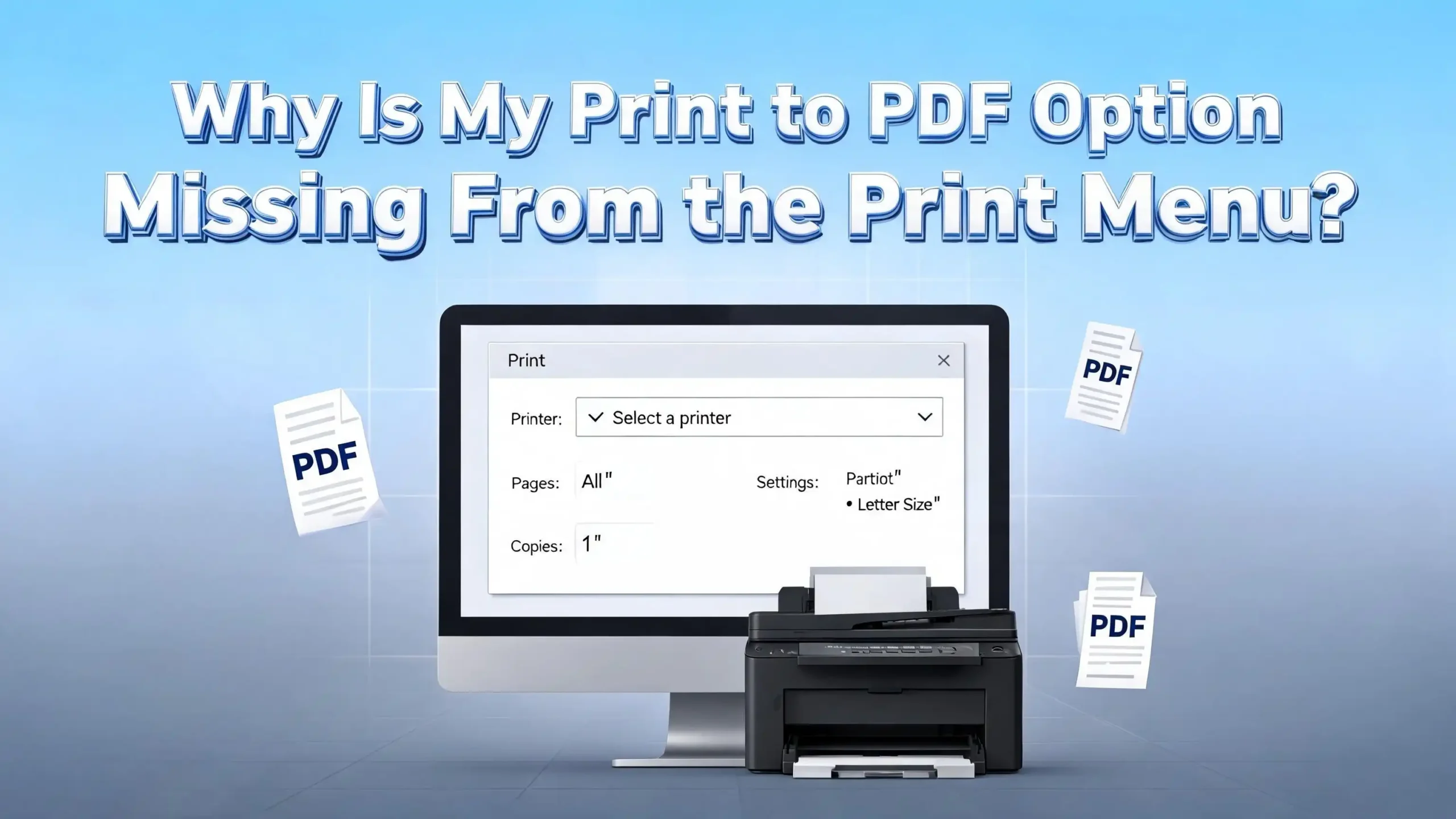
You open a document, click Print, and scan the list of available printers. The Microsoft Print to PDF option should be right there. But it is gone. No trace. No explanation. Just an empty spot where your go to PDF printer used to live.
This is one of the most common and frustrating issues Windows users face on both Windows 10 and Windows 11. You need to save a quick invoice, a receipt, or a web page as a PDF. But without that option in the print menu, you feel stuck.
The good news is that this problem almost always has a clear fix. In most cases, a disabled Windows feature, a crashed Print Spooler service, or a recent Windows update is the cause.
This guide walks you through every known solution. You will learn why the Print to PDF option disappears, how to bring it back, and how to prevent the issue from returning. Each fix includes clear steps you can follow right now on your own computer.
In a Nutshell
- Microsoft Print to PDF is a built in Windows feature that lets you save any printable file as a PDF document. It is available on Windows 10 and Windows 11 across all standard editions including Home, Pro, Education, and Enterprise.
- The most common reason this option disappears is that the feature got disabled in Windows Features settings. A Windows update, a system reset, or a software conflict can turn it off without any warning.
- Restarting the Print Spooler service is one of the quickest fixes. This service manages all print jobs in Windows. If it crashes or stalls, your printers including Print to PDF can vanish from the print menu.
- You can manually add Microsoft Print to PDF back through the “Add a printer” wizard in Control Panel. Select the PORTPROMPT local port and choose Microsoft as the manufacturer to reinstall the driver.
- Windows 11 version 24H2 has a known bug where Microsoft Print to PDF goes missing after a fresh install or update. Microsoft has acknowledged this and released patches to address the problem.
- Command Prompt and PowerShell offer advanced fixes for users who prefer quick terminal commands. A simple DISM or PowerShell command can disable and re enable the feature in seconds.
What Is Microsoft Print to PDF and Why Does It Matter
Microsoft Print to PDF is a virtual printer built into Windows. It does not print on paper. Instead, it saves any document, image, or web page as a PDF file on your computer.
This feature first appeared in Windows 10. Before that, users needed separate software to create PDF files from the print menu. Microsoft included it as a default feature so users could save files in PDF format without installing anything extra.
The value of this tool is hard to overstate. You can use it to save invoices, forms, email threads, web articles, spreadsheets, and much more. It works from any application that supports printing. You simply select Microsoft Print to PDF as the printer, click Print, and choose where to save the file.
Many professionals rely on it daily. If this option vanishes from your print menu, your workflow can grind to a halt. The good news is that the fix is usually straightforward. The feature is still on your system. It just needs to be turned back on or reinstalled.
Common Reasons the Print to PDF Option Disappears
Several things can cause Microsoft Print to PDF to go missing. Understanding the root cause helps you pick the right fix faster.
The first and most frequent cause is that the Windows optional feature got disabled. This can happen during a major Windows update. It can also happen if another program or a system cleanup tool turns it off by mistake.
A corrupted or stopped Print Spooler service is another top cause. The Print Spooler manages all printing tasks in Windows. If this service stops running, every printer on your system can disappear from the print menu, including virtual printers like Print to PDF.
Driver corruption is another possibility. The Microsoft Print to PDF driver files can become damaged. This sometimes happens after a failed update or a sudden system shutdown.
Users running Windows 11 version 24H2 have reported this issue at a much higher rate. Microsoft confirmed that fresh installations of this version sometimes ship without the necessary PDF printer driver files. This is a known bug that has affected many users worldwide.
Finally, third party software conflicts can remove or hide the Print to PDF option. Some PDF creation tools modify printer settings during installation. They may disable or replace the built in Microsoft option.
Check if Microsoft Print to PDF Is Enabled in Windows Features
The first thing to do is verify that the feature is turned on. This takes less than a minute and solves the problem for many users.
Open the Start menu and type Turn Windows features on or off. Click the top result. A small window will appear with a list of optional Windows features.
Scroll down through the list until you find Microsoft Print to PDF. Look at the checkbox next to it. If the box is unchecked, that is your problem. The feature has been disabled.
Check the box to enable it. Click OK and let Windows apply the changes. You may need to restart your computer for the change to take effect.
After the restart, open any document and click Print. Microsoft Print to PDF should now appear in the list of available printers. If the box was already checked and the issue persists, try unchecking it, restarting your PC, then checking it again and restarting once more. This toggle method reinstalls the feature files and resolves many stubborn cases.
Restart the Print Spooler Service
The Print Spooler service controls all printing operations on your Windows PC. If it freezes, crashes, or stops, your printers vanish. This includes Microsoft Print to PDF.
Press Windows + R on your keyboard to open the Run dialog. Type services.msc and press Enter. This opens the Windows Services manager.
Scroll down the list until you find Print Spooler. Right click on it and select Restart. If the service was stopped, select Start instead.
After restarting the service, go to Settings, then Bluetooth & devices, then Printers & scanners. Check if Microsoft Print to PDF now appears in the list. If it does, open a document and try printing to PDF.
For a more thorough reset, you can stop the Print Spooler, clear the print queue files, and then start the service again. To do this, open File Explorer and go to C:\Windows\System32\spool\PRINTERS. Delete all files inside this folder. Then go back to Services and start the Print Spooler service. This removes any stuck print jobs that might be causing the issue.
Manually Add Microsoft Print to PDF Through the Control Panel
If the feature is enabled but still not showing up, you can add it back manually. This method uses the Add Printer wizard in the Control Panel.
Open Control Panel and click View devices and printers under the Hardware and Sound category. Make sure your view is set to Category so you can find this option easily.
Right click on any blank area in the Devices and Printers window. Select Add devices and printers. When the wizard starts searching, click the link that says The printer that I want isn’t listed.
Select the option Add a local printer or network printer with manual settings. Click Next. On the port selection screen, choose PORTPROMPT: (Local Port) from the dropdown menu. Click Next again.
On the driver selection screen, choose Microsoft from the Manufacturer column on the left. Then select Microsoft Print to PDF from the Printers column on the right. Click Next.
Select Replace the current driver if prompted. Follow the remaining steps to finish the installation. Once complete, Microsoft Print to PDF will appear in your list of printers.
Use DISM Command to Reinstall the Feature
The Deployment Image Servicing and Management tool, known as DISM, lets you enable or disable Windows features from the command line. This is a powerful fix that works even when the graphical settings fail.
Right click the Start button and select Terminal (Admin) or Command Prompt (Admin). You need elevated permissions for this command to work.
First, disable the feature by typing this command and pressing Enter:
dism /Online /Disable-Feature /FeatureName:Printing-PrintToPDFServices-Features /NoRestart
Wait for the operation to complete. You will see a message that says “The operation completed successfully.”
Now re enable the feature with this command:
dism /Online /Enable-Feature /FeatureName:Printing-PrintToPDFServices-Features /NoRestart
Restart your computer after running both commands. This process removes and then reinstalls the Print to PDF feature files. It resolves corruption issues that the Windows Features toggle method cannot always fix.
If you receive error code 0x800f0922 while running these commands, your system files may be damaged. Run sfc /scannow first to repair system files, then try the DISM commands again.
Use PowerShell to Enable Print to PDF
PowerShell offers another way to enable the feature. Some users find this method faster, and it is ideal for running on multiple machines through scripts.
Open the Run dialog with Windows + R. Type powershell and press Ctrl + Shift + Enter to launch PowerShell with administrator rights.
To disable the feature first, run this command:
Disable-WindowsOptionalFeature -Online -FeatureName Printing-PrintToPDFServices-Features
After it completes, enable the feature again with:
Enable-WindowsOptionalFeature -Online -FeatureName Printing-PrintToPDFServices-Features
PowerShell may ask if you want to restart your computer. Type Y and press Enter to confirm. After the restart, check your printer list. Microsoft Print to PDF should be back and ready to use.
This method is especially useful for IT professionals who manage several workstations. The commands can be included in deployment scripts to ensure every machine has the Print to PDF feature active.
Fix the Windows 11 24H2 Missing Print to PDF Bug
Windows 11 version 24H2 introduced a well documented bug. Many users who performed a clean install or updated to this version found that Microsoft Print to PDF was completely missing. The driver files were simply not included in the build.
Microsoft acknowledged the issue and released a fix through KB5043178, a cumulative update. The first step is to check for and install all available Windows updates.
Go to Settings, then Windows Update, and click Check for updates. Download and install every pending update. Restart your PC after the updates finish.
If the option still does not appear after updating, use the manual add method or the DISM commands described earlier in this guide. Some users on Windows 11 24H2 found that the driver files were missing from the system entirely. In those cases, running Windows Update to get the latest patches was the only reliable solution.
This bug affected both ARM64 and x64 machines. If you are using a device with a Snapdragon processor or another ARM chip, make sure you have the latest firmware updates installed as well.
Run the System File Checker to Repair Corrupted Files
Corrupted system files can prevent Windows features from working correctly. The System File Checker tool scans your PC and repairs damaged files automatically.
Open Command Prompt as an administrator. Type the following command and press Enter:
sfc /scannow
The scan takes several minutes. It checks every protected system file on your computer. If it finds damaged or missing files, it replaces them with correct versions from a cached copy.
After the scan completes, restart your computer. Then check if Microsoft Print to PDF has returned to your print menu.
If SFC reports that it found corrupt files but could not fix them, run the DISM repair command first:
DISM /Online /Cleanup-Image /RestoreHealth
This command downloads clean file copies from Windows Update. After it finishes, run sfc /scannow again. This two step process fixes deeper system corruption that a single SFC scan cannot handle on its own.
Set Microsoft Print to PDF as the Default Printer
Sometimes the feature is installed and working, but it does not appear prominently in the print menu. Setting it as the default printer ensures it always shows up first.
On Windows 10, open Control Panel and go to Devices and Printers. Right click on Microsoft Print to PDF and select Set as default printer. A green checkmark will appear on the printer icon.
On Windows 11, open Settings and go to Bluetooth & devices, then Printers & scanners. Find and click Microsoft Print to PDF. Click the Set as default button.
After setting it as the default, every time you press Ctrl + P in any application, Microsoft Print to PDF will be the pre selected printer. You can always switch to a physical printer when you need to print on paper.
This step also helps if your print menu shows a long list of printers and you keep missing the PDF option. Making it the default places it at the top where you can find it instantly.
Avoid Common Mistakes That Cause 0 KB PDF Files
Some users report that Microsoft Print to PDF appears in the menu but creates empty 0 KB files. The print job completes, but the resulting PDF is blank and unusable.
One frequent cause is commas or special characters in the file name. When you choose a name for the PDF in the Save As dialog, make sure the file name does not include commas, slashes, colons, or other special symbols. Stick to letters, numbers, spaces, and underscores.
Another cause is a stuck print queue. If previous print jobs are clogged in the spooler, new jobs may fail silently. Clear the print queue by opening Settings, going to Printers & scanners, clicking on Microsoft Print to PDF, and selecting Open print queue. Cancel all pending jobs. Then try your print again.
The save location can also cause trouble. If you try to save the PDF to a folder where you do not have write permissions, the file may be created at 0 bytes. Always save to a location like your Desktop or Documents folder to rule out permission issues.
Use Alternative Methods to Create PDFs While Troubleshooting
If you need to create a PDF right now and cannot wait to fix the Print to PDF option, several workarounds exist.
Most Microsoft Office applications have a built in Export to PDF function. In Word, Excel, or PowerPoint, go to File, then Save As or Export, and choose PDF as the file format. This does not use the printer at all and works independently of the Print to PDF feature.
Web browsers like Edge, Chrome, and Firefox also have a Save as PDF option in their print dialogs. When you press Ctrl + P in a browser, look for the “Save as PDF” destination in the printer dropdown. This is a separate feature from Microsoft Print to PDF and works even if the system printer is missing.
You can also use free online tools that convert documents to PDF format. Upload your file, convert it, and download the result. This is a quick fix for a single document while you work on restoring the Print to PDF feature permanently.
These alternatives are useful but do not replace the convenience of a system level Print to PDF option. Use them as a temporary bridge while you apply the fixes in this guide.
Prevent the Print to PDF Option From Disappearing Again
Once you get Microsoft Print to PDF working, you want to keep it that way. A few habits can help prevent future disappearances.
Keep Windows updated. Microsoft releases patches that fix known bugs including Print to PDF issues. Go to Settings and enable automatic updates so your system always has the latest fixes installed.
Be careful with system cleanup tools. Some third party optimization or cleanup programs disable Windows features they consider unnecessary. Check the settings of any cleanup tool you use and make sure it does not touch printer or Windows feature settings.
Before performing a major Windows update, create a system restore point. If the update removes Print to PDF, you can roll back to the restore point and try again after the bug is patched.
Avoid renaming or moving system files in the Windows directory. The Print to PDF driver files live in C:\Windows\System32\DriverStore\FileRepository. Any changes to these files can break the feature.
If you manage multiple computers, consider using a PowerShell script that checks for and enables Microsoft Print to PDF on each machine during startup. This ensures the feature stays active even after updates.
Frequently Asked Questions
Why did my Print to PDF option disappear after a Windows update?
Windows updates sometimes disable optional features or replace driver files. The Windows 11 24H2 update is a well known example where Microsoft Print to PDF went missing for many users. Installing the latest cumulative updates from Windows Update usually restores the feature. You can also re enable it through Windows Features or the DISM command.
Can I have Microsoft Print to PDF and a third party PDF printer installed at the same time?
Yes, you can have both installed without any conflict. Microsoft Print to PDF and third party tools like CutePDF or Adobe PDF printer run as separate virtual printers. They will both appear in your print menu. You can choose whichever one you prefer for each print job.
What should I do if the DISM command gives me error 0x800f0922?
This error means Windows cannot complete the feature installation. It often points to corrupted system files. Run sfc /scannow from an elevated Command Prompt first. If that does not fix it, run DISM /Online /Cleanup-Image /RestoreHealth and then try the Print to PDF enable command again. In rare cases, a Windows repair install may be needed.
Does Microsoft Print to PDF work on Windows Home edition?
Yes, Microsoft Print to PDF is available on all standard Windows editions including Windows 10 Home, Windows 11 Home, Windows Pro, Education, and Enterprise. The feature and all the fixes described in this guide apply to every edition.
How do I fix Microsoft Print to PDF producing blank or 0 KB files?
Check that your file name does not contain commas or special characters. Clear any stuck jobs from the print queue. Make sure you are saving the PDF to a folder where you have full write permissions, such as your Desktop or Documents folder. If the problem persists, remove Microsoft Print to PDF from your printers list and add it back using the manual installation steps outlined in this guide.

I’m the voice behind Device Dossier. As a printing technology enthusiast, I spend my time testing printers, comparing specs, and writing honest reviews to help you find the perfect printing solution. When I’m not geeking out over print quality and page yields, you’ll find me exploring the latest in tech.