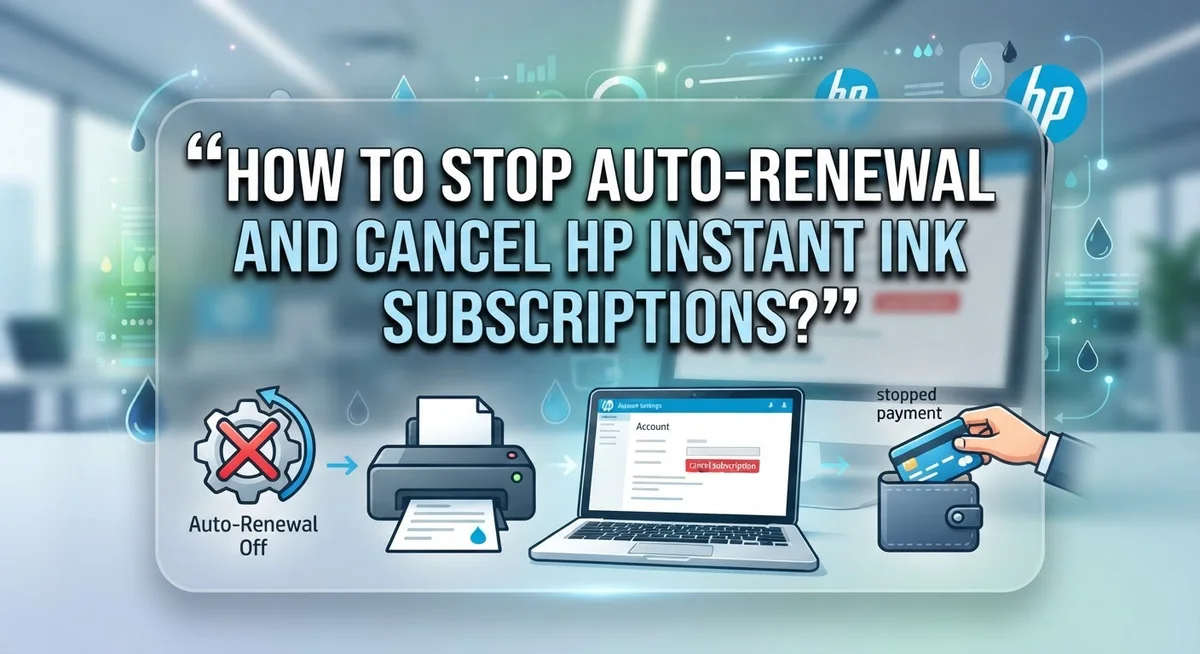
How to Stop Auto-Renewal and Cancel HP Instant Ink Subscriptions?
Do you want to stop your HP Instant Ink subscription? Maybe your printing needs changed. Maybe you just want more control over your ink costs.
HP Instant Ink sends ink cartridges to your home automatically. It works based on how many pages you print each month. But this convenience comes with an auto-renewal feature that keeps charging you.
This guide will show you exactly how to stop auto-renewal and cancel your HP Instant Ink plan. We will walk through each step of the cancellation process using your HP account.
By the end, you will know exactly what to expect and how to manage your subscription with confidence.
In a Nutshell
Log into your HP account online and go to the Instant Ink section under subscriptions. This is where you manage your plan.
Select your printer and choose the cancel option. The process takes just a few clicks.
Cancellation happens right away. You do not need to wait for a billing cycle to end.
Your subscription cartridges stop working once you cancel. HP disables them remotely, so keep this in mind.
You can switch to standard or XL cartridges after canceling. Your printer will still work fine with these instead.
There are no penalties for stopping your plan. HP Instant Ink has no long term contracts, so you are free to cancel whenever you want.
What Is HP Instant Ink and How Does Auto-Renewal Work?
HP Instant Ink is a subscription service that delivers ink cartridges directly to your home on a schedule that matches your printing habits. The service monitors how much you print each month and automatically sends replacement cartridges before you run out.
The auto-renewal feature works by charging your account at regular intervals, typically monthly or annually depending on your plan. Your payment method stays on file, and the charge processes automatically unless you manually cancel the subscription. This happens without requiring you to take any action each billing cycle.
Here’s how the system operates. HP tracks your ink usage through your printer’s connection to their servers. When your ink level drops below a certain threshold, the company schedules cartridge delivery. The subscription cartridges are specially designed to work only with active Instant Ink accounts. Once you cancel, these cartridges become disabled remotely and stop functioning in your printer.
Auto-renewal continues until you take steps to stop it. Many people don’t realize their subscription is still active because the charges appear on credit card statements without obvious labels. Some users forget about the service entirely after setting it up months or years ago.
The key difference between Instant Ink cartridges and standard cartridges matters for your decision. Instant Ink cartridges cost less per page because you’re paying for a subscription plan. Standard and XL cartridges work independently without any subscription requirement. You can switch between them whenever you want.
Understanding this system helps you make informed choices about your printing needs. If your printing volume decreased or you found a different ink solution, canceling makes sense. The service offers flexibility with no long-term contracts or early termination fees. You maintain complete control over when to start or stop your subscription at any time.
Before You Cancel: What to Know About Your Subscription
Before you cancel your HP Instant Ink subscription, understanding what you’re actually canceling matters. This service delivers ink cartridges to your home automatically on a schedule you choose. The subscription keeps running until you actively stop it.
Auto-renewal charges your account regularly. Most subscriptions renew monthly or annually depending on your plan choice. Your payment method gets charged automatically unless you cancel first. This is why many people end up paying for services they no longer use.
One critical fact: subscription cartridges become non-functional after cancellation. HP disables these cartridges remotely once you stop your plan. You cannot continue using them. This is different from regular cartridges you buy in stores, which work regardless of your subscription status.
The good news is that cancellation has no penalties or long-term contracts. You can stop your plan anytime without fees or restrictions. There are no hidden charges for ending your subscription early.
After you cancel, you have options. You can switch to standard cartridges or XL cartridges for your printer. These work normally and don’t require any subscription service. Many people find this more flexible for their printing needs.
Check your account settings regularly to catch auto-renewal before it charges you. Some people forget they have subscriptions active until they see unexpected charges. Taking a few minutes to review your subscriptions prevents unwanted payments.
Understanding these facts before canceling helps you avoid confusion. You’ll know exactly what happens to your cartridges and what alternatives exist. You won’t be surprised by disabled cartridges or unexpected charges. This knowledge makes the cancellation process straightforward and stress-free.
Step-by-Step Guide to Cancelling HP Instant Ink Online
Starting your cancellation process online is straightforward. First, open your web browser and visit the HP website. Look for the account login option and enter your credentials to access your personal account dashboard.
Once logged in, locate the subscriptions section. This area typically appears in your account settings or profile menu. Find the Instant Ink option within your subscriptions list. This section shows all active subscription services linked to your account.
Select your specific printer from the available options. Your account may have multiple printers registered, so choosing the correct device matters. Each printer has its own subscription status and cancellation controls.
Look for the cancel button or option next to your active plan. Click on this button to initiate the cancellation process. The system will ask you to confirm your decision before proceeding.
Review any confirmation messages that appear. HP typically shows what happens after cancellation takes effect. Pay attention to information about your subscription cartridges becoming inactive. This is important because you cannot use subscription cartridges after canceling.
Confirm your cancellation when prompted. The system processes your request immediately. You should receive a confirmation message or email confirming that your subscription has ended.
Save or print this confirmation for your records. It serves as proof that you successfully canceled your subscription. Keep this documentation in case you need to reference it later.
Check your account settings one more time to verify the cancellation. Your subscription status should now show as inactive or canceled. If you see any charges after this point, contact HP support immediately with your confirmation details.
The entire process takes only a few minutes to complete online. No special tools or technical knowledge is required. You maintain full control over when you cancel, and the system processes everything instantly without delays or waiting periods.
How to Check and Turn Off Auto-Renewal Settings
Checking your auto-renewal settings is the first step to preventing unwanted charges. Log into your HP account through the official website using your email and password. Once inside, look for the account or subscriptions section in your dashboard menu.
Find the Instant Ink area within your account settings. This section displays all your active subscriptions and their renewal dates. You’ll see your current plan details, including when your next charge occurs. Take a moment to review this information carefully.
Locate your printer from the list of devices. Each printer may have its own subscription status. Some accounts have multiple printers with different plans, so check each one individually. This prevents missing any active subscriptions that might auto-renew.
Look for the auto-renewal toggle or checkbox next to your subscription details. Some accounts display this as a switch you can turn on or off. Others show it as part of your plan settings. The exact location varies slightly depending on your account setup, but it’s always in the subscriptions area.
Turn off the auto-renewal toggle if you want to stop automatic charges. This action disables future renewals without canceling your current subscription immediately. You keep your service until your paid period ends naturally.
If you want to cancel completely rather than just stop auto-renewal, select the cancel option instead. This ends your subscription right away. Remember that subscription cartridges stop working after cancellation, so plan accordingly.
Save a screenshot or note the confirmation message after making changes. This serves as proof of your action. Visit your account settings again within a few days to confirm the changes took effect. Sometimes the system requires time to process updates.
Check your email for a confirmation message from HP. This email confirms that your auto-renewal has been disabled or your subscription has been canceled. Keep this message for your records in case you need to reference it later.
What Happens to Your Cartridges and Printer After Cancellation
After you cancel your HP Instant Ink subscription, your printer and cartridges experience specific changes. Understanding these changes helps you plan your next steps.
Subscription cartridges stop working immediately after cancellation. HP remotely disables these cartridges through your printer’s connection to their servers. Your printer recognizes the cartridges as inactive and prevents ink flow. This means you cannot use the remaining ink in subscription cartridges once your plan ends.
Your printer itself remains fully functional. The device continues to print normally once you install standard or XL cartridges. HP does not lock your printer or reduce its capabilities after cancellation. You simply need to replace the disabled subscription cartridges with regular ones.
You have clear options for moving forward. Purchase standard cartridges from any retailer and install them in your printer. These cartridges work without any subscription service. Your printer prints at full speed and quality with standard cartridges just as it does with subscription ones.
The disabled subscription cartridges cannot be reactivated or reused. If you reactivate your Instant Ink subscription later, you need new subscription cartridges. The old ones remain locked and unusable. This is important to know if you plan to rejoin the service in the future.
Your printer’s warranty and support remain unchanged after cancellation. HP continues to provide driver updates and customer service. You can still access troubleshooting resources and contact HP support if needed.
Some people keep their disabled cartridges as backup. Others recycle them through proper e-waste programs. Either way, they serve no printing purpose once disabled.
The transition from subscription to standard cartridges is smooth and quick. Most users complete the switch in minutes. Your printer functions exactly as before, just with different cartridges and no automatic deliveries.
Common Mistakes to Avoid When Cancelling
Many people make avoidable mistakes when cancelling their HP Instant Ink subscription. Understanding these errors helps you complete the process smoothly without complications.
The biggest mistake is assuming your subscription cartridges will still work after cancellation. They won’t. HP remotely disables these cartridges once your subscription ends. You cannot refill them or use them in any printer. If you need ink immediately after cancelling, purchase standard or XL cartridges instead. Have a backup plan before you cancel.
Another common error is not verifying your cancellation actually went through. Many people click cancel and assume it’s done. Check your account settings again after 24 hours to confirm the subscription is gone. Look for any renewal dates still listed. If you see one, contact HP support to complete the cancellation manually.
Some subscribers cancel their subscription but forget to turn off auto-renewal separately. These are two different settings in your account. Cancelling stops your current plan. Turning off auto-renewal prevents future charges if you reactivate later. Do both to be completely protected.
Don’t wait until your next billing date to cancel. The sooner you stop the subscription, the sooner you avoid additional charges. Cancellation takes effect immediately, so timing matters if you’re close to your renewal date.
Failing to save your cancellation confirmation is another mistake. Screenshot or print the confirmation message HP sends you. Keep this record for at least two billing cycles. If unexpected charges appear, you have proof you cancelled.
Finally, don’t ignore your account settings after cancellation. Log in monthly for the first few months to verify no charges appear. Some people discover their subscription mysteriously reactivated weeks later. Staying alert prevents unwanted payments and frustration.
Troubleshooting Issues During the Cancellation Process
When you cancel your HP Instant Ink subscription, issues can pop up during the process. Knowing how to handle them keeps your cancellation on track.
The most common problem is the cancellation page not loading properly. If this happens, try clearing your browser’s cache and cookies. Then log back into your HP account and navigate to the Instant Ink section again. Sometimes switching to a different web browser solves the problem instantly.
Another issue occurs when the cancel button appears greyed out or unresponsive. This usually means your account needs to refresh. Log out completely, wait a few minutes, then log back in. The button should become active after this reset.
Some people report that their subscription still shows as active after clicking cancel. This happens when the confirmation doesn’t process fully. Check your email for a cancellation confirmation message. If you don’t receive one within 15 minutes, attempt the cancellation again from your account dashboard.
Payment processing delays can also cause confusion. Your final billing charge might still appear even after you cancel. This is normal. The charge reflects the service through your current billing period. It should be your last charge once cancellation takes effect.
If you’re unable to access your HP account at all, try resetting your password first. Go to the HP login page and select “Forgot Password.” Follow the email instructions to regain access. Once you’re back in your account, proceed with cancellation.
Technical errors occasionally display error codes during cancellation. Write down the exact error code and contact HP support with this information. They can troubleshoot the specific issue quickly.
Don’t cancel your subscription multiple times thinking the first attempt failed. Multiple cancellation attempts can create duplicate requests and confuse your account status. Wait for a confirmation email before taking any additional action.
Final Thoughts
Cancelling your HP Instant Ink subscription does not need to feel hard. The process is simple once you know the right steps.
You log into your HP account. You find the Instant Ink section. You select your printer and choose to cancel. That’s it.
Immediate action happens after you confirm. Your subscription cartridges stop working right away. This is normal and expected.
Your printer stays in good shape. HP does not change your warranty or support options. You can still use your device without any issues.
Think about what you need going forward. Some people switch back to standard cartridges. Others choose XL cartridges for less frequent refills.
Both options work well depending on your printing habits. Pick what makes sense for your budget and usage.
Always check your account after cancelling. Make sure auto-renewal is truly off. This small step saves you from surprise charges later.
Save your cancellation confirmation somewhere safe. This document helps if any billing questions come up later.
Watch out for common technical hiccups. Greyed out buttons or slow pages happen sometimes. Clearing your browser cache usually fixes these problems fast.
If your account still shows active status after cancelling, don’t panic. Log out and log back in. Refresh the page and check again.
Remember these key facts about the whole process. There are no long term contracts with HP Instant Ink. You can cancel anytime without paying penalties. Cancellation takes effect immediately once confirmed.
You have full control over this subscription. HP designed the system to be flexible and easy to manage. You can cancel, restart, or switch plans whenever you want.
Take your time reviewing your options. Choose what fits your printing needs best. Then follow the simple steps to make your change happen smoothly.
Frequently Asked Questions
Will my subscription cartridges still work after I cancel?
No. Your subscription cartridges will become non-functional after cancellation. HP disables them remotely once you confirm the cancellation. This happens immediately, so you cannot use those cartridges again.
You will need to switch to standard or XL cartridges for your printer. These regular cartridges work normally after your subscription ends.
How quickly does cancellation take effect?
Cancellation is effective right away. You do not need to wait for your next billing date. Once you confirm the cancellation in your HP account, the process completes instantly.
Your subscription cartridges stop working the same day. This means you should have replacement cartridges ready before you cancel.
Are there any penalties or fees for canceling?
No. There are no penalties, fees, or long term contracts. You can cancel your subscription anytime without restrictions. HP allows flexible termination whenever you decide to stop.
Can I switch back to regular cartridges after canceling?
Yes. You can switch to standard or XL cartridges for your printer model. These cartridges work like normal ink supplies. You purchase them separately when you need them.
Simply remove the subscription cartridges from your printer and install regular ones instead.
What should I do if my subscription still shows as active after canceling?
Check your account settings first. Log back into your HP account and verify the cancellation went through. Sometimes the page needs a refresh to update your status.
If it still shows active, contact HP support. Have your printer model and account details ready. They can confirm the cancellation and help troubleshoot any issues.

I’m the voice behind Device Dossier. As a printing technology enthusiast, I spend my time testing printers, comparing specs, and writing honest reviews to help you find the perfect printing solution. When I’m not geeking out over print quality and page yields, you’ll find me exploring the latest in tech.