How to Troubleshoot USB C Printer Connection Not Recognized?
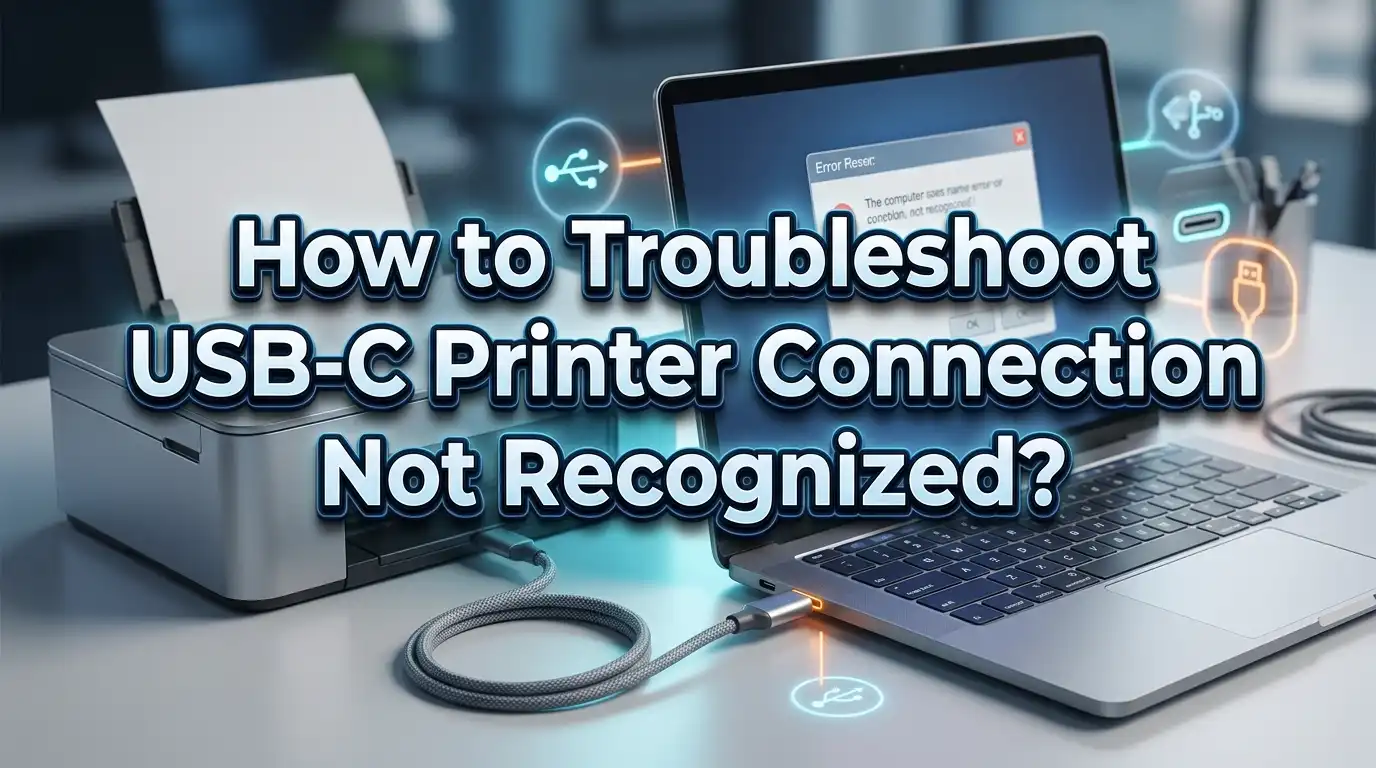
A USB C printer connection problem can feel small at first, but it can stop your whole day. You plug in the printer, wait for the sound or setup message, and nothing happens.
The printer does not appear. The computer does not react. Print jobs stay stuck. That is frustrating, especially when you need to print something fast.
This guide will help you fix that step by step. You will start with the easy checks first. Then you will move to system settings, drivers, and deeper fixes. The goal is simple. You should be able to find the cause, test the right solution, and get your printer working again without wasting time.
In a Nutshell
- Start with the cable and connection path. A lot of USB C printer problems come from the wrong cable, a loose adapter, or a weak hub. A cable can look fine and still fail to carry data. A direct connection from the printer to the computer is the best first test. Simple physical checks often solve the issue faster than software changes.
- Restart both devices in the right order. Turn off the printer. Shut down the computer. Wait for a short moment. Then power the printer first and the computer second. This refreshes the USB handshake and clears short term communication faults. This step is easy, safe, and often ignored.
- Check whether the computer can even see the printer. On Windows, look in Device Manager and Printers and scanners. On Mac, look in Printers and Scanners and System Information. If the printer does not appear anywhere, the issue is usually the cable, port, adapter, power, or USB controller. If it appears with an error, the issue is often the driver.
- Remove old printer entries and install again. A failed setup can leave behind bad device records. Those old records can block a clean connection. Deleting the printer and adding it again gives the system a fresh start. This works well after cable changes, driver updates, or operating system updates.
- Use driver and firmware fixes only after basic checks. Driver work takes more time, but it matters when the printer is seen as an unknown device or shows limited support. Firmware updates can also help if the printer and computer fail to communicate correctly. The best order is cable first, direct port second, restart third, then software.
- Know the pros and cons of each fix. Direct connection tests are fast but may not solve driver issues. Reinstalling drivers is powerful but takes longer. Resetting the Mac printing system is useful but removes saved printers. A good fix depends on what the computer sees, and what it does not see, at each step.
Understand What the Error Really Means
When your computer says the printer is not recognized, it does not always mean the printer is broken. It usually means the computer failed to complete the first communication step. The system expected device details, but it did not receive them correctly. That can happen because of a weak cable, a bad adapter, low power, or corrupted printer data.
A USB C setup has more points of failure than a simple older USB setup. You may be using a USB C to USB B cable, a USB C adapter, a dock, or a multiport hub. Every extra part adds one more place where the connection can fail. That is why the simplest path is always the best place to begin.
It also helps to know the difference between two common signs. If the printer does not show up at all, the issue is usually physical or hardware related. If the printer appears with a warning, an unknown device label, or limited features, the issue is often software related. That tells you where to focus.
Pros of understanding the error first: you avoid random fixes, save time, and test in the right order.
Cons: this step does not solve the problem by itself, and some users want a fast fix right away.
Still, this first step matters. Once you know whether the computer sees nothing, sees the wrong thing, or sees the printer with an error, the next actions become much easier and much smarter.
Check Whether the USB C Cable Carries Data
This is one of the most common causes, and many people miss it. Some USB C cables are made only for charging. They provide power, but they do not transfer data well, or at all. A printer needs stable data transfer. If the cable cannot handle that, the computer may act as if nothing is connected.
Look closely at the cable you are using. If it came from a charger, power bank, or phone accessory box, it may not be the best choice for a printer. Try a different cable that is known to move data. If your printer uses a square printer port, use a proper USB C to printer cable or a good adapter with a tested printer cable.
Keep the cable short if possible. A very long cable can weaken signal quality. Also check both ends for looseness, bent metal, or dust. A connection can look secure but still fail if one end does not sit fully inside the port.
The fastest test is simple. Use another known data cable and connect again. If the printer appears right away, you found the cause.
Pros of this method: fast, cheap, and often solves the issue in minutes.
Cons: you need a spare cable, and cheap replacement cables can create the same problem again.
If you only do one test first, do this one. The wrong cable creates many printer connection problems that look like software trouble, but are actually hardware trouble.
Plug the Printer Directly Into the Computer
A dock or hub can make your desk look clean, but it can also create printer problems. Some hubs do not supply stable power for printers. Some docks handle storage devices well, but fail with older printer communication. In a USB C setup, the dock may be the real problem, even if it works fine for a mouse or flash drive.
Disconnect the printer from every extra accessory. Remove the hub, dock, extension, and pass through adapter. Then plug the printer directly into the computer with the best data cable you have. If your computer has only one USB C port, use the most reliable adapter you own and avoid chaining multiple accessories together.
This direct test matters because it strips the setup down to the minimum path. If the printer works directly, the printer is likely fine. Your hub, dock, or adapter is the weak point. If the printer still fails, you can focus on cable, port, driver, or printer issues instead.
This step gives very clear information. It does not just test the printer. It tests the whole connection path.
Pros of this method: very accurate, easy to test, and great for isolating the fault.
Cons: it may be less convenient on laptops with few ports, and some users need an adapter anyway.
If you use a work desk setup every day, this check is worth doing even if the printer works sometimes. Intermittent printer recognition often points to a dock or adapter problem, not the printer itself.
Restart Both Devices in the Right Order
A restart sounds basic, but it helps more than people expect. A printer and a computer create a fresh USB session when they connect. If that session fails once, the system may keep the failed state until both devices restart. That is why unplugging and reconnecting alone does not always fix the problem.
Turn off the printer first. Then shut down the computer fully. Do not just close the lid or use sleep mode. Wait about thirty seconds. This pause gives the ports and internal controllers time to reset. After that, turn the printer on first. Wait until it is fully ready. Then start the computer and connect the cable.
This order matters because the computer can detect a ready printer more reliably than one that is still starting up. Some printers need extra seconds before they present themselves correctly to the operating system. If you connect too early, the system may miss the device or store a bad first result.
Use this restart after every major change. If you switch cables, remove drivers, or change ports, restart again before judging the result.
Pros of this method: safe, quick, and often effective for temporary faults.
Cons: it does not fix damaged cables, failed ports, or missing drivers.
A clean restart is one of the best low effort tests in this whole guide. It clears short term communication errors and gives the connection a fresh first impression.
See Whether Windows Can Detect the Printer
If you use Windows, your next job is to check what the system can actually see. Open Printers and scanners first. If the printer appears there, the connection is at least partly working. If it does not appear, open Device Manager and look under Printers, Universal Serial Bus controllers, and Other devices.
If you see the printer name, Windows is reading the device. That points to a setup or driver issue, not a complete connection failure. If you see Unknown device or a warning icon, Windows sees something on the port but cannot identify it correctly. That usually means a bad driver, a damaged cable, or a weak adapter.
You can also try the built in printer troubleshooter in Windows 11. It can catch basic service and setup issues. Then restart the Print Spooler service if print jobs are stuck or the printer keeps disappearing. In some cases, clearing old print queue data also helps.
What you see in Device Manager changes your next move. No device usually means port or cable trouble. Unknown device often means driver trouble. Correct name with errors often means a setup conflict.
Pros of this method: very useful for diagnosis, helps you avoid guesswork, and points to the next fix.
Cons: it does not repair the issue alone, and the menus can confuse new users.
Windows gives strong clues if you know where to look. Before you reinstall anything, check detection status carefully. It saves time and prevents unnecessary changes.
See Whether Your Mac Can Detect the Printer
On a Mac, go to System Settings, then Printers and Scanners. If the printer does not appear there, use System Information to check the USB section. This tells you whether the Mac sees the printer at the hardware level. That distinction is very important.
If the printer appears in USB details but not in Printers and Scanners, the cable and port are probably working. The issue is more likely printer software, setup, or a stale printer record. If the printer does not appear in the USB section at all, the problem is more likely the cable, the adapter, the dock, the port, or the printer itself.
Mac users often depend on adapters, especially on laptops with USB C only ports. That makes a direct connection test even more important. If possible, plug in the printer with the simplest adapter path. Also check for macOS updates, because the system may need updated printer support.
If the printer still does not show in the printer list, click Add Printer, Scanner, or Fax and wait a bit. Some printers need time before they appear. Do not rush this step. A delayed appearance can still mean the connection is valid.
Pros of this method: clear diagnosis, very helpful for separating hardware and software issues.
Cons: Mac menus are not always obvious, and adapter problems can make diagnosis harder.
Mac troubleshooting becomes much easier once you know whether the device appears in the USB system report. That single check tells you which path to follow next.
Remove the Printer and Add It Again
A failed installation can leave behind broken printer entries. Those entries can confuse the computer and block a clean connection the next time you plug the printer in. Removing the printer and adding it again often clears that mess.
On Windows, open Printers and scanners, select the printer, and remove it. Then disconnect the printer cable and restart the computer. After the restart, reconnect the printer and add it again. If the printer does not show automatically, use the manual add option and choose the correct USB printer port if needed.
On a Mac, open Printers and Scanners, remove the printer, restart the Mac, and then connect the printer again. If the printer still does not appear, you can reset the printing system. That removes all saved printers and print presets, so use it only when normal re adding does not work.
This method is strong because it clears old records that may point to the wrong port or wrong driver. It is especially useful after an operating system update, a cable change, or a move from one adapter to another.
Pros of this method: very effective for broken setup records, good after system changes, and often restores normal detection.
Cons: you may need to set the printer up again, and Mac printing system reset removes all saved printers.
Think of this as a clean slate. If your computer holds bad printer history, no cable change will fully fix the issue until the old setup is removed.
Update or Reinstall the Printer Driver
Drivers tell your computer how to talk to the printer. If the driver is old, corrupted, or wrong for your system version, the printer may connect but fail to appear correctly. It may show as an unknown device, or it may install with only basic features and no reliable printing.
Start with a driver update. On Windows, you can try an update from Device Manager, but it is often better to install the latest driver from the printer maker. On Mac, some printers work with built in support, while others need the correct printer software. If the printer appears but acts strangely, the driver is a strong suspect.
If updating does not help, uninstall the driver fully and install again. Do this only after disconnecting the printer. Once the new driver is in place, reconnect the printer and let the system detect it again. This gives the driver a clean first setup path.
Reinstalling is stronger than updating. An update keeps some old settings. A clean reinstall replaces them.
Pros of this method: powerful fix for detection and compatibility issues, useful after major system updates, and improves stability.
Cons: takes more time, may need admin access, and wrong downloads can create new confusion.
Use this step after cable and direct connection tests. If the hardware path is sound, the driver becomes one of the most likely causes. A fresh driver often turns a silent printer into a working one very quickly.
Fix USB and Print Service Problems
Sometimes the printer is fine, but Windows is not managing USB or print services well. This can happen after sleep mode, after a system update, or after many devices have been connected and removed over time. The result is a printer that worked before, but now disappears or fails to connect.
On Windows, restart the Print Spooler service first if the printer appears but will not print or vanishes from the queue. If USB devices in general are acting oddly, check Device Manager and restart the USB controllers by uninstalling the affected controller and rebooting the computer. Windows will load it again on restart.
You can also try another port and avoid front panel ports on desktop machines. Rear ports are often more stable because they connect more directly to the motherboard. On laptops, test every physical USB C port if you have more than one.
If the system has power saving enabled for USB devices, that can also break stable detection. Turning off aggressive USB sleep settings may help in repeated disconnect cases.
Pros of this method: useful for stubborn system faults, helps with printers that connect and then disappear, and can solve repeated failures.
Cons: it is more technical, and careless changes in Device Manager can confuse less experienced users.
Use this section only after the simple checks. Service and controller fixes are strong tools, but they work best when you already know the cable and port path is sound.
Check Adapters, Docks, and Power Limits
USB C setups often rely on adapters and docks. That adds convenience, but it also adds risk. A printer may need a stable data path plus enough power support from the connected chain. Some docks work well for displays and storage but are unreliable with printers, especially older models.
If your printer is connected through a multiport adapter, test it through a different adapter if you have one. If you use a dock with many devices attached, disconnect everything except the printer. A busy dock can introduce conflicts, especially if external drives, monitors, and charging are all active at once.
Laptop battery state can matter too. Some systems reduce port behavior when battery levels are low or when a power hungry dock is attached without external power. If your adapter or dock has a separate power input, connect it and test again. On some Macs, adding power to a multiport adapter improves stability for USB devices.
A dock can be the hidden cause even if it works for other gear. Printers are less forgiving than many accessories.
Pros of this method: great for modern laptop setups, helps solve random and inconsistent recognition issues, and often explains why the printer works only sometimes.
Cons: testing can be slow if you have many accessories, and replacement adapters cost money.
If your printer works directly but fails through the dock, the answer is already clear. Keep the printer on a direct path, or replace the weak link in the chain.
Update Firmware and Test for Hardware Failure
If nothing else has worked, shift your focus to the printer itself. Printer firmware controls how the printer communicates with the computer. If that firmware is old or corrupted, the printer may not respond correctly over USB C, especially after computer updates.
Check whether your printer maker offers a firmware update tool. Follow the instructions carefully. Do not interrupt the update once it starts. Firmware updates can fix communication bugs, improve compatibility, and solve strange connection failures that no driver reinstall can fix.
You should also test the printer on another computer. This is one of the best final checks. If the printer fails on two different systems with two different cables, the printer hardware becomes the main suspect. The USB port on the printer may be loose, worn, or damaged. You may also notice that the cable feels unstable inside the printer port. That is a strong warning sign.
Look for physical clues too. Check for dust, damage, heat marks, or an unusually loose port. Those details matter more than people think.
Pros of this method: confirms whether the problem lives in the printer, helps after all software fixes fail, and can solve deep compatibility bugs.
Cons: firmware updates require care, and hardware repair may cost time or money.
This is the reality check step. If two computers cannot see the same printer, the issue may not be your computer at all.
Prevent the Problem From Coming Back
Once the printer works again, take a few steps to keep it stable. Use one known good cable and keep it with the printer. Label it if needed. That prevents future mix ups with charging only cables. If you depend on an adapter, use one reliable unit instead of rotating between several unknown ones.
Keep the connection path simple. A direct cable to the computer is always the safest route. If you must use a dock, avoid overloading it with too many devices at once. Put the printer on the most stable port and keep that setup consistent.
Update your computer and printer software from time to time, but do not make many changes at once. If you update the operating system, the driver, and the firmware on the same day, it becomes hard to know what caused a new issue. Make one change, test it, and then move on.
It also helps to print a short test page every so often. That sounds small, but it tells you early if the connection is becoming unstable again. Catching the issue early is easier than fixing it during a deadline.
Pros of prevention: saves future time, improves reliability, and reduces repeat troubleshooting.
Cons: it needs a little discipline, and some users prefer swapping cables and adapters often.
A stable routine beats repeated repair. Once you find the setup that works, keep it simple and keep it consistent.
FAQs
Why does my USB C printer charge or power on but still not connect?
Power and data are not the same thing. A cable can carry power but fail to carry printer data. That is why the printer may turn on, yet the computer still does not detect it. Try a known data cable and a direct port connection first.
Can a USB C hub stop a printer from being recognized?
Yes. A hub or dock can block stable communication or fail to supply the right support for the printer. This is common in crowded desk setups. Test the printer with a direct connection to confirm whether the hub is the weak point.
Should I uninstall the printer before reinstalling the driver?
Yes, in many cases that helps. Removing the printer clears old setup records that may point to the wrong port or old driver. A clean reinstall gives the system a fresh start and often fixes stubborn recognition errors.
What should I do if the printer appears as an unknown device?
That usually means the computer sees something on the USB port, but cannot identify it correctly. Start with the cable and adapter. Then reinstall the printer driver. If the issue stays, test another port and another computer.
Is this problem more common on MacBooks and thin laptops?
It can be, because these devices often rely on USB C adapters and docks. Every extra part in the connection path adds one more place where communication can fail. A direct test is very important on these systems.
How do I know if the printer hardware is failing?
Test the printer with a different cable and a different computer. If both systems fail to detect it, and the printer port feels loose or damaged, the printer hardware may be the cause. At that point, repair or replacement becomes the next logical step.

I’m the voice behind Device Dossier. As a printing technology enthusiast, I spend my time testing printers, comparing specs, and writing honest reviews to help you find the perfect printing solution. When I’m not geeking out over print quality and page yields, you’ll find me exploring the latest in tech.