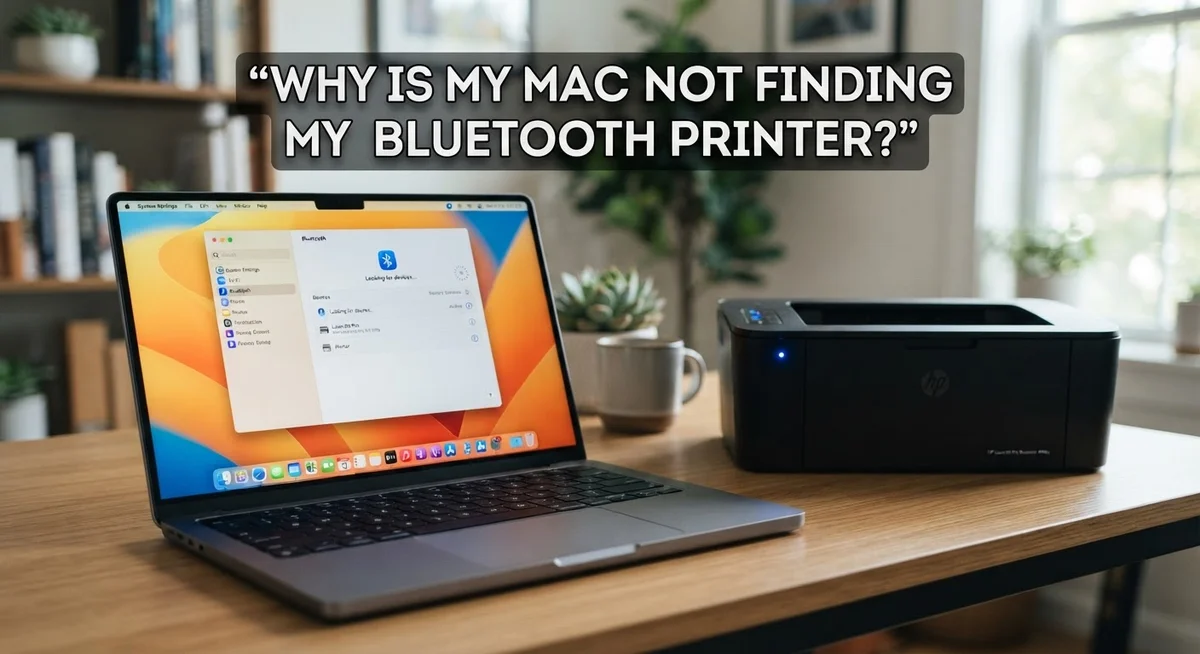
Why Is My Mac Not Finding My Bluetooth Printer?
Your Mac sits there. Your printer sits there. But they just will not talk to each other.
You click “Add Printer” and nothing shows up. It is a frustrating moment, especially when you need to print something right now.
Here is the good news. This problem is almost never a broken printer or a broken Mac.
This guide walks you through why your Mac cannot find your Bluetooth printer. We will cover the most common causes, from driver issues to Bluetooth glitches.
By the end, you will know exactly how to get your Mac and printer connected again. No tech expertise needed, just clear steps that actually work.
In a Nutshell
- Restart everything first. Turn off your Mac and printer. Turn them back on. This fixes many connection problems right away.
- Check System Settings. Go to Printers & Scanners and see if your printer shows up. If not, try adding it again.
- Remove duplicate printers. Old or extra printer entries can confuse your Mac. Delete them and add the printer fresh.
- Update your Bluetooth drivers. Old drivers often cause pairing issues. Get the latest version from your printer maker’s website.
- Toggle Bluetooth off and on. This simple step often forces your Mac to find the printer again.
- Reset the printing system. This clears out old settings that might block a new connection.
Common Reasons Your Mac Can’t Detect a Bluetooth Printer
Your Mac may fail to detect your Bluetooth printer for several reasons. Understanding these causes helps you fix the problem faster.
Bluetooth range issues are common culprits. Your printer must be within 30 feet of your Mac, and obstacles like walls or metal objects weaken the signal. Move both devices closer together and try again.
Outdated printer drivers frequently prevent detection. Your Mac needs the correct software to communicate with your printer. Manufacturers release driver updates regularly, and older versions often fail on newer Mac systems.
Duplicate printer entries confuse your Mac’s system. If you’ve tried pairing before, old printer listings may still exist in your settings. Your Mac sometimes attempts to connect to an old entry instead of finding the new one.
Bluetooth interference can block your connection. Other wireless devices like routers, microwaves, or wireless speakers operate on the same frequency. This creates signal conflicts that prevent pairing.
Power issues are often overlooked. Your printer needs sufficient battery charge or a stable power connection. A low battery printer may not broadcast its Bluetooth signal strongly enough.
Mac Bluetooth problems sometimes stem from system glitches. Your Mac’s Bluetooth module may need a reset or your system may have a temporary software conflict.
Printer settings matter too. Some printers require you to enable Bluetooth mode manually. Check your printer’s manual to confirm Bluetooth is activated and in pairing mode.
Incompatible devices occasionally occur. Older printers may not support newer Mac operating systems, or vice versa. Verify your printer model works with your Mac’s current system version.
Checking Basic Printer and Bluetooth Connections
Your printer needs power and a working Bluetooth connection to show up on your Mac. Let’s check the basics first.
Make sure your printer is powered on and plugged in. Many people overlook this step. Check that the power cable is firmly connected to both the printer and wall outlet. Look for a power light on your printer. If you don’t see one, the printer may not be getting electricity.
Next, verify your printer is in Bluetooth pairing mode. Most printers have a Bluetooth button or menu option. Press and hold the Bluetooth button until you see a light flash or hear a sound. Check your printer’s manual if you’re unsure where this button is located. Leave the printer in pairing mode for at least two minutes while you search from your Mac.
On your Mac, open System Settings and go to Printers & Scanners. Click the plus sign to add a new printer. Wait 30 seconds for your Mac to scan for available devices. Your printer should appear in the list if it’s powered on and in pairing mode.
If your printer doesn’t show up, restart both devices. Turn off your printer completely. Wait 10 seconds, then turn it back on. Restart your Mac as well. This clears temporary connection problems that block detection.
Also check that your Bluetooth is enabled on your Mac. Click the Bluetooth icon in the menu bar at the top of your screen. Make sure Bluetooth shows as “On.” If it’s off, click it to turn it on.
These basic checks solve most detection problems. Once you confirm everything is powered and Bluetooth is enabled, your Mac should find the printer quickly.
Step-by-Step: Adding Your Printer in System Settings
Open System Settings on your Mac first. Click the Apple menu in the top left corner. Select “System Settings” from the dropdown list.
Look for “Printers & Scanners” in the settings menu. This section shows all printers your Mac knows about. You’ll find an “Add Printer” button here.
Click the “Add Printer” button to start the search process. Your Mac will scan for available printers nearby. This scan takes about 30 seconds to complete.
Wait for your printer to appear in the list. Your Bluetooth printer should show up with its name. If you see it, click on it once to select it.
Choose your printer model from the dropdown menu if prompted. Your Mac may ask you to confirm the printer type. Select the correct model to ensure proper functionality.
Click “Add” to complete the setup. Your Mac will install any necessary software automatically. This process typically finishes within a few minutes.
If your printer doesn’t appear, try these steps. First, make sure your printer is in pairing mode. Check your printer’s manual for the exact button or menu option.
Move your printer closer to your Mac. Bluetooth works best within 30 feet of your device. Remove any physical obstacles between them.
Wait a full minute before trying again. Sometimes the search needs extra time to detect devices. Click “Add Printer” once more to restart the search.
If your printer still won’t show up, restart both devices completely. Power off your printer for 10 seconds. Restart your Mac fully, then try adding the printer again.
How to Reset the Printing System on Your Mac
Resetting your Mac’s printing system often fixes connection problems that basic troubleshooting can’t solve. This process clears out corrupted settings and removes duplicate printer entries that confuse your system.
To reset your printing system, open System Settings on your Mac. Navigate to “Printers & Scanners” in the left sidebar. Look for a small settings icon or gear symbol near the bottom of the window. Click it and select “Reset printing system” from the menu.
Your Mac will ask you to confirm this action. Click “Reset” when prompted. The system will remove all printers and scanners from your list, including any duplicates causing problems.
This step is crucial because duplicate entries often prevent your Mac from recognizing your actual printer. When your Mac sees multiple listings for the same device, it gets confused about which one to use.
After resetting, you’ll need to add your printer again. Open System Settings and return to “Printers & Scanners.” Click the plus sign to add a new printer. Make sure your Bluetooth printer is powered on and in pairing mode before you start searching.
Wait for your printer to appear in the list. This usually takes 30 to 60 seconds. Select your printer and click “Add” to complete the setup.
If problems persist after resetting, restart both your Mac and printer completely. Turn off your printer and wait 30 seconds before turning it back on. Then restart your Mac. This gives both devices a fresh start and often resolves stubborn connection issues.
The reset process is simple but powerful for fixing printing system errors.
Updating Bluetooth and Printer Drivers
Outdated drivers are one of the main reasons your Mac can’t find your Bluetooth printer. Drivers are software files that help your Mac communicate with your printer. When these files are old or missing, connection problems happen.
Check your printer manufacturer’s website first. Most manufacturers have a support page where you can download the latest drivers for your Mac. Look for your specific printer model and your Mac’s operating system version. Download the driver file to your computer.
Once you’ve downloaded the driver, open the file and follow the installation instructions. The installer will guide you through each step. Restart your Mac after the installation finishes. This allows your system to fully recognize the new driver.
Update your Mac’s system software too. Go to System Settings and click “General.” Select “Software Update” to check for any available updates. Apple releases updates that improve Bluetooth performance and printer compatibility. Install any updates your Mac suggests.
If your printer connects to other devices like phones or tablets but not your Mac, the problem is likely Mac specific drivers. Different operating systems need different driver versions. Your printer might have Windows drivers but outdated Mac drivers.
After updating drivers, restart both your Mac and printer. Wait at least 30 seconds before turning your printer back on. This gives both devices time to reset completely.
Try adding your printer again through System Settings. Go to “Printers & Scanners” and click “Add Printer.” Your printer should now appear in the list. If it still doesn’t show up, remove any duplicate printer entries you see. Multiple entries confuse your Mac’s printing system.
Removing Duplicate Printer Entries
Duplicate printer entries can confuse your Mac’s system. Your Mac may try to connect to an old entry instead of your actual printer. This stops the connection from working properly.
You can find duplicate entries in System Settings. Open System Settings and click “Printers & Scanners” on the left side. Look at your printer list carefully. Do you see your printer listed more than once? Multiple entries with the same name or similar names mean you have duplicates.
Removing duplicates is simple. Right click on any duplicate printer entry in the list. A menu will appear with options. Select “Delete” or the remove option. Your Mac will ask you to confirm. Click yes to remove it. Repeat this step for every duplicate you find.
Keep only one entry for your printer. This one entry should match your printer’s actual model name exactly. Check your printer’s manual or the device itself to find the correct model number.
After removing duplicates, restart your Mac completely. Turn off your printer too and wait 30 seconds. Power everything back on. This fresh start helps your Mac recognize the correct printer entry.
Your Mac should now find your printer more easily. The system won’t get confused by multiple entries anymore. If your printer still doesn’t connect, move forward with other troubleshooting steps.
Duplicate entries happen often after failed connection attempts or system updates. Cleaning them up is one of the fastest fixes you can try. It takes just a few minutes and solves many connection problems.
Mistakes That Prevent Successful Pairing
Many people make simple mistakes that block their Mac from finding a Bluetooth printer. Understanding these errors helps you fix the problem faster.
Not restarting all devices is the most common mistake. People restart their Mac but forget to restart the printer itself. Your printer needs a fresh start too. Turn off your printer completely. Wait 30 seconds. Then power it back on. This clears temporary glitches that prevent pairing.
Assuming your printer is ready to pair causes real problems. Check that your printer is actually powered on and in pairing mode. Some printers need you to press a specific button to enter Bluetooth pairing mode. Read your printer’s manual to find this button. Many people skip this step entirely.
Ignoring driver updates is another major mistake. Outdated drivers mean your Mac doesn’t speak the same language as your printer. Visit your printer manufacturer’s website. Download the latest Mac drivers. Install them completely. Then restart both devices.
Leaving your Bluetooth off seems obvious, but it happens. Go to your Mac’s menu bar. Check that Bluetooth is actually enabled. Some people toggle it off accidentally and forget.
Keeping duplicate printer entries confuses your Mac’s system. Each failed pairing attempt can create a new entry. Your Mac gets confused about which one is real. Open System Settings. Go to Printers & Scanners. Delete every duplicate entry. Keep only one printer listing.
Placing devices too far apart blocks the signal. Bluetooth works best within 30 feet. Move your printer closer to your Mac during pairing. Once connected, you can move it farther away.
Avoiding these mistakes saves you hours of frustration.
When to Restart Your Mac, Printer, and Router
Restarting your devices is often the quickest fix for Bluetooth printer connection problems. A fresh restart clears temporary files and resets your device’s memory, which frequently solves connection issues.
Start by restarting your Mac first. Click the Apple menu, select “Restart,” and wait for your computer to fully boot up again. This process usually takes 2 to 3 minutes.
Next, restart your printer. Turn off the printer completely and wait about 30 seconds before powering it back on. This pause is important because it fully clears the printer’s memory and Bluetooth cache.
If your printer connects to a network or uses a wireless router, restart your router as well. Unplug the router, wait 30 seconds, then plug it back in. Allow 2 to 3 minutes for the router to fully restart.
After all three devices restart, turn your Bluetooth back on if it automatically turned off. Go to System Settings on your Mac and verify Bluetooth is active.
The order matters here. Restart your Mac first, then your printer, then your router. This sequence helps prevent connection conflicts.
Wait a few minutes after each device restarts before attempting to pair them. Rushing the process often causes new connection problems.
Once everything restarts, your Mac should detect your printer more easily. The Bluetooth connection typically re establishes within seconds to a few minutes.
If restarting doesn’t work, your issue likely involves driver problems or duplicate printer entries. These require different solutions, but restarting is always the first troubleshooting step to try.
Final Thoughts
Bluetooth printer problems feel frustrating. But most fixes are simple and quick.
Your Mac usually struggles due to outdated drivers or duplicate printer entries. Sometimes it’s just a matter of restarting devices in the right order.
Start with the basics every time. Check that your printer is powered on. Confirm Bluetooth is active on your Mac.
Small steps solve big problems here. Most connection issues come from simple oversights, not major hardware failures.
Remember to update your printer drivers regularly. Manufacturers release updates that fix compatibility issues with newer Mac systems.
Check your printer list for duplicates often. These extra entries confuse your Mac and block proper pairing.
Testing your printer with another device helps too. This shows you if the issue is truly Mac specific or something else.
Patience matters during pairing. Give your devices a few minutes to connect properly before trying again.
If problems continue, reset your printing system completely. This clears out old settings that might cause conflicts.
Keep your devices close together during setup. Distance and physical barriers can weaken Bluetooth signals significantly.
Your router matters too if you print over a network. A quick restart often clears up hidden connection issues.
Most Mac and Bluetooth printer issues get solved through basic troubleshooting. You don’t need advanced technical skills to fix them.
Follow the steps in order. Restart your devices, update your drivers, and remove duplicate entries.
These actions solve the vast majority of connection problems. Your Mac should find your printer again without much extra effort.
Stay calm and methodical. Bluetooth printing issues rarely last long once you know what to check.
Frequently Asked Questions
Why does my printer work on my iPhone but not my Mac?
Your printer likely has Mac-specific driver issues. Different devices use different software to communicate with printers. Your iPhone may connect through a generic wireless protocol, while your Mac needs particular drivers installed.
Check the manufacturer’s website for Mac drivers. Download and install the latest version for your exact Mac operating system. This usually fixes the problem right away.
How long should Bluetooth pairing actually take?
Pairing typically takes just a few minutes. If your Mac is still searching after five minutes, something is wrong.
Stop the pairing process and restart both devices. Make sure your printer is in pairing mode. Then try again. If it takes longer than ten minutes the second time, your printer may have a hardware issue or your Mac’s Bluetooth needs resetting.
What if I see my printer listed multiple times?
Duplicate printer entries confuse your Mac’s system. Remove all duplicates except one. Go to System Settings and select Printers & Scanners. Click the duplicate entry and press the minus button to delete it.
Keep only the most recent entry. Your Mac should now find and use the correct printer without confusion.
Can I fix this without restarting everything?
Restarting solves most connection problems, but you can try toggling Bluetooth off and on first. Switch Bluetooth off in your menu bar, wait thirty seconds, then turn it back on.
If that fails, restart your Mac and printer. This clears temporary errors that block pairing. Most issues disappear after a full restart cycle.
Should I reset my entire printing system?
Reset only if basic troubleshooting fails. This removes all printers from your Mac’s memory. Go to System Settings, right click on your printer, and select “Reset printing system.”
You’ll need to add your printer again afterward. This dramatic step works when nothing else does, but try simpler fixes first.

I’m the voice behind Device Dossier. As a printing technology enthusiast, I spend my time testing printers, comparing specs, and writing honest reviews to help you find the perfect printing solution. When I’m not geeking out over print quality and page yields, you’ll find me exploring the latest in tech.