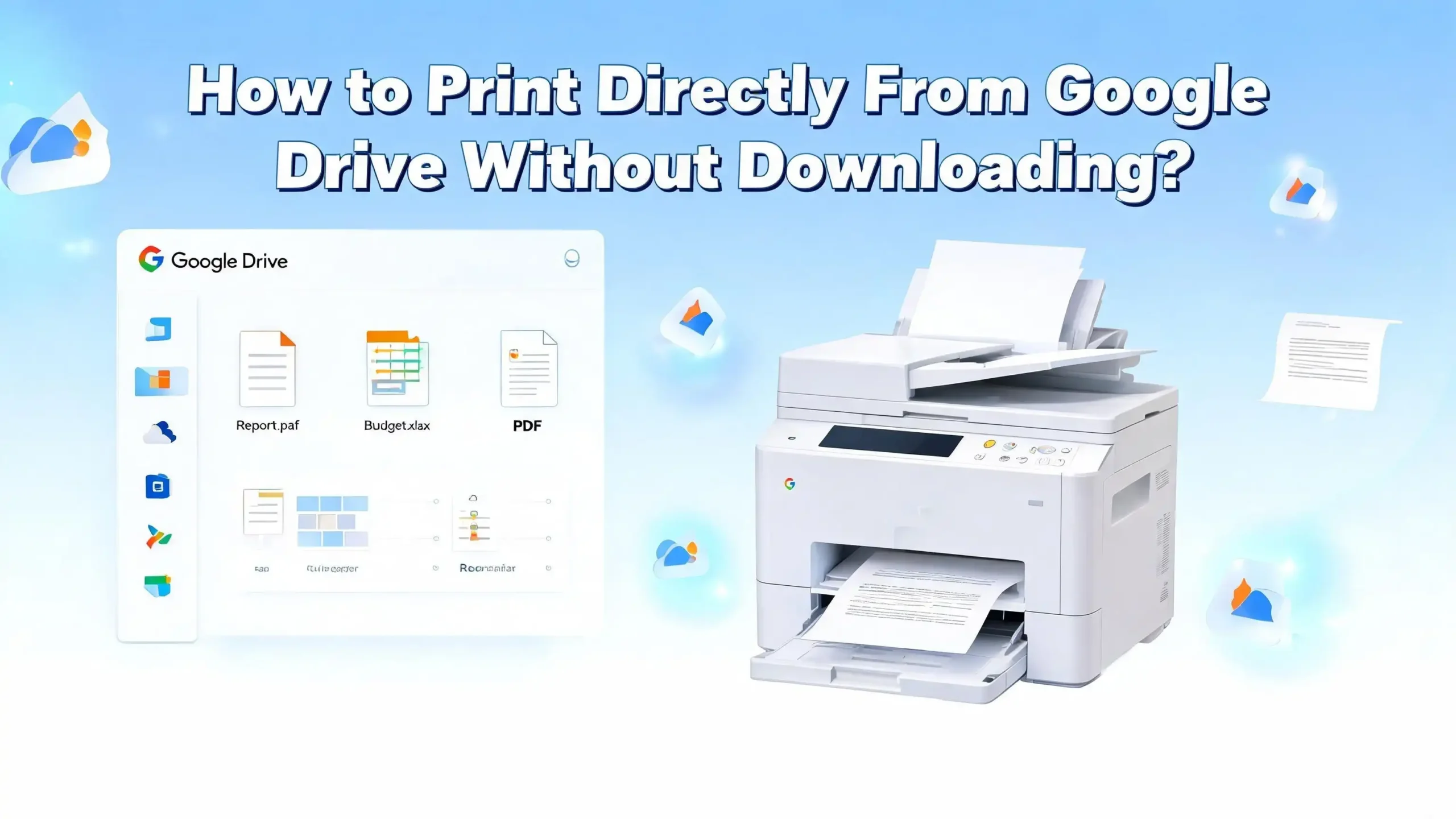
How to Print Directly From Google Drive Without Downloading?
You just found a document in Google Drive. You need a hard copy. But you really do not want to download the file first, clutter your computer, and then print it. Sound familiar? You are not alone. Millions of Google Drive users face this exact frustration every day.
The good news is that Google Drive allows you to print files directly from your browser or mobile device without saving anything to your local storage.
This guide walks you through every method, every device, and every workaround you need to get your documents printed in seconds. Stay with us, because by the end, you will never waste time on unnecessary downloads again.
Key Takeaways
- Use Google Chrome for the smoothest experience. Chrome handles the built in print dialog from Google Drive better than any other browser. Firefox and Safari often force a PDF download before printing, while Chrome sends the file directly to your printer dialog.
- Google Docs, Sheets, and Slides all support direct printing. Each app has a File menu with a Print option. You can access your print settings, choose your printer, and hit Print without ever downloading the file to your device.
- Mobile printing works on both Android and iOS. The Google Docs, Sheets, and Slides apps on your phone or tablet let you print through the Share and Export menu. Your device connects to a nearby Wi Fi printer or uses a print service like AirPrint.
- PDFs and other non Google files need a preview first. If you open a PDF or Word document stored in Google Drive, the built in viewer lets you print the file from the preview window. There is no need to download it.
- Third party tools can automate the process. Apps like PaperCut Mobility Print and FolderMill let you send files from Google Drive to a printer automatically. These are great for offices or schools that print frequently.
- Troubleshooting is usually simple. Most printing issues come from browser settings, outdated printer drivers, or pop up blockers. A quick settings check solves the problem in most cases.
Why Printing Directly From Google Drive Saves Time
Downloading a file before printing adds extra steps. You open Google Drive, click Download, wait for the file to save, find the file on your computer, open it, and then print. That process eats up time and fills your Downloads folder with files you never need again.
Printing directly from Google Drive cuts out the middleman. You open the file in your browser, hit Print, and the document goes straight to your printer. The entire process takes less than 30 seconds. This is especially useful for people who work with dozens of documents every day in a shared workspace.
Direct printing also keeps your device storage clean. Every downloaded file takes up space. Over time, those random PDFs and Word documents add up. By printing from the cloud, you keep your hard drive free from temporary files.
There is also a security benefit. Downloaded files can be accessed by anyone who uses your device. Printing directly from Google Drive means the file stays in the cloud. Your sensitive documents never sit unprotected on a local drive. For teams handling private business data, this approach adds an extra layer of protection.
How to Print Google Docs Directly From Your Browser
Google Docs is the easiest Google Drive file type to print without downloading. The process is built right into the app. Here is how you do it on a desktop computer.
Open your Google Docs file in a browser. Click on File in the top menu bar. Select Print from the dropdown. A print dialog window will open. Choose your printer from the list, set your preferences like number of copies, page range, and orientation. Click Print to send the document to your printer.
Google Chrome gives you the best results here. The print dialog opens natively inside Chrome without creating a PDF download. If you use Firefox or Safari, the browser may download a PDF copy first and then open it for printing. This is a key difference that many users overlook.
You can also use the keyboard shortcut Ctrl + P on Windows or Cmd + P on Mac. This shortcut triggers the same print dialog instantly. It is the fastest way to start a print job from any Google Docs file.
Pros: No download required in Chrome. Fast and straightforward. Full control over print settings. Works with any connected printer.
Cons: Firefox and Safari may force a PDF download first. Pageless documents may look different in the print preview than on screen.
How to Print Google Sheets Without Downloading
Printing spreadsheets from Google Sheets has a few extra options that you should know about. Spreadsheets often contain large tables, so Google gives you more control over what gets printed.
Open your spreadsheet in Google Sheets. Click File and then click Print. Google Sheets will open a print settings panel on the right side of the screen. Here you can choose to print the current sheet, the entire workbook, or only selected cells.
You can also set the paper size, page orientation, scaling, margins, and formatting options. This is where Google Sheets really shines. You do not need to download the file and open it in Excel just to adjust print settings. Everything happens right in your browser.
Once your settings look good, click Next. The standard browser print dialog will appear. Select your printer and click Print. The file goes straight to your printer without any local download.
One helpful tip is to highlight the cells you want to print before clicking File and Print. Google Sheets will then give you the option to print only the selected range. This saves paper and avoids printing unnecessary rows or columns.
Pros: Advanced print settings built into the browser. Ability to print selected cells only. No software installation needed.
Cons: Large spreadsheets may require scaling adjustments. Print preview may not match the final output perfectly for very wide tables.
How to Print Google Slides Directly
Google Slides presentations can also be printed straight from the browser. This is useful when you need handouts for a meeting or a physical backup of your slides.
Open your presentation in Google Slides. Click File and then Print Settings and Preview. This opens a preview window where you can choose how many slides appear per page. You can select 1 slide per page, 2 slides, 3, 4, 6, or 9 slides per page.
You can also choose to include or exclude speaker notes in the printout. If you are printing handouts for an audience, you probably want to hide the notes. But if you are printing a copy for yourself as the presenter, including notes is very helpful.
After you set your preferences, click Print in the toolbar. The browser print dialog opens, and you can choose your printer and finalize the job. No file ever gets downloaded to your device during this process.
Pros: Multiple layout options for slides per page. Option to include or exclude speaker notes. Fast and direct from the browser.
Cons: Slide animations and transitions obviously do not appear on paper. Image heavy presentations may use a lot of ink.
How to Print PDFs Stored in Google Drive
PDFs are one of the most common file types stored in Google Drive. The good news is that Google Drive has a built in PDF viewer that lets you print these files without downloading them first.
Open Google Drive and find the PDF you want to print. Double click the file to open it in the Google Drive preview. You will see the PDF displayed in a viewer window inside your browser. Look for the printer icon in the top right corner of the viewer. Click it to open the print dialog.
Alternatively, you can use the keyboard shortcut Ctrl + P or Cmd + P to trigger the print dialog directly. Choose your printer, adjust settings as needed, and click Print. The PDF goes to your printer with no download step.
If the PDF does not display properly in the Google Drive viewer, you can also open it with Google Docs. Right click the file in Google Drive, select Open with, and choose Google Docs. The content will appear in a Google Docs format, and you can print from there.
Pros: Built in viewer handles most PDFs well. Quick access through the printer icon. No additional software needed.
Cons: Complex PDFs with unusual formatting may not render perfectly. Opening a PDF in Google Docs can change the layout.
How to Print From Google Drive on Android
Android devices work well with Google Drive printing. The Google Docs, Sheets, and Slides apps all have built in print support. You do not need to download files to your phone first.
Open the Google Docs, Sheets, or Slides app on your Android device. Find and open the file you want to print. Tap the three dot menu (More) in the top right corner. Select Share and Export, then tap Print.
Your Android device will search for available printers. If your printer is on the same Wi Fi network, it should appear in the list. Select the printer, adjust your settings, and tap the Print button. The file goes directly from the cloud to your printer.
For files like PDFs or Word documents stored in Google Drive, open the Google Drive app directly. Tap the three dot menu next to the file and select Print. Android’s built in print service handles the rest.
Make sure your Android device has a print service enabled in the system settings. Most modern Android phones come with a default print service. Some printer brands also offer their own print service apps, like HP Print Service Plugin or Samsung Print Service Plugin, which you can install from the Google Play Store.
Pros: Works with any Wi Fi enabled printer. No downloads needed. Print services are built into Android.
Cons: Bluetooth printers may not be supported by all print services. Older Android versions may have limited print options.
How to Print From Google Drive on iPhone and iPad
Apple devices use AirPrint technology to communicate with printers. If your printer supports AirPrint, printing from Google Drive on iPhone or iPad is simple and fast.
Open the Google Docs, Sheets, or Slides app on your iPhone or iPad. Open the file you want to print. Tap the three dot menu icon. Select Share and Export and then tap Print. The iOS print dialog will appear.
Select your AirPrint printer from the list. Adjust the number of copies and page range. Tap Print in the top right corner. Your document will be sent directly from the Google app to your printer. No download to your device happens at any point.
For PDFs or other file types stored in Google Drive, open the Google Drive app. Tap the three dot menu next to the file name. Tap Open in and select Print. This sends the file to the iOS print dialog.
Pros: AirPrint makes the connection seamless. No extra apps required for AirPrint printers. Works with Docs, Sheets, Slides, and PDFs.
Cons: Only AirPrint compatible printers are supported natively. Older printers without AirPrint may need a third party app.
How to Print From Google Drive on a Chromebook
Chromebooks are designed to work with Google services, so printing from Google Drive is very smooth on these devices. Chrome OS has built in printer support that does not require extra drivers.
Open Google Drive in the Chrome browser on your Chromebook. Open the file you want to print. Use the keyboard shortcut Ctrl + P or click File and then Print. The Chrome OS print dialog will appear.
Select your printer from the list. If your printer is not showing up, go to Settings, then Advanced, and then Printers. Click Add Printer and follow the prompts to add your Wi Fi or USB connected printer.
Chrome OS supports most modern printers through the IPP (Internet Printing Protocol). This means you can connect to network printers without installing any drivers. Just make sure your Chromebook and printer are on the same Wi Fi network.
Pros: No drivers needed for most modern printers. Fast and simple printing. Google Drive integration is seamless on Chrome OS.
Cons: Very old printers may not support IPP and could be incompatible. USB printing works but may require setup.
How to Use the Google Chrome Browser for the Best Printing Results
If you want a consistent, download free printing experience from Google Drive, Google Chrome is your best friend. Chrome handles Google Drive’s print function natively. It does not force a PDF download step like other browsers.
When you click Print in Google Docs, Sheets, or Slides using Chrome, the browser opens its own print dialog. This dialog connects directly to the printers set up on your computer. You see a live preview of the document, choose your printer, adjust settings, and print.
Other browsers like Firefox and Safari behave differently. They often convert the document to a PDF file, download it to your computer, and then open the PDF for printing. This adds unnecessary steps and clutters your Downloads folder.
To get the best results, make sure you are using an updated version of Chrome. Outdated browsers may have bugs that interfere with the print dialog. You can check for updates by clicking the three dot menu in Chrome, selecting Help, and then About Google Chrome.
Also check that your pop up blocker is not interfering with the print dialog. Some pop up blockers can prevent the print window from appearing. If you experience this issue, add drive.google.com and docs.google.com to your allowed sites list.
Pros: No PDF download step. Fastest and most reliable method. Live print preview built in.
Cons: Requires Chrome as your browser. May not be ideal if you prefer Safari or Firefox for other tasks.
Third Party Tools for Printing From Google Drive
Several third party tools can help you print from Google Drive more efficiently, especially in office or school environments. These tools offer automation, batch printing, and remote printing features that go beyond what Google provides by default.
PaperCut Mobility Print is one of the most popular options. It works with Chrome OS, macOS, iOS, Android, and Windows. PaperCut lets users print from any device on the network to any connected printer. It acts as a bridge between cloud storage and physical printers. The best part is that the basic version is free.
FolderMill is another tool that automates printing from Google Drive. You set up a shared Google Drive folder, and FolderMill monitors it for new files. When a new document appears in the folder, FolderMill automatically sends it to a designated printer. This is ideal for offices that receive a large volume of files.
PrinterShare is a good option for mobile users. It allows you to print from Android and iOS devices to remote printers. You install the PrinterShare app, connect your printer, and print files directly from Google Drive.
Pros: Automation saves time for frequent printing. Batch printing is possible. Works across multiple platforms and devices.
Cons: Some tools require a paid license for advanced features. Setup may take time for first time users. Third party tools need to be kept updated.
How to Fix Common Google Drive Printing Problems
Sometimes printing from Google Drive does not go as smoothly as expected. Here are the most common issues and how to fix them.
Problem: The print dialog does not appear. This is often caused by a pop up blocker. Go to your browser settings and make sure pop ups are allowed for Google Drive and Google Docs. Disable any extensions that might block new windows.
Problem: The document downloads as a PDF instead of printing. This usually happens in Firefox or Safari. Switch to Google Chrome for direct printing. If you must use another browser, open the downloaded PDF and print it from your PDF viewer.
Problem: The printer is not showing up. Check that your printer is turned on and connected to the same network as your device. On Windows, go to Settings and then Printers. On Mac, go to System Settings and then Printers and Scanners. Make sure your printer is listed and set as the default.
Problem: The printout looks different from the screen. This is common with Google Sheets and pageless Google Docs. Use the Print Preview feature to check the layout before printing. Adjust margins, scaling, and page orientation to match your needs. Always preview before printing to avoid wasted paper.
Problem: The print job is stuck. Open your printer queue on your computer and cancel any stuck jobs. Restart the print spooler service on Windows by typing “services.msc” in the Run dialog, finding Print Spooler, and restarting it.
How to Print View Only Google Drive Files
Some Google Drive files are shared with view only permissions. This means you cannot edit the file, but you can still print it in most cases. The process depends on whether the file owner has disabled printing.
If printing is allowed, simply open the file and press Ctrl + P or Cmd + P. The print dialog will appear just like any other document. Choose your printer and print the file. The view only restriction only blocks editing. It does not block printing unless the owner has specifically disabled it.
If the file owner has disabled printing, you will notice that the Print option is grayed out or missing. In this case, there are limited workarounds. You can try taking a screenshot of each page and printing the screenshots. You can also ask the file owner to grant you print permissions.
Another option is to use the Google Docs mobile app. Sometimes the mobile app allows printing even when the desktop browser restricts it. Open the file in the app, tap the three dot menu, and check if the Print option is available.
Pros: Most view only files can still be printed. Quick keyboard shortcut access.
Cons: File owners can disable printing. Workarounds for restricted files have quality limits.
Tips to Improve Your Google Drive Printing Experience
A few simple habits can make your Google Drive printing faster and more reliable. These tips apply to all devices and file types.
Always use Print Preview before printing. This shows you exactly how the document will look on paper. You can catch formatting issues, cut off text, or misaligned images before wasting paper and ink.
Set your default printer in your operating system settings. This way, you do not have to choose a printer every time you print from Google Drive. The file will automatically go to your preferred printer.
Keep your browser updated. An outdated browser can cause printing errors, display issues, and slow performance. Chrome auto updates in the background, but you should verify that updates are installed regularly.
Use page setup before printing in Google Sheets. Go to File and then Page Setup to set your preferred paper size, orientation, and margins. This saves time during the print dialog and ensures consistent results.
Bookmark your most printed files in Google Drive. This gives you quick access without scrolling through folders every time. Right click a file and select Add to Starred to mark it for easy retrieval.
Clear your browser cache periodically. A bloated cache can slow down Google Drive and cause display errors during print preview. Clearing the cache every few weeks keeps things running smoothly.
When You Might Still Need to Download Before Printing
While printing directly from Google Drive works well for most situations, there are a few cases where downloading first makes more sense.
Complex Excel files stored in Google Drive may lose some formatting when viewed in Google Sheets. If your spreadsheet contains macros, pivot tables, or advanced formulas, downloading it and opening it in Microsoft Excel will give you a more accurate printout.
Large image files like high resolution photos or design files may not render properly in the Google Drive viewer. Downloading and opening them in a dedicated image editor or viewer gives you better print control, including DPI settings and color management.
Documents with custom fonts can also be tricky. If the font used in a file is not available in Google’s font library, the text may display in a substitute font. Downloading the file and opening it on a computer with the correct font installed will preserve the original design.
Password protected files that require special software to open cannot be previewed in Google Drive. You will need to download these files and use the appropriate application to print them.
In these situations, downloading is not a hassle but a necessity. The key is to know when direct printing will give you accurate results and when a download is the better choice.
Conclusion: Print Smarter From Google Drive
Printing directly from Google Drive without downloading is a real time saver. You can print Google Docs, Sheets, Slides, PDFs, and other files straight from your browser or mobile device. The process works on Windows, Mac, Chromebook, Android, and iOS. Google Chrome provides the smoothest experience, and third party tools like PaperCut Mobility Print add extra flexibility for power users.
The key is to choose the right method for your device and file type. Use the built in Print function for Google native files. Use the PDF viewer for stored PDFs. Use mobile apps with Wi Fi or AirPrint for phone and tablet printing. And always check Print Preview before sending a job to the printer.
With these steps in your routine, you will spend less time managing downloads and more time getting work done.
Frequently Asked Questions
Can I print any file type directly from Google Drive?
You can print most common file types directly from Google Drive. Google Docs, Sheets, Slides, and PDFs all support direct printing through the browser or mobile app. Other file types like Word documents and plain text files can also be printed from the Google Drive preview. However, some file types like raw image files or specialized formats may require you to download and open them in dedicated software before printing.
Why does my Google Doc download as a PDF when I click Print?
This happens because you are using Firefox or Safari instead of Google Chrome. These browsers handle the Google Docs print function differently. They convert the document to a PDF file and download it before opening the print dialog. To avoid this, switch to Google Chrome. Chrome opens the print dialog directly without creating a PDF download. If you prefer another browser, you will need to print from the downloaded PDF file.
Can I print a Google Drive file from someone else’s shared folder?
Yes, you can print files shared with you in Google Drive as long as the file owner has not disabled the print function. Open the shared file in your browser, click File, and then click Print. If the owner has restricted printing, the Print option will be grayed out or unavailable. In that case, contact the file owner and request print access.
Do I need a special printer to print from Google Drive?
No, you do not need a special printer. Any printer connected to your computer or network will work. On desktop, your browser sends the print job to whatever printer is set up in your operating system. On Android, you need a Wi Fi printer and a print service enabled on your phone. On iPhone and iPad, you need an AirPrint compatible printer. Most modern printers sold in the last several years support these features.
Is there a way to print multiple files from Google Drive at once?
Google Drive does not have a built in batch print feature. You need to open and print each file individually. However, third party tools like FolderMill can automate batch printing. You place files in a designated Google Drive folder, and FolderMill sends them to your printer automatically. This is a great solution for offices and schools that handle large volumes of documents daily.
What should I do if my printout looks different from what I see on screen?
Check the Print Preview before printing. Most formatting issues come from incorrect margins, scaling settings, or page orientation. In Google Sheets, use the print settings panel to adjust scaling so your data fits the page properly. In Google Docs, switch from pageless format to pages format to get a more accurate preview. Also make sure your printer driver is up to date, as outdated drivers can cause display differences between the screen and the printed output.

I’m the voice behind Device Dossier. As a printing technology enthusiast, I spend my time testing printers, comparing specs, and writing honest reviews to help you find the perfect printing solution. When I’m not geeking out over print quality and page yields, you’ll find me exploring the latest in tech.