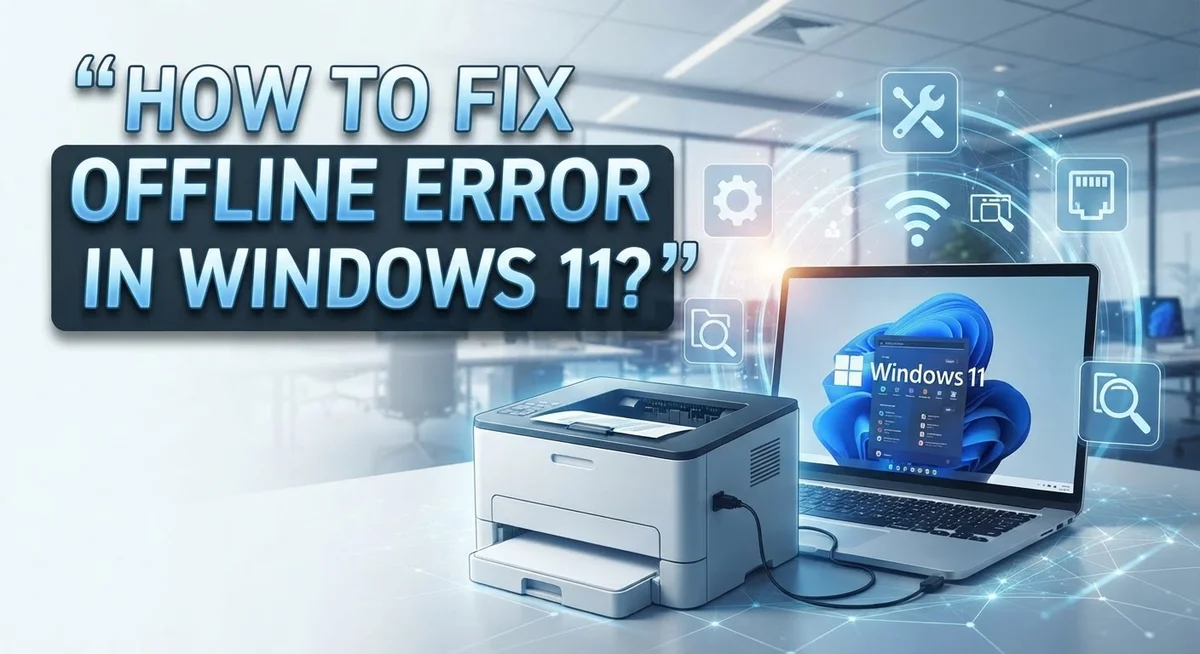
How to Fix Printer Offline Error in Windows 11?
Your printer suddenly shows “offline” and you can’t print anything. This is one of the most common issues Windows 11 users face today.
The good news? You can fix this problem yourself in just a few minutes.
Most printer offline errors happen because of simple issues. Your printer might lose its network connection. Windows 11 might have outdated driver files. Sometimes, the Print Spooler service stops working properly.
These small glitches confuse your computer. It thinks your printer disconnected, even when it’s ready to print.
This guide walks you through every solution step by step. You will learn how to check your network connection first. We will show you how to set your printer as the default device.
You will also discover how to use the built in Windows troubleshooter to detect issues automatically. We cover clearing stuck print jobs and restarting essential services too.
By the end of this article, you’ll know exactly why your printer goes offline. More importantly, you’ll have the tools to bring it back online fast.
Let’s get your printer working again.
In a Nutshell
Here’s a quick rundown to get your printer back online fast:
-
Check your connections first. Make sure your printer is plugged in and connected to the same Wi Fi network as your computer. A simple restart often fixes this instantly.
-
Set your printer as default. Windows sometimes picks the wrong device. Go to Settings and select your printer as the default option.
-
Run the Windows Printer Troubleshooter. This tool lives in Settings > System > Troubleshoot > Other troubleshooters. It scans for problems automatically.
-
Restart the Print Spooler service. This background service manages your print jobs. A quick restart clears stuck files and errors.
-
Update your drivers and firmware. Outdated drivers cause most connectivity headaches. Keep everything current to avoid repeat issues.
-
Clear your print queue. Stuck jobs can block new ones. Clearing the queue often solves the offline error right away.
Follow these steps in order. Most printers come back online within minutes using this simple approach.
What Causes the Printer Offline Error in Windows 11?
Your printer shows offline when Windows 11 loses communication with it. This happens more often than you might think, and the causes are usually straightforward to identify.
Network disconnection stands as the most common culprit. Your printer and computer need to talk to each other through your Wi Fi network. If either device drops from the network, your printer immediately goes offline. A weak signal or router problems can break this connection instantly.
Driver issues create another major problem. Drivers act as translators between Windows 11 and your printer hardware. Outdated or corrupted drivers prevent your system from recognizing the printer properly, triggering the offline error.
The Print Spooler service manages all your print jobs behind the scenes. When this background service crashes or freezes, Windows can’t send documents to your printer. Your printer appears offline even though it’s physically connected and working fine.
Hardware problems occasionally cause offline errors too. A faulty USB cable, damaged printer port, or loose connections interrupt the data flow. Sometimes the printer itself needs a simple restart to reset its internal systems.
Firmware updates matter more than many people realize. Outdated printer firmware creates compatibility gaps with newer Windows versions. These gaps prevent stable communication between devices.
Finally, incorrect default settings confuse Windows. Your system might have multiple printers listed. If Windows picks the wrong one as default, it tries sending jobs to an unavailable printer instead of your actual device.
Most offline errors stem from these five sources. Understanding what causes the problem helps you fix it faster. The good news? Nearly all these issues have simple solutions you can apply yourself without technical expertise.
Checking Physical Connections and Network Status
Your printer’s physical connection forms the foundation of fixing the offline error. Start by checking that your printer is actually plugged in and powered on. Look for a light indicator on the device itself. If the printer has no power, it cannot communicate with your computer.
Next, verify the cable connection if you use a USB printer. Unplug the USB cable from both your printer and computer. Wait 30 seconds, then reconnect it firmly into both devices. A loose cable creates communication gaps that trigger offline errors.
For wireless printers, the network connection matters most. Open your printer’s display panel and check which Wi Fi network it’s connected to. Your printer must be on the exact same network as your Windows 11 computer. If your home has a guest network, make sure both devices connect to the main network instead.
Test your network strength by moving your printer closer to your router temporarily. Weak signals cause intermittent offline status. If the printer works better closer to the router, you’ve found your problem.
Restart your printer completely. Turn it off, wait 60 seconds, then turn it back on. This simple step clears temporary glitches in the printer’s memory.
Check your Windows 11 computer’s network connection too. Open your network settings and confirm you have an active internet connection. Your computer and printer need stable connections to communicate.
Finally, open your printer’s settings menu and look for network diagnostics or connection tests. Many printers have built in tools that show connection status and signal strength. These tools help you spot network problems immediately.
Step-by-Step: Setting Your Printer as Default
Setting your printer as default tells Windows 11 which device to use when you print. This simple step stops Windows from sending jobs to the wrong printer and causing offline errors.
Open Settings on your computer. Click the Windows Start button, then select Settings from the menu. You can also press the Windows key plus I together.
Navigate to Devices. Look for the Devices option in the Settings menu. Click on it to see all your connected devices.
Select Printers and Scanners. This option appears in the Devices section. Windows 11 displays all your printers here, including network and USB models.
Find your printer in the list. Scroll through the printers shown. Your offline printer should appear even if it shows as offline right now.
Click your printer to select it. A menu opens with options for that specific device. This is where you make important changes.
Look for the Set as Default button. Windows 11 displays this button clearly. Click it to make this your default printer. The system now knows to use this printer for all your print jobs.
Verify the change took effect. Your printer name should now show a checkmark or “default” label next to it. This confirms Windows recognizes it as your primary printer.
Restart your computer after changing settings. This helps Windows 11 apply the new default settings properly. Many offline errors disappear after this restart.
Setting a default printer removes confusion from your system. Windows stops guessing which printer you want to use. This single action fixes offline errors for many users. If your printer remains offline after this step, move forward with other troubleshooting methods like checking drivers or restarting the Print Spooler service.
Running the Windows Printer Troubleshooter
Windows 11 includes a built in troubleshooter specifically designed to fix printer problems. This automated tool can identify and resolve many offline issues without requiring technical knowledge.
To access the troubleshooter, open your Settings app. Click the Windows Start button and select Settings from the menu. Navigate to System in the left sidebar. Look for Troubleshoot in the System menu options.
Select Other troubleshooters from the list. You’ll see various troubleshooting tools available. Find the Printer troubleshooter in this section. Click the Run button next to it to start the diagnostic process.
The troubleshooter will scan your system automatically. It checks your printer’s connection status and driver installation. The tool also verifies that your Print Spooler service is running correctly. Let the scan complete fully before taking any action.
Windows will display any problems it finds. The troubleshooter shows clear descriptions of each issue discovered. Pay attention to these messages as they guide your next steps. Some issues resolve automatically when you approve the fixes.
If the troubleshooter finds driver problems, it may offer updates. Accept these updates to improve your printer’s compatibility. Driver updates often resolve offline errors completely.
For network connected printers, the troubleshooter verifies your Wi Fi connection. It confirms your printer and computer are on the same network. This connection check prevents many false offline readings.
After the troubleshooter completes, restart your printer. Power it off completely, wait 30 seconds, then power it back on. This reset helps your printer reconnect to Windows 11 properly.
If problems persist after running the troubleshooter, you may need to clear your print queue or restart the Print Spooler service manually. These additional steps address more stubborn connectivity issues.
Restarting the Print Spooler Service and Clearing the Queue
The Print Spooler service manages all printing tasks on your Windows 11 computer. When this service stops working properly, your printer appears offline even though it’s connected. Clearing the print queue and restarting the service fixes most offline errors.
Start by opening the Services app on your computer. Click the Windows Start button and type “Services” in the search box. Select the Services app from the results. Look for “Print Spooler” in the list of services shown.
Right click on Print Spooler and select “Stop” from the menu. Wait a few seconds for the service to stop completely. This action clears any stuck print jobs that cause the offline status.
Next, you need to clear the print queue manually. Open File Explorer on your computer. Navigate to this folder path: C:\Windows\System32\spool\PRINTERS. Select all files in this folder and delete them. These files represent stuck print jobs blocking your printer.
Now restart the Print Spooler service. Return to the Services app window. Right click on Print Spooler again and select “Start” to restart it. The service should show as “Running” in the status column.
Test your printer immediately after restarting the service. Send a small test print job to verify the offline error is gone. Your printer should respond normally and complete the print job.
If your printer still shows offline after these steps, update your printer drivers. Visit the manufacturer’s website and download the latest drivers for your specific printer model and Windows 11. Install the drivers and restart your computer. This usually resolves any remaining communication issues between Windows 11 and your printer device.
Updating Printer Drivers and Firmware
Printer drivers act as a bridge between your Windows 11 computer and your printer. When drivers become outdated or corrupted, your printer often shows an offline status even though it’s physically connected and powered on.
To update your printer drivers, first identify your printer model. You can find this information on the printer itself or in your purchase documentation. Once you know the model, visit the manufacturer’s support website directly.
Most manufacturers offer a dedicated downloads or support section on their website. Enter your printer model number in the search box. Look for driver files compatible with Windows 11. Download the latest driver version available for your operating system.
After downloading, run the driver installation file. Follow the on screen prompts to complete the installation. Your computer may ask you to restart during this process. Allow the restart to finish completely before testing your printer.
Firmware updates are equally important for maintaining stable connectivity. Firmware is the software that runs inside your printer itself. Outdated firmware can cause communication problems with your computer and network devices.
Check the manufacturer’s website for available firmware updates for your specific printer model. Some printers allow you to update firmware directly through the printer’s control panel or web interface. Others require you to download the firmware file to your computer and transfer it to the printer using a USB cable.
After updating drivers and firmware, restart both your printer and computer. This ensures all changes take effect properly. Send a test print job to confirm your printer is no longer showing an offline error.
Regular driver and firmware updates prevent many offline issues from occurring in the first place.
Common Mistakes to Avoid When Troubleshooting
Many people make mistakes that actually worsen the printer offline problem. Understanding these errors helps you fix issues faster.
Skipping the network check is the biggest mistake. People jump straight to restarting services without confirming their printer connects to the same Wi Fi network as their computer. Always verify network connectivity first. This simple step solves most offline errors immediately.
Another common error is ignoring the Print Spooler service entirely. Some users restart their computer and assume this fixes everything. However, the Print Spooler might still contain stuck print jobs. You must manually stop the service, clear the queue, and restart it. This process clears corrupted data that causes offline status.
People also assume driver updates aren’t necessary. They think firmware alone handles connectivity. Both drivers and firmware matter equally. Outdated drivers create communication gaps between Windows 11 and your printer. Check for updates regularly, not just when problems appear.
Not setting the printer as default leads to repeated issues. Windows 11 sometimes treats offline printers differently if they’re not designated as default. Make this change in your printer settings immediately.
Some users restart only the computer without restarting the printer itself. A simple power cycle of your printer often solves offline errors. Unplug it for 30 seconds, then plug it back in.
Finally, people rush through troubleshooting steps. They run the Windows troubleshooter but don’t wait for it to complete fully. The tool needs time to scan and identify problems. Patience during troubleshooting prevents repeated errors.
These mistakes cost you time and frustration. Avoid them by following systematic steps and checking each component carefully.
Preventing Future Printer Offline Issues
Keeping your printer online requires a few simple habits. Regular maintenance stops most offline problems before they start.
First, update your printer firmware whenever the manufacturer releases new versions. Firmware updates fix bugs and improve how your printer connects to your network. Check the manufacturer’s website monthly or enable automatic updates if available.
Second, verify your printer stays on the same Wi-Fi network as your Windows 11 computer. Network changes cause offline errors frequently. If you switch networks or restart your router, reconnect your printer immediately. Write down your printer’s network name and password for quick reconnection.
Third, keep your printer drivers current. Windows 11 sometimes updates drivers automatically, but manual checks ensure you have the latest version. Visit the manufacturer’s support page quarterly to download any available driver updates.
Fourth, restart your printer weekly. This clears temporary connection issues and refreshes the device’s memory. Simply turn it off, wait 30 seconds, then power it back on.
Fifth, set your printer as the default device in Windows 11. Go to Settings, select Devices, then Printers and Scanners. Click your printer and choose “Set as default.” This prevents Windows from sending jobs to the wrong device.
Finally, monitor your Print Spooler service health. If print jobs pile up, restart the service manually before problems worsen. Check your printer’s online status in Settings regularly.
These prevention steps take minutes but save hours of troubleshooting. Most offline errors never happen when you maintain your printer consistently. Simple habits create reliable printing every single time you need it.
Final Thoughts
Fixing a printer offline error in Windows 11 does not need to be hard. Most problems come from simple issues. Network glitches, outdated drivers, and Print Spooler failures cause the majority of cases.
You now have the tools to solve this problem yourself. Start with the basics. Check your network connection first. Then move to driver and firmware updates.
The Windows Printer Troubleshooter remains your best friend here. It finds issues automatically and fixes many problems in seconds. Use it before trying complex solutions.
Remember to restart your Print Spooler service when problems persist. This simple action solves many stubborn offline errors. Skipping this step often leads to repeated frustration.
Prevention beats troubleshooting every time. Keep your printer updated. Check firmware regularly. Maintain your network connection. These small habits stop offline errors before they start.
Do not panic when your printer shows offline status. This error happens to everyone at some point. Windows 11 gives you plenty of tools to fix it quickly.
Patience matters during troubleshooting. Rushing through steps often causes more problems. Take your time with each solution and test after every change.
Your printer connects to more than just paper and ink. It connects to your productivity and daily tasks. Keeping it online means keeping your work flowing smoothly.
Apply these steps whenever offline errors appear again. Most fixes take just a few minutes. With practice, you will solve future problems even faster.
A properly maintained printer rarely goes offline. Follow the tips shared here, and you will spend less time troubleshooting and more time getting your work done.
Frequently Asked Questions
Why does my printer keep going offline?
Your printer goes offline when communication breaks between Windows 11 and the device. This happens for three main reasons: network disconnection, outdated drivers, or Print Spooler service failures.
Check your Wi-Fi connection first. Your printer and computer must use the same network. Next, verify your drivers are current. Finally, confirm the Print Spooler service is running on your system.
How do I know if my printer is truly offline?
Windows 11 shows “offline” status in your printer settings when it cannot reach the device. You can verify this by opening Settings, going to Devices, and selecting Printers and Scanners.
Look for a red X or “offline” label next to your printer name. This confirms the connection issue exists.
Can I fix this without restarting anything?
Sometimes, yes. First, try clearing your print queue. Open Settings, navigate to Devices, select your printer, and choose “Open queue.”
If that doesn’t work, you’ll need to restart your Print Spooler service. This service manages all printing tasks. Restarting it often fixes offline errors that simple queue clearing cannot resolve.
What should I check before calling for help?
Verify these items in order: network connection, printer power status, and driver updates. Confirm your printer appears in your Wi-Fi device list.
Run the Windows Printer Troubleshooter found in Settings under System and Troubleshoot. This automated tool catches issues you might miss manually.
How often should I update my printer firmware?
Check your printer manufacturer’s website monthly for firmware updates. Install them promptly when available.
Regular firmware updates prevent connectivity problems before they start. This simple habit keeps your printer online and working smoothly.

I’m the voice behind Device Dossier. As a printing technology enthusiast, I spend my time testing printers, comparing specs, and writing honest reviews to help you find the perfect printing solution. When I’m not geeking out over print quality and page yields, you’ll find me exploring the latest in tech.