Epson Expression Photo XP-15000 Review: Is It Worth Trying?
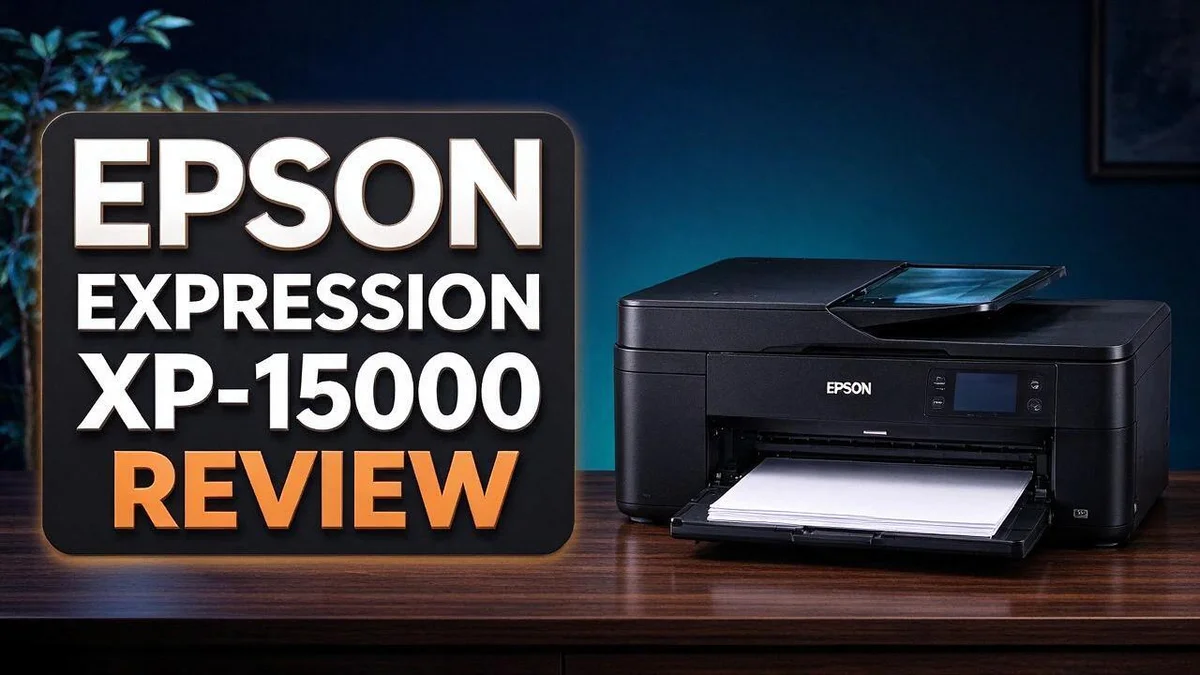
Looking for a photo printer that does more? The Epson Expression Photo HD XP-15000 could be the right fit. It helps home users print sharp pictures and everyday documents.
Many people want quiet printing, especially at night. This model offers a Quiet Mode that lowers print noise. Just keep in mind that printing may take a little longer.
You can use plain paper and still get good results. For the best colors, though, use Epson’s special inkjet paper. Your photos will look richer and more lifelike.
This review covers the strengths and weak spots of the XP-15000. You will also see how it compares with rivals like the EcoTank Photo ET-8550 and the XP-18100. Let’s see if it fits your needs.
In a Nutshell
-
Quiet printing: Quiet Mode cuts down print noise. This helps if you print at night. Print speed may drop while it runs.
-
Plain paper works: You can use plain paper and still get decent results. For the best output, Epson’s special inkjet paper is the better choice.
-
Photo focus: The XP-15000 suits people who print images often at home.
-
Wide format rival: RTINGS rates the Epson EcoTank Photo ET-8550 as a much better wide format printer overall. If you need large prints, compare both models closely.
-
Modern features: DPReview says the XP-15000 is more modern in some respects. The Epson XP-18100 leads in other areas, so your needs will decide the better pick.
-
Model name warning: The ET-15000 has a similar name, but it is a different model. One Facebook user reports poor reviews for it, so check the exact model number before you buy.
Print Quality and Photo Output

- Epson printing system is designed to be used exclusively with Epson Genuine Cartridges. Use of...
- Professional ultra HD photo quality get brilliant border less prints upto 13 inches X 19 inches

Last update on 2026-11-25 / Affiliate links / Images from Amazon Product Advertising API
Photo output is often the first thing buyers check. Sharp detail, smooth skin tones, and vivid color matter most. This section explains what to expect from the XP-15000 when you print family pictures and holiday shots.
Paper choice shapes the final look. Glossy and satin photo papers help colors pop. Matte paper softens glare and suits fine art prints. Pick the finish that fits your photo style.
Drying time is another factor. Fresh photo prints need a few minutes before you stack or handle them. Let each sheet rest on a flat surface. This simple habit keeps smudges away from your best shots.
Color balance needs a quick check. Print one test photo before you run a large batch. Compare the result with your screen. Small tweaks in your print settings can fix slight shifts in warm or cool tones.
Lighting also changes how you judge prints. View finished photos in natural daylight to see true color. Warm indoor bulbs can make prints look yellow, even when they are correct.
Borderless printing adds a clean, professional touch. Edge to edge prints look great in frames and albums. Choose the right paper size in your settings so the printer does not crop key parts of the image.
Smooth gradients need the right settings. Photos with skies or soft shadows can show banding if the quality setting is too low. Use the highest quality mode for these images. The extra time usually pays off in smoother results.
Sharpness depends on file quality. High resolution photos give the cleanest results. Low resolution files can look soft, even on a good printer. Edit and save your images at full size before printing.
Ink use grows with photo jobs. Full page photo prints use more ink than text pages. Check your ink levels before a big project. Planning ahead helps you avoid interruptions in the middle of a print run.
Overall, the XP-15000 suits home photo lovers. Good prints depend on paper, settings, and image quality working together. Test your setup first, then enjoy prints you can be proud of.
Speed and Quiet Mode
Speed and noise often work against each other. Most printers slow down when they run more quietly. The XP-15000 follows the same pattern, so expect some delay in exchange for calmer sound.
Pick the mode that fits the job. Use the standard setting for large batches of photos. Switch to the quiet setting for small jobs. This gives you the best balance at home.
Think about your daily routine first. A single page of text prints in seconds on any setting. Long photo jobs take much more time. Plan those bigger tasks for moments when you do not need the printer right away.
Start big jobs before you leave. A long print can finish while you work in another room. This saves time and keeps your desk free for other tasks.
Quality settings also change the pace. Higher quality takes more time for each page. Standard settings move faster and still look sharp for everyday use. Choose the level that matches your goal.
Image content affects the sound too. Detailed photos keep the print head busy. Plain text pages usually run smoother and quieter. You may notice these changes as you print different files.
Sending one job at a time helps. Flooding the queue can cause pauses and extra noise. A steady flow keeps the printer working well. Give each job a short gap before the next one starts.
Keep the paper tray full and clean. Jams cause stops and restarts. Smooth feeding keeps both speed and noise under control. Check the tray before each big batch.
Run a quick speed and noise test. Print one photo in each mode. Time the result with a phone timer. Listen from the spot where you usually sit. Then compare the results side by side.
Decide what matters most to you. Some people accept slower output for a calmer room. Others need quick copies above all else. Either choice can work well with this model.
Paper Handling and Media Support
Paper handling affects every print you make. Smooth feeding saves time and protects your photos.
Start by matching the media type setting in the printer software. The printer adjusts ink and feed speed based on this choice.
Load only one paper type at a time. Mixed stacks can jam or feed unevenly.
Fan the sheets before you load them. This stops pages from sticking together and feeding two at once.
Slide the edge guides close to the stack. Loose guides let sheets shift and skew during printing.
Do not overfill the tray. Stay below the marked limit so the rollers grip each sheet well.
Store unused paper flat and sealed. Humidity can cause curling, and curled sheets often jam.
Keep the original packaging for photo paper. Sealed bags protect the coating from moisture and dust.
Load the correct side facing up. Printable sides look different on many photo papers, so check the packaging.
Watch the alerts on the printer screen. Most printers show a warning when paper runs low or a jam occurs.
Test a few sheets after you change paper size. A short test shows whether margins and alignment look right.
Keep the printer on a flat surface. A tilted base can make sheets slide off the tray.
Give the output tray room. Printed sheets should slide out without bending or rubbing.
Handle photos by the edges. Oils from your fingers can leave marks on glossy surfaces.
Wipe dust from the feed rollers now and then. A clean path helps paper move smoothly and avoids marks.
Check the paper path after every jam. Remove any torn bits fully before you print again.
Plan your paper supply before big jobs. Load a fresh stack so the printer does not run out halfway through.
Good habits keep the workflow steady. Your prints will look consistent from the first sheet to the last.
Top 3 Alternatives
Looking for a different printer? These three options offer strong print quality and useful features for home and office use. Each one fits a different need, so compare them before you choose.
Epson SureColor P700

- CARTRIDGE-FREE PRINTING — Print lab-quality photos, graphics and creative projects; Get vibrant colors...
- INK BOTTLES — Save on photos1 and creative projects with affordable in-house printing; All-in-one...
Last update on 2026-11-25 / Affiliate links / Images from Amazon Product Advertising API
The Epson SureColor P700 suits photographers and artists who want professional results. It prints on a wide range of paper sizes, including large prints up to 13 inches wide.
Its ink system delivers rich colors and deep blacks. Creators who print often will appreciate its steady output and consistent quality.
Canon imagePROGRAF PRO-300

- 9 COLOR + CHROMA OPTIMIZER pigment-based ink system produces gallery-quality prints.
- EASE OF USE — ultimate productivity with Anti-Clogging System and Skew Correction.
Last update on 2026-11-25 / Affiliate links / Images from Amazon Product Advertising API
The Canon imagePROGRAF PRO-300 is another strong choice for photo lovers. Its compact desktop design fits well in small workspaces.
It produces sharp detail and smooth color gradients. Wireless printing from phones and laptops makes daily use simple and quick.
Epson Expression Premium XP-7100

- CLEAR AND VIBRANT PRINT QUALITY ― All-in-one inkjet color printer produces sharp text for eye-catching...
- PRINTER FOR HOME USE ― Designed to increase your productivity at home, this wireless color printer...
Last update on 2026-11-25 / Affiliate links / Images from Amazon Product Advertising API
The Epson Expression Premium XP-7100 works well for everyday home printing. It combines printing, scanning, and copying in one machine.
Its touchscreen makes settings easy to change. Families and students often pick this model for school projects and family photos.
Pick the printer that matches your daily needs.
Ink and Running Costs
Ink is the main ongoing task with this printer. The Expression Photo HD uses individual ink cartridges for each color. You replace only the color that runs low. This keeps routine upkeep simple for most home users.
Compare this setup with the Epson EcoTank Photo ET-8550. That model uses refillable ink tanks instead. The tanks hold a large supply of ink, so people who print often may prefer that approach.
Page yield matters more than many readers expect. Yield shows how many pages one cartridge can print. Higher yield cartridges mean fewer swaps. They also mean fewer trips to the store.
Check ink levels before you start a large batch. The printer screen shows the levels. A low color can shift the look of a photo. An empty cartridge can also stop a job halfway through.
Photos use more ink than everyday documents. Rich colors and dark areas pull more ink from each cartridge. Text pages use only a small amount. Mixing both in one day affects how fast the ink drops.
Cleaning cycles use ink too. The printer runs them when nozzles clog. Running a nozzle check first shows whether a full cleaning is really needed. This avoids wasted ink.
Turn the printer off with its power button. This lets the print head park and seal itself. Unplugging it at the wall can leave the head uncapped. Dry nozzles often need extra cleaning.
Genuine Epson ink gives the most predictable results. Third party cartridges may vary in color and flow. If you use them, test a few pages first and watch the output closely.
Store spare cartridges with care. Keep unopened cartridges sealed until you need them. Note the use by date on each box. Install older stock first so nothing expires in a drawer.
Cartridges can dry out if they sit unused for long periods. Install each one soon after you open it. A quick weekly print of a test page keeps the ink flowing.
Overall, ink habits shape your daily experience more than any single feature. A short weekly check keeps surprises away. Small habits give you steady results with fewer interruptions.
Pros and Cons
Pros
- Quiet Mode cuts down print noise.
- Plain paper works for everyday prints.
- Epson special inkjet paper gives the best photo results.
- The printer suits a calm home office.
- Photo fans get sharp, rich color output.
Cons
- RTINGS rates the Epson EcoTank Photo ET-8550 higher as a wide format printer.
- Quiet Mode can slow your print speed.
- The similar ET-15000 is a different model with weaker reviews.
- DPReview says the XP-18100 feels more modern in some areas.
Who Should Buy It
Not every buyer needs the same printer. Picture your printing for the next month before you decide.
Students and parents often print worksheets, notes, and reports. Plain paper handles these jobs well. You do not need special paper for most daily tasks, so you can save your best sheets for school projects.
Hobby crafters who print templates, labels, or sewing patterns will find this model useful. Clean text and bright color make project sheets easy to read. Photo paper can wait until a special occasion arrives.
People who share a workspace should think about noise first. Quiet Mode helps when others sit close by. A slower print pace suits anyone who prints during the evening or early morning.
Readers who print in short bursts often get the most from this printer. Print a few pages, then rest. Short sessions fit the printer’s daily rhythm well. Quick jobs feel simple and fast.
Small teams with light paper needs may also find it helpful. Shared printing for memos and forms runs smoothly on plain paper.
Anyone who prints posters or banners should look elsewhere. Large format projects need a different machine. Wide format work deserves a printer built for that job.
Buyers who feel unsure can make a simple list. Write down your top three printing tasks each week. Match each task to a model that handles it well. This quick check prevents regret after the purchase.
In short, this printer suits people with mixed, modest needs. Choose it when your printing stays light, steady, and mostly at home.
Final Verdict
Our final verdict is clear. The Epson Expression Photo HD XP-15000 suits people who want one machine for many jobs. It does not try to be everything for everyone.
Before you buy, check the model number on the box. Similar names can confuse shoppers. A quick look at the label keeps you from ordering the wrong machine.
Think about your first month. Print a mix of photos, text pages, and forms. Notice how the output looks and how often the printer asks for attention. That real week of use tells you more than any spec sheet.
Ask yourself how often you print. If you print a few times each week, this model fits well. If you print large stacks every day, plan a steady routine for paper and supplies.
Know the limits. Every printer has limits. This one shines at home tasks but may not suit very heavy office runs. Be honest about your typical day before you decide.
Consider your workspace too. A quiet office or shared living room benefits from the calmer mode. Place the printer near an outlet you can reach easily, with space to open the lid.
Set simple goals for your first few weeks. Track how many pages you print in color and in black and white. This habit shows whether the printer matches your routine. It also helps you spot the right time for an upgrade.
Plan a short weekly check. Dust the outside and clear the paper tray. Small habits keep your results steady over time.
Support matters too. Keep the receipt and warranty card in one folder. Epson support can help with setup questions, and clear records make any claim faster.
Finally, trust your own eyes. Print a favorite photo and compare it with your screen. If the colors feel right and the text looks crisp, you have found a good match.
The bottom line is simple. Choose this printer if you value rich photo color, calm operation, and easy daily use. Look at a larger model if your projects grow bigger.
Frequently Asked Questions
How do I fix faint or streaky prints?
Run a nozzle check from the printer settings first. If the test sheet shows gaps, run a head cleaning cycle. Then print the check sheet again to confirm the results.
How do I stop paper jams?
Fan the paper before loading it, and keep the stack flat. Do not fill the tray past the guide line. Set the paper size and paper type in your print settings so they match the sheets in the tray.
Can I print from my phone?
Yes, most Epson models in this line support mobile printing through the Epson Smart Panel app. Connect your phone to the same Wi-Fi network as the printer. Check the box or the Epson website for the full list of supported features.
How can I save ink on everyday prints?
Choose draft mode for text pages, notes, and worksheets. It uses less ink than standard or high quality settings. Print only the pages you need, and use the preview screen to catch mistakes before you press print.
What should I do if the printer shows an error light?
Turn the printer off, wait a few seconds, and turn it back on. Look at the control panel message, then follow the on-screen steps. Restart your computer if the printer still does not respond to print jobs.

I’m the voice behind Device Dossier. As a printing technology enthusiast, I spend my time testing printers, comparing specs, and writing honest reviews to help you find the perfect printing solution. When I’m not geeking out over print quality and page yields, you’ll find me exploring the latest in tech.