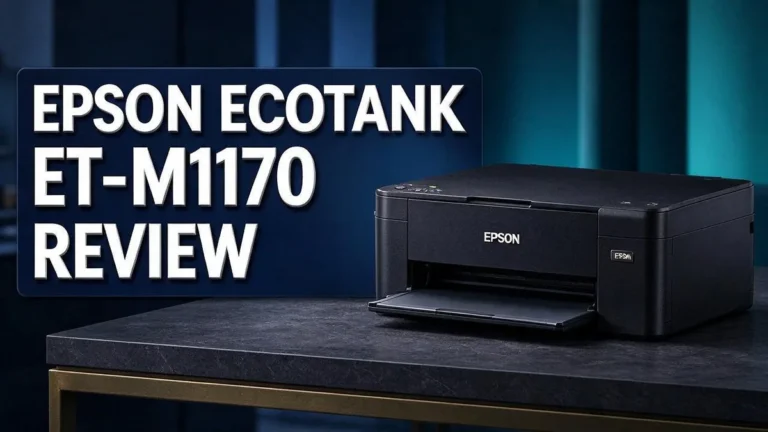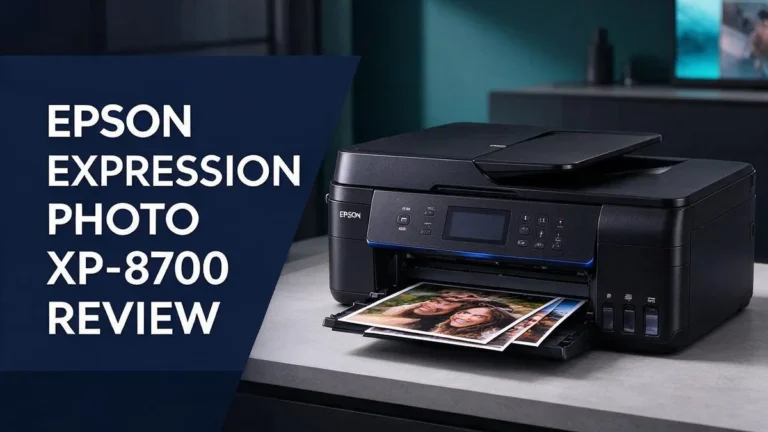

Epson EcoTank ET-4800 Review: Live Up To The Hype?
Tired of running out of ink right when you need it? The Epson EcoTank ET-4800 might be the answer you have been looking for. This wireless color printer does more than print. It also scans, copies, and faxes.
Its big ink tanks mean fewer trips to the store. Epson claims each ink bottle set equals about 80 cartridges. That is a lot of pages.
The ET-4800 also includes an automatic document feeder. You can scan a stack of pages without feeding them one by one. Printing from your phone is easy with the Epson Smart Panel app on iOS and Android.
In this review, we look at the good and the bad. We cover speed, paper support, ink quality, and how it compares to rivals like the Brother MFC-J4335DW. Let’s dig in.
In a Nutshell
-
Paper support: The ET-4800 prints on A4, Letter, and A6 single sheets. A6 is close to postcard size, so it works well for small projects.
-
Ink style: This model uses dye ink only. Some users in forums question how long printed pages last, so archival projects may need extra thought.
-
Speed check: The printer tops out at 10 pages per minute. Forum users still debate how it stacks up against standard inkjets, so compare speed tests before you decide.
-
Phone printing: The Epson Smart Panel app works on iOS and Android. You can send print jobs straight from your phone.
-
Mixed reader feedback: One Amazon.ca reviewer called the brand and quality “terrible.” Opinions vary, so read several reviews before you decide.
-
Main rival: The Brother MFC-J4335DW appears in video comparisons with this model. The ET-2800 is a sibling without an ADF, so it is not a direct competitor.
Print Speed and Output Quality

- Simplex: One-Sided printing, Not 2-sided Printing. Wireless | Print | Copy | Scan | Fax | Ethernet.
- Print Speed: Black: up to 10.0 ppm; Color: up to 5.0 ppm. Print Resolution: up to 5760 x 1440 dpi...
Last update on 2026-11-24 / Affiliate links / Images from Amazon Product Advertising API
Speed shapes your daily routine more than most spec sheets show. A single page feels quick, but a long report can test your patience. Your real experience depends on how often you print in bursts.
Forum users still debate how the ET-4800 compares with standard inkjets. Some want faster output for busy homes or offices. Others care more about steady, reliable results.
Output quality matters just as much as speed. Clean text and sharp images make a printer worth keeping. Print quality also depends on the paper you choose.
Dye ink can produce vivid colors on glossy paper. On plain paper, the same colors may look softer. Test a few pages before you print a wedding invitation or a school poster.
The archival question adds another layer. A Reddit thread questioned how long prints last. If you plan to frame photos or store documents for years, print a sample. Keep it in a dark drawer and check it again after several months.
A simple test page helps. Print a page with text, a photo, and a color gradient. Look closely at edges, fine lines, and color blends. This quick habit shows whether the output meets your needs.
For mixed jobs, plan your workflow. Print drafts at a lower quality setting and save the best mode for final copies. This approach saves time and keeps your ink tanks full longer.
Paper choice affects both speed and quality. Heavier paper often needs slower feeds for clean results. Check the paper settings before each big job.
Speed tests from users often use different files, so results vary. Try your own documents for a fair check.
Overall, the ET-4800 suits people who print often and want clear text. Those who need top photo output may want to compare more models first.
Supertank Ink System and Running Costs
The ET-4800 skips cartridges completely. It uses a supertank ink system instead. You pour ink from bottles into large tanks, so there is no small cartridge to swap.
Epson claims that each ink bottle set equals about 80 cartridges. That promise means fewer trips to the store. It also means fewer stops in the middle of a job to hunt for a replacement.
Refilling takes a little practice. Keep the bottles upright and fill each tank slowly. Check the tank windows before a big print run, so you can top off the color that runs low first.
Plan your supplies around your habits. Heavy users who print reports, worksheets, or photo albums will likely refill more often than light users. Still, a large tank gives you room to work without constant interruptions.
Black text jobs and color graphics use ink at different rates. Watch the tanks during colorful work, since graphics pull more ink from each tank.
Keep a spare bottle set nearby when you print in bulk. Running out in the middle of a project feels frustrating, and a spare keeps you moving.
Ink levels also shape your daily routine. A quick look at the tanks each week prevents surprises. Many people find this habit reduces stress more than it saves time.
Good habits keep the system simple. Store bottles upright, keep the printer on a level surface, and refill before colors drop too low. These small steps help the supertank work the way Epson intends.
Scanning, Copying and Fax with ADF
Scanning, copying, and faxing sit at the heart of this machine. The ET-4800 includes all three functions along with an automatic document feeder, or ADF.
The ADF pulls in a stack of pages without manual feeding. Load your papers, press start, and let the printer handle the rest. This saves time on contracts, forms, and school handouts.
Copying works the same way. Place your original in the feeder, choose the number of copies, and press start. Each copy comes out on the paper you loaded.
Scanning sends documents where you need them. Start a scan from the control panel, then choose a file type and save location. Digital copies stay easy to search and share.
Fax works from the same control panel. Dial a number, load your pages, and send. Incoming faxes print on the paper you have loaded.
The Ethernet port helps offices share one machine. Several computers on the same network can send jobs to it. This setup cuts down on extra devices.
Clean the glass and feeder rollers often. Dust and ink specks can cause streaks on scans and copies. A soft cloth does the job well.
Square up your originals before feeding. Crooked pages can jam the feeder or skew your scans. Take a few seconds to align the edges.
Who benefits most from these functions? Home offices, students, and small teams that handle paperwork daily will use them often. People who mainly print photos may rarely touch the scanner.
Test a few sample pages first. Feed a short stack through the ADF and check each copy and scan. This quick step shows whether the feeder and settings suit your work.
Top 3 Alternatives
HP Smart Tank 5101

- THE LAST PRINTER YOU'LL EVER NEED – Set it up once and print with confidence; no complicated...
- FULLY LOADED WITH SAVINGS – Best for low-cost, high-volume printing—up to 3 years of HP Ink included...

Last update on 2026-11-24 / Affiliate links / Images from Amazon Product Advertising API
The HP Smart Tank 5101 is a good pick for home printing. It uses refillable ink tanks, so you fill ink by hand instead of buying cartridges. Each tank holds a large supply, so you print more pages between refills. It prints text and photos with clear, sharp results. It also works with a mobile app, so you can print from your phone.
Setup is quick, and the tanks have clear level windows. This makes it easy to see when ink runs low.
Canon PIXMA G3270

- Items Include: Canon PIXMA G6020 MegaTank All-in-One Printer for Home Office, Schoolwork, Documents...
- Built to handle daily printing with less friction, the Canon PIXMA G6020 Wireless MegaTank All-in-One...
Last update on 2026-11-24 / Affiliate links / Images from Amazon Product Advertising API
The Canon PIXMA G3270 also uses a refillable ink tank design. It fits families who print school papers and photos each week. Its color output looks bright and balanced. It also prints borderless photos on many paper sizes. You can print wirelessly from a laptop, tablet, or phone.
The machine also scans and copies documents with ease. That makes it a handy all-in-one choice for busy homes.
Brother MFC-J1010DW
The Brother MFC-J1010DW suits small offices and home workspaces. It offers wireless printing, scanning, and copying in one compact unit. Its automatic document feeder saves time on long jobs. Its duplex printing saves paper on every project. It also supports mobile printing from common apps.
Many users like its simple control panel. It helps new users start printing without a long learning curve.
Mobile Printing and Network Setup
The ET-4800 connects to your home network, so you can print from almost anywhere in the house. Setup takes only a few minutes once the printer joins your wireless network.
Start with the Epson Smart Panel app. Download it on your iOS or Android phone. Open the app and follow the on screen steps to add the printer. The app guides you through the connection, so you do not need technical skills.
Keep every device on the same network. A phone on a guest network often cannot find the printer. Check that your phone, laptop, and printer all use the same wireless network before you begin.
Printing from your phone takes just a few taps. Open a photo or document, tap the share or print option, and choose the ET-4800 from the list. Pick A4, Letter, or A6 as your paper size. Remember that A6 works with single sheets only.
Laptops need the correct drivers. Download the latest driver package from Epson’s website. After installation, the printer appears in your print menu. Choose it before you send a job.
Some users notice a short delay on the first print. The printer may need a moment to wake from sleep mode. Send a small test page first. This step shows whether the connection works well.
If the printer does not appear, try these steps. Restart the printer and your router. Then print a network status sheet from the control panel. This sheet lists the IP address and connection details. Compare those details with your device settings.
Keep the firmware current. Updates can fix connection bugs and improve stability. Check for updates in the app or on Epson’s support page.
Place the printer near your router when possible. A strong signal helps prevent dropped jobs and failed pages. Good placement makes mobile printing feel smooth and reliable.
Paper Handling and Media Support
The ET-4800 works with three common paper sizes. It handles A4, Letter, and A6 sheets. Most home and office users can cover their daily printing with these options.
Set the paper size in your print settings before you press start. A mismatch can cause errors or wasted pages.
Fan the edges of your paper before loading it. This step helps stop sheets from sticking together. Smooth, flat paper feeds more reliably than curled sheets.
Load only the size you need for each job. Mixing A4 and Letter in one stack can jam the feed path. Remove leftover sheets when you switch sizes.
A6 sheets call for extra attention. Their small size makes them easy to misalign, so line them up against the guide before printing. Test one copy first.
Small paper works well for cards and notes. You can print recipe cards, greeting cards, or quick reminders on A6 sheets. Check the layout in the preview so your text fits.
Thin or heavy paper may behave differently. Try a test page before you print a large batch. A short test saves time and paper.
Store paper flat and dry. Humidity can make sheets curl, and curled paper often causes jams. Keep the package sealed when you do not need it.
Check the paper guides after each job. Loose guides let sheets shift, which can cause crooked prints. Adjust them snugly against the edges without pressing hard.
Archival permanence sits in question on some user forums. Keep important prints away from direct sunlight. Store them in a dry folder or sleeve.
Smart paper habits save time. Clear prints and fewer jams make every job smoother.
Archival Permanence and Print Longevity
Many people want prints that last for years. The ET-4800 raises a fair question about that goal. A Reddit thread questions how well its prints hold up over time.
Dye ink is the key detail here. A Reddit commenter says this printer uses dye ink only. Dye ink can produce bright colors, but it may fade faster than pigment ink under harsh conditions.
Light is the biggest enemy of color. Keep finished prints out of direct sunlight. Hang photos on walls away from bright windows, and avoid placing them near lamps that run for hours.
Humidity can cause problems too. Damp rooms can blur colors and weaken paper. Store prints in a cool, dry drawer or a sealed folder.
Choose your paper with care. Some photo papers hold dye ink better than plain copy paper. Read the package notes for details about print life.
Protective sleeves add another layer of defense. Choose sleeves labeled as archival. They guard against dust, fingerprints, and sticky surfaces.
Print life also depends on how you store pages. Printouts that sit in a warm tray for months may show color shifts. Print only what you need and store the rest carefully.
Test your own prints before you rely on them. Print a sample page, tape it to a sunny window, and keep a twin copy in a dark drawer. Compare the two after several weeks. This simple test shows how your setup performs.
Keep digital backups as well. Scan important documents and save them to a second location. Digital files do not fade, so they offer a safe copy.
Remember that Epson’s claim about 80 cartridges refers to ink yield, not print life. Judge archival quality by your own tests and by facts you can verify.
Pros and Cons
Pros
- The ink bottles are claimed to equal about 80 cartridges per set.
- It combines printing, scanning, copying, and faxing in one unit.
- The automatic document feeder helps with multi-page scans and copies.
- The Epson Smart Panel app works on both iOS and Android.
- Ethernet support gives you a wired connection option.
Cons
- One Amazon.ca reviewer calls the brand and quality terrible.
- Print speed compared to standard inkjets is still an open question.
- The Brother MFC-J4335DW is a direct rival often featured in video comparisons.
Who Should Buy It
This printer suits busy households best. Parents often juggle school forms, recipes, and craft projects. One machine can handle all of those jobs without filling the desk with extra gear.
Small home offices are another strong match. Freelancers and remote workers often sign contracts, send copies, and print invoices. A single device keeps the workspace neat and simple.
Students can benefit as well. Essays, lab reports, and study notes often need printing in short bursts. Someone who prints a few pages each week will find the ink supply lasts a long time.
Shared households gain extra convenience. Every family member can send a job from a phone through the Epson Smart Panel app. Nobody has to crowd around one computer just to print a single page.
Anyone who keeps digital records will appreciate scanning paperwork into files. Saving pages as digital copies cuts down on paper piles at home. Easy filing keeps important documents within reach.
Some offices still rely on fax lines for forms and approvals. This machine covers that need without adding a separate device to the shelf.
Households with a steady print schedule get the most from this model. Regular use keeps the machine ready for the next job. Occasional printers may find the wait longer between uses.
Some buyers should look elsewhere. People who print large batches every day may find the pace slow. Photographers who want fast, high volume photo output may also want a different machine. Think about your daily routine before you commit.
In short, buyers who want one machine for everyday tasks should give this model a close look.
Final Verdict
The Epson EcoTank ET-4800 earns a strong spot on your shortlist. It fits people who print often and want fewer interruptions. It also packs several useful tools into one box.
Its biggest strength is how little it asks from you day to day. Once the tanks are filled, you can keep printing without hunting for new supplies every week.
Think about your real routine before you buy. Light jobs, like a few letters a month, may not need this much capacity. Heavy home or office use gets far more out of it.
Mixed feedback from owners deserves attention. Some people feel strongly about the brand, while others raise doubts in online discussions. These concerns do not cancel out the features, but they are worth a fair test.
Speed is the open question. Forums still debate how it compares with standard inkjets. If fast output matters to you, compare it side by side with rivals before you commit.
Look closely at the Brother MFC-J4335DW if you want a clear alternative. Compare both machines on the features you use most, such as paper handling, scan quality, and app setup.
The ET-2800 is a different option. It lacks an automatic document feeder, so it suits lighter needs. Choose it only if you rarely scan long stacks of paper.
Our final take is simple. This printer suits people who want one reliable machine for everyday paperwork and mobile printing. If you need top speed or proven long-term archiving, test it first or look elsewhere.
Start with a short trial run. Print a few pages from your phone, scan a stack of documents, and check the results. That quick test will tell you more than any spec sheet can.
Frequently Asked Questions
What paper sizes does it handle?
It prints on A4, Letter, and A6 sheets. It feeds single sheets, so you load paper one page at a time for special jobs. Check your paper size before you start a large project.
Which ink type does it use?
It uses dye ink only, according to a Reddit commenter. Dye ink often gives bright colors on everyday pages. Some users question how long prints last, so store important documents in protective sleeves.
How does the cartridge-free design work?
The printer uses a supertank instead of cartridges. You refill the tanks from ink bottles, so you do not swap small cartridges. Epson claims that each bottle set equals about 80 cartridges. That means fewer ink changes over time.
What should I check before I buy?
Start with your paper needs, fax needs, and how often you print. Read recent owner feedback on reliability, since reviews vary. Then decide if you need the scanning and copying features every day.

I’m the voice behind Device Dossier. As a printing technology enthusiast, I spend my time testing printers, comparing specs, and writing honest reviews to help you find the perfect printing solution. When I’m not geeking out over print quality and page yields, you’ll find me exploring the latest in tech.