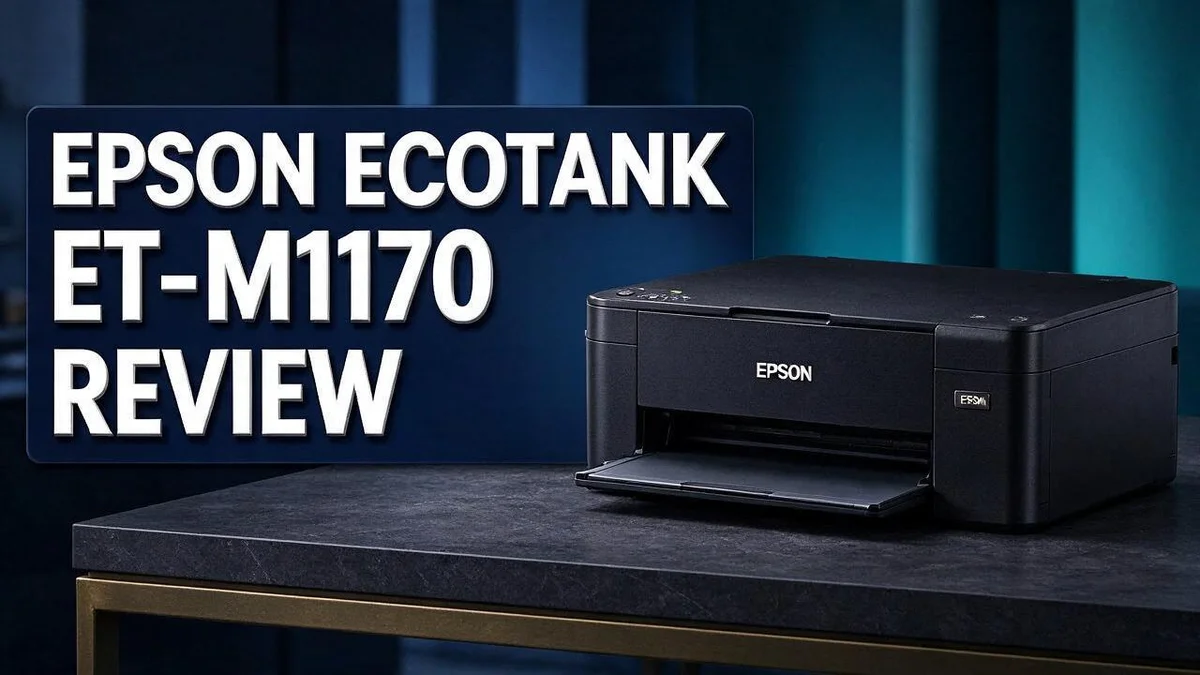
Epson EcoTank ET-M1170 Review: Is This Mono Supertank Printer Worth It?
Tired of running out of cartridges at the worst time? The Epson EcoTank ET-M1170 could be the answer. It is a black and white printer built for people who print text often.
Instead of cartridges, this model uses refill ink tanks. You pour ink into the tanks and keep printing. That makes life easier for home offices, students, and busy families.
The main tray holds 250 sheets. It also connects wirelessly, so you can print from your phone or tablet. You can even print on CDs and DVDs, plus greeting cards and stationery.
In this review, we look at the good and the bad. You will learn about ink staining risks, warranty questions, and how it compares with the Canon PIXMA G3570. Let’s see if this printer earns a place on your desk.
In a Nutshell
-
Black and white focus: This printer is a monochrome model, so it prints text pages in black ink only. It suits home offices that rarely need color pages.
-
Wireless and wired options: You can print from any device on your home network. The Ethernet port also gives a steady wired connection for shared office use.
-
Phone, tablet, and computer printing: Send files straight from your smartphone or tablet. The printer also works with both Windows and macOS computers, so setup stays simple.
-
Creative extras: You can print directly on CDs and DVDs. You can also make greeting cards and stationery at home for birthdays and small events.
-
Ink handling tip: Spilled ink can stain clothing permanently. Refill slowly and keep the tank away from fabrics and carpets.
-
Check before you buy: One retailer lists this model as sold without a manufacturer warranty, so read the seller details carefully. Also compare the Canon PIXMA G3570, a common rival.
Print Quality and Speed

- Sold as 1 Each.
- Reliability you can count on — Ultimate wireless — easily print from iPad, iPhone, Android tablets...
Last update on 2026-11-25 / Affiliate links / Images from Amazon Product Advertising API
Text sharpness is the main strength here. The printer uses black ink only, so letters often look crisp and dark. Reports, forms, and letters usually look clean on plain paper.
Speed is another key factor. Our research does not list official speed figures, so exact pages per minute remain unknown. You can still test it yourself. Print ten pages and time the job from start to finish.
Tip for better results: Choose the draft setting for internal memos. Save the highest setting for letters that go to clients.
Paper choice changes the outcome too. Smooth paper usually gives sharper text than thin or textured sheets. Test a few brands before you print a large batch.
Ink flow also affects daily speed. The continuous ink supply system feeds ink from the tank to the print head. Because you do not swap cartridges, the printer can keep working through long jobs without stopping.
Graphics are a different story. Since this model prints in one color only, charts with many colors look flat. Gray shades depend on how the driver converts colors, so check a sample first.
Warm up time can vary after long idle periods. Print a few pages each week to keep the print head clear. Clear output means fewer reprints and less wasted time.
Many users also notice that the first page takes longer than later pages. This is normal for many inkjet printers. Plan your big jobs for after the first few sheets.
Overall, this printer suits text heavy work well. Shoppers who need photos or bright color should look elsewhere. Run a quick test page right after setup to see how your files look.
Ink Tank System and Refilling
The ink tank sits on the front of the printer. A clear window shows the ink level at a glance. You never need to open a cartridge bay or search for a new box.
Filling takes a simple path. Remove the tank cap and pour ink from the bottle into the tank. Most people finish the job in just a few minutes.
Ink bottles are sold separately. Check the bottle code on the box before you buy. Matching bottles keep the fill process smooth and predictable.
Watch the level lines on the side of the tank. Stop pouring when the ink reaches the upper mark. Overfilling can cause leaks or messy spills.
Clean refilling starts with preparation. Keep a paper towel nearby. Hold the bottle upright and pour slowly. Work over a tray or old newspaper.
Large tanks mean fewer refills over time. One full tank can print many pages before it runs low. This suits homes and small offices that print often.
Epson does not guarantee third party ink quality. Some people try other brands to fill the tank. Stick with trusted ink to protect the print head.
Close the tank cap after every refill. This blocks dust and slows drying. Store spare bottles upright in a cool room away from sunlight.
Check the level once a week if you print daily. Small checks prevent surprise stops during big jobs. A quick glance saves time.
The refill system keeps printing simple. You swap a cartridge routine for a quick top up. Many people find this habit suits their daily work.
Plan ahead for larger projects. Fill the tank before a long report or a batch of letters. This habit keeps your workflow steady.
Using the printer this way feels natural after a few tries. Most users find the process quick and clean.
Paper Handling and Capacity
Paper handling shapes your daily experience with this printer. Good habits keep jobs moving and reduce jams.
Fan the sheets before loading. This step separates stuck pages. It helps the printer pull one sheet at a time.
Slide the paper guides snug against the edges. Loose guides let paper shift, which can cause crooked prints.
Keep the stack flat and dry. Curled or damp paper often leads to misfeeds, so store reams in a cool place.
Match the settings to the tray. Open the printer menu and confirm the paper size before each special job. A mismatch can waste sheets or cause errors.
Do not stack paper above the top edge of the tray. Extra sheets can press against the feed rollers and cause misfeeds.
Plan for large print runs. Count the pages before you start. Refill the tray during a break, so the job does not stop halfway through a long report.
Greeting cards and stationery are part of the feature list. Test one sheet first. This quick check saves paper and time.
Clear jams with care. Pull a stuck sheet slowly, following the paper path. Tearing leaves small scraps that cause more trouble later.
Keep spare paper close to the printer. A fresh pack nearby saves time when the tray runs low during a busy week.
Store unused paper in its wrapper. Moisture changes how sheets feed, so sealed packs keep quality steady over time.
Small routines make a big difference. Fan, align, match, and test. These steps take seconds but protect your prints every day.
Good paper handling helps you get the most from this printer. Your pages stay neat, and your work stays on schedule.
Top 3 Alternatives
HP Smart Tank 7001

- SET IT UP ONCE AND PRINT WITH CONFIDENCE. No complicated maintenance. Just easy, reliable printing you...
- INK FOR YEARS. NOT MONTHS. Up to 2 years of ink included. Get thousands of pages of cartridge-free...
Last update on 2026-11-25 / Affiliate links / Images from Amazon Product Advertising API
The HP Smart Tank 7001 suits busy homes. It uses refillable ink tanks, so you can print many pages with less waste. The tank windows show ink levels clearly, so you know when to refill.
It prints, scans, and copies in one compact machine. Setup is simple, and the mobile app makes printing from your phone easy.
It is a smart choice for families who print often.
Canon PIXMA G3270

- Wireless Print/Copy/Scan
- Up to 2 years of ink included (2)

Last update on 2026-11-25 / Affiliate links / Images from Amazon Product Advertising API
The Canon PIXMA G3270 delivers clear color prints for daily tasks. It also uses refillable ink bottles that fill the tanks with ease. The print quality works well for photos and reports.
Users can print photos, documents, and school projects. The machine supports wireless printing, so the whole team can share one printer.
It works well for small offices and home workspaces.
Brother MFC-J1010DW

- AFFORDABLE ALL-IN-ONE FOR HOME AND HOME OFFICE: Print, copy, and scan on one compact wireless printer...
- EASY TO USE WITH CLOUD APP CONNECTIONS: Print from and scan to popular Cloud apps(2), including Google...
Last update on 2026-11-25 / Affiliate links / Images from Amazon Product Advertising API
The Brother MFC-J1010DW is a compact all-in-one printer. It uses individual ink cartridges, so you only replace the color that runs low. Its small footprint fits well on a desk or shelf.
It handles printing, copying, and scanning with a simple control panel. It also supports wireless connection and mobile printing.
It suits people who want a small machine for light to moderate use.
Setup and Connectivity
Setting up this printer takes less time than you might expect. Plug in the power cord and turn the unit on. Let the printer finish its startup routine first.
Next, choose your connection method. The printer supports wireless networking, and some retailer listings also mention an Ethernet option. Check the box or product sheet to confirm your model has the port you need.
Wireless setup works well for most homes. Use the front panel to find your network name. Enter your password carefully, because the printer needs the exact spelling.
Ethernet offers a steady link for shared offices. Connect a network cable from your router to the printer. A wired link can avoid drops when many devices share one network.
Install the software on your computer next. The printer works with Windows and macOS. Download the driver from the official Epson support site so you get the latest version.
Phone and tablet printing needs one extra step. Install the Epson app on your device. Then make sure your phone joins the same network as the printer.
Run a test page before you print real documents. A test page shows whether the connection works. It also helps you spot setup mistakes early, which saves frustration later.
Set the printer as your default device. This saves time on daily tasks. Your computer will then send jobs to the printer without extra clicks.
Keep the printer near your router for the best signal. Walls and metal objects can weaken wireless signals. A central spot in the room usually works best.
Save your network details in a safe place. Write down the network name and the printer’s IP address. You will need them if you add a new computer later.
Finish with a quick status check. Confirm the printer shows a ready status on the front panel. A steady light means the printer is online and ready for jobs.
Versatile Printing Extras
Versatile printing extras can make this printer more useful than you might expect. Beyond everyday documents, it handles several creative jobs at home or in a small office.
Direct CD and DVD printing lets you label discs without a separate machine. Use discs marked as printable. Print a test label on plain paper first, so you can line up the image before you use a disc.
Black and white output suits certain extras well. Text heavy cards, letterheads, and simple labels look sharp. Photos may look better on a color printer, so plan your jobs with that in mind.
Greeting cards and stationery make easy weekend projects. Choose a sturdier card stock for birthday cards or thank you notes. Print a few sample pages to check the layout. Then print a full batch for holidays or events. Batch printing saves time and keeps your designs consistent.
Custom letterhead adds a professional touch to your home office. Create a simple template with your name, address, and a small logo. Save it on your computer. Reuse it each time you send formal letters.
Creative labels and planners are another fun option. Print pantry labels, file tabs, or weekly planner pages. Use plain paper for drafts. Switch to a heavier stock for final copies that need to last.
Protect your clothes during special jobs. Ink can stain fabric permanently, so wear an apron or an old shirt when you handle the tank. Work over a tray or an old towel. Wipe up any drips right away.
Small extras like these show how flexible this printer can be. Try one project at a time, and you will soon find your favorite uses.
Pros and Cons
Pros
- You skip buying and swapping ink cartridges.
- The large ink tanks are simple to top up.
- Black and white text prints look sharp and clear.
- Mobile printing lets you print from your phone or tablet.
- Plain text documents come out quickly and reliably.
Cons
- Output is black and white only, so color photos are not possible.
- Epson does not guarantee the quality of third-party ink.
- One retailer lists this model as sold without a manufacturer warranty.
- Few customer reviews exist yet, so real-world feedback is limited.
Who Should Buy It
This printer suits people who print a lot of plain text. Students often print reading packets, notes, and essay drafts every week. Writers also print manuscripts for careful editing. This model handles that steady workload with ease.
Busy families can also benefit from this machine. Parents often need worksheets, permission forms, and recipe cards. Kids can print homework without waiting for a store trip. A printer like this keeps the house running smoothly.
Teachers who copy handouts will find it useful. Teachers print quizzes, class notes, and study guides in large batches. A big paper load helps during busy weeks. Clean black and white pages make every handout easy to read.
Home workers who handle paperwork should consider it. Freelancers, tutors, and small sellers often print invoices, contracts, and receipts. Plain black and white pages look clean and professional. Clear text matters most for these tasks.
People who want a simple machine should take a close look. Some shoppers prefer fewer buttons and fewer settings. This model focuses on text, so the menu stays easy to follow. That focus helps beginners feel confident from day one.
Small teams with light printing needs can also fit this model. A few staff members may print forms, memos, and meeting notes each day. Steady text output keeps the workflow moving. Light use suits this design well.
Buyers who need color should look elsewhere. A color printer fits photo and graphic jobs far better. The Canon PIXMA G3570 is a common comparison choice. Think about the pages you print most often before you decide.
Shoppers who want more owner feedback should wait a little longer. Real stories show how a machine performs over months of use. Read fresh reviews and compare options side by side. That extra step leads to a smarter choice.
Final Verdict
The Epson EcoTank ET-M1170 is a solid pick for plain text printing. It suits people who print letters, notes, and reports every week.
If you need color photos, skip this model. It prints only in black and white, so images will not show their full colors.
Your computer setup matters too. The printer works with Windows and macOS, so check that your system matches before you order.
Look closely at the seller before you buy. One listing says the unit ships without a manufacturer warranty. A clear return policy gives you a safety net if something goes wrong.
Reviews are still thin for this model. Read fresh feedback from recent buyers to see how the machine holds up over several months of regular use.
Think about your ink habits, too. Epson does not guarantee the quality of third-party ink, so genuine Epson ink is the safer route for steady results.
The 250 sheet main tray helps during busy weeks. You can load a large batch of handouts or forms without refilling paper every few minutes.
Want more options before you decide? Compare it with the Canon PIXMA G3570. Seeing both models side by side makes your choice much easier.
Overall, this printer earns a spot on a home desk or in a small office. It fits well when black and white output covers most of your needs.
Still unsure? Track your printing for one week. If most pages are text, this machine will likely serve you well.
Frequently Asked Questions
Can this printer print on CDs and DVDs?
Yes, it can print directly onto CDs and DVDs. Check that your discs have a printable surface before you load them. Start with one test disc so you can see how the alignment looks.
Does it work with both Windows and macOS?
Yes, it supports both Windows and macOS computers. Set it up on the computer you use most often. You can then send print jobs from your main device with no trouble. Keep your computer software up to date so printing runs smoothly.
Can I connect it to a wired network?
Some retailer listings mention an Ethernet connection. A wired link may be possible, but check the official specs first. Most home users will connect wirelessly. A wired setup can help when your Wi-Fi signal is weak in the room where the printer sits.
How can I avoid ink stains on clothes?
Ink may stain clothing permanently, so take care when you refill the tank. Fill the tank on a flat surface and wear old clothes. Wipe any spill right away with a dry cloth. Close the tank caps tightly after each refill so the ink stays contained.
Can I print greeting cards and stationery at home?
Yes, the research lists greeting cards and stationery as useful extras. Load heavier card stock carefully and adjust the paper guides. Print a test sheet first. This helps you check the placement and avoid wasted cards.

I’m the voice behind Device Dossier. As a printing technology enthusiast, I spend my time testing printers, comparing specs, and writing honest reviews to help you find the perfect printing solution. When I’m not geeking out over print quality and page yields, you’ll find me exploring the latest in tech.