HP LaserJet Pro 4001dn Review: Live Up To The Hype?
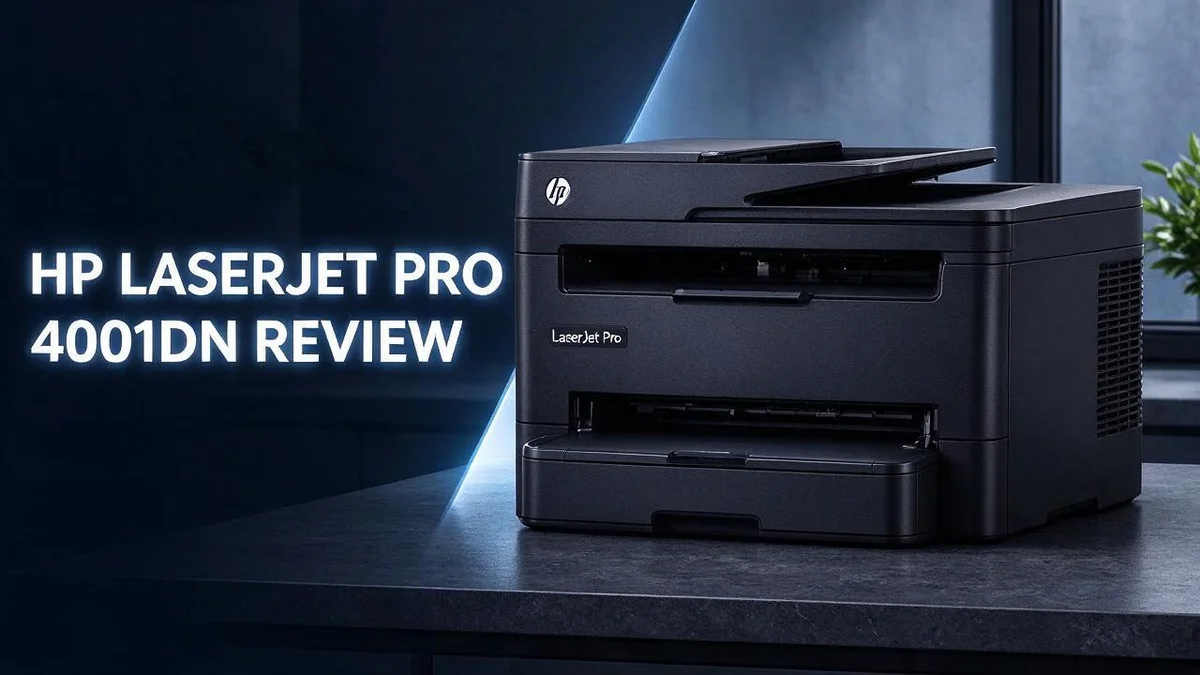
Looking for a fast printer for a busy office? The HP LaserJet Pro 4001dn could be the right fit. It is a black and white laser printer that handles both A3 and A4 paper.
Speed matters when deadlines pile up. This model delivers fast black and white pages for teams of up to 10 users. It also prints on both sides of the paper automatically, which saves paper.
Setup is simple, too. You can connect it through Ethernet or USB, and one reviewer called it easy to set up. HP Wolf Pro security also helps keep your documents safe.
In this review, we look at what this printer does well, where it falls short, and who should buy it. Let’s see if it earns a spot on your desk.
In a Nutshell
- Built for black and white work: The HP LaserJet Pro 4001dn prints only in monochrome. Teams that mostly print text documents will feel right at home.
- Handles A3 and A4 paper: You can print standard A4 pages or larger A3 sheets. This flexibility helps with charts, drawings, and wide spreadsheets. Most offices need both sizes at some point.
- Double sided printing saves paper: Automatic two sided printing cuts paper use with no extra effort. Your team can produce neat, professional documents every day.
- Strong reviews from buyers: Best Buy shoppers give it 4.3 out of 5 from six reviews. Also, 83 percent say they would recommend it to others.
- Wired connection only: This model uses Ethernet and USB, with no wireless option. Plan your desk layout around a cable connection before you buy.
- Secure printing built in: HP Wolf Pro security helps protect your office files and device. It suits shared workspaces with up to 10 users, so shared teams benefit most from this feature.
Print Speed and Output Quality

- CONNECT VIA ETHERNET ONLY – Does not support wireless printing. For wireless printing, look for...
- FROM AMERICA'S MOST TRUSTED PRINTER BRAND – Perfect for small teams printing professional-quality black...

Last update on 2026-11-25 / Affiliate links / Images from Amazon Product Advertising API
Fast printing keeps work moving. When a stack of reports needs to go out, every minute counts. The HP LaserJet Pro 4001dn handles black and white jobs quickly. Staff can grab their pages and get back to their desks.
Laser printers usually beat inkjet models for speed. They use toner and a fuser to produce each page in one smooth pass. This design suits offices that print many pages every day.
Batch printing shows the real benefit. A long document with dozens of pages finishes in a short time. Busy teams can share one device without lines forming at the tray.
Output quality matters just as much as speed. Text from this printer looks sharp and dark. Small fonts stay easy to read. Logos, tables, and charts also print with clean edges.
Toner gives crisp lines on plain paper. Printed pages resist smudging better than many ink-based results. This matters for contracts, invoices, and customer letters that need a professional look.
Because the printer focuses only on black ink, all its power goes into text and line work. Grayscale images show good contrast, though they will not match a photo print. Buyers who need color should look at other options.
Consistency is another strength. Print quality stays steady across long runs. The hundredth page looks much like the first. Teams that print in high volume will notice this steady result most.
To get the best output, follow a few simple habits:
- Use good quality paper that suits laser printing.
- Keep spare toner on hand so pages never fade.
- Check print settings for documents full of small text.
- Clean the printer and paper path on a regular schedule.
With these habits in place, the printer can deliver fast, sharp pages for years.
Paper Handling and Duplex Printing
Paper handling starts before the first page prints. Good habits keep the feed smooth. Fan the sheets before loading them into the tray. This step stops pages from sticking together.
Set duplex as the default in the print driver. Staff then get both sides printed without changing settings each time. This small change saves time across a busy office. People who print often will notice the difference most.
Choose the right flip edge. Long edge flipping suits reports and booklets. Short edge flipping works better for notepads and wall calendars. Check the print preview before sending a large job.
Watch paper weight. Heavy card or glossy stock can cause jams during duplex printing. Stick to standard office paper for these jobs. Thin sheets can curl, so store paper flat in a dry room.
Humidity affects paper more than many people expect. Damp sheets pick up moisture and feed poorly. Keep reams sealed until needed, and rotate stock often.
Test before big jobs. Print a short sample set first. This shows the flip alignment and margins. It saves paper and avoids wasted reruns.
Mixed jobs need extra care. A report with a thick cover page may need its own feed. Load different sizes into the correct tray so the printer pulls the right sheet every time.
Clearing a jam takes a few simple steps. Open the access doors slowly and remove torn paper fully. Check the duplex path too, since small scraps there often cause repeat errors.
Regular checks prevent most problems. Wipe the feed rollers with a dry cloth now and then. Look for stray bits of paper in the tray. These small tasks keep the printer running smoothly.
Paper handling becomes simple with good habits. Load clean sheets, pick the right duplex setting, and keep stock dry. Your team will spend less time fixing jams and more time on real work.
Security and Data Protection
Printers hold more data than many people realize. Every page you send can leave traces in memory and on the network. This matters for any office that handles client records, invoices, or staff details. Simple habits keep those files safe.
Change the admin password first. Factory passwords are widely known, so anyone nearby could guess them. Create a unique password in the embedded web server and store it safely.
Keep the firmware current. Updates fix security gaps that attackers look for. Check the HP support site every few months and install new versions when they appear.
Use secure print release for sensitive files. You send the job with a PIN, and the page waits in the queue. It prints only after you enter that PIN at the device. Payroll sheets and contracts stay out of the output tray.
Control who can reach the printer. Place it on a protected part of your office network. A printer should never sit on a public guest network. Use a firewall and give access only to staff who need it.
Plan for the end of its life. Some printers keep copies of recent jobs on internal storage. Before you recycle or return the unit, ask your IT team to wipe or remove that storage.
Collect confidential pages right away. Stay near the printer when you print private material. Forgotten pages on the tray are one of the easiest ways for information to leak.
Review settings on a schedule. Set a monthly reminder to check the admin settings and the user list. Remove old accounts and disable features you never use. Keep a short written log of changes so you can track who made them.
Security works best as a routine, not a single task. Small checks each month keep your documents private and your office protected.
Top 3 Alternatives
Brother HL-L2350DW

- BEST FOR HOME OFFICES & SMALL TEAMS – Engineered for consistent, premium print quality, the Brother...
- COMPACT, CONNECTED, EXCEPTIONALLY EFFICIENT– Connect with built-in dual-band wireless (2.4GHz/5GHz...
Last update on 2026-11-25 / Affiliate links / Images from Amazon Product Advertising API
Need a simple printer for a small office? The Brother HL-L2350DW makes everyday printing easy. It prints fast in black and white. It also supports automatic double-sided printing, which saves paper. Wireless and Ethernet connections let your whole team print from laptops and phones. Setup takes only a few minutes. This model fits well in busy home offices and small work groups.
Canon imageCLASS LBP223dw

- Monochrome, Wireless, Duplex Printer: Print only.
- Fast Print Speeds: Print up to 42 pages per minute and spend less time waiting with a quick first print...
Last update on 2026-11-25 / Affiliate links / Images from Amazon Product Advertising API
Do you need sharp text for reports and invoices? The Canon imageCLASS LBP223dw delivers crisp, clear pages. Its compact body fits neatly on a small desk. Wireless and mobile printing work with most phones and tablets. Duplex printing helps you use less paper. The toner is easy to replace when it runs low. Many small teams choose this printer for steady, everyday use.
Brother MFC-L2710DW

- BEST FOR SMALL OFFICES – Combining space-saving efficiency and premium monochrome (black & white) print...
- EFFICIENT PRINTING & SCANNING – Produces black & white documents quickly with print speeds up to...
Last update on 2026-11-25 / Affiliate links / Images from Amazon Product Advertising API
Want one device for printing, scanning, and copying? The Brother MFC-L2710DW handles all three jobs. Its automatic document feeder lets you scan several pages quickly. Scans can go straight to your email or computer. The printer also supports automatic duplex printing, so you waste less paper. It works well for home offices that need an all-in-one machine.
Setup and Network Integration
Setting up the HP LaserJet Pro 4001dn feels simple for most offices. One Best Buy reviewer found the process easy. You connect the printer to your network with an Ethernet cable, then install the driver on each computer. That step takes far less time than many people expect.
Ethernet and USB ports give you two main ways to connect. A wired Ethernet link suits a shared office because every staff member can reach the printer from their own desk. A USB cable works well for one computer that needs direct access, such as a small workstation or a shop counter.
Wireless printing is not available on this model. Devices must sit on the same wired network or connect by USB. This matters if your team likes to print from tablets or phones. Plan your cable runs before the printer arrives so you avoid delays at the last moment.
Network placement also matters. Put the printer near a network switch or wall jack to keep the cable short and tidy. A spot close to the main workgroup helps everyone reach the output tray quickly.
Setting up a shared printer for up to 10 users takes a little planning. Give every user the same printer address so drivers link to the right device. Many offices use a simple print server or the standard network tools to manage this. Check that every computer sees the printer before you finish.
Test the connection with a short page from each device. This quick check catches cable or address mistakes early. It also builds confidence that the team can print without help from IT.
Keep a note of the printer’s IP address and network name. You will need these details when a new laptop joins the office or when a driver needs an update. Store the note in a safe place that your admin team can find fast.
Running Costs and Toner Yield
Toner is the main ongoing item for this printer. Plan for it early so your office never runs out in the middle of a busy day.
Check the page yield first. The yield tells you how many pages one cartridge can print. HP publishes this figure on its product page and on the cartridge box. Compare the number with your usual monthly volume.
Read the cartridge code carefully. Standard and high yield versions often have similar names. Choose the one that matches your workload before you order.
Yield depends on how you print. Dense text and large graphics use more toner than plain letters. Light pages last longer, so a draft setting can stretch each cartridge.
Duplex printing saves paper too. Printing on both sides means fewer sheets for the same content. Fewer sheets also mean fewer trips to refill the paper tray.
Keep a simple log. Write down the date each new cartridge goes in. After a few months, you will see a clear pattern. That pattern makes reordering easy and prevents surprise shortages.
Watch the toner level on the control panel or in the print software. Warnings usually appear before the cartridge runs dry. Keep a spare on the shelf for busy weeks.
Sleep mode uses less power. When the printer rests between jobs, it draws less electricity. Set an idle time that suits your team. The printer still wakes quickly when someone sends a job.
Genuine cartridges give the most reliable results. They match the printer’s design and help keep print quality steady. Check that the packaging seals are intact before you install one.
Recycling matters as well. HP offers ways to return used cartridges. Place the empty one in the original box and follow the included return label. This keeps waste out of landfill.
Plan refills before the warning appears. Ordering early avoids rush deliveries. Your team can keep working while the replacement arrives.
Track paper and toner together. Heavy use of both adds up quickly. A small habit change, such as proofreading on screen first, cuts wasted pages.
Regular reviews keep your printing smooth and predictable.
Pros and Cons
Pros
– Prints fast in black and white for busy teams.
– Handles both A3 and A4 paper sizes.
– Serves a small shared group of up to 10 users.
– Earns strong ratings, with 83% of Best Buy reviewers saying they would recommend it.
Cons
– Prints only in black and white, so color jobs need another device.
– Rating data comes from just six reviews, so it may not reflect every office.
– Rival models like the Brother HL-L6300DW offer built-in wireless, which some buyers prefer.
– The HP 4003dn in the same series lists higher speeds, so speed-focused buyers may compare the two.
Who Should Buy It
This printer suits some offices better than others. Think about your team size, your daily page count, and the kind of paperwork you handle.
Law firms, accounting teams, and HR departments often handle private records. HP Wolf Pro security helps protect those files on a shared network. Staff can feel more at ease when sensitive pages stay guarded.
Medical clinics run tight schedules too. A client file that must print before an appointment cannot wait long.
Busy front desks with steady daily volume fit well. Teams that print dozens of pages every day need a machine that stays ready. Quick jobs should not sit in a queue for long.
Heavy text work also suits this model. Contracts, reports, invoices, and forms all suit a text focused workflow.
Growing teams should look ahead. If you plan to add staff soon, check the user limit first. A bigger team may need a larger setup later.
Home users rarely need this model. A single person working from a spare room will likely find it too large. Shared office equipment suits this printer far better than a home desk.
Who should look elsewhere? Teams that print only a few pages each week may get more printer than they need. A smaller machine could suit that pattern better.
Ask yourself three quick questions. Do you have a shared group of staff? Do you print mostly black and white pages? Do you handle private files often?
If you answered yes to most questions, this printer deserves a close look. Compare it with your current setup and your daily page count before you decide.
Ask your team how often they print in a typical week. Their answers will show whether this model fits the daily flow.
Lastly, consider your long term plans. This printer fits a steady routine better than a rare, occasional need.
Final Verdict
The HP LaserJet Pro 4001dn earns a strong place on the shortlist for offices that print in black and white every day. It suits teams that prefer reliable output over flashy extras. Think of it as a workhorse, not a showpiece.
A good fit depends on your daily habits. Count how many pages leave the printer each week. Then compare that total with what the machine handles best.
Your office layout matters too. A wired network setup suits desks close to a router or switch. Staff in a far corner may need extra cabling before setup.
Think about your team’s workflow next. Shared printing works well when people send jobs to one central spot. Assign one person to watch paper, toner, and error messages. A simple routine keeps the printer running smoothly.
Before you decide, ask yourself a few honest questions. Do most documents need black and white output only? Will your team need printing from phones or tablets?
Test the setup before you commit. Ask your IT team to review your network needs. Run a few test pages to see how the printer fits your daily flow.
Plan for paper and supplies too. Keep spare paper and toner in a dry closet near the machine. Ready supplies cut down on printing delays during busy weeks.
Keep notes on printing habits for the first month. These notes show whether the machine matches your needs. They also reveal when your team needs more capacity or a different setup.
Choose this printer if your office needs dependable text printing on a wired network. Look elsewhere if color pages or phone printing sit at the top of your list. A final check helps you feel confident. Read the product page and compare the details with your own list. Then choose the option that matches your office, not someone else’s.
Frequently Asked Questions
Does this printer need a wireless connection?
No. The listing shows Ethernet and USB connections only. Use a network cable to share the printer across an office. Use USB if only one computer needs direct access. Place the printer near your router or network point so the cable can reach it easily.
Is setup easy for staff without tech skills?
One Best Buy reviewer called the setup easy, which is a helpful sign. Still, a person who knows your network should handle the first install. This avoids delays on the first day of use. Once the printer connects, most staff can send jobs without extra help.
Does it print on both sides of the paper?
Yes. It offers automatic two sided printing. This saves paper and keeps reports, contracts, and long documents neat. Staff do not need to flip each sheet by hand, which saves time on big print runs.
Is it a good first printer for a small office?
It can be. A small team that prints black and white text every day will get the most from it. Think about how many people print at the same time. If your office grows fast, plan for more print volume in the coming months.

I’m the voice behind Device Dossier. As a printing technology enthusiast, I spend my time testing printers, comparing specs, and writing honest reviews to help you find the perfect printing solution. When I’m not geeking out over print quality and page yields, you’ll find me exploring the latest in tech.