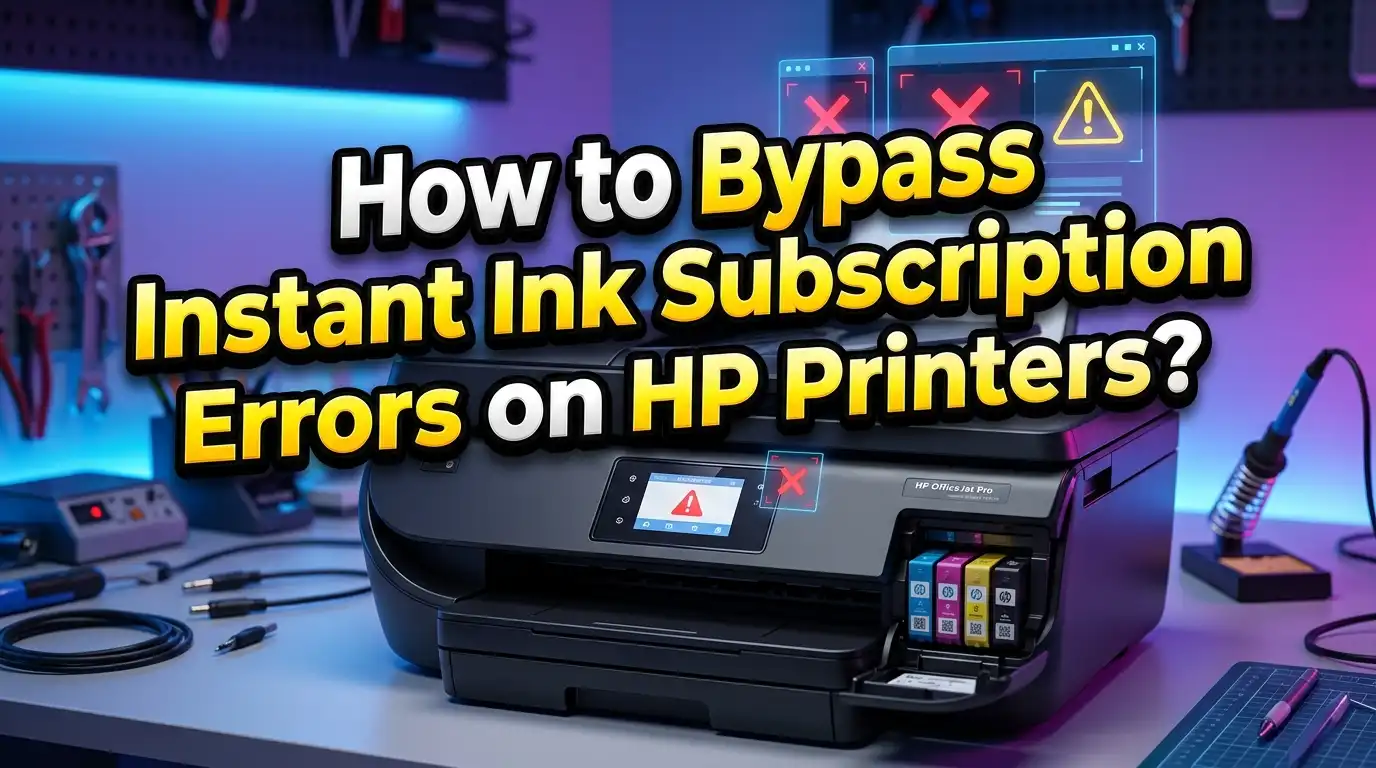
How to Bypass Instant Ink Subscription Errors on HP Printers?
Have you ever tried to print an important document only to see your HP printer flash an Instant Ink error? You are not alone.
Thousands of HP printer owners face subscription errors that block them from printing, even when their cartridges still have ink. These errors appear after canceling an Instant Ink plan, during account issues, or after replacing cartridges.
The good news is that several proven methods exist to fix these errors and get your printer working again.
This guide walks you through every practical solution, from simple resets to advanced fixes. Every method is explained in clear, step by step detail so you can follow along without technical experience.
In a Nutshell
- Instant Ink errors happen for specific reasons like subscription cancellation, account disconnection, firmware updates, or using Instant Ink cartridges outside an active plan. Understanding the root cause helps you pick the right fix faster.
- Disabling Web Services on your HP printer is one of the most effective first steps. This breaks the communication between your printer and HP’s servers, which often clears subscription related errors.
- Replacing Instant Ink cartridges with standard HP cartridges is the most reliable long term solution. Instant Ink cartridges are designed to stop working outside an active subscription, so swapping them out removes the problem entirely.
- A factory reset can clear stored subscription data from your printer’s memory. This is especially useful if you bought a used printer still linked to someone else’s Instant Ink account.
- Disabling cartridge protection in your printer settings prevents your HP printer from locking cartridges to a single device or subscription, giving you more freedom with cartridge choices.
- Contacting HP Support is sometimes necessary because certain account level locks can only be removed from HP’s side, especially when printers are stuck in enrollment loops.
What Is HP Instant Ink and How Does It Work
HP Instant Ink is a subscription service where HP monitors your ink levels through an internet connection. Your printer sends usage data to HP’s servers. HP then ships new cartridges to your door before you run out.
The service uses special subscription cartridges with smart chips. These chips communicate with HP’s servers to verify your account status. When everything works, the process is smooth. You pay a monthly fee based on the number of pages you print, not the amount of ink you use.
The problem starts when the connection between your printer and HP’s servers breaks down. The smart chips on Instant Ink cartridges require active verification from HP. If your subscription lapses, if you cancel, or if the printer loses internet access at the wrong time, those cartridges can become locked.
This is different from buying regular cartridges at a store. Standard HP cartridges work independently of any account or internet connection. Instant Ink cartridges are essentially leased to you as part of your subscription. HP’s terms clearly state that these cartridges remain HP’s property and will be disabled after cancellation.
Understanding this system helps explain why errors appear. The printer is doing exactly what HP programmed it to do. It checks the subscription status and blocks printing when it detects a problem. Your job is to either fix the subscription issue or move to a setup that does not depend on it.
Common Instant Ink Subscription Errors You Might See
HP printers display several different error messages related to Instant Ink problems. Knowing which error you have helps you apply the right fix.
The most common message is “Cartridge cannot be used until printer is enrolled in Instant Ink.” This appears when someone installs an Instant Ink cartridge into a printer that is not linked to an active account. The cartridge is subscription locked and will not function in a non enrolled printer.
Another frequent error reads “Cartridge or Account Issue.” This typically shows up when your Instant Ink subscription has a billing problem or has been canceled. The printer received a signal from HP’s servers that your account is not in good standing.
You might also see “Printer must be connected to the internet to continue printing.” This means the printer is trying to verify your Instant Ink status but cannot reach HP’s servers. Without verification, it will not allow any print jobs to proceed.
Some users report a “Supply Problem” or “Incompatible Cartridge” error after switching from Instant Ink cartridges to regular ones. This happens when the printer’s memory still holds Instant Ink data and expects subscription cartridges.
A less common but equally frustrating error is the enrollment loop, where the printer repeatedly asks you to enroll in Instant Ink before it will print. This can happen after a firmware update pushes the enrollment prompt to your printer’s display. Each of these errors has a specific solution, which we cover in the sections below.
Disable Web Services on Your HP Printer
Disabling Web Services is one of the most effective first steps. Web Services is the feature that connects your printer to HP’s cloud. Turning it off stops the printer from checking your Instant Ink subscription status.
To disable Web Services from the printer control panel, open the settings or setup menu on your printer’s touchscreen. Look for “Web Services” or “HP ePrint.” Select it and choose “Turn Off” or “Disable.” Confirm when prompted.
If your printer does not have a touchscreen, you can disable Web Services through the Embedded Web Server (EWS). Open a web browser on your computer. Type your printer’s IP address into the address bar. Go to the “Web Services” tab and click “Remove Web Services” or “Disable.”
After disabling, restart your printer by unplugging the power cord for 60 seconds. Plug it back in and let it fully boot up. This clears cached data and forces the printer to operate without cloud verification.
Pros: This method is quick, free, and does not require any new purchases. It works on most HP printer models and can be reversed at any time.
Cons: You will lose access to features like HP ePrint and remote printing. If you are using Instant Ink cartridges, they may still not work because the cartridges themselves carry subscription data on their chips.
This method works best when combined with standard HP cartridges rather than subscription cartridges. It prevents future subscription checks from interfering with your printing.
Replace Instant Ink Cartridges With Standard HP Cartridges
The most reliable way to resolve Instant Ink errors permanently is to remove the subscription cartridges and install standard retail HP cartridges. Instant Ink cartridges have embedded chips that require an active subscription. Standard cartridges do not have this restriction.
Step 1: Open your printer’s cartridge access door and remove all Instant Ink cartridges. You can identify them by the “Instant Ink” label or by a specific color scheme on the cartridge packaging.
Step 2: Purchase genuine HP cartridges that match your printer model. Check your printer’s manual or HP’s website for the correct cartridge numbers.
Step 3: Install the new standard cartridges. Make sure each cartridge clicks firmly into place. Close the access door and let the printer align the new cartridges automatically.
Step 4: If the error persists after installing new cartridges, perform a power cycle. Turn off the printer, unplug the power cord, wait 60 seconds, then plug it back in and power it on.
Some users find the printer still displays errors even after swapping cartridges. In this case, you may also need to disable Web Services and perform a factory reset to clear the old subscription data from the printer’s memory.
Pros: This is the cleanest, most permanent solution. Standard cartridges work without any internet connection or account verification.
Cons: You will need to spend money on new cartridges. Any remaining ink in your Instant Ink cartridges cannot be used after your subscription ends, which feels wasteful.
Perform a Full Factory Reset on Your HP Printer
A factory reset wipes all stored settings from your printer, including Instant Ink enrollment data, Wi Fi passwords, and custom preferences. This is especially useful when your printer is stuck in an enrollment loop or linked to a previous owner’s account.
For printers with a touchscreen display, go to Setup or Settings on the control panel. Find “Printer Maintenance” or “Restore.” Select “Restore Factory Defaults” and confirm. The printer will restart and return to its original state.
For printers without a touchscreen, the reset process varies by model. On many HP DeskJet and Envy models, you can press and hold the Information button (the “i” icon) for about 5 seconds until all control panel lights turn on. Then open the ink access door, press and hold the Resume button for about 10 seconds, and close the door.
After the factory reset, you will need to reconnect your printer to Wi Fi and reinstall any drivers on your computer. Do not re enroll the printer in Instant Ink unless you plan to restart the subscription.
Pros: A factory reset clears all lingering subscription data and gives you a clean slate. It resolves most stubborn errors that survive simpler fixes.
Cons: You lose all saved settings, including network connections, scan shortcuts, and preferences. You will need to set up the printer from scratch. On HP+ enrolled printers, a factory reset may not fully remove the HP+ requirement.
Disable HP Cartridge Protection Settings
HP Cartridge Protection is a separate feature from Instant Ink that can also cause errors. This feature locks cartridges to the first printer they are used in. If enabled, a cartridge used in one HP printer will not work in another.
To disable Cartridge Protection from the printer control panel, go to Setup, then open the Supplies or Supply Settings menu. Find “Cartridge Protection” and select “Disable” or “Off.”
To disable through the Embedded Web Server, type your printer’s IP address into a web browser. Go to the Settings or Tools tab. Look for Supply Settings and find the Cartridge Protection option. Click “Disable HP Cartridge Protection.”
This setting is different from Cartridge Policy, which is another HP feature that restricts the use of non HP cartridges. If you want to use third party cartridges, you should also disable the “Authorized HP Cartridge Policy” option in the same menu.
Disabling these protections will not void your printer’s warranty according to HP’s official documentation. However, HP recommends keeping them enabled for security purposes.
Pros: Disabling cartridge protection allows more flexibility with cartridge usage across multiple printers. It can resolve errors caused by cartridges being locked to a different device.
Cons: Without cartridge protection, you lose a layer of security against counterfeit or stolen cartridges. This does not directly fix Instant Ink subscription errors but removes a related barrier.
Update or Manage Your Printer Firmware
Firmware updates can both cause and fix Instant Ink errors. HP regularly pushes firmware updates that change how cartridges are verified. Some updates tighten restrictions, while others include bug fixes that resolve subscription errors.
To check for firmware updates, open the HP Smart app on your computer or mobile device. Select your printer and look for a firmware update option. You can also visit HP’s support website, enter your printer model, and download the latest firmware file.
Before updating, consider whether an update will help or hurt your situation. If your printer currently works with third party cartridges and you do not want that to change, you may want to turn off automatic firmware updates. You can do this in the printer’s settings under “Printer Update” or “Update the Printer.”
Some users have found success with firmware downgrades, where they install an older version of the firmware that does not enforce strict cartridge checks. This process involves downloading a previous firmware version and installing it via USB connection. However, HP has made this increasingly difficult on newer models.
To turn off automatic updates, go to your printer’s control panel, open Setup, and find the Printer Update option. Change it from “Install Automatically” to “Do Not Check” or “Alert Only.”
Pros: Keeping firmware updated can fix bugs that cause false subscription errors. Controlling updates prevents unexpected new restrictions.
Cons: Firmware downgrades carry risk. A failed firmware installation can brick your printer. HP also actively blocks downgrade attempts on many newer models, making this an unreliable method.
Use the HP Smart App to Troubleshoot Account Issues
The HP Smart app is your central hub for managing your printer and Instant Ink subscription. Many subscription errors stem from account problems that can be resolved directly through this app.
Step 1: Download and install the HP Smart app on your computer, phone, or tablet. Sign in with the HP account linked to your printer.
Step 2: Select your printer from the app’s home screen. Check for any alerts or notifications about your subscription status. The app will display clear messages about billing issues, cartridge problems, or account holds.
Step 3: If your subscription shows an error, go to the Account section and verify your payment method. Expired credit cards and failed payments are common causes of Instant Ink lockouts. Update your payment details and wait a few minutes for the printer to receive the updated status.
Step 4: If you canceled your subscription intentionally, use the app to remove the printer from your Instant Ink account. This tells HP’s servers to release the printer from subscription mode.
The HP Smart app also lets you run diagnostic tests on your printer. These tests check the connection between your printer and HP’s servers and can identify specific communication failures that trigger subscription errors.
Pros: The HP Smart app provides a direct line to your account and can resolve billing related errors without any physical changes to the printer. It is free and easy to use.
Cons: The app requires an internet connection and sometimes has its own bugs. Some users report the app failing to recognize their printer or displaying outdated subscription information.
Reset Network Settings to Break the Subscription Link
Resetting your printer’s network settings can interrupt the communication between your printer and HP’s Instant Ink servers. This is a useful step when your printer keeps checking for a subscription even after you have canceled.
To reset network settings, go to your printer’s control panel. Open Setup, then Network Setup or Wireless Settings. Select “Restore Network Settings” or “Reset Network.” The printer will disconnect from your Wi Fi network.
After the reset, do not reconnect the printer to Wi Fi right away if you want to prevent it from contacting HP’s servers. Instead, connect your printer to your computer using a USB cable for direct printing. This bypasses the need for internet verification entirely.
If you must use wireless printing, reconnect to Wi Fi but immediately disable Web Services before the printer has a chance to sync with HP’s servers. Speed matters here because some printers automatically check their subscription status as soon as they go online.
For users who still have ink left in Instant Ink cartridges, resetting the network while the subscription is still active can preserve the cartridges’ functionality for a short period. Once the cartridges lose contact with HP’s servers, they may continue to work until the printer performs its next verification attempt.
Pros: This method is free and does not require any cartridge purchases. It can buy you time to finish using remaining ink.
Cons: This is a temporary fix. Sooner or later, the printer will need to connect to the internet for other updates or features. USB printing limits your flexibility compared to wireless printing.
Contact HP Support for Account Level Fixes
Some Instant Ink errors cannot be resolved from your end. Account level locks, enrollment loops tied to previous owners, and billing disputes require HP’s direct intervention.
HP Support can be reached through the HP Smart app, by phone, or through live chat on HP’s support website. When you contact them, have your printer serial number, model number, and HP account email ready. This speeds up the process.
Ask the support agent to remove your printer from any Instant Ink enrollment on HP’s side. Sometimes a printer remains enrolled in the system even after you cancel through the website. A support agent can clear this flag from their backend.
If you bought a used printer, explain the situation clearly. HP can transfer the printer’s registration to your account and remove the previous owner’s Instant Ink data. This is a common issue with secondhand HP printers sold online.
For billing disputes, HP Support can issue refunds and manually reactivate cartridges that were locked due to a payment processing error. If the lockout was caused by an HP system glitch rather than a genuine cancellation, they will typically resolve it quickly.
Pros: HP Support has access to tools and account settings that you cannot reach on your own. They can fix problems at the source.
Cons: Wait times can be long, and not all support agents are equally knowledgeable about Instant Ink issues. You may need to escalate your case or call multiple times to get the right help.
Use Your Printer in Offline Mode
Running your printer in offline mode is a straightforward way to prevent Instant Ink errors from appearing. When your printer has no internet access, it cannot communicate with HP’s servers to check subscription status.
To set up offline printing, first install the printer drivers on your computer if you have not already. Connect the printer directly to your computer with a USB cable. Most HP printers support USB connections even if they are primarily designed for wireless use.
Open your computer’s printer settings and make sure the USB connected printer is set as your default printer. On Windows, go to Settings, then Devices, then Printers and Scanners. On Mac, go to System Settings, then Printers and Scanners.
With the printer offline and connected via USB, it will not be able to verify your Instant Ink status. This means standard HP cartridges will work without interference, and the printer will not prompt you to enroll in any subscription service.
You can also keep the printer on Wi Fi but block its access to HP’s servers through your router settings. Add HP’s server addresses to your router’s block list. This allows local network printing while preventing the subscription check.
Pros: Offline mode eliminates all subscription verification issues. Your printer functions as a traditional, standalone device with no cloud dependency.
Cons: You lose cloud printing, scanning to email, and automatic supply ordering. You also will not receive firmware updates, which could mean missing out on bug fixes.
Avoid Common Mistakes That Trigger Instant Ink Errors
Prevention is better than troubleshooting. Several common actions can accidentally trigger Instant Ink errors that are then difficult to undo.
Do not install Instant Ink cartridges into a printer without an active subscription. These cartridges will not work and can trigger enrollment prompts that are hard to dismiss. If you received Instant Ink cartridges by mistake, set them aside and use standard cartridges instead.
Do not cancel your Instant Ink subscription before preparing your printer. Before you cancel, buy and install standard HP cartridges. Disable Web Services. Then cancel the subscription. This sequence prevents the printer from locking you out during the transition.
Avoid connecting a used printer to your Wi Fi before resetting it. If the previous owner had Instant Ink, the printer will try to verify that subscription as soon as it goes online. Factory reset the printer first, then connect it to your network.
Do not allow automatic firmware updates if you use third party cartridges. HP firmware updates frequently add new restrictions on non HP cartridges. Turn off automatic updates in your printer’s settings to maintain your current setup.
Be careful with the HP Smart app prompts. The app sometimes encourages users to enroll in Instant Ink during setup. Read each screen carefully and decline enrollment if you prefer to buy cartridges independently. Once enrolled, undoing it requires extra steps.
These small precautions save you significant time and frustration. A few minutes of preparation can prevent hours of troubleshooting.
Long Term Alternatives to HP Instant Ink
If Instant Ink errors have pushed you to the breaking point, several alternatives exist for reliable, affordable printing without subscription headaches.
Standard HP cartridges are the most direct replacement. They cost more per page than Instant Ink pricing, but they work without any internet connection or account verification. You buy them, install them, and print. No strings attached.
HP+ printers with a free tier offer some middle ground. HP+ requires an internet connection and HP account, but the free tier provides basic functionality without a monthly fee. However, HP+ printers do require genuine HP cartridges at all times, so keep this in mind.
Third party and remanufactured cartridges provide significant cost savings over HP originals. To use them, disable Cartridge Protection and Cartridge Policy in your printer settings. Turn off automatic firmware updates to prevent HP from blocking them in the future.
Ink tank printers from HP or other brands like Epson EcoTank and Canon MegaTank use refillable ink tanks instead of cartridges. These printers have a higher upfront cost but offer dramatically lower per page printing costs with no subscription requirements.
If you print frequently, an ink tank printer can save hundreds of dollars over its lifetime compared to any cartridge based system. The ink bottles are inexpensive and last for thousands of pages.
Laser printers are another solid option for users who primarily print text documents. They use toner instead of ink, which lasts much longer and does not dry out when unused. Entry level monochrome laser printers are affordable and extremely reliable.
Frequently Asked Questions
Can I still print with Instant Ink cartridges after canceling my subscription?
No. HP remotely disables Instant Ink cartridges once your subscription is canceled. Even if the cartridges still contain ink, they will not function. You must replace them with standard HP cartridges or third party alternatives. The only exception is if you reset your network settings before cancellation takes effect, which may allow you to use remaining ink temporarily.
Will a factory reset remove Instant Ink from my printer permanently?
A factory reset clears stored Instant Ink data from the printer’s memory. However, if you reconnect the printer to the internet and sign into your HP account, the enrollment can return. To keep it removed permanently, avoid re enrolling and disable Web Services after the reset.
Can I use my HP printer without an internet connection?
Yes. Most HP printers can print via a USB cable connection without any internet access. You will lose cloud features like ePrint and HP Smart remote printing, but basic printing and scanning will work normally with standard cartridges installed.
Why does my printer keep asking me to enroll in Instant Ink?
This usually happens after a firmware update or when Instant Ink cartridges are installed without an active subscription. To stop the prompt, remove any Instant Ink cartridges, disable Web Services, and install standard cartridges. A factory reset can also clear the enrollment prompt.
Is it safe to downgrade my HP printer firmware?
Firmware downgrades carry some risk. A failed installation can make your printer unusable. HP has also blocked downgrade paths on many newer models. If you choose to attempt a downgrade, use a USB connection and follow instructions specific to your exact printer model. Proceed with caution and understand that this may void your warranty support.
Will HP lock my printer if I use third party cartridges?
HP printers may display warnings or errors with third party cartridges, but they should not permanently lock the printer. Disabling Cartridge Protection and Cartridge Policy in your printer settings typically allows third party cartridges to work. Turning off automatic firmware updates prevents future blocks from being installed.

I’m the voice behind Device Dossier. As a printing technology enthusiast, I spend my time testing printers, comparing specs, and writing honest reviews to help you find the perfect printing solution. When I’m not geeking out over print quality and page yields, you’ll find me exploring the latest in tech.