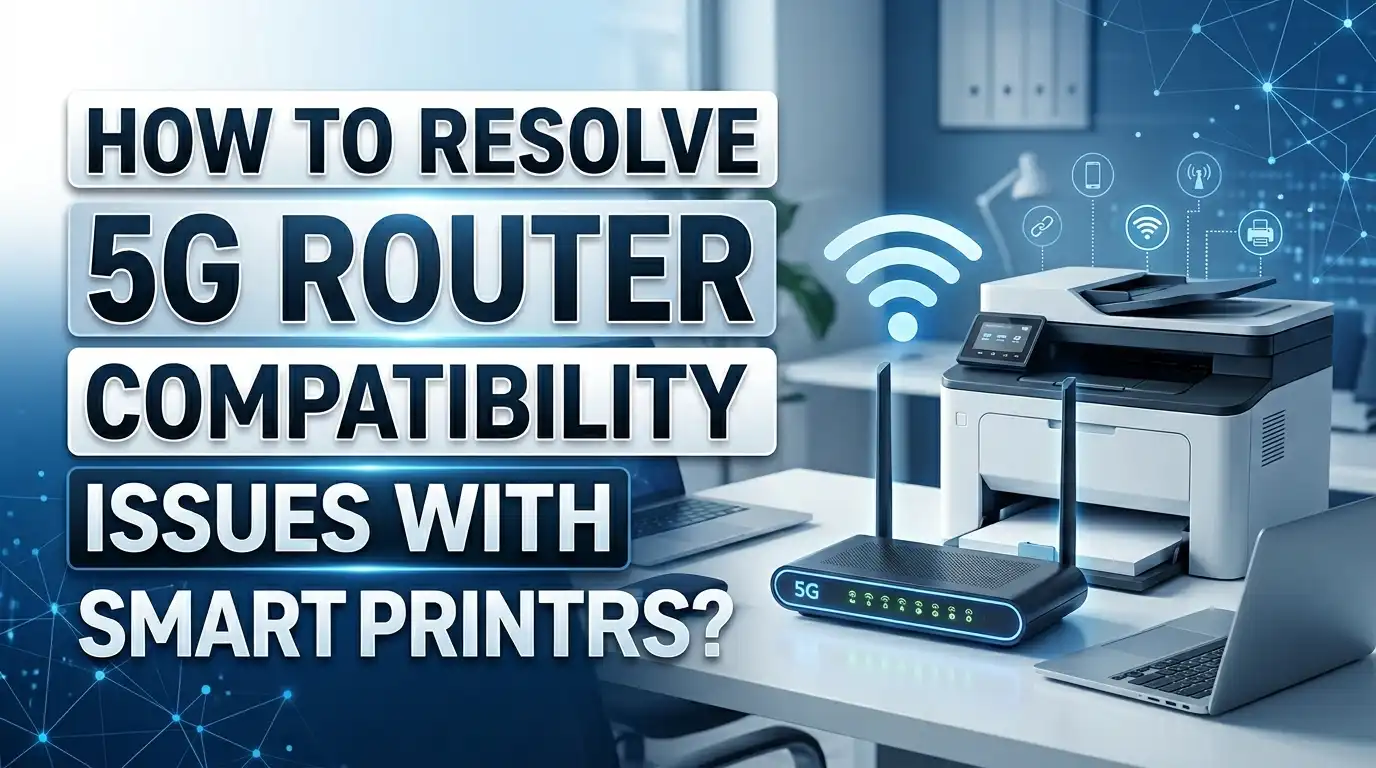
How to Resolve 5G Router Compatibility Issues With Smart Printers?
You just upgraded to a fast 5G or 5GHz router, hit print, and nothing happens. Your smart printer refuses to connect. The document sits in the queue, and frustration builds. This is one of the most common tech problems in homes and offices today.
The core issue is simple. Most smart printers only support the 2.4GHz WiFi band. When your new router broadcasts on 5GHz or merges both bands under one network name, your printer cannot find or join the network. The result is a printer that worked fine yesterday but seems broken today.
The good news is this problem has clear, proven solutions. You do not need to buy a new printer or downgrade your router. With the right settings and a few adjustments, you can get your 5G router and smart printer to work together without any issues.
This guide walks you through every practical fix from the easiest to the most advanced. Whether you own an HP, Canon, Epson, or Brother printer, these steps apply. Let’s get your printer back online.
Key Takeaways
Most smart printers only support 2.4GHz WiFi. The 5GHz band and the newer 5G cellular standard both cause confusion, but the root problem is the same: your printer cannot connect to a frequency it does not support. Check your printer’s specifications first before trying any fix.
Splitting your router’s WiFi bands is the fastest solution. Log into your router’s admin panel and create separate network names for the 2.4GHz and 5GHz bands. Connect your printer to the 2.4GHz network and your other devices to either band. This fix works for the vast majority of users.
WiFi Direct and USB connections offer reliable backup options. If your router settings are locked by your internet provider, you can still print using WiFi Direct mode or a simple USB cable. These methods bypass the router entirely.
Firmware updates on both your router and printer can solve hidden bugs. Outdated firmware sometimes causes band steering issues that push devices away from 2.4GHz. Keeping both devices updated prevents unexpected disconnections.
An Ethernet connection or a WiFi bridge adapter is the best permanent fix for offices or heavy print environments. Wired connections eliminate wireless band conflicts completely and provide the most stable printing experience.
Why 5G Routers Cause Problems With Smart Printers
The confusion starts with the term “5G” itself. 5G cellular networks and 5GHz WiFi are two completely different technologies. A 5G home internet gateway from carriers like T Mobile or Verizon uses cellular signals to deliver internet. That gateway then broadcasts WiFi inside your home, often on the 5GHz band.
Most smart printers were built with 2.4GHz WiFi radios. This older frequency has a longer range and better wall penetration, which made it ideal for printers that sit in corners or separate rooms. The 5GHz band is faster but has a shorter range and weaker signal through walls.
Modern routers often use a feature called band steering or Smart Connect. This feature merges the 2.4GHz and 5GHz signals under one network name (SSID). The router then decides which band each device should use. The problem is that many routers steer devices toward the 5GHz band by default. Your printer tries to connect, gets pushed to 5GHz, and fails because it lacks the hardware to use that frequency.
Pros of understanding this root cause: You avoid wasting time on unnecessary fixes and go straight to the right solution.
Cons: Some ISP provided routers hide advanced settings, making it harder to adjust band behavior.
How to Check if Your Smart Printer Supports 5GHz WiFi
Before you change any settings, confirm what your printer can actually do. Open the printer’s manual or visit the manufacturer’s website. Look for the wireless specifications section. It will list supported frequencies as either 2.4GHz, 5GHz, or dual band.
You can also print a network configuration page directly from your printer. Most HP printers let you do this by pressing and holding the information button. Canon and Epson printers have similar options in their setup menus. This page shows the current wireless frequency, IP address, and connection status.
If the specification sheet says “IEEE 802.11 b/g/n” only, your printer supports 2.4GHz alone. If it lists “IEEE 802.11 a/n/ac” or mentions dual band capability, it can handle 5GHz. As of 2025, the vast majority of consumer printers from HP, Canon, and Epson still ship with 2.4GHz only radios. Only a handful of newer models and most business class printers support both bands.
Pros of checking first: Saves time and prevents you from troubleshooting the wrong issue.
Cons: Manufacturer websites sometimes bury wireless specs deep inside product pages, making them hard to find quickly.
How to Split 2.4GHz and 5GHz Bands on Your Router
This is the single most effective fix for the majority of users. When you split the bands, you create two separate WiFi networks with different names. Your printer joins the 2.4GHz network, and your phones and laptops can use either band.
Here is how to do it. Open a web browser on your computer. Type your router’s IP address into the address bar. Common addresses include 192.168.0.1, 192.168.1.1, or 10.0.0.1. Log in with your admin credentials. These are often printed on a sticker on the bottom of the router.
Navigate to the Wireless Settings or WiFi Settings section. Look for an option called Smart Connect, Band Steering, or Unified SSID. Turn this feature off. Once disabled, you should see separate settings for the 2.4GHz and 5GHz networks. Give the 2.4GHz network a distinct name like “HomeWiFi_2G” and the 5GHz network a name like “HomeWiFi_5G.” Save the settings and wait for the router to restart.
Now go to your printer’s WiFi setup menu and connect it to the 2.4GHz network name. Your printer should connect without issues.
Pros: This is free, fast, and works with almost every router.
Cons: You now have two network names to manage, and some smart home devices may need to be reconnected.
How to Disable Band Steering on Popular Router Brands
Each router brand places the band steering setting in a different location. Here is a quick guide for the most common brands.
For TP Link routers, open the Tether app or log into 192.168.0.1. Go to Wireless and look for Smart Connect. Toggle it off. You will then see separate 2.4GHz and 5GHz options where you can set different SSIDs.
For Netgear routers, log into routerlogin.net or 192.168.1.1. Navigate to Wireless and uncheck the box that says Enable Smart Connect. Save and apply. The router will restart with two separate networks visible.
For Xfinity gateways, open the Xfinity app on your phone. Go to WiFi settings, select your network, and look for the option to split bands. Some Xfinity models require you to call support because the option is hidden in the admin panel.
For T Mobile 5G gateways, the process is similar. Open the T Mobile Internet app or navigate to 192.168.12.1. Find the WiFi settings and disable the combined network feature. If the option is not visible, a firmware update may be required from T Mobile.
Pros: Once done, you have full control over which devices use which band.
Cons: ISP locked routers sometimes hide or remove this option entirely, which requires a call to customer support.
How to Use WiFi Direct to Print Without a Router
WiFi Direct creates a direct wireless connection between your phone or computer and the printer. It does not use your home WiFi network at all. This makes it a perfect backup when router settings are locked or difficult to change.
To enable WiFi Direct on most printers, go to the Network Settings or Wireless Settings menu on the printer’s display panel. Select WiFi Direct and turn it on. The printer will display a network name (usually starting with “DIRECT”) and a password.
On your phone or computer, open your WiFi settings. Find the printer’s WiFi Direct network in the list and connect to it using the displayed password. Once connected, you can send print jobs directly to the printer.
Keep in mind that while connected to WiFi Direct, your device may lose its internet connection because it switches away from your home network. Some newer phones handle this better by maintaining both connections, but older devices do not.
Pros: No router changes needed, works immediately, and is supported by most modern printers.
Cons: You lose internet access on the connected device during printing, and the connection must be set up manually each time on some devices.
How to Connect Your Printer Using a USB Cable
When wireless solutions fail or feel unreliable, a USB cable provides the most stable connection possible. This method removes WiFi variables entirely. Your printer connects directly to your computer through a physical cable.
Plug a USB A to USB B cable (the standard printer cable) into your printer and your computer. Most operating systems will detect the printer automatically and install the correct driver. If your system does not detect the printer, visit the manufacturer’s website and download the latest driver for your specific model.
On Windows, go to Settings, then Devices, then Printers and Scanners. Click Add a printer and select your USB connected printer from the list. On Mac, go to System Settings, then Printers and Scanners, and click the plus button to add the detected printer.
The downside is that USB limits printing to one computer. Other devices on your network will not be able to send print jobs wirelessly. However, you can enable printer sharing on the connected computer. In Windows, right click the printer, go to Properties, and enable sharing. Other computers on the same network can then add it as a shared printer.
Pros: Extremely reliable, zero wireless issues, and easy to set up.
Cons: Limited to one computer unless you enable sharing, and requires a physical cable that restricts printer placement.
How to Use an Ethernet Connection for Your Smart Printer
Many mid range and business class smart printers include an Ethernet port on the back. Connecting the printer to your router with an Ethernet cable completely bypasses the WiFi compatibility problem. The printer becomes a network device accessible to all connected computers and phones.
Plug a standard Ethernet cable from the printer into an open LAN port on your router. The printer should automatically obtain an IP address from the router. Print a network configuration page from the printer to confirm it has received an IP address and is connected.
On your computer, add the printer by going to the printer settings and selecting Add a network printer. The system should find the printer automatically. If it does not, enter the printer’s IP address manually.
This method is ideal for offices where the printer sits near the router or a network switch. It provides a faster and more stable connection than WiFi and eliminates all band compatibility issues. Phones and tablets on the same network can still send print jobs to the Ethernet connected printer using AirPrint, Mopria, or the printer’s companion app.
Pros: Fastest, most reliable connection with zero wireless issues.
Cons: Requires physical proximity to the router and an available Ethernet port on the printer.
How to Use a WiFi Bridge Adapter for Older Printers
If your printer lacks an Ethernet port and only supports 2.4GHz WiFi, a WiFi bridge adapter can solve the problem. This small device plugs into the printer’s USB or Ethernet port and connects to your WiFi network on the printer’s behalf.
A WiFi bridge receives the wireless signal from your router and converts it into a wired connection for the printer. Some adapters support both 2.4GHz and 5GHz, which means they can connect to either band your router broadcasts. The printer thinks it is connected via a cable, so band compatibility becomes irrelevant.
To set up a WiFi bridge, plug the adapter into your printer’s Ethernet port. Use a computer or phone to access the adapter’s setup page (usually through a browser). Select your WiFi network, enter the password, and save. The adapter connects to your router and gives your printer full network access.
This solution is especially useful when you cannot split your router’s bands or when the router is ISP locked. It also works well in offices where running a long Ethernet cable is impractical.
Pros: Works with any printer that has an Ethernet port, supports dual band WiFi, and requires no router changes.
Cons: Adds an extra device and requires initial setup through a browser interface.
How to Update Printer and Router Firmware
Outdated firmware on your printer or router can cause unexpected wireless problems. Manufacturers release firmware updates that fix band steering bugs, connection drops, and compatibility issues with newer network standards.
To update your printer’s firmware, visit the manufacturer’s support website. Enter your printer model and download the latest firmware file. Some printers can update directly from their built in menu if they have an active internet connection. HP printers, for example, check for updates through the HP Smart app. Canon and Epson printers offer firmware updates through their respective support pages.
To update your router’s firmware, log into the admin panel and look for a Firmware Update or Software Update section. Many modern routers check for updates automatically. If yours does not, download the update file from the manufacturer’s website and upload it through the admin panel.
After updating both devices, restart your router and printer. Then attempt the WiFi connection again. In many cases, a firmware update resolves issues that no amount of settings changes could fix.
Pros: Free, often fixes hidden bugs, and can improve overall device performance.
Cons: Firmware updates carry a small risk of failure, and some older devices no longer receive updates.
How to Assign a Static IP Address to Your Printer
A static IP address prevents your printer from losing its connection after a router restart. By default, routers assign temporary IP addresses through DHCP. If the address changes, your computer may lose track of the printer.
Log into your router’s admin panel and navigate to the DHCP settings or LAN settings section. Find the list of connected devices and locate your printer. Most routers allow you to reserve an IP address for a specific device using its MAC address.
Choose an IP address outside the normal DHCP range but within the subnet. For example, if your router assigns addresses from 192.168.1.100 to 192.168.1.200, you could reserve 192.168.1.50 for the printer. Save the settings and restart the router.
On your computer, remove the old printer entry and add it again using the new static IP address. Go to Add a Printer, select Add by IP address, and type in the reserved IP. This ensures a consistent connection that survives network changes and power outages.
Pros: Eliminates “printer not found” errors caused by changing IP addresses, and provides a reliable connection.
Cons: Requires access to the router admin panel and basic understanding of IP address ranges.
How to Use Cloud Printing as an Alternative
Cloud printing services let you send documents to your printer over the internet without any direct WiFi connection between your device and the printer. Services like Apple AirPrint, Mopria Print Service, and manufacturer specific apps (HP Smart, Epson Connect, Canon PRINT) all support cloud based printing.
To set this up, register your printer with the manufacturer’s cloud service. For HP, open the HP Smart app and add your printer. For Epson, create an Epson Connect account and register the printer’s email address. Canon uses its PRINT app for similar functionality.
Once registered, you can send print jobs from anywhere, even outside your home network. The print command goes to the manufacturer’s cloud server, which then sends it to your printer. The printer only needs an active internet connection through any method, whether that is 2.4GHz WiFi, Ethernet, or a wired connection.
This method is particularly useful for mobile printing from phones and tablets. It removes the requirement for your device and printer to share the same WiFi band or even the same network.
Pros: Works from anywhere, removes band compatibility issues, and supports all device types.
Cons: Requires an internet connection on the printer, may have slight delays, and relies on third party cloud servers.
How to Troubleshoot Persistent Connection Drops
Sometimes your printer connects to WiFi but drops the connection after a few hours or days. This is often caused by power saving features, IP conflicts, or signal interference.
First, check your printer’s power saving or sleep mode settings. Many printers turn off their WiFi radio after a period of inactivity to save energy. Disable this feature in the printer’s settings menu. Look for options labeled “Sleep Mode,” “Auto Off,” or “Energy Saving” and set the WiFi to stay active at all times.
Second, check for IP address conflicts. If two devices on your network share the same IP address, both will experience connection problems. Assigning a static IP to your printer (as described earlier) eliminates this issue.
Third, reduce wireless interference. Microwaves, baby monitors, Bluetooth devices, and neighboring WiFi networks can all disrupt the 2.4GHz band. Move your printer closer to the router or away from sources of interference. You can also change your router’s 2.4GHz channel to one with less traffic. Channels 1, 6, and 11 are the best choices because they do not overlap with each other.
Pros: These fixes address the most common causes of intermittent connectivity.
Cons: Identifying the exact cause may require trial and error across multiple settings.
When You Should Consider Upgrading Your Printer
If you have tried every fix and your printer still refuses to cooperate, the printer itself may be the limiting factor. Printers older than five or six years often lack support for modern WiFi security protocols like WPA3, which newer routers may require.
Some older printers also use outdated drivers that no longer receive updates from the manufacturer. Without driver updates, the printer cannot communicate properly with newer operating systems or router firmware.
When shopping for a new printer, look for models that list dual band WiFi (2.4GHz and 5GHz) in their specifications. Some newer models from HP, Brother, and Epson now support WiFi 6, which handles band switching intelligently. Also confirm that the printer supports WPA3 security and has an Ethernet port as a backup connection option.
A new printer is an investment, so make sure your current one truly cannot be fixed before replacing it. But if your printer is old, unsupported, and causes weekly frustration, an upgrade will save you time and stress in the long run.
Pros: A modern printer eliminates compatibility issues and offers better features like mobile printing and automatic duplex.
Cons: Cost is the obvious downside, and you need to verify the new model’s specifications before purchasing.
Frequently Asked Questions
Can I connect a 2.4GHz printer to a 5GHz only router?
Not directly. If your router only broadcasts on 5GHz, your 2.4GHz printer cannot detect the network. The best solutions are to enable the 2.4GHz band on your router, use an Ethernet cable, or connect through WiFi Direct. A WiFi bridge adapter can also solve this if your router’s settings are locked.
Why does my printer keep disconnecting from WiFi after connecting to a 5G router?
This usually happens because of band steering. Your router pushes the printer to the 5GHz band, which the printer cannot use, causing a disconnect. Splitting the bands into separate SSIDs or disabling band steering in your router settings fixes this problem in most cases.
Does WiFi Direct use my home internet connection?
No. WiFi Direct creates a peer to peer connection between your device and the printer. It does not use your router or your home internet. However, your phone or computer may temporarily lose internet access while connected to the printer through WiFi Direct.
How do I know if my router has band steering enabled?
Log into your router’s admin panel and check the WiFi or wireless settings. If you see only one SSID for both 2.4GHz and 5GHz, band steering or Smart Connect is likely active. If you see two separate network names, the bands are already split.
Will a firmware update fix my printer’s 5GHz compatibility issue?
A firmware update cannot add 5GHz hardware support to a printer that only has a 2.4GHz radio. However, updates can fix bugs related to network discovery, connection stability, and security protocol compatibility, which may resolve your connection issues indirectly.
Is Ethernet better than WiFi for printer connections?
Yes, for reliability. An Ethernet connection provides a stable, interference free link between your printer and router. It eliminates all WiFi band issues and is the recommended connection method for offices or high volume printing environments.

I’m the voice behind Device Dossier. As a printing technology enthusiast, I spend my time testing printers, comparing specs, and writing honest reviews to help you find the perfect printing solution. When I’m not geeking out over print quality and page yields, you’ll find me exploring the latest in tech.