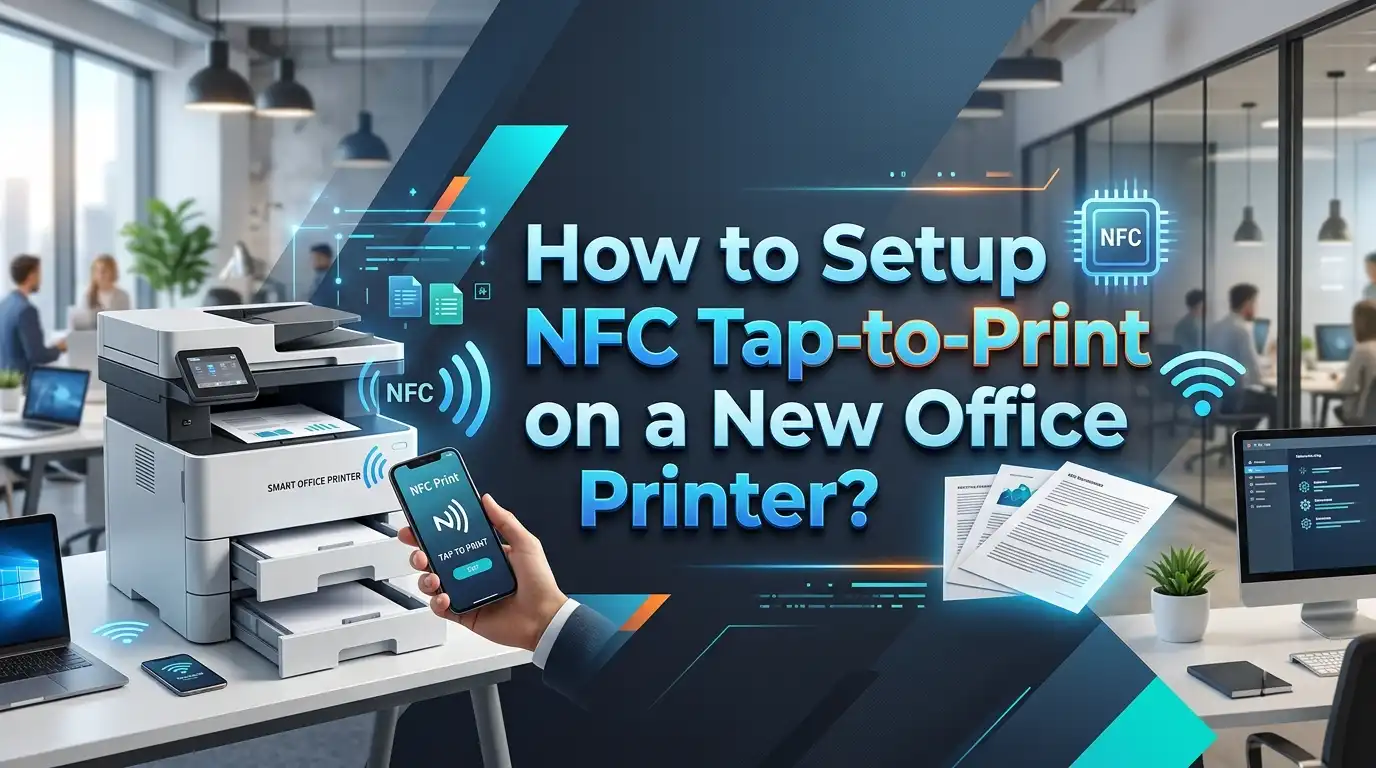
How to Setup NFC Tap to Print on a New Office Printer?
You just unboxed a brand new office printer and noticed an NFC symbol on it. That small icon represents a powerful feature that can change how your entire team prints documents. NFC tap to print lets anyone walk up to the printer, tap their phone against it, and send a print job in seconds. No cables, no driver installations, and no complicated setup screens.
But here is the problem. Most people have no idea how to actually set this feature up. The printer manual offers vague instructions. Your IT department might not have time to configure it. And your team keeps printing the old way because nobody showed them a better option.
This guide will walk you through every step of setting up NFC tap to print on your new office printer. By the end, your office will have a fast, secure, and modern printing setup that saves time for everyone.
Key Takeaways
- NFC tap to print uses short range wireless communication to send print jobs from a mobile device to a printer. You simply tap your phone or tablet against the printer’s NFC tag, and the document prints. The entire process takes just a few seconds and removes the need for USB cables or manual Wi-Fi configuration.
- Both your printer and mobile device must support NFC for this feature to work. Most modern Android phones have NFC built in. iPhones have NFC hardware but offer limited support for direct NFC printing. Check your printer’s control panel for the NFC symbol to confirm compatibility.
- You will likely need a manufacturer specific app installed on your mobile device. Brother uses the iPrint&Scan app, Xerox requires the Xerox Print Service Plugin, Samsung printers work with Samsung Mobile Print, and HP printers use the HP Smart app.
- NFC printing is one of the most secure wireless printing methods available today. Because NFC operates at a maximum range of about 10 centimeters, data interception is extremely difficult. Many printers also encrypt the data transfer for added protection.
- Wi-Fi Direct often works alongside NFC to handle the actual data transfer. NFC initiates the connection between the two devices, and Wi-Fi Direct takes over to send the larger print file. Both your printer and phone must be on the same network or support Wi-Fi Direct.
- Common setup failures usually come from misaligned NFC antennas, disabled NFC settings, or missing printer apps. Most of these issues are easy to fix once you know what to look for.
What Is NFC Tap to Print and How Does It Work
NFC stands for Near Field Communication. It is a wireless technology that allows two devices to exchange data when they are very close together. The effective range is about 4 to 10 centimeters. You already use this technology if you make contactless payments with your phone or smartwatch.
NFC tap to print applies this same technology to office printing. Your printer has an NFC tag or chip embedded in its body, usually near the control panel. Your smartphone or tablet also has an NFC antenna. When you hold your phone against the printer’s NFC tag, the two devices communicate instantly.
Here is what happens behind the scenes. The NFC connection identifies the printer and launches the correct printing app on your phone. It then establishes a Wi-Fi Direct connection between your device and the printer. The actual document data travels over this Wi-Fi Direct link because NFC alone does not have enough bandwidth to transfer full print files.
The beauty of this system is its simplicity. Traditional wireless printing requires you to connect to the same network, find the printer, install drivers, and configure settings. NFC tap to print reduces all of that to a single tap. The printer and phone handle the handshake, the app selection, and the connection setup automatically.
Which Printers Support NFC Tap to Print
Not every office printer comes with NFC capability. You need to verify that your specific model has this feature before attempting to set it up. The easiest way to check is to look for the NFC icon on the printer itself. This icon usually looks like a small wave symbol or an “N” mark, and it is located on or near the control panel.
Several major printer manufacturers include NFC in their office models. Brother offers NFC across many of its laser printers and multifunction devices. Models like the MFC L8900CDW and HL L9470CDN have built in NFC readers that support both smartphones and NFC cards. Xerox includes NFC in many of its multifunction office printers, with the NFC chip typically placed at the bottom right of the control panel.
Samsung printers (now part of HP’s portfolio) were early adopters of NFC printing technology. Many Samsung Xpress and MultiXpress models support NFC tap to print. HP has continued to include NFC in select enterprise and LaserJet Pro models. Lexmark also supports NFC through its Mobile Direct Printing feature on several business class devices.
If you are purchasing a new office printer and want NFC, check the product specifications page on the manufacturer’s website. Look for terms like “NFC,” “tap to print,” “touch to print,” or “Print Touch.” If your current printer does not have NFC, you may be able to add limited NFC functionality through external NFC tags, but the native built in option delivers the best experience.
Check If Your Mobile Device Supports NFC
Your printer is only half of the equation. Your mobile device also needs NFC hardware and software support. The good news is that most modern Android smartphones and tablets include NFC. Devices from Samsung, Google, OnePlus, Xiaomi, and other major manufacturers have had NFC built in for several years.
To check if your Android device has NFC, open the Settings app and look for “Connected Devices” or “Connection Preferences.” You should see an NFC option listed there. If NFC does not appear in your settings, your device likely does not have the hardware.
The situation with Apple devices is more nuanced. iPhones have NFC hardware starting from iPhone 7 onward, and iOS 13 and later versions allow reading and writing NFC tags. However, Apple restricts how third party apps can use NFC. Direct NFC tap to print does not work the same way on iPhones as it does on Android devices. iPhone users can often use AirPrint over the same Wi-Fi network as an alternative.
If your office has a mix of Android and iOS devices, plan your printing setup accordingly. Android users will get the full NFC tap to print experience. iPhone users may need to rely on the manufacturer’s mobile printing app combined with AirPrint or Wi-Fi Direct connections.
Budget Android phones sometimes lack NFC hardware, so double check before assuming all team members can use this feature. A quick visit to the device manufacturer’s specs page will confirm NFC support.
Enable NFC on Your Android Device
Once you confirm that your Android phone or tablet has NFC, you need to make sure the feature is turned on. NFC is often disabled by default on many Android devices to save battery life. Enabling it takes less than a minute.
Follow these steps to turn on NFC on your Android device. Open the Settings app on your phone. Tap on “Connected Devices” or “Connections” depending on your device brand. Select “Connection Preferences” if that option appears. Find NFC in the list and toggle it to the ON position.
On some older Android devices, you may also see an option called Android Beam. This feature uses NFC to share data between two Android phones. While Android Beam was deprecated in Android 10, some devices still show this option. Turn it on if your device displays it, as some printer apps use this channel for communication.
Samsung Galaxy devices have a slightly different path. Go to Settings, then Connections, and toggle NFC to ON. You may also see an option called “Tap and Pay” which is related to NFC payments and does not affect printing.
After enabling NFC, you can verify it works by holding your phone near any NFC tag. Your phone should vibrate or make a sound when it detects the tag. Keep NFC enabled on all devices that will use tap to print in your office. The battery drain is minimal on modern smartphones, so there is no real downside to leaving it on.
Install the Correct Printer App on Your Phone
NFC tap to print requires a manufacturer specific app on your mobile device. The NFC tap will launch this app automatically, but it must already be installed before you attempt your first print. Each printer brand has its own app, and using the wrong one will not work.
For Brother printers, download the Brother iPrint&Scan app from the Google Play Store. This app handles print jobs, scan functions, and fax operations from your mobile device. Open the app after installation and accept the license agreement. The app will search for nearby Brother printers on your network.
For Xerox printers, install the Xerox Print Service Plugin from the Google Play Store. After installing it, go to your phone’s Settings, tap on Printing, and make sure the Xerox Print Service is toggled to ON. This plugin integrates directly with Android’s built in print framework.
For HP printers (including former Samsung models), download the HP Smart app or the Samsung Mobile Print app depending on your printer model. HP Smart works with most newer HP printers, while Samsung Mobile Print supports older Samsung branded devices.
For Lexmark printers, the Lexmark Mobile Print app provides NFC printing support. Download it from the Play Store and follow the on screen setup prompts.
Make sure you update the app to the latest version before your first NFC print attempt. Outdated apps can cause connection failures and missing feature support. Set the app to auto update so your team always has the newest version.
Enable NFC on Your Office Printer
Your printer’s NFC feature may also need to be activated manually. Some printers ship with NFC turned on by default, but others require you to enable it through the settings menu. The process varies by brand, but the general approach is similar.
On a Brother printer, tap the Settings icon (the screwdriver symbol) on the touchscreen. Select “All Settings,” then go to “Network.” Find the “NFC” option and set it to ON. Press the Home button to save and exit. The printer’s NFC reader is now active and ready to accept connections.
On a Xerox printer, the NFC function may need to be enabled through the admin settings. Access the printer’s control panel, go to “Device Settings” or “Connectivity,” and look for the NFC toggle. Switch it to enabled. The NFC chip on Xerox devices is usually at the bottom right corner of the control panel.
On HP and Samsung printers, NFC is often enabled by default. You can verify this by going to the printer’s network settings menu and checking for an NFC option. If the option exists and is set to OFF, simply toggle it to ON.
Enterprise level printers may require administrator credentials to change NFC settings. If you cannot access the NFC menu, contact your IT administrator or the person who manages printer access in your office. They can enable NFC through the printer’s web interface or the embedded web server by typing the printer’s IP address into a browser.
Connect Your Printer to the Office Wi-Fi Network
NFC handles the initial handshake between your phone and the printer, but the actual print data travels over Wi-Fi Direct or your office Wi-Fi network. Your printer must be connected to the wireless network for NFC printing to work properly.
Most office printers offer a Wi-Fi setup wizard through the touchscreen control panel. Go to the printer’s Settings menu, select “Network” or “Wireless,” and choose “Wi-Fi Setup Wizard.” The printer will scan for available networks. Select your office Wi-Fi network from the list and enter the password.
If your printer supports Wi-Fi Direct, enable this feature as well. Wi-Fi Direct creates a direct connection between your phone and the printer without going through the office router. This is useful when visitors need to print or when the main network is unavailable. You can find the Wi-Fi Direct toggle in the same Network settings section.
The Xerox documentation specifically notes that your mobile device must use the same Wi-Fi network environment as the printer. The printer itself does not need a wireless connection if Wi-Fi Direct is being used, but having both options configured gives your team the most flexibility.
After connecting to Wi-Fi, print a network configuration page from the printer’s menu. This page shows the printer’s IP address, network name, and connection status. Keep this information handy for troubleshooting purposes. Confirm the printer shows a “Connected” status before moving on to NFC testing.
Perform Your First NFC Tap to Print
Everything is set up. NFC is enabled on both your phone and the printer. The correct app is installed. The printer is connected to Wi-Fi. Now it is time to perform your first NFC tap to print.
Open the document, photo, or PDF you want to print on your Android phone. Tap the Share button or the Print option within the app. Select “Print” from the menu. You should see a print preview screen with options for copies, paper size, and color settings. Adjust these settings as needed.
Now hold your phone against the NFC tag on the printer. Make sure the NFC antenna on your phone aligns with the NFC symbol on the printer. On most phones, the NFC antenna is located on the back, near the center or top of the device. Hold your phone flat against the printer’s NFC area.
After a few seconds, your phone will vibrate or play a sound. A message like “Touch to Beam” or a connection confirmation will appear on your screen. Tap your phone’s screen to confirm the print job. Keep your phone close to the printer for another moment while the connection completes.
The printer will start processing your document. Depending on the file size and printer speed, your printout will appear within seconds. Congratulations! You have successfully completed your first NFC tap to print job. The next time will be even faster because the printer will already be mapped to your device.
Set Up NFC Tap to Print for Multiple Team Members
A single user setup is straightforward, but most offices need multiple people to use the same NFC printer. Setting up the entire team requires a bit of planning but follows the same basic steps for each person.
Start by creating a checklist for each team member. Every person needs NFC enabled on their Android device, the correct manufacturer app installed, and access to the office Wi-Fi network. Send an email or message with clear instructions so everyone can prepare their devices before visiting the printer.
Each team member should tap their phone on the printer’s NFC tag at least once to establish the initial pairing. The printer will be added to their device’s list of available printers. After this first connection, many apps remember the printer and will auto select it for future jobs.
For offices with security requirements, consider using NFC cards instead of phones. Many Brother and Xerox enterprise printers support NFC ID cards for authentication. Each employee gets a card that they tap on the printer to release their held print jobs. This Pull Printing method ensures documents only print when the owner is standing at the machine.
IT administrators can manage NFC printer access through the printer’s embedded web server. This web interface lets you set user permissions, track print usage, and restrict NFC access to approved devices only. Access the web server by typing the printer’s IP address into any browser on the same network.
Understand NFC Printing Security for Your Office
Security matters in any office printing environment. Sensitive documents left on a printer tray can be seen by anyone who walks by. NFC printing actually improves security in several important ways.
First, NFC operates at an extremely short range of about 4 to 10 centimeters. This means someone cannot intercept your print data from across the room or from outside the building. The attacker would need to be physically touching the printer at the same time as you, which is essentially impossible to do without notice.
Second, most NFC printing setups use encrypted data transfer. The document data travels from your phone to the printer in an encrypted format. Even if someone could intercept the signal, they would not be able to read the contents without the encryption key.
Third, NFC enables Pull Printing (also called secure release printing). With Pull Printing, your document does not print immediately. Instead, it waits in a secure queue on the printer. You must physically walk to the printer and tap your NFC card or phone to release the job. This prevents sensitive documents from sitting uncollected in the output tray.
Fourth, IT administrators can configure the printer to require NFC authentication before allowing any print, scan, or copy function. This restricts printer access to authorized personnel only. Law firms, healthcare offices, and financial institutions use this approach to protect confidential information.
For maximum security, combine NFC tap to print with PIN code verification. Some printers let you set a personal PIN that must be entered after the NFC tap, adding a second layer of protection.
Troubleshoot Common NFC Tap to Print Problems
Even with proper setup, you may encounter issues. Here are the most common NFC printing problems and their solutions.
Problem: Nothing happens when you tap your phone on the printer. This is the most frequent issue. First, confirm NFC is turned ON in your phone’s settings. Then check that the printer’s NFC is also enabled. Try rotating your phone 90 or 180 degrees and tapping again. The NFC antennas on both devices must align properly, and the exact antenna location varies by phone model.
Problem: The app opens but cannot find the printer. Your phone and printer may not be on the same Wi-Fi network. Verify both devices are connected to the same network. If your office has multiple networks (like a guest network and a corporate network), make sure your phone is on the correct one.
Problem: The print job is sent but nothing prints. Check the printer for paper jams, empty trays, or low toner. Also check if the print job is sitting in a secure queue waiting for authentication. Some enterprise printers hold all jobs by default until released.
Problem: The connection drops during transfer. Keep your phone close to the NFC tag for the entire transfer duration. Moving your phone away too quickly can interrupt the Wi-Fi Direct handshake. Hold the phone in place until you see a confirmation message.
Problem: NFC works on some phones but not others. Older phones or budget models may lack NFC hardware entirely. iPhones do not fully support NFC tap to print with most printer brands. Provide alternative printing methods like AirPrint or Wi-Fi Direct for these users.
NFC Tap to Print vs Other Wireless Printing Options
NFC is not the only wireless printing technology available. Understanding how it compares to alternatives helps you decide when NFC is the best choice for your office.
Wi-Fi printing connects your device to the printer through the office network. It works from anywhere in the building as long as both devices share the same network. Wi-Fi printing requires more initial setup, including driver installation and printer selection, but offers longer range. NFC is faster to set up but requires you to walk to the printer.
Bluetooth printing creates a direct connection between your phone and the printer. It works within a range of about 10 meters. However, Bluetooth printing is slower than Wi-Fi and can have pairing issues. Few modern office printers rely on Bluetooth alone. NFC provides a faster initial connection and then hands off to Wi-Fi Direct for speed.
AirPrint is Apple’s proprietary printing protocol. It works over Wi-Fi and requires no app installation on iPhones and iPads. If your office uses mostly Apple devices, AirPrint might be more practical than NFC. However, AirPrint does not offer the same tap and go convenience.
Cloud printing sends documents to a printer through the internet. Services like Google Cloud Print (now discontinued) and manufacturer cloud solutions let you print from anywhere. Cloud printing requires internet access and may raise data privacy concerns. NFC keeps your documents on the local network.
For most offices, NFC tap to print combined with Wi-Fi Direct provides the best balance of speed, convenience, and security. Use it as the primary method for Android users and offer AirPrint as the backup for iPhone users.
Best Practices for Managing NFC Printing in an Office
Setting up NFC printing is only the beginning. Managing it well over time keeps the experience smooth for everyone.
Label the NFC tap area on each printer clearly. Not everyone knows where to hold their phone. Place a visible sticker or sign near the NFC tag that says “Tap here to print.” This simple step reduces confusion and support requests.
Keep firmware and apps updated. Printer manufacturers release firmware updates that fix bugs, improve NFC performance, and add security patches. Check for updates monthly through the printer’s web interface. Also make sure the mobile printing app stays updated on all team devices.
Set default print settings to save resources. Configure the printer to default to duplex (double sided) printing and black and white mode. Users can override these defaults when needed, but the defaults will reduce paper and toner waste for routine jobs.
Create a quick reference guide for new employees. A one page document showing the NFC setup steps saves time during onboarding. Include screenshots of the phone settings, the app download link, and the location of the NFC tag on each office printer.
Monitor print usage through the admin dashboard. Most enterprise printers track print volumes by user. This data helps you identify waste, plan toner orders, and allocate printing costs to departments. Access the dashboard through the printer’s embedded web server using its IP address.
Have a backup printing method ready. If NFC stops working due to a firmware glitch or network issue, your team should know how to print using Wi-Fi Direct or USB as a fallback. Document these alternative methods in your quick reference guide.
Frequently Asked Questions
Does NFC tap to print work with iPhones?
NFC tap to print has limited support on iPhones. While iPhones from model 7 onward include NFC hardware, Apple restricts how third party apps use NFC for printing. Most printer manufacturers do not support direct NFC tap to print on iOS. iPhone users should use AirPrint instead, which works over Wi-Fi and requires no special app. AirPrint provides a similar level of convenience and is built into every iPhone and iPad running a modern version of iOS.
What is the maximum distance for NFC printing to work?
NFC operates at a very short range of about 4 to 10 centimeters (roughly 1.5 to 4 inches). Your phone must be held very close to the printer’s NFC tag for the connection to work. This short range is actually a security benefit because it prevents unauthorized users from intercepting the signal from a distance. Hold your phone flat against the NFC area on the printer and keep it steady until the connection is confirmed.
Can I use NFC to print from a laptop or desktop computer?
NFC tap to print is primarily designed for mobile devices like smartphones and tablets. Most laptops and desktop computers do not have built in NFC hardware. Some newer Windows laptops include NFC, but printer manufacturer support for laptop NFC printing is limited. For computers, standard Wi-Fi printing or USB connections remain the best options. You can also use the printer’s web interface to submit print jobs from any computer on the same network.
Do I need an internet connection for NFC printing?
No, NFC printing does not require an active internet connection. The NFC tap creates a local connection between your phone and the printer. If both devices use Wi-Fi Direct, the print data travels directly between them without going through any external server. However, you do need the manufacturer’s app installed on your phone before printing. You will need internet access to download the app initially, but the actual printing process works entirely on the local network or through Wi-Fi Direct.
Is NFC printing safe for confidential documents?
Yes, NFC printing is one of the most secure wireless printing methods available. The extremely short communication range makes eavesdropping nearly impossible. Most NFC printing setups also encrypt the data transfer between your phone and the printer. For added security, enable Pull Printing on your printer. This feature holds your document in a secure queue and only prints it when you physically tap your NFC card or phone at the machine. Many enterprise printers also support PIN verification as a second authentication layer.
What should I do if my printer has NFC but my phone does not?
If your phone lacks NFC hardware, you can still print wirelessly using alternative methods. Connect your phone to the same Wi-Fi network as the printer and use the manufacturer’s mobile app to send print jobs. You can also use Wi-Fi Direct by connecting directly to the printer’s own Wi-Fi signal. iPhone users can rely on AirPrint. Another option is to email the document to the printer if your model supports email printing. The NFC feature is convenient but not the only way to print wirelessly from a mobile device.

I’m the voice behind Device Dossier. As a printing technology enthusiast, I spend my time testing printers, comparing specs, and writing honest reviews to help you find the perfect printing solution. When I’m not geeking out over print quality and page yields, you’ll find me exploring the latest in tech.