How to Fix Wavy Text Printing on an Inkjet Printer?
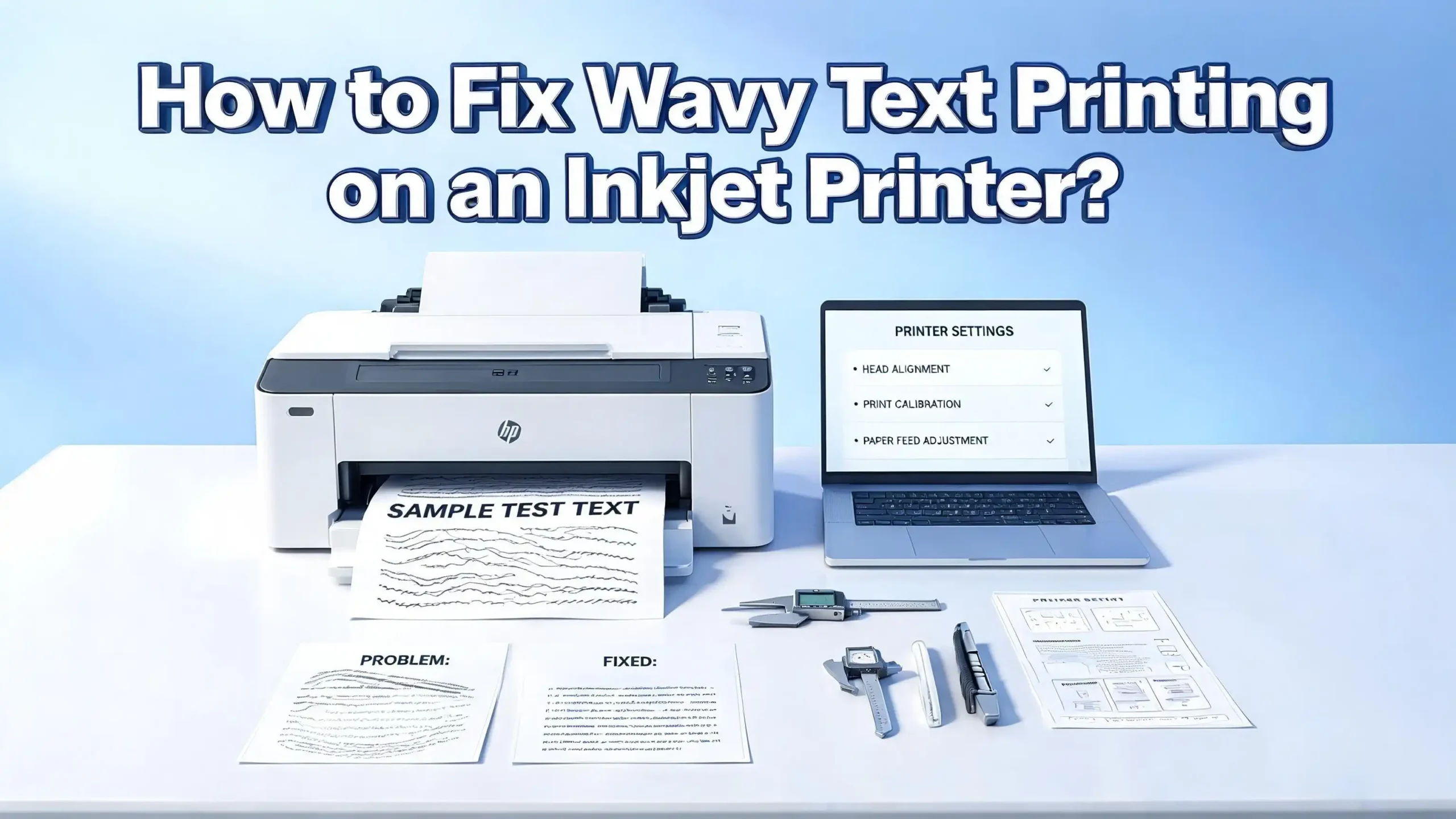
You just hit print on an important document. The printer hums along, the paper rolls out, and then you see it. The text looks wobbly, slanted, or wavy. Letters seem to dance across the page like a funhouse mirror reflection. This is one of the most frustrating problems any inkjet printer owner can face.
Wavy text on an inkjet printer is more common than you think. It affects Canon, Epson, HP, and Brother printers alike. The good news? You can fix it yourself in most cases. The issue usually comes down to a handful of mechanical or software causes. A dirty encoder strip, a misaligned printhead, a worn carriage belt, or even incorrect driver settings can all produce this exact problem.
This guide walks you through every possible cause and solution. You will learn how to identify the root cause and apply targeted fixes. Each step uses clear instructions so you can follow along even if you have zero technical experience. By the end of this post, your printer should be putting out crisp, straight text again.
In a Nutshell
- A dirty encoder strip is the most common cause of wavy text on inkjet printers. This thin, transparent plastic strip tells the printhead where to place ink. Cleaning it with isopropyl alcohol and a lint free cloth often solves the problem instantly.
- Printhead misalignment creates uneven text that appears to shift left or right on certain lines. Running both automatic and manual printhead alignment from your printer’s maintenance menu can correct this.
- A worn or loose carriage belt causes inconsistent printhead movement. If the belt is frayed, stretched, or slipping, the printhead cannot travel smoothly across the page. This results in wavy or zigzag text patterns.
- Clogged or failing printheads fire ink at incorrect angles. This produces distorted text that no amount of alignment will fix. Deep cleaning cycles or printhead replacement may be necessary.
- Incorrect printer driver settings can worsen the problem. Using the wrong paper type, print quality mode, or bidirectional printing setting can amplify small mechanical issues into visible text distortion.
- Regular maintenance prevents this problem from returning. Cleaning the encoder strip, running alignment checks, and using quality ink on a monthly basis keeps your printer producing sharp, straight text.
What Causes Wavy Text on an Inkjet Printer
Wavy text happens when the printhead deposits ink in the wrong position as it moves across the paper. The printhead travels on a carriage rail from left to right (and back again). It fires tiny ink droplets at precise moments. If anything disrupts that timing, the text comes out wavy, slanted, or zigzag shaped.
Several components work together to control this process. The encoder strip (also called a timing strip) is a thin, almost transparent piece of plastic that runs across the printer’s interior. It has fine vertical markings that an optical sensor on the carriage reads. This sensor tells the printer exactly where the printhead is at any given moment. If those markings are obscured by ink mist, dust, or fingerprints, the sensor misreads the position. The result? Text that shifts in random patterns.
The carriage belt is another critical piece. It connects the printhead carriage to a small motor. This belt pulls the carriage at a consistent speed. If the belt is loose, worn, or slipping on its pulleys, the carriage moves at uneven speeds. This produces text that appears to wobble.
The printhead itself can also be a factor. Clogged nozzles fire ink at odd angles or fail to fire at all. A printhead that is not seated correctly in its cradle can shift during printing. Even the ink cartridges play a role. Low quality or incompatible ink can cause nozzle blockages that lead to wavy output. Understanding these causes helps you target the right fix fast.
How to Clean the Encoder Strip
Cleaning the encoder strip is the single most effective fix for wavy text. This strip is delicate, so you need to handle it with care. Here is how to do it safely on most inkjet printers.
Step 1: Turn on your printer and open the top cover or cartridge access door. Wait for the printhead carriage to move to the center. Then unplug the printer from the power outlet. This lets you move the carriage freely by hand.
Step 2: Look for the encoder strip. It is a thin, almost invisible plastic strip that runs horizontally across the width of the printer. It passes through or near the printhead carriage. You will see faint vertical lines or markings on it. Do not pull on it or bend it sharply. A broken encoder strip is very difficult to replace.
Step 3: Dampen a soft, lint free cloth or cotton swab with isopropyl alcohol (90% or higher is best). Gently pinch the strip between the cloth and wipe from one end to the other. Clean both sides of the strip. Ink mist and dust tend to build up on the surface over time, and this residue is what causes the sensor to misread the carriage position.
Step 4: Let the strip dry completely. Plug the printer back in and run a test print. In many cases, the wavy text disappears immediately. If some waviness remains, repeat the cleaning process. Sometimes dried ink requires two or three passes. Avoid using paper towels because they can leave fibers on the strip and make things worse.
How to Run a Printhead Alignment
Printhead alignment is a built in tool that calibrates the position of ink placement. When the printhead drifts even slightly out of its calibrated position, text appears shifted, doubled, or wavy. Every major printer brand includes an alignment function.
For HP printers, go to Settings, then Printer Maintenance, and select Align Printhead. The printer will produce an alignment page with numbered patterns. For automatic alignment, the printer scans the page and adjusts itself. For manual alignment, you pick the best looking pattern from each row and enter the corresponding number.
For Canon printers, access the maintenance menu through the printer’s control panel or the Canon IJ Printer Utility on your computer. Select Print Head Alignment. Canon offers both automatic and manual alignment options. Try automatic alignment first. If the wavy text persists, switch to manual alignment for finer control.
For Epson printers, press the Home button, go to Setup, select Maintenance, and choose Head Alignment. Load plain paper into the main tray before starting. The printer will produce a calibration sheet with numbered blocks. Select the block in each group that shows the most uniform pattern.
Run alignment after every printhead cleaning. Cleaning can shift the calibration slightly. If the alignment test pattern itself looks wavy, the issue is likely the encoder strip or carriage belt rather than the alignment settings. In that case, skip ahead to the encoder strip or belt fixes before trying alignment again.
How to Perform a Deep Cleaning Cycle
Clogged nozzles cause ink to spray in unpredictable directions. This produces text that looks fuzzy, doubled, or uneven. A deep cleaning cycle forces ink through the nozzles at high pressure to clear blockages.
Access the deep cleaning function through your printer’s control panel or maintenance software on your computer. Most printers offer two cleaning levels: standard clean and deep clean. Start with a standard clean first. This uses less ink and resolves minor clogs. Print a nozzle check pattern after each cleaning to see if the blockage is cleared.
If the standard clean does not work, run a deep clean. This pushes more ink through the nozzles and is more effective against stubborn dried ink. Be aware that deep cleaning uses a significant amount of ink. Running it more than two or three times in a row rarely helps and wastes cartridges. If the nozzle check still shows gaps after three deep cleans, the printhead may need to be soaked or replaced.
For manual soaking, remove the printhead (if your printer model allows it) and place the nozzle plate on a paper towel dampened with warm distilled water. Let it sit for 15 to 30 minutes. This softens dried ink inside the nozzles. After soaking, blot the nozzles dry and reinstall the printhead. Run another nozzle check to confirm the blockage is cleared. Never use tap water because minerals in it can cause further clogging.
How to Check and Adjust the Carriage Belt
The carriage belt is a thin rubber belt that drives the printhead carriage back and forth across the printer. Over time, it can stretch, fray, or slip on its pulleys. This causes the carriage to move at inconsistent speeds, which produces wavy or zigzag text.
To inspect the belt, unplug the printer and open the cartridge access area. Look for a flat rubber belt connected to the carriage. Gently press on the belt with your finger. It should feel firm and have slight tension, like a rubber band stretched just enough to hold tight. If the belt feels loose, saggy, or shows visible wear such as fraying or cracks, it is likely causing the problem.
Some printers have a tensioning mechanism. This is usually a spring loaded bracket or a small adjustment screw near one of the belt pulleys. Tightening this mechanism can restore proper belt tension. Move slowly and make small adjustments. Too much tension can strain the motor.
If the belt is badly worn, replacement is the only fix. Carriage belts are available from printer parts suppliers. The replacement process involves removing the carriage, threading the new belt around the pulleys, and reattaching the carriage. This is an intermediate level repair. You can find model specific guides through your printer manufacturer’s support website. A new belt can restore print quality to like new levels and extend the life of your printer significantly.
How to Reseat or Replace the Printhead
A loose printhead can shift during printing and produce misaligned or wavy text. Reseating the printhead is a quick fix that costs nothing. Replacing the printhead becomes necessary when reseating and cleaning both fail.
To reseat the printhead, open the printer and locate the printhead assembly. On most Canon and HP printers, you need to lift a locking lever or latch to release the printhead. Remove the printhead carefully. Avoid touching the nozzle plate or the electrical contacts. Oils from your fingers can cause blockages and connection issues.
Inspect the printhead for visible damage. Look at the nozzle plate on the bottom. If you see dried ink buildup, clean it with a lint free cloth dampened with isopropyl alcohol or warm distilled water. Check the electrical contacts on the printhead and inside the carriage cradle. Wipe them clean with a dry lint free cloth.
Reinsert the printhead firmly into the cradle until you hear a click or feel it lock into place. Close the locking lever. Run a nozzle check and alignment after reseating. If the wavy text is gone, the printhead was simply loose.
If the printhead is visibly damaged, has burned out nozzles, or produces poor results even after thorough cleaning and reseating, replacement is the next step. Check whether your printer model uses a replaceable printhead. Some models have the printhead built into the cartridge, while others use a separate printhead unit. Replacement printheads can be ordered directly from the manufacturer’s website.
How to Update or Reinstall Printer Drivers
Corrupted or outdated printer drivers can send incorrect positioning data to the printer. This results in text that prints in the wrong place, appears shifted, or looks wavy. Updating or reinstalling the driver is a simple fix that many users overlook.
On Windows, go to Settings, then Devices, and select Printers and Scanners. Find your printer in the list and click Remove Device. Restart your computer. Then visit the printer manufacturer’s website. Download the latest driver for your specific printer model and operating system. Install the driver and add your printer again.
On Mac, open System Settings (or System Preferences on older versions), go to Printers and Scanners, select your printer, and click the minus button to remove it. Then add it back using the plus button. macOS often installs the latest driver automatically. If it does not, download the driver from the manufacturer’s support page.
After installing the fresh driver, print a test page. Compare the output to your previous prints. If the wavy text is gone, the old driver was the culprit. Also check the driver settings. Make sure the paper type matches what you loaded. Select the correct print quality (Standard or High rather than Fast/Draft). Some drivers have a bidirectional printing option. Turning this off forces the printer to print in one direction only, which can reduce wavy text caused by minor mechanical play.
How to Adjust Print Quality Settings
The settings you choose in the print dialog box can amplify or hide small mechanical issues. Selecting the wrong print mode is a surprisingly common cause of wavy text that many users miss entirely.
Print quality mode matters a lot. Fast or Draft mode prints quickly but with less precision. The printhead moves at higher speed, and any timing error from a dirty encoder strip or loose belt becomes more visible. Switch to Standard or High quality mode and see if the waviness improves. Many users on printer forums report that High quality mode eliminates the wavy text completely, even without any hardware repairs.
Paper type selection is equally important. If you load plain paper but the driver is set to glossy or photo paper, the printer adjusts its ink delivery and carriage speed for the wrong medium. This mismatch can produce wavy or smeared text. Always check that the paper type in your driver matches the actual paper in the tray.
Bidirectional printing is another key setting. When enabled, the printer lays down ink on both the left to right and right to left passes. If the alignment between these passes is slightly off, text appears doubled or wavy. Turning off bidirectional printing (sometimes called “Unidirectional” mode) makes the printer print in only one direction. This slows down the print job but produces much cleaner text. Look for this option under your printer driver’s advanced settings or quality settings tab.
How to Use the Right Paper and Ink
The type of paper and ink you use has a direct impact on print quality. Low quality supplies can cause nozzle clogs, ink smearing, and inconsistent ink absorption, all of which contribute to wavy or distorted text.
Paper quality matters more than many people realize. Thin or low grade paper can curl as ink hits it. This curl lifts the paper closer to the printhead, causing it to catch or drag. The result is text that shifts or smears. Use paper that is rated for inkjet printing. It should be smooth, flat, and at least 20 lb (75 gsm) weight. Store paper in a dry place. Humid paper absorbs moisture and warps before it even enters the printer.
Ink quality is equally critical. Third party or refilled ink cartridges can work well, but some formulations have different viscosity or drying properties than the manufacturer’s ink. This can lead to nozzle clogging over time, which in turn causes uneven ink placement and wavy text. If you started noticing wavy text after switching to new ink, try going back to the manufacturer’s cartridges as a test.
Make sure your cartridges are properly seated in their slots. A cartridge that is not clicked in all the way can shift during printing and cause inconsistent ink flow. Check the expiration date on ink cartridges as well. Expired ink thickens and clogs nozzles faster. A clean, well maintained ink system is the foundation of sharp, straight text output from any inkjet printer.
How to Inspect for Paper Feed Problems
The paper feed system can also cause text to appear wavy. If the paper slips, skews, or stutters as it moves through the printer, the text will not land in the correct position on the page.
Start by checking the paper feed rollers. These are the small rubber rollers inside the printer that grip the paper and pull it through. Over time, these rollers become smooth, dirty, or glazed with paper dust and ink residue. When they lose grip, the paper feeds unevenly. You can clean the rollers with a lint free cloth dampened with isopropyl alcohol. Rotate them by hand as you wipe to clean the entire surface.
Paper tray alignment guides are another common culprit. If the guides are too loose, the paper can shift side to side as it feeds. If they are too tight, the paper may crinkle or drag. Adjust the guides so they sit snugly against the paper stack without pressing hard.
Also check for debris inside the paper path. Small bits of torn paper, dust clumps, or foreign objects can interfere with smooth paper movement. Use a flashlight to look inside the feed area and output tray. Remove any debris you find. Never use sharp tools to pull out stuck paper fragments because you can scratch the rollers or damage internal components.
If your printer has a rear paper feed option, try loading paper from a different tray. This helps you determine whether the issue is with a specific feed mechanism rather than the printhead. Consistent wavy text from all trays points to a printhead or encoder issue. Wavy text from only one tray points to a paper feed problem in that specific tray.
How to Perform a Factory Reset on Your Printer
A factory reset clears all custom settings and returns the printer to its original state. This can resolve software glitches that cause wavy text, especially if the problem started after a firmware update or settings change.
The reset process varies by brand. On HP printers, look for a Restore Defaults or Restore Factory Settings option in the Settings or Setup menu on the control panel. Some HP models require you to hold specific buttons during power up. Check your printer’s user manual or HP’s support page for model specific instructions.
On Canon printers, access the Setup menu from the control panel. Look for Device Settings, then Reset Settings. Select Reset All. This clears network settings, alignment data, and custom preferences. You will need to reconfigure your wireless connection after a factory reset.
On Epson printers, press the Home button, go to Settings, and select Restore Default Settings. Choose All Settings to do a full reset. Some Epson models also allow you to reset only the network settings or only the print settings, which can be useful if you want to keep your network configuration intact.
After the reset, run a full printhead alignment and nozzle check. The printer needs to recalibrate from scratch. Print a few test pages to see if the wavy text is gone. If the reset does not help, the issue is almost certainly hardware related. Focus your efforts on the encoder strip, carriage belt, or printhead.
How to Test if the Problem Is Hardware or Software
Before you start taking your printer apart, it helps to determine whether the problem is in the hardware (mechanical parts) or software (driver and settings). A simple test can save you a lot of time.
Print a nozzle check pattern directly from the printer’s control panel without using a computer. This bypasses the driver and sends instructions from the printer’s internal firmware. If the nozzle check pattern looks wavy, the problem is hardware. The issue lives inside the printer. Focus on the encoder strip, printhead, carriage belt, or paper feed rollers.
If the nozzle check pattern looks clean and straight, but documents printed from your computer look wavy, the problem is software related. Reinstall the printer driver, check your print settings, and make sure you have selected the correct paper type and quality mode. Try printing from a different application to rule out a software conflict.
Another useful test is to make a photocopy on your printer (if it has a copy function). Place a typed page on the scanner glass and make a copy. If the copy is wavy, the issue is definitely internal to the printer. If the copy is clean, the problem is in the print signal coming from the computer.
You can also try connecting the printer to a different computer or mobile device. If the wavy text appears from all devices, hardware is the cause. If it appears only from one device, the driver or software on that device is at fault. These quick tests help you narrow down the cause and avoid unnecessary repairs.
When to Seek Professional Repair or Replace the Printer
Some problems go beyond what you can fix at home. If you have cleaned the encoder strip, aligned the printhead, checked the carriage belt, reinstalled drivers, and the text is still wavy, it may be time for professional help.
Sensor failure is one issue that requires professional repair. The optical sensor on the carriage reads the encoder strip. If this sensor is dirty, misaligned, or broken, the printer cannot track the carriage position. Cleaning the sensor is possible, but replacing it requires specialized tools and soldering skills.
Logic board failure is another advanced problem. The logic board processes all the print instructions. If it sends incorrect timing signals, the printhead fires ink in the wrong places. A faulty logic board typically requires a full board replacement, which can cost nearly as much as a new printer.
Consider the age and original cost of your printer. If your inkjet printer is more than four or five years old and was a budget model, repair costs may exceed the value of the printer. In that case, replacing the printer is the smarter financial choice. Modern inkjet printers offer better print quality, faster speeds, and more efficient ink usage.
If your printer is relatively new or a high end model, contact the manufacturer’s support line. Many printers come with a one year warranty. Some manufacturers offer extended service plans. A professional repair center can diagnose the exact component failure and replace only the affected part. Keep the receipt and any repair documentation in case the issue recurs under warranty.
How to Prevent Wavy Text From Coming Back
Prevention is easier than repair. A few simple habits can keep your inkjet printer producing clean, straight text for years.
Print at least one page every week. Inkjet printers use liquid ink that dries when the printer sits idle. Dried ink clogs nozzles, which leads to uneven ink delivery and eventually wavy text. A weekly test page keeps the ink flowing and the nozzles clear.
Clean the encoder strip every three to six months. A quick wipe with isopropyl alcohol and a lint free cloth takes less than five minutes. This prevents ink mist and dust from building up to the point where it causes timing errors. Mark a reminder on your calendar so you do not forget.
Run a printhead alignment after every cartridge change. Swapping cartridges can shift the printhead slightly. A quick alignment after each change keeps text placement accurate. Most printers offer a one button alignment from the maintenance menu.
Store your printer in a clean, dry environment. Dust, humidity, and temperature extremes all affect printer performance. Keep the printer covered when not in use. Avoid placing it near open windows or in direct sunlight. These conditions accelerate wear on the encoder strip, carriage belt, and rubber rollers.
Use quality ink and paper consistently. Switching between different ink brands or paper types frequently can cause inconsistent results. Stick with one reliable ink source and one paper type for everyday printing. This reduces variables and helps you spot problems early before they turn into full blown wavy text.
Frequently Asked Questions
Why does my inkjet printer print wavy text on some lines but not others?
This usually points to a partially dirty encoder strip or a printhead with some clogged nozzles. The printer reads the encoder strip as the carriage moves. If only certain sections of the strip are dirty, the timing errors happen only at those positions. Clean the entire strip from end to end. If the issue continues, run a nozzle check to see which nozzles are blocked and perform a cleaning cycle.
Can third party ink cartridges cause wavy text?
Yes. Third party ink can have a different viscosity or chemical composition than the original manufacturer’s ink. Over time, this can cause nozzle buildup that affects ink delivery. If wavy text started after you switched to a new ink brand, test with original manufacturer cartridges to see if the problem resolves. Not all third party inks cause problems, but it is an important variable to rule out.
Why does wavy text appear in draft mode but not in high quality mode?
In draft mode, the printhead moves faster. This means any timing error from a dirty encoder strip or loose carriage belt is magnified. High quality mode slows down the carriage and often uses unidirectional printing, which gives the printer more time to place ink accurately. If text is fine in high quality mode, the root cause is still present but masked. Clean the encoder strip and check the belt tension to fix it at all print speeds.
How often should I run printhead alignment on my inkjet printer?
Run printhead alignment every time you replace ink cartridges. Also run it after a printhead cleaning, after moving the printer to a new location, or if you notice any shift in text quality. Monthly alignment checks are a good habit for heavy users. Alignment takes less than two minutes and can prevent small misalignments from turning into visible wavy text.
Is it worth repairing an old inkjet printer with wavy text issues?
It depends on the printer’s age and value. If the printer is under three years old and was a mid range or high end model, repair is often worthwhile. A new encoder strip or printhead can restore full functionality. If the printer is more than five years old and was an entry level model, replacement is usually more cost effective. Compare the repair cost against the price of a new printer before making your decision.
Can a firmware update fix wavy text on my printer?
Firmware updates occasionally fix timing and calibration bugs. Check your printer manufacturer’s website for available updates. Install any pending updates and then run a printhead alignment. While firmware alone rarely fixes wavy text caused by dirty hardware, it can improve the printer’s ability to compensate for minor mechanical wear. Always keep your printer firmware current as a best practice.

I’m the voice behind Device Dossier. As a printing technology enthusiast, I spend my time testing printers, comparing specs, and writing honest reviews to help you find the perfect printing solution. When I’m not geeking out over print quality and page yields, you’ll find me exploring the latest in tech.