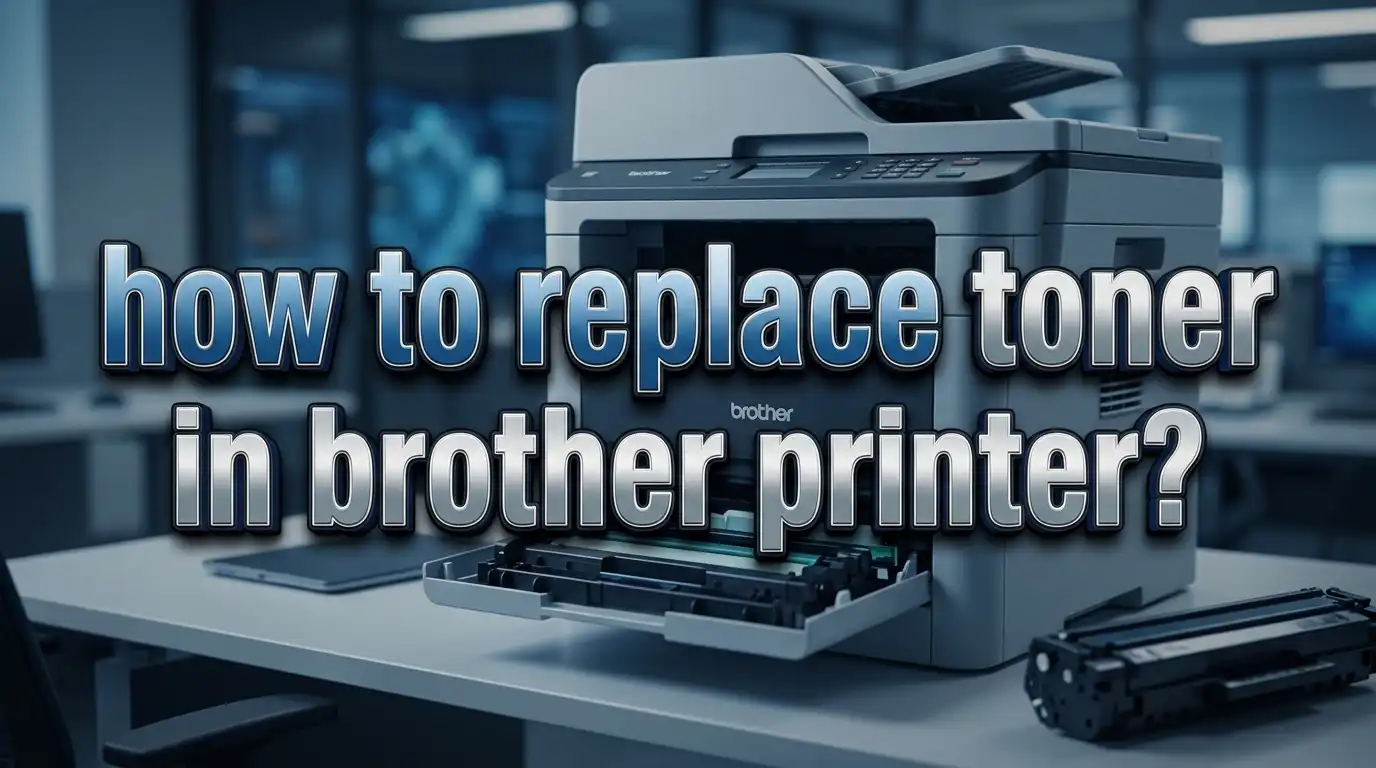
How to Replace Toner in Brother Printer?
You pressed print, and nothing happened. Or maybe your Brother printer flashed a “Replace Toner” message on its tiny screen. Either way, you need fresh toner, and you need it now.
The good news is that replacing toner in a Brother printer is one of the easiest maintenance tasks you can do at home or in the office. It takes less than five minutes, requires no tools, and saves you the cost of a service call.
But here is the thing. Brother printers handle toner differently than many other brands. They use a separate toner cartridge and drum unit system, which can confuse first time users.
This guide walks you through the entire process from start to finish. You will learn how to identify your toner model, remove the old cartridge safely, install the new one correctly, and fix common problems like the printer not recognizing the replacement.
Key Takeaways
- Brother printers use a two part system with a separate toner cartridge and drum unit. You only need to replace the toner cartridge each time the toner runs out. The drum unit lasts much longer and does not need replacement as often.
- Always keep your printer powered on during the toner replacement process. The internal fan needs to cool the fuser unit, and the printer must detect the new cartridge properly upon closing the front cover.
- Clean the corona wire every time you replace the toner cartridge. This small step prevents vertical streaks and faded prints on your documents. You simply slide the green tab on the drum unit back and forth a few times.
- If your Brother printer does not recognize the new toner, try reseating the cartridge, cleaning the contact chip with a dry lint free cloth, and performing a toner counter reset through the printer menu.
- Compatible and remanufactured toner cartridges can save you up to 70% compared to genuine Brother cartridges, but they may cause recognition issues or lower print quality in some cases. Genuine cartridges offer guaranteed compatibility and consistent output.
- The replacement process is nearly identical across most Brother laser printer models, including popular series like HL, DCP, and MFC. The main difference is whether you open the front cover or the top cover, depending on your specific model.
Understanding the Brother Toner and Drum System
Brother laser printers use a two component printing system that sets them apart from many competitors. The toner cartridge holds the fine powder that creates text and images on paper. The drum unit is an electrically charged cylinder that transfers that powder onto each page as it passes through the printer.
Many people confuse these two parts. The toner cartridge slides into the drum unit, and together they form a single assembly that fits inside the printer. However, they have different lifespans. A standard Brother toner cartridge prints about 1,000 to 3,000 pages, depending on the model and whether you have a standard or high yield version. The drum unit, on the other hand, typically lasts for about 12,000 pages before it needs replacement.
This separation actually saves you money over time. You replace the toner cartridge several times before the drum unit ever needs attention. Brands that combine the toner and drum into a single unit force you to replace both parts every time the toner runs out, which costs more per replacement cycle.
You can tell them apart easily. The toner cartridge is the smaller piece that clicks into the drum unit. It usually has a handle or grip area on top. The drum unit is the larger green or blue cylinder assembly with a green tab on the side for the corona wire. If the printer says “Replace Toner,” you need a new toner cartridge. If it says “Replace Drum,” you need a new drum unit.
Pros of the separate system: Lower cost per toner replacement, longer drum life, easier recycling of individual components.
Cons of the separate system: More confusing for first time users, requires understanding which part to replace, slight risk of damaging the drum during toner swaps.
How to Find Your Brother Printer Toner Model Number
Before you buy a replacement toner cartridge, you need to know the exact model number. Installing the wrong toner will either not fit physically or cause error messages on your printer display. There are several fast ways to find this information.
Check the printer itself. Open the front cover of your Brother printer and pull out the drum and toner assembly. The toner cartridge will have a label printed on it showing the model number. Common Brother toner numbers include the TN series, such as TN760, TN830, TN227, TN660, and TN450. Write this number down before shopping for a replacement.
Look at your printer model number. Every Brother printer has a model number printed on the front or top of the machine. Examples include HL L2390DW, MFC L2710DW, DCP L2550DW, and HL L3290CDW. You can enter this model number on the Brother website’s supply finder page. The site will show you the exact toner cartridge model that fits your printer.
Check your printer manual or original packaging. The manual lists all compatible supply model numbers in the consumables section. If you still have the box your printer came in, the compatible toner numbers are often printed on the side.
Use the printer settings menu. Many Brother printers let you check the current toner model and remaining toner life from the settings or machine info menu on the display panel.
Pros of checking the cartridge directly: Fastest method, no internet needed, shows you the exact part number.
Cons of relying only on the cartridge label: If the label is worn or the cartridge was already discarded, you will need to use an alternative method.
Preparing for the Toner Replacement
Good preparation makes the toner replacement process smooth and mess free. Toner powder is extremely fine, and it can stain clothing, skin, and surfaces if handled carelessly. A few minutes of setup saves you from a frustrating cleanup later.
Gather your supplies first. You need the new toner cartridge, a flat clean surface to work on, a piece of disposable paper or old newspaper, and a dry lint free cloth. Having these items ready means you can complete the swap quickly without leaving the drum unit exposed to light for too long.
Keep your printer turned on. Brother specifically recommends leaving the machine powered on during the replacement. The internal fan will cool the fuser unit, which gets very hot during printing. If you open the front cover immediately after a print job, wait at least 10 minutes to let the fuser cool down before touching internal components.
Open the new toner packaging carefully. Remove the new toner cartridge from its box but do not remove the protective cover yet. Keep it in the sealed bag until you are ready to install it. Toner cartridges can be sensitive to light exposure, and the drum surface of the cartridge should remain covered until the last moment.
Choose a well lit workspace. You want to see what you are doing inside the printer clearly. However, do not place the drum unit in direct sunlight. UV light can damage the photosensitive drum surface and cause print quality problems.
Pros of thorough preparation: No toner spills, faster installation, no accidental damage to the drum.
Cons of skipping preparation: Risk of toner stains on clothes and surfaces, possible drum damage from light exposure, and having to pause the process to find missing supplies.
Step by Step Guide to Replacing Toner in a Brother Monochrome Printer
Monochrome Brother printers are the most popular models for home and small office use. They use a single black toner cartridge, which makes the replacement process straightforward. Follow these steps carefully for a clean installation.
Step 1: Turn on the printer and open the front cover. Press the release button or pull the cover toward you. The front cover is the large panel on the front of the machine. On some models like the HL L2390DW, you pull it straight down. On others, it swings forward.
Step 2: Remove the drum unit and toner cartridge assembly. Grip the green handle on the drum unit and pull the entire assembly straight out of the printer. Place it on a piece of disposable paper or newspaper to catch any loose toner powder.
Step 3: Separate the old toner from the drum unit. Push down the green lock lever on the drum unit. This releases the toner cartridge. Pull the old toner cartridge up and out of the drum unit. Set it aside for recycling.
Step 4: Prepare the new toner cartridge. Remove the new cartridge from its packaging. Take off the protective cover. Gently rock the cartridge from side to side five or six times to distribute the toner powder evenly inside. This step is important because toner can settle during shipping.
Step 5: Insert the new toner into the drum unit. Slide the new cartridge firmly into the drum unit. You will hear a click when it locks into place. Make sure the cartridge sits flat and does not wobble.
Step 6: Clean the corona wire. Slide the green tab on the drum unit gently from left to right and back again several times. Then return the tab to its home position. The arrow on the tab should align with the arrow on the drum unit.
Step 7: Reinstall the assembly and close the cover. Push the drum and toner assembly back into the printer until it clicks. Close the front cover. The printer will reset automatically and prepare for printing.
How to Replace Toner in a Brother Color Laser Printer
Brother color laser printers like the HL L3290CDW and MFC L3770CDW use four toner cartridges: cyan, magenta, yellow, and black. The replacement process is slightly different from monochrome models because you access the cartridges from the top cover instead of the front.
Step 1: Turn on the printer and open the top cover. Lift the top cover until it locks in the open position. You will see all four toner and drum assemblies arranged in a row inside the machine.
Step 2: Identify the cartridge that needs replacement. The printer LCD screen will tell you which color needs a new cartridge. Each assembly is labeled with its color. Remove the specific drum and toner assembly for that color by lifting it straight up and out of the printer.
Step 3: Separate the toner from the drum unit. Push down the green lock lever on the drum unit and pull the old toner cartridge out. The process is the same as with monochrome printers. Each color has its own drum unit and toner cartridge pairing.
Step 4: Prepare and insert the new color toner. Remove the new cartridge from its packaging. Gently shake it side to side to distribute the toner. Remove the protective cover and slide the new cartridge into the drum unit firmly until it clicks.
Step 5: Clean the corona wire for that color. Use the green tab on the drum unit to clean the corona wire. Slide it back and forth, then return it to the home position.
Step 6: Reinstall and close. Place the assembly back into the correct slot in the printer. Close the top cover. The printer will recognize the new cartridge and update its toner level display.
Pros of color Brother printers: You replace only the color that runs out, other cartridges stay in place, individual drum units last a long time.
Cons of color Brother printers: Four separate cartridges increase overall supply costs, the top cover mechanism can feel more fragile on some models.
Cleaning the Corona Wire During Toner Replacement
The corona wire is a thin, charged wire inside the drum unit that plays a critical role in print quality. Every time you replace the toner cartridge, you should clean this wire. Brother includes this step in their official instructions, and skipping it often leads to problems.
Over time, toner dust and paper fibers build up on the corona wire. This buildup causes vertical streaks, faded patches, or dark lines on your printed pages. Cleaning the wire takes about 10 seconds and requires no special tools. The green tab on the side of the drum unit does all the work.
To clean the corona wire, locate the green tab on the left side of the drum unit. Gently slide the tab from its home position all the way to the right end of the drum unit. Then slide it back to the left. Repeat this motion two or three times. This sweeps a small cleaning pad across the corona wire and removes buildup.
The most important part is returning the tab to its home position after cleaning. The arrow on the tab must line up with the arrow printed on the drum unit. If you leave the tab in the wrong position, your prints will show a vertical stripe down the page. This is one of the most common mistakes people make during toner replacement.
If you notice print quality issues even after cleaning the corona wire, the drum unit itself may be worn out or damaged. In that case, you will need to replace the entire drum unit, not just the toner cartridge.
Pros of regular corona wire cleaning: Free, fast, prevents most common print quality problems, extends drum life.
Cons of neglecting corona wire cleaning: Streaky prints, wasted paper, potential misdiagnosis of problems as toner issues when the wire is the real cause.
What to Do If Your Brother Printer Does Not Recognize the New Toner
One of the most frustrating issues after replacing toner is seeing the “Replace Toner” or “Toner Error” message remain on the printer display. Your printer should automatically detect the new cartridge, but sometimes it does not. Several fixes can resolve this problem.
Reseat the toner cartridge. Open the front cover, pull out the drum and toner assembly, and remove the toner cartridge. Check for any packaging material you may have missed, such as a protective strip or orange clip. Reinsert the cartridge firmly until it clicks. Close the cover and check the display.
Clean the contact chip. The toner cartridge has a small electronic chip that communicates with the printer. If this chip is dusty or has fingerprint residue, the printer cannot read it properly. Use a dry, lint free cloth to gently wipe the gold contacts on the cartridge. Also clean the matching contacts inside the drum unit.
Power cycle the printer. Turn the printer off completely. Unplug it from the wall outlet. Wait 30 seconds. Plug it back in and power it on. This full reset clears temporary errors in the printer memory.
Reset the toner counter manually. On many Brother models, the toner counter does not reset automatically. You can access the reset menu by opening the front cover and pressing specific button combinations. On MFC models, simultaneously press the Back and Cancel buttons with the cover open, then use the arrow keys to select the toner you want to reset and confirm with OK.
Verify cartridge compatibility. Double check that the toner model number matches your printer. Even cartridges that look identical may have different chip programming for different printer models.
Pros of manual reset: Solves most detection errors, free, takes only a minute.
Cons of manual reset: Button combinations vary by model, incorrect resets can cause inaccurate toner level readings.
How to Reset the Toner Counter on Brother Printers
Sometimes your Brother printer continues to show low toner or “Replace Toner” warnings even with a full cartridge installed. This happens because the toner counter tracks page counts rather than actual toner levels. Resetting this counter tells the printer a new cartridge has been installed.
The reset process varies slightly between Brother printer families, but the general method works across most models. Always open the front cover before starting the reset process. The printer needs to be in maintenance mode to accept counter changes.
For Brother HL series printers: Open the front cover. Press and hold the OK button for about two seconds. Use the arrow buttons to find the toner reset option. Select it and press OK to confirm. Close the front cover.
For Brother MFC and DCP series printers: Open the front cover. Press the Back and Cancel buttons at the same time. Release them and then quickly press the Back button alone. The display will show toner options like “TNR STD” or “TNR HC” for standard or high capacity. Use the arrow keys to select the correct one and press OK. Wait a few seconds, then close the cover.
For Brother color printers: The process adds a step for selecting which color cartridge to reset. After entering the reset menu, scroll through the color options (black, cyan, magenta, yellow) and reset only the one you replaced.
It is worth noting that Brother does not officially encourage resetting toner counters because continuing to print with truly empty toner can damage the drum unit. Only reset the counter when you have installed a genuinely new or refilled cartridge.
Pros of resetting the counter: Clears false error messages, allows printing to resume immediately, simple process.
Cons of resetting the counter: May mask genuinely low toner, incorrect reset can cause confusion about actual supply levels.
Genuine Brother Toner vs Compatible Toner Cartridges
Choosing between genuine Brother toner and third party compatible cartridges is a decision every printer owner faces. Both options have clear strengths and weaknesses, and the right choice depends on your printing needs and budget.
Genuine Brother toner cartridges are manufactured by Brother and designed specifically for your printer model. They offer guaranteed compatibility, consistent print quality, and full warranty support. If a genuine cartridge causes any problem, Brother’s customer support will help you resolve it. The downside is cost. Genuine Brother toner cartridges typically cost two to six times more than compatible alternatives.
Compatible toner cartridges are made by third party manufacturers. They are designed to fit and function in Brother printers at a significantly lower price point. Many users report savings of 50% to 70% with compatible cartridges. Modern compatible cartridges have improved greatly in quality and reliability. However, some users experience occasional issues like recognition errors, slightly different print density, or inconsistent page yield.
Remanufactured toner cartridges are a third option. These are used genuine cartridges that have been cleaned, refilled, and tested. They sit between genuine and compatible cartridges in both price and reliability. They are also a more environmentally friendly choice since they reuse existing cartridge shells.
One practical concern is that using non genuine cartridges may void your printer warranty in some regions. Check your warranty terms before deciding. Brother has stated that simply using compatible cartridges does not automatically void the warranty, but any damage directly caused by a third party cartridge would not be covered.
Pros of genuine Brother toner: Guaranteed quality, full compatibility, warranty protection, consistent page yield.
Cons of genuine Brother toner: Significantly higher cost, no environmental reuse benefit.
Pros of compatible toner: Much lower cost, widely available, many offer comparable quality.
Cons of compatible toner: Risk of recognition errors, possible print quality variation, warranty concerns.
How to Extend the Life of Your Brother Toner Cartridge
Getting the maximum number of pages from each toner cartridge saves you money and reduces replacement frequency. Several practical techniques can help you stretch your toner supply further.
Use the printer’s toner save mode. Most Brother printers have a built in setting called Toner Save Mode or Economy Mode. This feature uses less toner per page by printing at a slightly lighter density. For everyday documents, drafts, and internal use, the quality difference is barely noticeable. You can find this option in your printer settings under the print quality or general tab.
Shake the cartridge when print quality fades. Before replacing a cartridge that triggers a low toner warning, remove it and gently rock it side to side five or six times. This redistributes the remaining toner inside the cartridge and can yield dozens or even hundreds of additional pages. The “low toner” warning is based on an estimated page count, not actual toner measurement, so there is often usable toner left.
Print in grayscale whenever possible. If you have a color Brother printer, set your default print mode to grayscale or black only. Color toner cartridges deplete faster when the printer uses all four colors for everyday documents that do not need color.
Choose appropriate fonts and layouts. Fonts with thinner strokes like Calibri, Arial, and Garamond use less toner than heavy fonts like Arial Black or Impact. Also, reducing your font size slightly and using narrower margins can reduce overall toner consumption per page.
Store spare cartridges properly. Keep unused toner cartridges in their sealed packaging in a cool, dry place. Avoid extreme temperatures and direct sunlight. A properly stored toner cartridge can maintain its quality for up to two years.
Disposing of Used Brother Toner Cartridges Responsibly
Used toner cartridges should never go into regular trash bins. Toner powder contains fine plastic particles and pigments that are harmful to the environment if sent to a landfill. Brother offers a free recycling program that makes responsible disposal easy.
The Brother Genuine Supplies Recycling Program lets you return used cartridges at no cost. You can visit the Brother website, request a prepaid shipping label, and send your used cartridges back for recycling. Brother disassembles the cartridges, reclaims usable materials, and ensures the rest is disposed of properly.
Many office supply stores also accept used toner cartridges for recycling. Drop off locations are available at major retailers and electronics stores in most areas. Some stores even offer reward points or store credit for returned cartridges.
If you use compatible or remanufactured cartridges, check with the manufacturer for their recycling options. Many third party toner companies also run return programs. You can also contact your local waste management service to ask about toner cartridge drop off events or collection points in your community.
Never attempt to vacuum spilled toner with a regular household vacuum. Toner particles are so fine that they pass through standard vacuum filters and can damage the motor. If you need to clean up a toner spill, use cold water and a damp cloth. Hot water will cause the toner to melt and permanently stain the surface.
Pros of recycling: Free programs available, reduces waste, may earn store rewards, protects the environment.
Cons of ignoring recycling: Harmful to the environment, may be illegal in some regions, misses out on reward programs.
Troubleshooting Common Brother Toner Replacement Problems
Even after a successful toner replacement, you might encounter a few issues. Knowing how to solve them quickly keeps your printer running without delays.
Problem: Prints are faded or light after installing new toner. This usually means you forgot to shake the new cartridge before installing it. Remove the cartridge, rock it gently side to side, and reinstall it. Also clean the corona wire. If the issue persists, the drum unit may be nearing the end of its life.
Problem: Vertical lines or streaks appear on every page. The corona wire cleaning tab is likely not in the home position. Open the printer, pull out the drum unit, and check the green tab. Slide it back to align with the arrow on the drum casing. If lines remain, the drum surface may be scratched or contaminated.
Problem: The printer shows “Drum Error” instead of working normally. A drum error is different from a toner error. This indicates the drum unit needs attention. Try cleaning the drum surface with a soft, dry cloth. If the error persists, the drum unit itself may need replacement, which is separate from the toner cartridge.
Problem: Toner smudges or loose toner on printed pages. Loose toner that rubs off the paper indicates a fuser unit problem, not a toner cartridge problem. The fuser uses heat to bond toner to paper. If it is not reaching the correct temperature, toner remains loose. Check your print settings to ensure you selected the correct paper type. If the problem continues, the fuser unit may need servicing.
Problem: Printer makes grinding noises after toner installation. Remove the assembly and check that the toner cartridge is fully seated in the drum unit. Look for any foreign objects or packaging material left inside the printer. Reinstall everything carefully and listen for the noise again.
When to Replace the Drum Unit Instead of the Toner Cartridge
Many Brother printer owners replace toner cartridges multiple times before the drum unit needs attention. However, understanding when the drum needs replacement prevents you from wasting money on toner cartridges that will not fix the real problem.
The drum unit in a Brother printer typically lasts for about 12,000 printed pages. This number assumes 1 page per print job. If you print many short documents with frequent warm up cycles, the drum may wear out sooner. The printer will display a “Replace Drum” or “Drum End Soon” message on the LCD when the estimated drum life runs out.
You should consider replacing the drum if you see repeating marks or spots at regular intervals on your printed pages. These marks correspond to one full rotation of the drum surface and usually appear every 3.7 inches down the page. This pattern is a clear sign that the drum surface has a defect or scratch.
Another indicator is persistent poor print quality that does not improve after replacing the toner and cleaning the corona wire. If you install a fresh toner cartridge and clean everything properly but still get faded, streaky, or blotchy prints, the drum is the likely cause.
Replacing the drum unit follows a similar process to replacing the toner. You open the cover, pull out the assembly, swap the toner cartridge into the new drum, and reinstall everything. Always transfer your existing toner cartridge into the new drum unit unless the toner is also empty.
Pros of timely drum replacement: Restores print quality immediately, prevents paper waste from repeated bad prints.
Cons of premature drum replacement: Drum units are more expensive than toner cartridges, and the “Replace Drum” warning is based on estimates that may not reflect actual drum condition. Some drums last well beyond the estimated page count.
FAQ
How often do I need to replace toner in my Brother printer?
The frequency depends on how much you print and which toner cartridge you use. A standard yield Brother toner cartridge prints about 1,000 to 1,500 pages. A high yield cartridge can print 2,500 to 3,000 pages or more. If you print an average of 200 pages per month, a high yield cartridge will last roughly 12 to 15 months before needing replacement. The printer will alert you with a “Toner Low” message well before the cartridge is completely empty.
Can I use non Brother toner cartridges in my Brother printer?
Yes, you can use compatible or remanufactured toner cartridges in most Brother printers. Many third party cartridges work well and cost significantly less than genuine Brother supplies. However, some users experience recognition errors or slight quality differences with non genuine cartridges. Make sure any compatible cartridge you choose matches your exact printer model number to avoid compatibility issues.
Why does my Brother printer say “Replace Toner” even after I installed a new cartridge?
This common issue usually means the toner counter has not reset. Try removing and reinstalling the cartridge firmly. Clean the electronic contacts on both the cartridge and the drum unit. If the message persists, perform a manual toner counter reset using the button combination specific to your printer model. A simple power cycle by unplugging the printer for 30 seconds can also clear the error in some cases.
Do I need to replace the drum unit every time I replace the toner?
No. The drum unit and toner cartridge are separate consumables with different lifespans. You will replace the toner cartridge three to five times before the drum unit needs replacement. The drum unit typically lasts about 12,000 pages. Only replace it when the printer displays a drum error or when print quality problems persist after toner replacement and corona wire cleaning.
Is it safe to shake a Brother toner cartridge?
Yes, gently shaking or rocking a toner cartridge is recommended by Brother. This distributes the toner powder evenly inside the cartridge and can improve print quality. It is especially important for new cartridges where the powder may have settled during shipping. However, do not shake the cartridge violently, as this can cause toner to leak from the seals.
How do I know whether I need to replace the toner or the drum?
Check the message on your printer’s LCD display. “Replace Toner” means the toner cartridge is empty or nearly empty. “Replace Drum” or “Drum End Soon” means the drum unit has reached its estimated lifespan. If you see repeating spots or marks every 3.7 inches on printed pages, the drum is likely the issue. If prints are simply faded or blank, the toner cartridge is the part that needs replacement.

I’m the voice behind Device Dossier. As a printing technology enthusiast, I spend my time testing printers, comparing specs, and writing honest reviews to help you find the perfect printing solution. When I’m not geeking out over print quality and page yields, you’ll find me exploring the latest in tech.