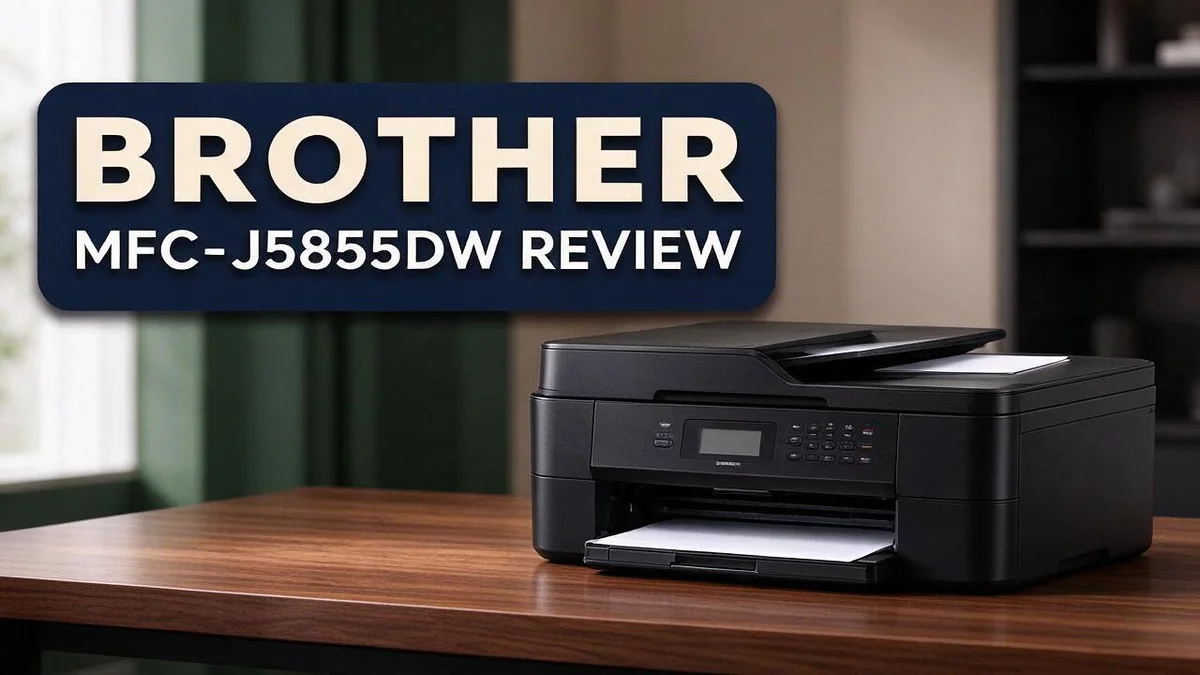
Brother MFC-J5855DW Review: Is This INKvestment Tank All-in-One Worth Buying?
Looking for a printer that keeps up with your daily work? The Brother MFC-J5855DW might be the one. It prints, copies, scans, and faxes in one compact unit.
Its INKvestment Tank design comes with up to one year of ink in the box. That means fewer trips to the store and fewer empty cartridges.
Small businesses, students, and busy home offices all find value in this setup. It also prints on both sides and offers energy saving modes. Paper handling reaches up to 11×17 inches, which suits posters and reports.
Still, print quality matters most for some buyers. Some users say the Epson ET-8550 looks sharper. In this review, you will see where this model shines and where rivals may win.
In a Nutshell
- Four jobs in one machine: This Brother model prints, copies, scans, and faxes. You can skip buying separate devices, which saves desk space and keeps your office setup simple and tidy.
- Wide paper range: The printer handles media up to 11 x 17 inches. That size works well for posters, flyers, charts, and larger reports that standard letter paper cannot hold.
- Heavy paper support: The printer accepts paper up to 58 lb. Thick cardstock for invitations or presentation covers can fit within this limit, but many users ask how to feed heavy sheets, so test a few pages first.
- Less paper waste: Automatic two sided printing puts text on both sides of each page. This cuts down on paper use across long reports, and your files look neat and professional.
- Lower power use: Energy saving modes help reduce electricity use when the printer sits idle between jobs. Over months of daily work, these settings can make a real difference in your power bill.
- Compare print quality first: Some reviewers say the Epson ET 8550 produces sharper output because it uses six color ink tanks. If photos or detailed graphics matter most to you, check print samples from both models before you decide.
Print Quality and Color Output

- BEST FOR SMALL BUSINESS: This multifunction printer makes it easy to print, copy, scan, and fax, and...
- PRODUCTIVITY-FOCUSED FEATURES: A 250-sheet paper tray(3), 50-page single-sided ADF(3), and automatic...

Last update on 2026-11-25 / Affiliate links / Images from Amazon Product Advertising API
Print quality often decides whether a printer stays on your desk. Many buyers care most about sharp text and accurate color. This section explains what to expect from this model.
Color output depends on more than the printer. Paper choice, settings, and ink health all play a role.
Start by selecting the correct paper type in the printer settings. This tells the machine how much ink to lay down. Mismatched settings often cause dull colors or light streaks. Plain paper and glossy paper need very different ink amounts.
Heavy paper needs extra care. Some users ask how to print on stock near the 58 lb limit. Thick sheets can smear if the feed path is off. Try a slower print mode for heavy stock. Slower speeds give ink more time to dry on the surface.
Set the paper guides so they sit snug against the edges. Loose guides can cause blurry or crooked prints.
Test prints save time and paper. Print a color test page before any large job. This reveals banding, faded areas, or clogged nozzles early. Run the head cleaning cycle if lines appear on the page. Repeat it only a few times, since each cycle uses ink.
Ink levels also matter for color accuracy. Keep the tanks topped up so the printer does not run low mid job. Low ink can cause uneven color across a page. Use a clean, dry sheet for alignment checks. Some printers offer an alignment page that fixes misaligned color lines.
Text and graphics behave differently. Black text usually looks crisp on this printer. Photos and gradients depend more on paper and settings.
If you compare this model with rivals, print sample pages from each. Use the same paper and file for a fair result. Side by side tests reveal differences that spec sheets often miss. Bring your own files to a store demo when possible.
Overall, this printer handles everyday documents and mixed color jobs well. Buyers who need top photo output should test samples first.
INKvestment Tank Ink System and Running Costs
The INKvestment Tank changes how ink reaches your desk. Instead of replacing small cartridges often, you refill large tanks from a supply that comes in the box.
Up to one year of ink ships with this printer. That means fewer store trips and fewer surprise stops in the middle of a busy week.
Refills keep your routine steady. When the tanks run low, you top them off and keep printing. Your workflow stays smooth from start to finish.
Your habits shape ink use. Text pages use far less ink than full color photos or heavy graphics. Bold color blocks drain the tanks faster than plain documents.
Plan for bigger jobs. Check the ink levels before printing a long report or a stack of color flyers. A quick look prevents halted jobs and wasted sheets.
Regular use also matters. Printers that sit idle for long periods can let ink dry in the print head. A weekly color test page keeps the nozzles clear.
Cleaning cycles use ink too. Frequent cleaning wastes ink, so print a few pages each week instead of letting the machine rest for months.
Energy saving modes help too. The printer uses less power while it waits between jobs. This keeps your daily energy use lighter.
Two sided printing stretches each sheet further. Text sits on both sides of every page, so you reload paper less often and sort fewer loose pages.
Who benefits most? Students print class notes for weeks without a refill rush. Small offices with steady daily output gain the most from this supply.
Stock up on refill bottles early. Keep a spare set nearby before a deadline hits. This simple step keeps your team productive when a big project arrives.
Look at the ink window often. A quick glance each morning shows how much supply remains, so you never have to guess.
Paper Handling and Media Support
Paper handling shapes every print job. Good habits keep pages moving and prevent jams. Small changes in how you store and load paper make a big difference.
Store paper flat in a dry place. Humid air makes sheets curl, and curled pages often feed crookedly. Keep the package sealed until you need the sheets.
Fan the stack before loading it. This step separates sheets that stick together. Smooth edges help the rollers grab one page at a time.
Load only the amount of paper the job needs. Mixing old and new sheets in the same tray can cause misfeeds. Remove leftover pages before you start a new project.
Match the media to the job. Glossy photo paper, matte sheets, and plain copy paper behave differently. Choose the setting that fits the surface you plan to use.
Photo paper deserves a gentle touch. Hold sheets by the edges to avoid oils from your fingers. Those oils can cause faint spots on the print.
Thin sheets need their own care too. They can curl or wrinkle when the tray is overfilled. Keep the stack small and check each page as it exits.
Check the output tray after each batch. Ink needs a moment to dry on glossy sheets. Stack them gently to avoid smudges and fingerprints.
Clean the feed rollers now and then. Dust and paper fibers build up over time. A clean path helps the printer grab sheets with less effort.
Keep the feed path clear of paper scraps. Small torn bits can block the rollers and cause jams. Check the tray for scraps before each job.
Specialty media such as envelopes or labels needs extra attention. Read the printer guidance for each type. Following those steps protects both the paper and the machine.
Your printer works best when paper stays in good shape. Replace damaged sheets rather than forcing them through. A few minutes of care each day keeps your workflow smooth.
Top 3 Alternatives
HP OfficeJet Pro 9015e
No products found.
This all in one printer suits busy home offices and small teams. It prints, scans, copies, and faxes with ease.
The automatic document feeder handles long print jobs without fuss. Wireless setup takes only a few minutes, and mobile printing works from most smartphones. Its compact body also fits on a small desk.
Canon PIXMA TR8620a

- Never run out of ink. Connect your printer to Alexa and receive notifications when you’re running low...
- Enrolling in Smart Reorders with Alexa ensures that you never have too much or too little ink supplies...
Last update on 2026-11-25 / Affiliate links / Images from Amazon Product Advertising API
This printer suits people who need documents and photos in one place. It includes a built-in fax and a sheet feeder for busy days.
The automatic duplex printing option lets users print on both sides of the page. It also supports borderless photo prints for family albums. The touchscreen panel makes it simple to choose settings and start jobs.
Epson EcoTank ET-3760

- INNOVATIVE CARTRIDGE-FREE PRINTING — High-capacity ink tanks mean no more dealing with lots of tiny ink...
- CLEAR AND VIBRANT PRINT QUALITY ― Create memorable prints and projects; Unique Micro Piezo Heat-Free...
Last update on 2026-11-25 / Affiliate links / Images from Amazon Product Advertising API
This model uses refillable ink tanks instead of standard cartridges. Users fill the tanks by hand, so they can print many pages before topping up again.
It also prints, scans, and copies. Families, students, and home workers can all find it useful for everyday tasks. Tank fills also help keep daily printing simple and steady. Its design suits homes where people print often.
Duplex Printing and Scanning, Copying and Fax
The Brother MFC-J5855DW handles double sided work with ease. Automatic two sided printing lets you print on both sides of a page without flipping sheets by hand.
This feature saves paper and keeps long documents neat. Reports, handouts, and manuals look clean and organized.
Two sided printing can cut paper use for long files. You get fewer loose pages and a tidier stack after each job.
Setting up duplex printing takes only a moment. Open the print dialog, choose the two sided option, and select the binding edge. Then send your file as usual, and the printer handles the rest.
Scanning turns paper files into digital copies you can keep.
Send a scan to your computer and save it in a folder you choose. Small businesses and students use this often to stay organized.
Scans also work well for sharing files by email. A clean scan looks more professional than a photo of a page.
Copying works without a computer. Place your page on the glass, press start, and collect your copies.
Copying is handy for meetings, class handouts, and quick forms. Copy jobs with multiple pages can use the same two sided layout, which saves paper on training packets.
The fax feature sends and receives documents over a phone line.
Fax still matters for offices that need signed forms or official records. Set up your fax line before you need it.
The scan, copy, and fax tools feel familiar once you learn one of them.
Some buyers want the best color output for photos. In that case, many compare the Epson ET-8550, which uses six color ink tanks.
Brother still offers a solid mix of print, scan, copy, and fax tools for everyday office work.
Pros and Cons
Pros
- Long lasting ink supply keeps the printer ready for busy weeks.
- It suits small businesses, students, and high volume work.
- Prints on many media types, up to 11×17 inches.
- All in one design handles print, copy, scan, and fax.
- Automatic two sided printing saves paper on long files.
Cons
- A Reddit comparison says the Epson ET-8550 offers better print quality.
- Users ask how to feed heavy paper near the 58 lb limit.
- Other models like the Canon G6020 may suit some needs more closely.
Who Should Buy It
This printer fits a home office well. Remote workers often need one machine for printing contracts, forms, and reports. It also scans signed pages, so you rarely need a trip to a print shop.
Families who share one machine will appreciate it too. Kids can print homework, parents can copy tax papers, and everyone can scan receipts. The setup works for busy households that want one device for every task.
Home schoolers and tutors may find it useful. Worksheets, reading packets, and quizzes can print in large batches. A single machine keeps supplies organized in one place.
Small teams with mixed needs may like the variety. One person can print a brochure while another scans a contract. This shared setup saves time and keeps everyone productive.
People who print in a steady rhythm get the most value. Occasional printers may not use the ink fast enough to keep the machine in top shape. Regular use keeps the print heads clear and the output sharp.
Users who want a simple daily routine will feel at home. The workflow stays clear for people who dislike complicated menus. Press start, pick the task, and let the machine handle the rest.
Readers who rarely print may want a smaller option. Light use means fewer jobs and less need for a full featured machine. A basic model may serve occasional tasks just as well.
Anyone who wants gallery grade photo prints should compare models closely. Everyday documents look sharp, yet detailed images may need a closer look. Test a sample page first before you commit to a large project.
Those who print thick cards or labels should test a few sheets first. This quick check shows whether the feed handles the stock well. Small steps like this prevent wasted pages and frustration.
Ask yourself a few simple questions. How many pages do you print each month? Do you need scanning and copying every day? If the answers point toward steady office or household use, this model stands out.
Final Verdict
The Brother MFC-J5855DW earns a strong spot on any shortlist. It works best for people who print often and want fewer trips to the supply shelf.
The INKvestment Tank changes the routine. Think of it as a bulk ink supply instead of single cartridges. Fewer swaps mean less waste and less time spent on maintenance.
Print quality is the main trade off. Buyers who need rich, photo like color should compare the six color tanks on the Epson ET-8550 first.
Heavy paper deserves a test run. The listed 58 lb maximum sets the upper boundary for thick stock. Still, run a few pages before starting a large job.
Light printers should look at other options. Models like the Brother MFC-J1170DW may suit a slower pace. Shoppers with irregular schedules may prefer a model built for lighter loads. Each person’s needs guide the final choice.
Final verdict: this printer fits steady users well. It handles documents, copies, scans, and faxes from one setup. Test heavy paper first, and compare color results before you decide.
Energy saving modes add value too. They can lower power use during quiet periods. That helps offices that run the machine all day.
Fax support still matters for some teams. Some clinics, law offices, and older businesses still send faxes. This model keeps those tasks in one place.
Other Brother models offer a different mix. The MFC-J6935DW and HP Officejet Pro 7740 also deserve a look. Compare features like paper handling, print quality, and color tanks before buying.
Read recent user reviews too. Look for feedback on paper feeding and ink yield. Real experiences often reveal details that specs miss.
Use a short checklist. List your monthly page count, paper types, and color needs. Match those needs to the machine, and the choice gets simple.
In short, the MFC-J5855DW delivers reliable output for busy users. It rewards steady printing habits and clear paper needs. Choose it when you want one machine for many jobs.
Frequently Asked Questions
Does this printer suit a new buyer who prints every week?
Yes, it fits people who print often. The box includes up to 1 year of ink, so you spend less time on ink runs. Regular printing keeps the ink fresh.
Can this printer handle fax jobs?
It does. Fax works alongside printing, copying, and scanning in one machine. This helps offices that still send forms by fax or receive faxed contracts.
Can it print on thick paper?
It lists a maximum paper weight of 58 lb. Many users ask how to feed heavy stock near that limit. Check the official guide first, then test a few sheets before printing a large job.
Which rival should I compare it with first?
The Epson ET-8550 earns praise for print quality in a Reddit comparison. Buyers who care most about color output should compare that model first. Those who want a long ink supply may prefer this printer instead.

I’m the voice behind Device Dossier. As a printing technology enthusiast, I spend my time testing printers, comparing specs, and writing honest reviews to help you find the perfect printing solution. When I’m not geeking out over print quality and page yields, you’ll find me exploring the latest in tech.