
Epson Expression Photo XP-8700 Review: Is It Worth The Hype?
Are you a photo lover who wants prints that look real? The Epson Expression Photo XP-8700 could be the printer you need.
Photos deserve more than a quick printout. This printer uses six color Claria Photo HD inks. Your snapshots come out bright, sharp, and full of life.
It prints borderless photos at up to 5760 x 1440 dpi. You can print sizes from 3.5″ x 5″ up to 8.5″ wide.
Need to scan old prints? You can scan at up to 1200 x 4800 dpi. An SD card slot lets you print straight from your memory card.
In this review, we look at print quality, scanning, and everyday use. Let’s see if this Epson lives up to the hype.
In a Nutshell
- Made for home photo fans: Families can print holiday snaps, school photos, and birthday pictures right at home. Nobody needs a trip to the photo shop.
- Easy wireless use: Send print jobs from a phone or laptop from almost any room in the house. No cables are needed for setup.
- Print without a computer: Insert an SD card, choose your favorite shots, and print them in minutes. This feature saves time on busy weekends.
- Keep old memories safe: Save scanned copies to an SD card and build a digital family archive. Your grandparents’ prints can live on for years.
- Fun for crafts: Smaller paper sizes suit greeting cards, scrapbooks, and gift tags. Kids often enjoy making their own designs too.
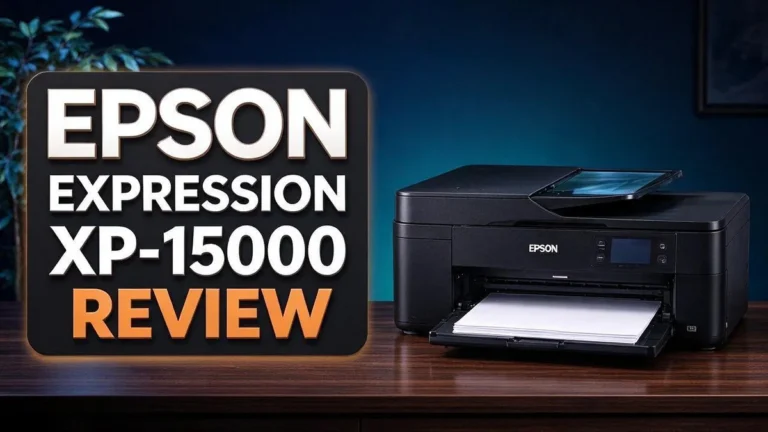
- Compare before you buy: Many shoppers also look at the Epson Expression Premium XP-6100 and the Epson Expression Photo HD XP-15000 before choosing. Compare features to find the best fit.
Print Quality and Photo Output

- Epson printing system is designed to be used exclusively with Epson Genuine Cartridges. Use of...
- Professional-Quality Photos and Prints — 6-color Claria Photo HD inks and a maximum print resolution of...
Last update on 2026-11-24 / Affiliate links / Images from Amazon Product Advertising API
Photos look lively and true to life. Colors look rich across skin tones, blue skies, and green lawns. Shadows keep their detail, so dark areas do not turn into muddy blobs.
Sharpness stands out up close. Faces look crisp, and small details like eyelashes and fabric textures appear clear. This makes portraits feel personal and real.
Black and white prints also look strong. Gray tones blend smoothly, so portraits feel classic. Try this style for vintage family photos.
Paper choice matters a lot. Glossy photo paper gives a bright, shiny finish. Matte paper works well for a softer, calmer look. Try both to find your favorite style.
Drying time feels quick. Many prints feel dry soon after they leave the tray. You can hand them to family members without smudges, though you should still let them rest flat for a while.
Print consistency is another strength. Repeat prints of the same photo look very similar. This helps when you make matching sets for grandparents or school friends.
Clear test prints help you learn the machine. Print a small sample first, then compare it with your screen. Adjust brightness if the colors look too dark.
Tip for best results: Use Epson paper profiles in your printer settings. Pick the correct paper type on the screen before you press print. Small changes like these can improve color balance a lot.
Scan quality also helps with photo output. Old prints look clean after scanning, and faded colors can be restored with simple editing. Save the files to an SD card and keep them in a safe folder.
Store finished prints away from direct sunlight. Sunlight can fade colors over time, even with good ink. A cool, dry drawer or photo album works well.
Overall, this printer suits people who want real looking photos at home. Good photo output makes everyday memories feel more special.
Paper Size Flexibility
Paper size flexibility gives you more room to create. The XP-8700 accepts a wide range of sizes, from small snapshots to larger prints. You do not need a second machine for each project.
Small sizes fit tight spaces. Think of a frame on a desk or a mini album page. A 3.5″ x 5″ print slips neatly into these spots.
The printer also includes 4″ x 5″ holders. They make loading smaller sheets easier. Keep them nearby when you print mini batches.
At the top end, 8.5 inch wide sheets give your images extra space. Landscape shots and family group photos look great with more room around them.
Mixing sizes in one session is simple. You might print a few small cards, then switch to a larger family picture. Plan your batch before you start.
Check the setting before every print. Choose the paper size in the printer menu. Then match that choice to the sheet in the tray.
Measure your frame or album first. Then pick the size that fits. This quick step saves paper and time.
Store each size in its own sealed bag. Label every bag clearly. This habit keeps sheets flat and ready for your next project.
Test one sheet in each size before a big run. A quick check shows whether the framing suits your picture. It takes only a minute and avoids wasted sheets.
Think about the final display too. A 4″ x 5″ print suits a small easel stand. A wider sheet suits a hallway gallery of several frames.
Plan ahead for holidays and school events. Prepare a few sizes in advance. Then you can print on demand without searching for paper.
Flexible sizes make the XP-8700 useful for many projects. You can print for the wall, the album, or the gift box with one machine. That freedom feels great.
Ink System and Running Costs
This printer uses six separate colors of Claria Photo HD ink. Each color plays a clear role in your prints. Light tones and dark tones both get the detail they need.
Six inks help photos look smooth and natural. Skin tones feel warm. Skies look deep blue. Grass looks fresh and green. Gray tones blend well, so black and white shots stay crisp.
Each ink sits in its own cartridge. You replace only the color that runs low. This saves you from tossing a full set. Swap one cartridge at a time and keep the rest.
Check ink levels before a big print job. The control panel and software show how much ink remains. A quick look prevents a stopped job halfway through a family album.
Ink use depends on what you print. Large photos use more ink than small text pages. Dark images also draw more ink than bright, light scenes. Ink levels drop faster during long sessions.
Borderless printing also uses extra ink. The edges need more coverage to fill fully. Plan extra ink for panoramic or edge-to-edge images.
Smaller paper sizes help you stretch your supplies. Greeting cards and gift tags need less coverage. Print only what you need to keep your ink going longer.
Test prints matter too. A test sheet uses a little ink, but it saves wasted full-size sheets. Compare the result with your screen, then adjust. One clean test beats three ruined photos.
Use Epson paper profiles in your settings. Proper profiles help the printer lay down the right amount of ink. Matching paper keeps colors accurate and reduces reprints.
Keep the printer in use every week when possible. Long idle periods can let ink dry in the print head. Regular short jobs keep the system moving and ready.
Store spare cartridges in a cool, dry place. Keep them sealed until you need them. Check the date printed on the box before you install a new set.
Top 3 Alternatives
Canon PIXMA TS8320

- Never run out of ink. Connect your printer to Alexa and receive notifications when you’re running low...
- Enrolling in Smart Reorders with Alexa ensures that you never have too much or too little ink supplies...

Last update on 2026-11-24 / Affiliate links / Images from Amazon Product Advertising API
Looking for a printer that handles photos well? The Canon PIXMA TS8320 prints sharp images with rich, true colors. It supports borderless printing on many paper sizes. Its touchscreen makes setup simple, even for beginners. You can also print straight from your phone using the Canon app. It works well for families and home offices alike.
HP OfficeJet Pro 9015e

Last update on 2026-11-24 / Affiliate links / Images from Amazon Product Advertising API
Need fast printing for busy days? The HP OfficeJet Pro 9015e handles everyday documents with ease. It offers automatic two-sided printing, so you save paper without extra effort. The sheet feeder lets you scan stacks of pages one after another. You can print and scan from anywhere with the HP Smart app. Small teams often appreciate its steady performance.
Brother MFC-J6945DW

- BEST FOR SMALL BUSINESS: This multifunction printer makes it easy to print, copy, scan, and fax on up to...
- PRODUCTIVITY-FOCUSED FEATURES: 500-sheet capacity with two trays(3), 100-sheet multipurpose tray(3), up...
Last update on 2026-11-24 / Affiliate links / Images from Amazon Product Advertising API
Want one machine for paperwork? The Brother MFC-J6945DW combines printing, scanning, copying, and faxing in one unit. It has a large paper tray that holds plenty of sheets. The automatic document feeder makes scanning multi-page files quick. Its duplex printing keeps your paper use in check. Wireless connection lets everyone in the office print from their own devices.
Scanning and Memory Card Use
Scanning feels simple on this machine. You place a photo on the glass and press start. The scanner picks up fine detail, so old prints often look clear again.
The maximum scan resolution reaches 1200 x 4800 dpi. That sharp detail helps you preserve small, faded photos. Large family albums also become much easier to digitize. Scanned files keep their colors well when you choose the color option that fits your original.
The memory card slot adds another useful option. You can insert an SD card and print photos without a computer nearby. Scans can also go straight onto the card for storage.
This setup suits people who want a quick backup. Copy your old pictures to a card, then store it in a safe drawer. Your memories stay safe even if your computer fails.
Some simple habits make card use smoother. Insert the card fully before you choose any option. Check the screen to confirm which files appear. Keep the card in its case when you do not use it.
Scanning also helps you test colors. Scan a print and compare it with the original. Small differences show you where to adjust settings for your next print run.
Give the scanner a clean glass surface. Dust and fingerprints can soften details. A soft cloth removes most marks in seconds. Clean results lead to better copies.
Think about file size too. High resolution scans create large files. Choose a lower setting for emails or social media, and save high settings for archives.
Memory card printing also saves time. You skip the computer step and go straight to the tray. Many people enjoy this for school projects and quick family prints.
Finally, label each card by its use. Mark one card for holiday photos and another for scanned documents. Clear labels make it easy to find a picture later on.
Wireless Setup and Mobile Printing
Setting up the XP-8700 on your network takes only a few minutes. Start by turning on the printer and opening its control panel. Select the wireless setup option and pick your home network from the list.
Enter your network password carefully. Capital letters matter, so double check each character. Once connected, print a network status sheet to confirm the link.
Many people prefer to skip the cable entirely. Your phone or tablet can print directly to the printer. Just keep both devices on the same network.
Mobile printing feels easy once the app is ready. Download the Epson app for your phone. Then add the printer from the app menu. Choose a photo, tap print, and the job goes straight to the printer.
Some phones also support AirPrint or Mopria printing. These built-in options skip extra downloads. Look for the print option in your photo app.
Printing from anywhere in the house is a real perk. Place the printer where every device can reach it easily. Avoid spots behind thick walls or near microwaves.
Guest access can save time. A visitor can print without learning your password. Enable a temporary direct connection when you need one.
Keep the printer firmware current. Updates often improve connection stability. Check for updates in the control panel every few months.
If the connection drops, restart both the printer and the router. This simple step fixes most problems. Then reconnect your device and try again.
Wireless printing also keeps your desk clear. No cables run across the room. You can send a job from the couch or the kitchen table.
Your network name matters too. Pick a clear name for the printer so you can spot it fast. Avoid long strings of random letters. A simple label saves time when you add the printer to a new phone or laptop.
Pros and Cons
Pros
- Photo prints look sharp and vivid.
- The paper size range fits many projects, from small prints to 8.5-inch sheets.
- Included 4″ x 5″ holders make small photo projects easy.
- The 6-color setup handles detailed photo work well.
- Prints look polished with a professional finish.
Cons
- Best suited to photo lovers rather than daily text printing.
- Photo-focused features may go unused by people who print mostly documents.
- Similar Epson models, like the XP-15000, may fit some needs better.
- Some users may want extra options that other models offer.
Who Should Buy It
This printer suits a specific kind of buyer. If photos matter most to you, it deserves a close look.
Home photographers get the most from this machine. They can print their own shots and check colors without waiting for a lab.
Scrapbookers and card makers also benefit. The smaller paper sizes help with albums, greeting cards, and photo tags.
Families who want memories on paper will like it. Grandparents, kids, and busy parents can all print favorite moments at home.
Gift makers can create personal presents. Framed prints, photo calendars, and custom cards become simple projects.
Teachers can print classroom displays in lively color. Students enjoy seeing their own photos on the wall.
Hobbyists who love printing for fun may enjoy the process as much as the result. Testing paper types and settings becomes part of the hobby.
Pet lovers often fill their phones with pictures. Printing favorite pet shots makes a sweet desk display.
Anyone who values a physical memory will appreciate this printer. Digital files sit unseen, but a framed print gets noticed daily.
Beginners may need time to learn the controls. Read the manual or watch setup videos. Small practice runs save paper and ink.
Occasional users with a few prints each month may not need this depth. Track your usual printing habits for a week to see if the extra features fit.
Shared households should discuss usage first. Decide who handles ink and paper so the printer stays ready.
Before you buy, list the tasks you do most often. If photos rank at the top, this model earns a spot on your shortlist. Clear goals make the choice easier and help you avoid features you never use. Take your time with the decision, and read reviews from other owners.
In short, this printer fits people who value photos above all else. If that describes you, it could be a strong match for your home.
Final Verdict
The short answer is yes for photo fans. The Epson Expression Photo XP-8700 earns a strong place for people who care about image quality. Its prints look rich and true to life.
The scanner adds real value too. Its high scan resolution helps you digitize old family snapshots and faded prints. You can then save those files to your computer or memory card with ease.
The SD card slot deserves a closer look. You can print pictures straight from a camera card without opening a laptop. That direct route feels quick and simple during busy weekends.
Still, this machine is not for everyone. If your daily work involves long reports or contracts, a basic text printer may serve you better. Paying attention to your real habits will help you decide.
The XP-6100 may appeal to readers who want a more versatile everyday option. Buyers who need larger prints should compare the XP-15000 carefully. Each model fits a slightly different routine.
Our final take is simple. The XP-8700 delivers excellent photo results and useful scanning features. Buyers who print pictures often will feel happy with their choice.
Think about where the printer will live. A quiet corner near an outlet and your router keeps things simple. Plan your space before the box arrives.
Regular printing keeps the ink flowing well. Long gaps between jobs can leave nozzles dry, so run a short print each week.
Your choice should match your habits, not hype. Ask yourself how many photos you print each month. Honest answers lead to the right decision.
Photo lovers who want clear results will feel rewarded. The machine rewards patience and care with every print. Take your time with setup and settings. Good paper and right settings bring out the best colors.
In short, the XP-8700 is a focused tool. It shines when pictures matter most. If that sounds like you, this printer deserves a close look.
Frequently Asked Questions
Can this printer make borderless photos?
Yes, it can. The printer supports borderless printing, so your photos reach the paper edge to edge. This works well for wall art, framed prints, and photo albums. Your pictures look full and modern.
Can I print from my phone?
Yes, you can. The printer connects wirelessly, so you do not need a cable. Send photos from your phone or tablet while you sit anywhere in the room. Keep the printer on the same network as your device. Then choose your photos and press print.
Do I need a computer to print from a memory card?
No, you do not. The SD card slot lets you print photos straight from the card. You can also save scanned files to the card for later. This saves time when you only need a few copies of a photo.
How sharp are the scans?
The scanner reaches up to 1200 x 4800 dpi. Higher numbers capture more fine detail. This helps when you want to preserve old family photos or small printed text. Place your items carefully on the glass. Clean scans start with a clean surface.

I’m the voice behind Device Dossier. As a printing technology enthusiast, I spend my time testing printers, comparing specs, and writing honest reviews to help you find the perfect printing solution. When I’m not geeking out over print quality and page yields, you’ll find me exploring the latest in tech.