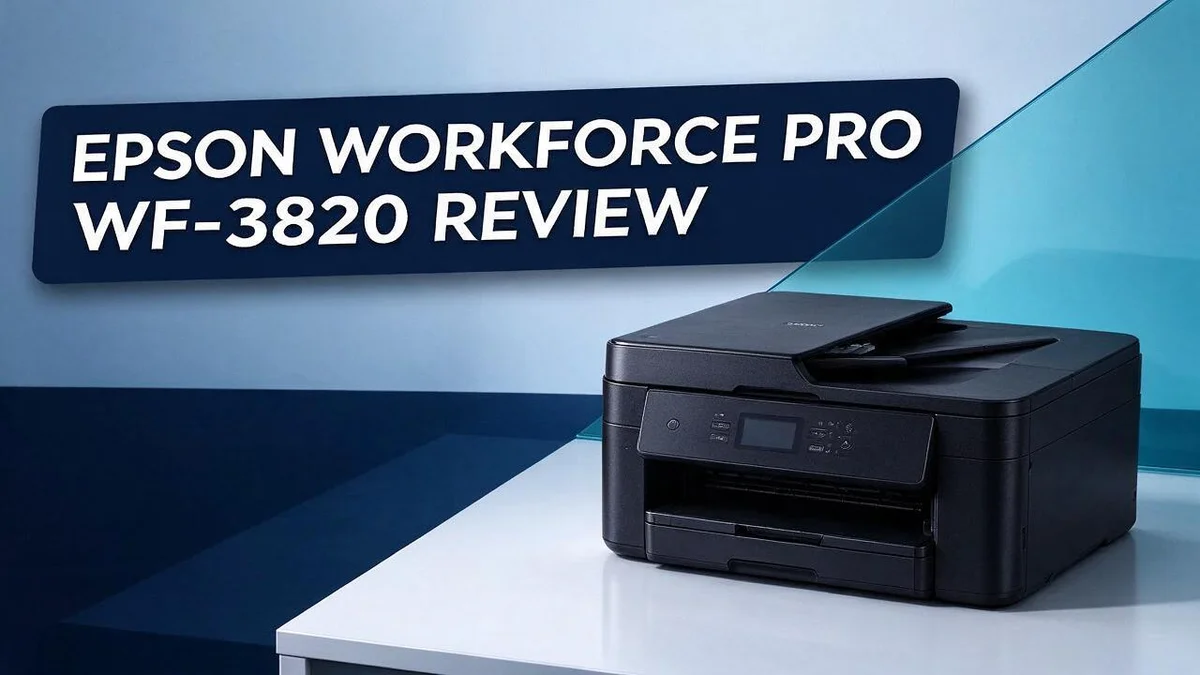
Epson WorkForce Pro WF-3820 Review: Does It Really Work?
Looking for a printer that keeps up with a busy office? The Epson WorkForce Pro WF-3820 could be the answer. It handles print, scan, copy, and fax in one device.
Print speeds reach up to 21 pages per minute. The 35-sheet document feeder and automatic two-sided printing save time on daily tasks.
A 250-sheet paper tray means fewer refills during a long workday. Connectivity is strong, too, with Ethernet, wireless, and mobile printing support.
In this Epson WorkForce Pro WF-3820 review, we cover the real strengths and weaknesses. You will see where this printer shines and where it falls short, so you can decide if it fits your needs.
In a Nutshell
- Sharp output: The WF-3820 prints clean and crisp documents. Your letters and reports look professional every time.
- Strong connectivity: Wired and wireless networks both work well. Phones and tablets can print with ease, and you can plug in a USB drive too.
- Fax support: Small offices can send and receive faxes without extra gear. This keeps older workflows running smoothly.
- Slower pace: RTINGS found this model slow compared with others. Large print jobs may take longer than you expect.
- Scanning limits: The printer cannot scan both sides of a page at once. Your team may need to flip pages by hand.
- Ink and cartridge concerns: Black pages yield fewer prints than many users want. A January 2022 firmware update also blocks third party cartridges, so you must use Epson cartridges.
Print Quality and Output Speed

- PRINTER COMPATIBILITY — Designed specifically for Epson Workforce Pro WF-382, WF-3823, WF-482, WF...
- HIGH-CAPACITY — High-capacity 822XL printer ink cartridge delivers high-volume printing output...

Last update on 2026-11-24 / Affiliate links / Images from Amazon Product Advertising API
When people judge a printer, they often ask two questions. How good does the page look, and how fast does it come out? The WF-3820 answers both with mixed results.
The PrecisionCore printhead sprays tiny ink droplets onto the page. This design helps keep text edges sharp. Letters look clean, even at small font sizes.
Graphics and charts also print with good detail. Lines stay straight, and shading looks smooth. This makes the printer a good fit for proposals and client handouts.
Speed depends on the job. A short memo prints quickly, but large batches take longer. Many users find the pace fine for daily tasks, yet heavy print runs can test patience.
Think about your daily workload first. If your office prints a few pages at a time, the speed will feel steady. If you print hundreds of pages each day, plan for longer waits. Keep spare paper nearby when deadlines loom.
Paper handling also shapes the final result. Pages that feed straight come out neat and even. Check the paper settings on the touchscreen before each big job.
Paper choice matters too. Plain paper works well for drafts. Heavier stock suits client documents that need a polished look.
Ink choice affects print quality as well. Firmware released in January 2022 blocks non OEM cartridges, so ink from other brands may not work at all. Genuine Epson ink helps keep colors consistent and text dark.
A nozzle check helps catch faint lines early. Run one after the printer sits unused for a while. This simple habit keeps pages looking fresh.
Mixed jobs show the printer at its best when text leads. Forms, letters, and reports look crisp. Photos look decent, yet they do not match a dedicated photo printer.
Set a simple routine. Print a test page each week to confirm the output stays steady. Overall, the WF-3820 delivers clean pages at a steady pace. It suits offices that rely on everyday documents.
Paper Capacity and Document Feeding
Paper handling shapes how smoothly any office printer runs. The Epson WorkForce Pro WF-3820 relies on its tray and feeder to move pages in order. Small habits at the loading step can prevent many headaches.
Fan the sheets before loading. Stuck pages often pull through together and cause a jam. Flip the stack a few times, then tap the edges on a flat surface.
Set the guides snugly. Tray guides should touch the edges of the paper without bending it. Loose guides let sheets shift, which can skew the print.
Keep the tray stocked with one paper type. Mixing plain sheets with glossy or thick stock can confuse the feed. Store extra paper flat and dry so it does not curl.
The document feeder works differently from the tray. It pulls originals from the top of the stack, so the pages must sit neatly together. Uneven edges or torn corners often cause misfeeds.
Remove staples and paper clips first. Metal bits can scratch the glass and jam the feeder. Sticky notes and folded corners cause trouble too.
Check the feeder guides before scanning a batch. Slide them close to the page edges. This step keeps copies straight and cuts down on wasted sheets.
Mixed page sizes need extra care. Sort originals by size and run each group as its own job. This approach keeps the output neat and saves time at the printer.
Watch the feeder for early warnings. A small rattle or a page that stops halfway often signals a misfeed. Open the cover, clear the path, and restart the job. Gentle handling protects the mechanism over time.
Think about how often the feeder gets used. A busy desk that scans many pages each day benefits from a quick check every morning. Dust on the rollers can also reduce grip, so wipe them gently with a soft cloth.
Good paper habits make a real difference. A little care at the start keeps the printer running well. Clean, flat sheets also help the machine produce better results every time.
Wireless, Ethernet and Mobile Connectivity
Getting online takes only a few minutes. Use the touchscreen to choose your network and enter the password. The guided setup screens walk you through each step.
Ethernet suits shared offices. Plug a network cable into the back of the printer. Each computer then finds it on the local network without extra steps.
Wired links also stay steady when many people send jobs. Wireless signals can weaken near thick walls or busy routers.
Reserve a fixed address for easy access. Open your router settings and assign the printer a fixed IP address. This keeps the printer easy to find on every computer.
Mobile printing needs the right app. Install Epson Smart Panel on your phone or tablet. The app lets you print photos, documents, and web pages from anywhere in the building.
Many phones also print through AirPrint or the Mopria Print Service. Check your device settings to confirm the printer appears in the list.
Direct mode helps when the network fails. Turn on wireless direct mode from the control panel. A laptop can then connect to the printer without a router.
This option suits quick jobs during a client visit. Guests can print without asking for your network password.
The USB port also accepts an external drive. You can print files stored on the drive without turning on a computer.
Lock the settings with an admin password. Staff cannot change network details by accident. This step protects your office setup.
Print a network status sheet after setup. Keep this sheet nearby. The sheet lists the IP address and connection details, which helps during troubleshooting.
Test each device after setup. Send a one page test print from a laptop, a phone, and a tablet. This quick check shows which devices still need adjustment.
A stable link means fewer failed jobs. Staff spend less time waiting at the printer.
Good habits keep the printer ready. Check the connection each month and install updates when the printer prompts you.
Top 3 Alternatives
HP OfficeJet Pro 9015e

Last update on 2026-11-24 / Affiliate links / Images from Amazon Product Advertising API
The HP OfficeJet Pro 9015e fits busy home offices well. It prints, scans, copies, and faxes from one compact machine.
Double sided printing saves paper. The automatic document feeder handles multi page jobs with ease. You can also print from your phone, so daily tasks feel simple.
Brother MFC-J4335DW

- UP TO 1-YEAR OF INK IN-BOX¹ – Enjoy exceptional convenience and savings with enough ink for up to...
- REVOLUTIONARY INKVESTMENT TANK TECHNOLOGY – Internal ink tank system works with front-loading...
Last update on 2026-11-24 / Affiliate links / Images from Amazon Product Advertising API
The Brother MFC-J4335DW focuses on easy daily use. Its touchscreen helps you move through menus quickly.
You can scan documents straight to email or a computer. It also supports automatic double sided printing. Small teams often like its steady wireless connection.
Canon PIXMA TR8620

- PIXMA TR8620 Wireless Home Office All-In-One Color Inkjet Printer (Black) - Set of Standard Ink Tanks...
- The PIXMA TR8620 fits into almost any space with its sleek compact design
Last update on 2026-11-24 / Affiliate links / Images from Amazon Product Advertising API
The Canon PIXMA TR8620 suits people who want versatile features. It offers a touchscreen and an automatic document feeder.
Fax and copy functions sit right on the front panel. Users can print photos and documents with clear color. Its double sided printing also keeps paper use low.
Running Costs and Ink Yield
Ink is the main ongoing need with this printer. Most offices notice it first when a cartridge runs dry. Watch your usage, and you will avoid surprises.
Black ink runs out faster than color. The research points to low black page yield. Offices that print mostly text should keep a spare black cartridge on hand.
Yield also depends on your page mix. Text heavy documents use black ink quickly. Charts and colored pages use more color ink. Track your printing for a few weeks, so you know your real pattern.
Keep in mind that yield numbers on the box use standard test pages. Your results may look different. Check the ink levels on the control panel often, so you can plan each order.
Cartridge brand matters here. Firmware from January 2022, labeled SI13LC, blocks cartridges from other brands. Before you order new ink, confirm that the cartridge works with your current firmware. This step prevents failed prints and wasted time.
Smart habits stretch every cartridge. Set draft mode as the default for internal notes and rough copies. Print on both sides of the paper, so you use fewer sheets and reach for ink less often.
Scanning helps too. Scan a document and send it by email or save it to a USB drive. This beats printing extra copies for each person in the office. Digital sharing keeps ink in the cartridge and paper in the tray.
Upkeep stays light. The printer has few parts that need regular replacement. Most of your ongoing effort goes into keeping ink stocked. A simple log helps you plan orders before a cartridge runs empty.
Set a reorder point, such as when one cartridge remains. This simple rule keeps your office running smoothly. You will never stop in the middle of a big project because the ink ran out.
Pros and Cons
Pros
– Sharp document output keeps text clean and easy to read.
– The paper tray holds 250 sheets, so you refill it less often.
– The 35 sheet feeder and fax help small offices handle daily paperwork.
– USB drive support lets you print files without a computer.
– The 2.7 inch touchscreen makes everyday settings quick to reach.
Cons
– The scanner reads only one side of a page at a time.
– Print speed feels slow when you run large jobs.
– Heavy page volumes may call for a faster machine.
Who Should Buy It
This printer suits small offices best. Teams of five to fifteen people can share one machine. Nobody needs to wait for a separate copier or fax line.
Busy teams gain the most from a shared machine. One device can serve several desks without extra equipment. Each person sends jobs from their own seat.
Front desk and admin teams benefit most. Staff who print forms, contracts, and intake sheets all day will find it handy. Clinics, law firms, and real estate agents often fit this profile.
Legal and medical offices handle sensitive paperwork daily. Staff often need signed copies and faxed forms. A single device keeps these tasks in one place.
Schools and nonprofits with modest print needs can also fit. Volunteers often print sign up sheets, flyers, and letters.
Owners who want fewer machines can simplify their setup. Replacing a copier, printer, and fax with one unit frees up desk space.
Photo lovers should look elsewhere. This machine focuses on text and business pages. Designers and families who print glossy photos may want a model built for image work.
Home users with light needs may not need it. A few pages each week rarely use the full feature set. Such buyers may prefer a simpler model with fewer extras.
Remote workers who print rarely may hesitate. The machine works best with a steady flow of pages. Occasional printing can let ink dry between jobs.
Buyers should compare their habits before deciding. Think about how often you print, scan, and copy each week. Write those notes down so the choice feels clear.
Choose this printer for a steady office routine. It rewards offices with regular paperwork and shared use. It suits buyers who want one machine for many small tasks. Read the feature list with your team in mind. Your answers will point you to the right fit.
Final Verdict
The WF-3820 earns a spot on the shortlist for busy small offices. It combines printing, scanning, copying, and faxing in one machine.
Who should buy it? Choose this printer if your team needs a full set of office tools. Skip it if you mostly print photos or need speedy output for huge batches.
Think about your weekly routine first. Count how many pages you print, scan, and fax each day. That simple check shows whether this machine fits your needs.
The Canon PIXMA MG3620 offers a simpler alternative. It lacks an automatic document feeder and fax, so it suits lighter workloads.
Run a short trial before you commit. Print a few real documents and compare the results with your current machine. Check the text sharpness on your usual paper.
Network setup matters as well. Confirm that your router and devices connect smoothly with the printer. A quick test now saves headaches later.
Track your first month of use. Note how often each cartridge empties. Those numbers show your real usage pattern.
Consider your future needs too. A small office may grow, and the tray and feeder should handle more work. Think about whether this unit can keep pace with a bigger team.
Pick a spot that feels easy to reach. People should walk over without fuss when they need paper or a quick copy.
Compare the features on your must have list. Mark each item as needed or nice to have, then see where the WF-3820 stands.
Overall, the WF-3820 offers a reliable all in one option for small teams. It works best for people who plan their ink use and daily workflow.
Our verdict: This printer earns a recommendation for offices that need document tools in one place. Shoppers who want photo quality or fast bulk printing should look elsewhere.
Frequently Asked Questions
Can I print from my phone or tablet?
Yes, the WF-3820 offers strong mobile device support. Staff can send jobs from a phone or tablet. This helps when team members work from different desks or rooms.
Can I connect it with a cable instead?
Yes, the printer includes Ethernet. A wired link can help when the wireless signal is weak in your office. Ethernet keeps the connection steady for daily jobs.
Will third-party ink cartridges work?
Not always. A January 2022 firmware update, labeled SI13LC, blocks non-OEM cartridges. Check your firmware version before you buy replacements. Genuine Epson cartridges avoid most compatibility errors.
Why does black ink run out so fast?
The WF-3820 has a low black page yield. Text-heavy printing uses black ink quickly. Keep a spare black cartridge nearby so busy days do not stop mid-task.
Is it a good fit for a home office?
It can work well for a home office that prints, scans, and faxes often. A person with light needs may find it more machine than necessary. Match the features to your daily tasks before you decide.

I’m the voice behind Device Dossier. As a printing technology enthusiast, I spend my time testing printers, comparing specs, and writing honest reviews to help you find the perfect printing solution. When I’m not geeking out over print quality and page yields, you’ll find me exploring the latest in tech.