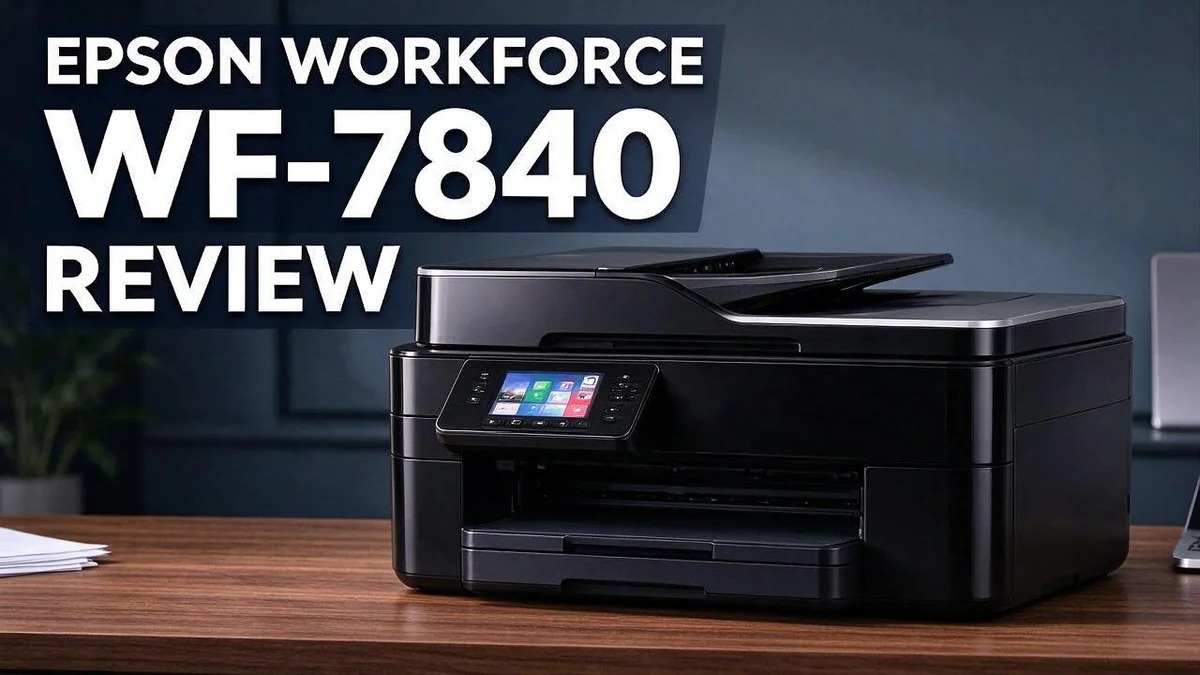
Epson WorkForce WF-7840 Review: Is It Worth Buying?
Are you searching for a reliable printer that can handle big office jobs? The Epson WorkForce Pro WF-7840 could be the right fit for you.
This wireless machine prints up to 13 x 19 inches. It also copies, scans, and faxes. Auto duplex printing saves time on every two sided page.
Paper handling is strong, too. The unit holds 500 sheets, and a 50 sheet rear tray adds more flexibility. A 4.3 inch color touchscreen makes daily tasks simple.
Many users praise the print quality. However, a few people report head clogging and slow single sheet printing. Knowing both sides helps you decide. In this guide, we cover the key specs, real user feedback, and top alternatives so you can choose with confidence.
In a Nutshell
- Built for busy offices: This printer handles copy, scan, and fax in one compact device. Teams can finish many daily tasks without needing extra machines in the office.
- Two sided work made easy: Auto duplex printing and scanning saves paper and time for every team. A 50 page feeder handles long stacks of documents with ease.
- Scan straight to the cloud: The Epson Print and Scan app supports tablets for quick mobile work. Staff can send scans directly to OneDrive without using a computer.
- Simple touchscreen control: A 4.3 inch color touchscreen guides users through each job step by step. New staff members can learn the basics quickly and confidently.
- Check reliability first: A few users report head clogs after about 1,000 pages of printing. Some also call the machine unreliable, so test it before a big rollout.
- Compare other options: Epson EcoTank models and the WorkForce Pro WF4740 are common alternatives. Look at speed, ink use, and daily volume before you decide which fits best.
Print Speed and Print Quality

- ALL-IN-ONE FUNCTIONALITY — The Epson WorkForce Pro WF-7840 wireless all-in-one printer handles print...
- WIDE-FORMAT PRINTING — Capable of producing color prints up to 13x19, this wide format printer 13x19 is...

Last update on 2026-11-24 / Affiliate links / Images from Amazon Product Advertising API
Speed matters when your team has a long list of print jobs. Epson designed this machine for fast work. Wide format printing helps teams finish reports, charts, and presentations without long waits.
The printer uses pigment ink. Pigment ink tends to resist fading and smudging. That matters for documents that need to last in files or on shelves.
Print resolution reaches 4800 by 2400 dpi. At that level, small fonts look sharp. Fine lines and detailed charts stay clear and easy to read.
Many users say the output looks clean on everyday paper. Sales sheets and client handouts often look polished. Clear text makes a strong first impression.
Photo printing needs a closer look. One user reported slow single sheet printing after using the rear tray for glossy photos. Plan photo work as separate batches so the main queue keeps moving.
Batch printing works best for large volumes. Sending similar jobs together keeps the machine busy. Fewer stops mean less waiting for everyone on the team.
Speed also depends on the file type. Simple text pages print faster than heavy graphics. Clean, light designs help the machine move through the queue quickly.
Driver settings shape the final result. Choosing the right paper type helps the printer apply the correct ink level. Matching the setting to the paper gives the best quality.
Draft mode is useful for internal copies. It uses less ink and runs more quickly. Save standard mode for documents that go to clients.
Check your paper before each run. Wrinkled or damp sheets slow the feed and can cause jams. Keep paper flat and dry for smooth output.
Run a nozzle check before any large job. This quick step helps catch faint lines early. Early checks save paper and time.
Overall, the WF-7840 offers fast and sharp output. Teams that print many photos should test glossy paper first. Print a sample page before a big deadline.
Paper Handling and Wide-Format Support
Paper capacity is where this machine shines for busy teams. The main paper tray holds 500 sheets, so staff can run long reports without constant refills.
A separate rear tray holds 50 sheets. It works well for special media, such as envelopes or thicker stock, when you need a different paper type. Keep it loaded only when you need it.
Plan your stock before each big run. Count the sheets in each tray. Refill early so no job stops halfway.
The automatic document feeder adds another layer of convenience. It holds 50 original pages at once, so you can copy or scan a stack of contracts without feeding each page by hand. Staff can walk away while the job runs.
Paper jams are less common when you load paper correctly. Fan the sheets before loading. Keep the guides snug against the edges. Do not overfill any tray.
Wide format jobs need extra care. Check that the paper size matches the setting on the control panel. A mismatch can stop a job midway and waste sheets. Taking one minute to confirm settings saves time later. Sort jobs by paper size to avoid switching trays too often.
One user reported slow printing for single sheets fed from the rear tray with glossy photo paper. That report suggests a simple test before a big project. Print one sample page first, then check the speed and finish.
Smart paper habits keep the printer running smoothly. Store paper in a dry room. Damp sheets curl and cause feed errors. Use the same paper weight across each tray when possible.
Overall, the paper handling setup suits offices that print mixed sizes every day. The large main tray, the rear tray, and the feeder work together. Sheets move through the machine in a steady flow. Your team spends less time fixing jams and more time printing.
Scanning, Copying, and Fax Features
Scanning, copying, and faxing often take more time than teams expect. This machine helps keep those tasks moving.
Copy jobs start with one press. Place your original on the glass or in the feeder, choose your settings, and press start. Changing the copy count or paper size takes only a few taps.
Stack your originals in the feeder. The 50-page document feeder handles bulk copying and scanning without constant supervision. Sort the pages before loading so the order stays correct.
Use the glass for odd items. Books, receipts, and damaged pages do not feed well. Lay them flat on the scanner glass for a clean copy.
Clean the scanner glass often. Smudges show up as lines on every scan. A soft cloth removes most marks in seconds.
Watch for feed errors. If a page jams in the feeder, open the cover and remove it slowly. Torn edges can stop the next job, so check the paper before you reload it.
Scan to files your team can find. Choose a destination folder and a clear file name before you start. Consistent names save time when you search for documents later.
Fax works from the same control panel. You do not need a separate machine on the desk. Enter the recipient number on the touchscreen, load your pages, and send.
Run a test page first. Make a short copy before a large fax or scan batch. This quick check confirms that the output looks right and catches misfeeds early.
Choose the setting that matches your original. Text settings keep letters sharp. Photo settings protect color in images. A small setting change can improve every page.
Overall, the scan and copy tools suit busy offices. Teams can handle routine paperwork in a few steps. Fewer steps mean fewer errors and happier staff.
Top 3 Alternatives
Brother MFC-J6945DW

- BEST FOR SMALL BUSINESS: This multifunction printer makes it easy to print, copy, scan, and fax on up to...
- PRODUCTIVITY-FOCUSED FEATURES: 500-sheet capacity with two trays(3), 100-sheet multipurpose tray(3), up...
Last update on 2026-11-24 / Affiliate links / Images from Amazon Product Advertising API
The Brother MFC-J6945DW fits busy home offices well. It prints, scans, copies, and faxes from one compact body. Wireless and mobile printing make daily tasks easy.
Its automatic duplex feature prints on both sides of each page. Large paper trays hold plenty of sheets, so you refill less often. Its mobile app also sends scanned documents straight to your phone. Small teams often appreciate its steady performance.
HP OfficeJet Pro 9025e

- From America's most trusted printer brand, the HP Envy Photo 7975 is a premium multi-purpose home printer...
- PERFECT FOR HOME - The HP Envy Photo 7975 is great for printing documents, high-quality true-to-screen...
Last update on 2026-11-24 / Affiliate links / Images from Amazon Product Advertising API
The HP OfficeJet Pro 9025e suits people who print every day. Its automatic document feeder handles multi-page jobs with ease. Smart connectivity lets you print from phones and laptops.
Print speeds stay quick for reports and everyday documents. A clear control panel makes menus easy to read. The sleek frame fits neatly on a crowded desk. Many users find setup simple and fast.
Canon PIXMA G7020

- Wireless Print/Copy/Scan (2)
- Up to 2 years of ink included - Disclaimer: Claim of up to two (2) years of ink based on average monthly...
Last update on 2026-11-24 / Affiliate links / Images from Amazon Product Advertising API
The Canon PIXMA G7020 focuses on heavy printing with less refilling. It uses large ink tanks that hold plenty of ink. You will refill tanks far less often than with standard cartridges.
Photos and text both look sharp on this model. Its compact design saves space in shared rooms. Many families choose it for school projects and home photos. Wireless printing lets everyone in the house connect easily.
Ink System and Running Costs
Ink supply shapes daily work more than most buyers expect. Every page draws from the cartridges, so plan refills early.
This printer uses pigment ink for crisp text and bold graphics. Epson designed this ink for high speed jobs.
Epson sells the matching ink under code C11CH67201. Write this number down before you reorder.
Watch for head clogging after heavy use. One user reported clogging after about 1,000 pages. Treat that report as a warning, not a rule.
Print a few pages each week, even when the office is quiet. Regular activity helps keep the ink flowing through the heads.
Ink pulls from every color during copy jobs too. Color copies use more ink than plain black text.
Ink use also grows with heavy color graphics. Charts and photos pull more ink than plain text documents.
Keep a log of replacement dates. Write the date each new cartridge goes in. This habit shows how fast your team uses ink.
Order replacements before the last cartridge runs dry. A spare set on the shelf stops work from stalling midweek.
Plan ink for big weeks. Check the schedule before a large project starts. Stock extra cartridges before deadlines arrive.
Pigment ink also fits busy offices that print documents all day. Staff can keep working without long waits for fresh supplies.
Check ink levels on the 4.3 inch touchscreen before a big job. A quick look prevents surprises halfway through a run.
Keep ink away from heat and direct sunlight. Store spare cartridges in a cool cabinet until you need them.
Compare ink habits with other models. EcoTank printers use large ink tanks instead of cartridges. Choose the setup that fits your team.
Sharing the log with the team helps everyone stay on the same page.
Smart ink habits keep this printer ready for work. A little planning saves time, frustration, and wasted pages.
Reliability and Maintenance
Reliability matters most when a printer supports daily work. PCMag’s 2021 review praised the business feature set and high volume ratings of the Epson WorkForce Pro WF-7840. Still, good results depend on steady care.
User reports are mixed. Some people call this model unreliable overall, while others run it for years with few issues. Your results often depend on how you look after it each week.
Run a nozzle check every week. A short test page shows faint lines or gaps before they grow into bigger problems. Start a cleaning cycle only when the test shows gaps. Cleaning uses ink, so avoid running it more than needed.
Keep the printer on a level surface. Place it away from dust, heat, and direct sunlight. Dust can settle inside the paper path and around the print head area, so a clean spot helps.
Always use the power button. Let the printer finish its shutdown routine. The print head needs time to park and seal. Pulling the plug during a cleaning cycle can cause problems with the print head.
Wipe the outer case with a soft, dry cloth each month. Never spray liquid near the paper path or the cartridge area. Gentle cleaning keeps the machine looking and running its best.
Install firmware updates when offered. Epson releases updates that fix bugs and improve stability. Check the touchscreen or Epson support site for new versions every few months.
Build a simple maintenance log. Write down each nozzle check, cleaning cycle, and firmware update. Patterns become easy to spot. Clear notes also help when you contact support.
Plan for downtime. Keep a second printing option for urgent jobs. Print critical documents a day early, so you have time to fix a fault.
Save your proof of purchase and warranty papers in one folder. Note the model number and serial number too. Support teams can help faster when you have these details ready.
Pros and Cons
Pros
- The printer handles wide 13″ x 19″ pages for posters and charts.
- Auto-duplex printing saves paper on two-sided jobs.
- The 500-sheet tray keeps large print runs going longer.
- Wireless setup lets your team print from any device.
- The Epson Print and Scan app sends scans to OneDrive on the go.
Cons
- The rear tray slows down when you print glossy photos one sheet at a time.
- Some users call it unreliable overall, though reports are mixed.
- Most complaints come from single user reports, so results may vary.
Who Should Buy It
This printer fits busy small offices best. Teams that share one machine can send jobs from laptops and phones without waiting in line. Many offices still rely on fax, so this model covers that need too.
Think about your daily print volume first. The WF-7840 handles steady work with its large paper supply, so it suits teams that print in batches. A busy front desk or admin team gets the most from it.
Design studios and copy shops may also find it useful. Creative teams often need proofs and drafts on larger sheets. Its wide format and pigment ink can support that work, especially when clients expect sharp, dark text on every page.
Schools and nonprofits with shared staff rooms can benefit as well. Several staff members can print from one spot. The scanner can also send files straight to cloud folders, which saves time on paperwork.
Hybrid teams can also use the printer with less fuss. Staff who work from home part time can send jobs from their own devices when they need prints. The office stays flexible without adding another machine or extra desk space.
Offices with strict record keeping also gain from a steady device. Shared scans and copies create a clear trail for files. This helps teams stay organized during audits or client reviews.
Light home users should look elsewhere. If you print only a few pages each month, this machine may feel like more than you need. Models like the EcoTank range may suit low-volume homes better. Check how often you print before you decide.
Ask yourself three quick questions. Do several people print every day? Do you need a fax line? Do you print large sheets for clients? If you answered yes to most, this printer is a strong match.
Final Verdict
Here is our final verdict. The Epson WorkForce Pro is a strong pick for busy offices. It handles wide pages, large paper stacks, and steady daily work well.
Still, user reports are mixed. A few people mention head clogging and slow glossy photo printing. These problems appear in single user reviews, so your results may differ.
Your daily print volume decides the answer. If your team prints every day, this model fits the workload. If you print only a few pages each month, look at a lighter option.
Who should buy it? Small offices, design studios, schools, and nonprofits gain the most. Shared staff rooms benefit from wireless access and quick scans to cloud folders.
Consider the Epson EcoTank range as a rival. Those models use refillable ink tanks, which suit teams that want fewer cartridge swaps. The Canon imageClass MF654Cdw offers another path for color office work.
Compare features before you commit. Check paper sizes, duplex needs, and the scanning destinations your team uses. A short list of must have features keeps the choice simple.
Run a test print first. Print a photo, a chart, and a text page on your own paper. Look at the edges and color balance. This quick check shows whether the machine suits your files.
Our bottom line: this printer suits busy teams that need speed, wide pages, and a full feature set. It is less ideal for light home use or for buyers who expect zero issues.
Check Epson support pages for setup tips before problems appear. Reading recent reviews also helps you spot patterns over time.
Overall, the printer earns a confident recommendation for the right buyer. Match the machine to your workload, and it can serve your team for years.
Frequently Asked Questions
Who is this printer best for?
The WF-7840 suits busy small offices best. Design studios, schools, and nonprofits also gain from its wide pages and full feature set. Teams that share one machine can print from laptops and phones without fuss.
Can it print large pages?
Yes. It prints up to 13 by 19 inch pages. That size works well for posters, charts, and creative proofs. Standard letter pages print with ease too.
Does it handle big print jobs?
It holds 500 sheets in the main tray, plus a 50 sheet rear tray. This keeps large print runs going longer before you need a refill. Auto duplex printing also saves paper on both sides of each page.
Is it reliable over time?
Reports are mixed. A few users mention head clogging after about 1,000 pages. Most complaints come from single user reports, so your results may vary. Check Epson support pages for setup tips before problems appear.
Should I test it first?
Yes. Print a photo, a chart, and a text page on your own paper. This shows how the printer performs for your daily work. Your print volume decides the answer.

I’m the voice behind Device Dossier. As a printing technology enthusiast, I spend my time testing printers, comparing specs, and writing honest reviews to help you find the perfect printing solution. When I’m not geeking out over print quality and page yields, you’ll find me exploring the latest in tech.