HP Sprocket Studio Plus Review: Is It Worth The Price?
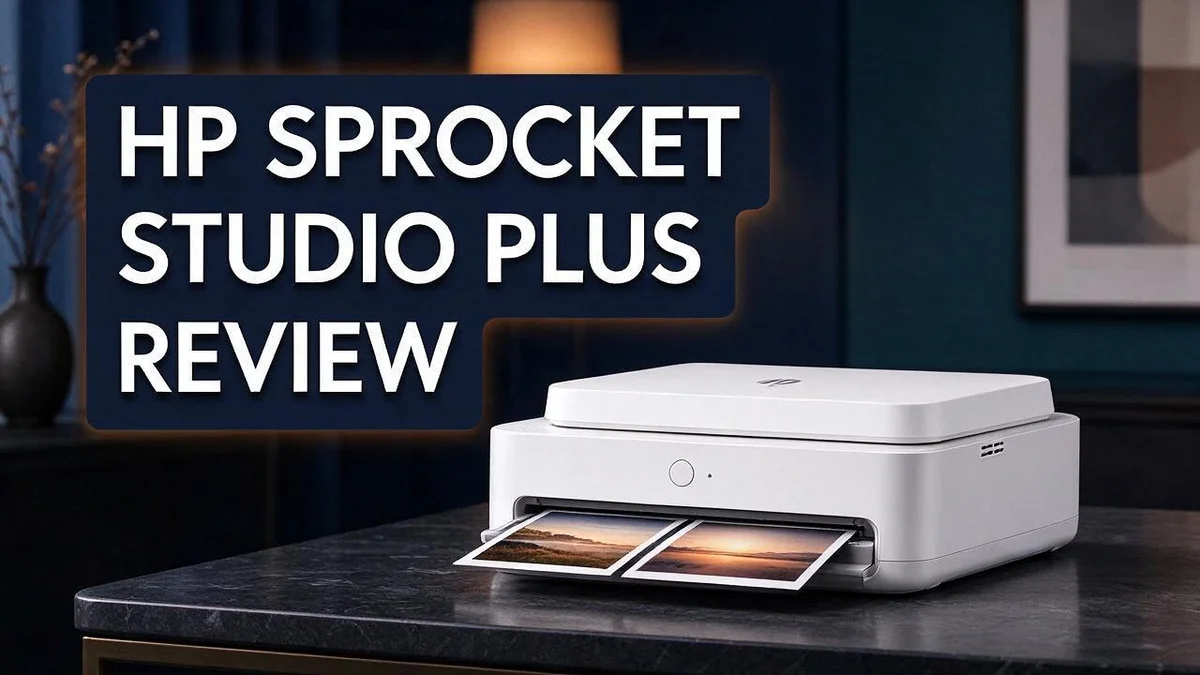
Do you love flipping through old photos? The HP Sprocket Studio Plus brings those memories to life in seconds. It is a personal photo printer that turns your phone pictures into 4×6 prints.
Your prints are waterproof and they resist tearing. That makes them perfect for scrapbooks, photo books, and family albums. You can print right from your phone over a wireless connection, so you do not need a computer.
Many people enjoy it for instant prints at parties, trips, or lazy weekend afternoons. Its small size also fits neatly on a desk or shelf.
In this review, we explore the key features, daily use, and who this printer suits best. Keep reading to see if it fits your photo goals.
In a Nutshell
-
Print straight from your phone. The printer connects wirelessly, so you skip cables and computers. This makes printing feel simple, even for new users.
-
Standard 4×6 size. It fits the frames and photo holders most people already own. You can print a favorite shot and display it right away.
-
Compact design. It sits easily on a desk, shelf, or small table. You can keep it close to where you relax or create.
-
Dye sublimation printing. Product listings describe this method for its vivid, detailed results. It helps photos look bright and lively on paper.
-
Handy for gifts and crafts. You can print quick photos for cards, gift tags, and craft projects. Kids and grandparents often enjoy making these together.
-
Alternatives to consider. Shoppers often compare it with the HP Sprocket 200 and the Liene Amber M100. Comparing features helps you find the best fit for your needs.
Print Quality and Photo Output

- PHOTOS MADE TO LAST – Print quality photos that will last for years on tear-resistant, smudge-proof...
- CUSTOMIZE YOUR CREATIONS – Add your own style to each photo by decorate it with stickers, frames...

Last update on 2026-11-25 / Affiliate links / Images from Amazon Product Advertising API
Good print quality starts with the photo you choose. Sharp, bright pictures usually turn out best. Blurry or very dark shots can look muddy on paper.
Colors play a big part in the final result. Most prints show rich tones that feel close to what you see on your screen. Skin tones often look warm and soft, which suits family portraits.
Check your phone screen before you print. Bright screens can make images look lighter than they really are. A quick adjustment in your photo app can prevent disappointing prints.
The print app lets you preview each image first. You can crop the edges, fix the orientation, and choose the number of copies. This step helps your photo fill the 4×6 space without awkward gaps.
Handling matters too. Let each print rest for a few minutes before you stack it or slide it into an album. Fresh prints need a short time to settle, so gentle handling keeps the surface clean.
Detail levels depend on the subject. Pictures with texture, like flowers, leaves, or fabric, show fine lines well. Small text in a screenshot may look soft, so choose images with clear edges.
Room lighting changes how you judge the results. Look at each print in natural daylight rather than under a dim lamp. This gives you a fair view of color and sharpness.
Print one test photo first. Compare it with the original file on a computer screen. Small changes in brightness or contrast can help you find settings that suit your taste.
Some people print a short batch before a big event. This shows how colors look across several photos. It also helps you spot repeated issues early.
Keep your expectations realistic. A compact printer gives excellent results for everyday memories. Very large prints or gallery work need a different tool.
Keep a few favorite test images on your phone. They make a simple benchmark whenever you try a new setting. Over time, you will know exactly which photos print best.
Waterproof and Tear-Resistant Print Durability
Photos rarely stay in perfect shape. They get passed around, tucked into bags, and left on kitchen counters. Durable prints make those moments less stressful.
Waterproof photo prints matter most when a drink spills or a damp hand grabs a picture. A quick dab with a dry cloth is a safe first step. Avoid soaking prints for long periods.
Tear resistant photos also help during busy family events. Children often handle pictures roughly. Loose prints can crease at the corners, so careful storage keeps them looking fresh.
Storage plays a big role in long term durability. Slide prints into photo sleeves or archival albums to guard against dust and bending. Store them flat in a dry drawer rather than a damp basement.
Sunlight can fade any printed image over time. Keep favorite prints away from direct light, such as a sunny window. Framing with UV filtering glass adds extra protection.
Handling habits protect the surface too. Hold prints by the edges and avoid touching the center, where skin oils can leave marks. Clean, dry hands make a real difference.
Display choices matter as well. Magnetic frames or clip strings let you rotate photos without constant handling. Swap displayed prints every few months to limit light exposure.
If a print gets dirty, gently wipe it with a soft cloth. Harsh cleaners can damage the image layer, so skip them.
Think about where prints will live. A kitchen fridge or bathroom shelf faces steam, heat, and splashes. A dry shelf or closed album usually works better for treasured memories.
Test a few prints in your own space before you order a big batch. This shows how the photos respond to your daily routine. A short trial gives you confidence in your results.
Small habits add up over the years. A few minutes of care keeps memories looking bright for decades.
Phone Setup and Wireless Printing
Setting up your phone takes only a few minutes. Charge the printer first, then turn it on. Next, install the printer app on your phone.
Your phone and printer must share the same wireless network. Open the app and pick your home network. Type the password carefully, since one wrong character blocks the link.
Keep the phone close during setup. Strong signals make pairing smoother. Walls and furniture can weaken the connection. Set the printer in an open spot near your router.
Watch for prompts. The app may ask to update the printer software. Accept the update when it appears. Newer software often fixes small bugs and improves printing speed.
Printing from a phone feels simple after pairing. Pick a photo, tap print, and wait for the paper to feed. The app shows a progress bar, so you know when the photo is ready.
Share the printer with family. Each person can install the app and join the same network. Everyone can send photos without moving a memory card. Nobody needs to share a computer either.
That makes group photo nights much more fun.
If the printer does not appear, check a few things. Confirm that app permissions for location or nearby devices are turned on. Restart the phone and try again. Restarting the printer also clears many connection problems.
Tip: Keep your phone software up to date. Older systems sometimes struggle with newer apps. A quick update can save time later.
Once paired, the printer usually remembers your phone. You can print again without repeating setup.
Changing your home network or router means you must pair again. Plan for that before you move the printer to a new room.
Save the setup steps for later. Take a quick screenshot of the network screen. It helps if you need to reconnect. Keep the password in your notes too.
Good setup makes every print session easier. You spend less time fixing errors. More time goes to the fun part, choosing photos.
Top 3 Alternatives
If you want a compact photo printer, these three options are worth a look. Each one prints small photos straight from your phone. Here is a quick review of each.
Canon Ivy2

- Bundle Includes: Canon IVY 2 Mini Compact Photo Sticker Printer with LED Light Bar (Blush Pink), Canon...
- No ink needed! The IVY 2 Mini Photo Printer uses ZINK (Zero Ink) technology, which features colorful...
Last update on 2026-11-25 / Affiliate links / Images from Amazon Product Advertising API
The Canon Ivy2 is tiny and light. It fits in a pocket or bag, so you can take it anywhere. You connect it to your phone over Bluetooth and print from the app in seconds.
Prints come out with a sticky back. You can stick them on walls, journals, or gift cards. Colors look bright and clear for everyday snapshots. It is a fun pick for travel and scrapbooking.
Kodak Mini 2

- Instant Photo Printing: The KODAK Mini 2 Retro is a portable photo printer designed to turn smartphone...
- Genuine 4PASS dye sublimation printing: Each photo is produced in three color layers and finished with a...
Last update on 2026-11-25 / Affiliate links / Images from Amazon Product Advertising API
The Kodak Mini 2 offers a simple setup. Most people can start printing within minutes. The photos look sharp, and they dry fast.
The battery lasts through a full day of printing. Some users wish for more paper options. Still, it gives strong value for casual use.
Polaroid Hi-Print

- Sticky Photos: Features sticky-back photo paper with a matte finish, allowing for easy application to...
- Compact Size: Each sheet measures 2.1 x 3.4 inches (54 x 86 mm), designed to fit conveniently in a...
Last update on 2026-11-25 / Affiliate links / Images from Amazon Product Advertising API
The Polaroid Hi-Print feels classic and easy to use. It uses zero-ink paper, so you never need to swap cartridges. The companion app includes filters and simple editing tools.
Photos show warm tones that many people love. Overall, it suits anyone who wants quick, fun prints.
Creative Projects: Scrapbooking and Photo Books
Scrapbook fans will find plenty of fun with this printer. Small prints fit neatly into most albums and pages.
The standard 4×6 size works well for classic layouts. You can layer prints with paper, stickers, and washi tape to build a clean design.
Plan your layout before you print. Sketch a rough design on paper first. Then decide which photos belong in each spot.
Crop your photos in the phone app before printing. Square or tall crops can add interest to a page. Cropping also removes distracting background details.
Photo books come together quickly. Each print can serve as a page or a chapter opener. Arrange them in order and slide them into an album.
Captions make photo books feel personal. Write dates, names, or short notes beside each image. Handwritten words add a warm touch.
Try a themed collection. Choose one trip, one season, or one birthday. Print a small set and group the photos together.
Kids can join the fun too. Let them pick favorite pictures or decorate the borders. Simple projects keep young crafters busy and happy.
Instant prints also suit guest books at parties. Ask guests to write a short message beside a photo. Set up a station at events so everyone can add a memory.
Mix prints with other materials. Pair photos with ribbon, fabric scraps, or pressed flowers. Try different papers for frames or backgrounds. Textures make pages more interesting.
Small gifts work well too. Make mini photo cards, bookmarks, or tags for friends and family. Each piece takes only a few minutes to create.
Keep a project journal. Note which photos you used and where they went. This helps you rebuild a favorite layout later.
Creative projects grow over time. Start with one page and add more as new ideas come. Your collection becomes a story you can share for years.
Size and Portability
Size is one of the first things people notice. The HP Sprocket Studio Plus is compact, so it fits into many spaces at home. A small body means less clutter on your desk or shelf.
It can sit on a kitchen counter, a dresser, or a corner table. You do not need a special spot just for printing. Most people find a good place within minutes.
Portability makes this printer easy to take along. Pack it into a tote bag for a family reunion, a birthday party, or a weekend trip. Your photos can come out right where the good times happen.
Before you travel, check your power needs. Plan for an outlet at your destination so you can plug in and start printing. A quick check saves time on the day.
Small size also helps during busy events. Party tables often fill up with snacks, cards, and drinks. A compact printer leaves room for everything else.
Think about how you move it. Lift the printer by its body and keep your hands clean. Store it in a padded case between outings. This habit protects the printer and keeps dust off the parts.
A small footprint also helps at home. Many households share one printer in a hallway or family room. Move it to another room when a project needs more light or space.
Ask yourself where you will use it most. If you shift it between rooms often, a compact build feels easy to handle. If you mostly print in one place, a fixed spot works just fine.
Packing tips keep you organized. Bring a small pouch with paper, a few stickers, and a notebook for ideas. Keep your phone charged so the app connects quickly. A little planning makes each outing smooth.
Pros and Cons
Pros
- Prints are waterproof and resist tearing.
- Photos print straight from almost any phone.
- No cables are needed because it connects wirelessly.
- Prints stay useful for sticking, layering, and gifting without extra steps.
- Users on Reddit mention it as a handy pick for everyday printing.
Cons
- It prints only 4×6 inch photos, so larger sizes need another printer.
- You must buy the matching photo paper to keep printing.
- Printing needs a wireless network connection, so offline use is not possible.
- Research offers few detailed user reviews for this exact model, so check recent feedback before you buy.
Who Should Buy It
This printer suits people who love holding real photos. It fits anyone who takes plenty of pictures and wants them on paper.
Grandparents and other relatives often prefer printed pictures over phone screens. A fresh print of a new grandchild makes a warm gift. They can display it on a fridge, a shelf, or a desk.
Teachers can also find good use here. A classroom display or a reward card with a student photo can brighten a wall. Small prints keep the project simple and quick to finish.
Students may enjoy it too. Dorm rooms and shared apartments often lack space for bulky machines. A compact device can sit on a shelf and still deliver real photos for study walls or memory boards.
Crafters who build mood boards or vision boards will like it. They can print inspiration pictures and pin them up without leaving home. Each new idea can reach the wall in minutes.
Parents of young children can capture first days and everyday milestones. Quick prints help kids see how much they grow. Many children love choosing a favorite picture and proudly showing it to friends.
Who may want a different choice? Buyers who need documents, large posters, or frequent office printing should look elsewhere. This model focuses on small, personal photos rather than heavy workloads.
If you enjoy fun, fast prints for personal use, this model may fit your needs well. Think about how you take photos and where you plan to display them. Then decide with confidence.
Final Verdict
The HP Sprocket Studio Plus earns a spot on the shortlist for people who want quick photo prints. It suits personal use well and keeps daily printing simple.
The final choice depends on your goals. If you want fun, fast prints for personal memories, this model makes sense. If you need more features, another printer may serve you better.
Research shows few detailed user reviews for this exact model. That gap means you should read fresh feedback from recent buyers before you decide. Look closely at comments about print quality and everyday reliability.
Compare it with the HP Sprocket 200 and the Liene Amber M100. Each rival brings different strengths to the table. Make a short list of your must have features, then check which printer meets each one.
Reviews of the older HP Sprocket Plus praise decent print quality and easy app setup. Those findings come from a different Zink based model, though. Treat them as a useful hint rather than a promise for the Studio Plus.
A simple setup process helps new users start quickly. Keep extra photo paper on hand so printing never stops during a busy weekend or a big project.
Think about your photo habits before you buy. Ask how often you will print, who will hold the pictures, and whether you enjoy crafts or albums. Clear answers make the decision much easier.
Finally, consider how you plan to share prints. Some people frame their favorite shots, while others tuck them into scrapbooks. Matching the printer to your style keeps the experience enjoyable.
In short, this printer works best as a memory keeper for everyday moments. It handles small, shareable prints with ease. Choose it when real paper photos matter more to you than large or office tasks.
Frequently Asked Questions
Is the Studio Plus the same as the older HP Sprocket Plus?
No, they are different models. The older Plus uses Zink-based printing, while the Studio Plus is a separate printer. Check the model name before you read older reviews.
Can I use it for scrapbooking?
Yes, many people use it for scrapbooks and photo albums. Its 4×6 prints fit well into craft projects and photo collages.
What printing method does it use?
Listing titles mention dye sublimation printing. This method can give smooth, colorful results. If color quality matters most to you, look at sample prints from other owners.
Is it good for quick prints at parties or trips?
Yes, it works well for fast prints at family gatherings and trips. Guests can take home a photo right away, which makes it a fun choice for events.

I’m the voice behind Device Dossier. As a printing technology enthusiast, I spend my time testing printers, comparing specs, and writing honest reviews to help you find the perfect printing solution. When I’m not geeking out over print quality and page yields, you’ll find me exploring the latest in tech.