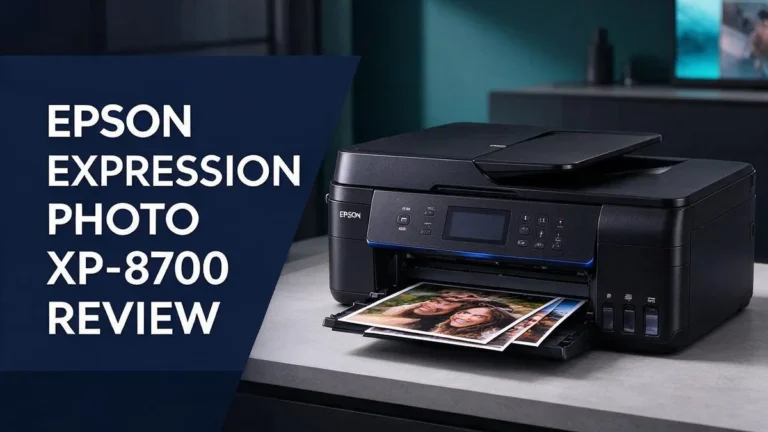

Epson WorkForce Pro WF-4830 Review: Is This Wireless All-in-One Office Printer Worth It?
Are you searching for a printer that can keep up with a busy office? The Epson WorkForce Pro WF-4830 could be the right fit. It brings printing, copying, scanning, and faxing into one machine.
Paperwork piles up fast. This model helps you keep pace. Its automatic document feeder scans both sides of a page in one pass, so you skip the manual flipping.
Setup feels easy from the start. Many users say the machine is simple to set up and use. The 4.3 inch color touchscreen makes everyday tasks feel clear and quick.
Print quality stands out too. Reviewers praise sharp, high-resolution scans and reliable prints. Many also feel it scans better than the WF-3820, its close sibling in the Epson lineup.
Wondering if it fits your needs? Keep reading for a closer look at its best features and possible drawbacks. You will have what you need to decide with confidence.
In a Nutshell
- Big paper capacity: The printer holds 500 sheets across two 250 sheet trays. Your team can finish longer jobs without refilling paper every few minutes.
- Handy touchscreen: A 4.3 inch color touchscreen lets you move through menus quickly. You can check ink levels and start jobs without a computer.
- Fast document handling: The 50 page feeder scans both sides of each page automatically. This saves time when you handle contracts, forms, or stacks of invoices.
- Mobile friendly: The Epson Smart Panel app lets you print and scan from your phone. Staff can send files from anywhere in the office.
- Clear competitor edge: Compared with the WF-3820, this model adds automatic double sided scanning. Many buyers see that as the main reason to upgrade.
- Honest outlook: Reviews list no specific defects. One Reddit thread carries a harsh title, but it does not explain the complaint. Read a few more user reports before you decide.
Print Quality and Output

- Sold as 1 Each.
- All-in-one printer provides printing, copying, and scanning capabilities in one compact machine

Last update on 2026-11-24 / Affiliate links / Images from Amazon Product Advertising API
Print quality is where this Epson model shines. Pigment ink gives text a crisp, dark look. Small fonts stay clean, even on plain paper.
Borderless printing opens up more options. Photos and marketing sheets can reach the paper edge. Flyers look polished and professional.
Auto two sided printing saves time and paper. The printer handles both sides without extra steps from you. Reports and handouts look neat with less effort.
Copies come out clean and easy to read. The machine handles copying and faxing with the same care it gives to prints.
Consistent output builds trust. Reviewers describe the prints as reliable over time. Steady results mean fewer reprints and less stress before big deadlines.
Paper choice shapes the final look. Smooth, bright paper helps ink sit sharply on the page. Thin or low grade sheets can blur fine lines.
Color balance deserves attention. Calibrate your settings before large jobs. Check skin tones and logos on a test page first.
Print settings unlock better output. Choose a higher quality mode for client documents. Draft mode works fine for internal notes.
Keep the printer active for best results. Pigment ink performs well when you print regularly. Print a few pages each week to keep the nozzles clear.
One warning deserves a closer look. A Reddit thread carries the title “EPSON WF-4830 DO NOT BUY.” The excerpt does not explain the complaint, so check recent reviews before you decide.
Test sample prints yourself. Ask for a sample page with text, graphics, and photos. This simple step shows whether the output meets your standards.
Overall, the print results earn strong marks. Sharp text, clean copies, and dependable pages make this model a solid choice for busy teams. Keep these tips in mind to get the best output possible.
Scanning and Automatic Document Feeding
Scanning often takes more time than people expect. This Epson model keeps that work moving at a steady pace.
Sharp detail matters for records. High-resolution scans capture small print, fine lines, and faint marks. That clarity helps when you search or share files later.
Scans from this model also look cleaner than those from the older WF-3820. Text edges stay crisp, so you rarely need to scan a page twice.
Preparation saves time. Remove staples and paper clips before you start. Flatten curled corners so each page slides through the feeder with ease.
Stack your pages neatly and line up the edges. A tidy stack helps the feeder pull one sheet at a time.
Mixed paper needs a gentle hand. Thin receipts and thick cards can behave differently. Sort them into separate batches so each group feeds smoothly.
Batch scanning works well for busy days. Load a full set, press start, and move on to other tasks. You return to finished files instead of waiting by the machine.
Consider scanning in smaller groups if pages vary a lot. This approach reduces jams and keeps results consistent.
Save files with clear names. Pick a simple naming pattern before you scan. Include the date, client name, or project code. Your team can then find documents in seconds.
Think about where scans go next. A consistent file format keeps everyone working from the same type of document. Staff can open and review files without extra conversion steps.
Run a test page first. Scan one sheet before a large batch. This quick check confirms the settings match your needs and saves paper if something looks off.
Review the scan preview. Look at the first few pages on your screen. Adjust the settings if text looks light or images look too dark. Small changes now prevent big headaches later.
Setup and Smart Panel Control
Setup is often the first real test for any printer. Reviewers say this model is easy to set up and use. That is good news for anyone who wants to start printing fast.
The control panel does much of the guiding. Its color screen walks you through each choice. You rarely need to guess what comes next.
Start with a clear workspace. Place the printer on a flat surface near your router. Remove all packing tape and protective film before you power it on.
Next, load paper into both trays. Use the same paper size in each tray to avoid confusion. Then print a short test page to check the results.
The Epson Smart Panel app helps during setup too. Install it on your phone or tablet first. It can guide you through connecting the printer to your home network.
Keep your phone and printer on the same network. This simple habit solves most connection problems. Check this step before you call for help.
Ink cartridges need a short priming cycle. The printer handles this on its own. Do not interrupt it, because stopping early wastes ink and time.
Spend a few minutes in the settings menu. Set your default paper size and print quality. You can also adjust sleep timing to save energy during quiet hours.
Consider a test scan as well. Place one page on the glass and scan it to your computer. This check confirms that both directions work correctly.
Keep the printer software current. Check for updates after setup through the control panel or the app. Current software helps the machine run smoothly.
Write down your details. Note your network name and password once setup ends. Store them somewhere safe. This makes future changes much easier.
A calm start sets the tone. Take your time with each step. Soon you will enjoy smooth daily printing without fuss.
Top 3 Alternatives
Looking for a different office printer? These three models offer strong printing, scanning, and copying for home and small office use.
HP OfficeJet Pro 9015e

Last update on 2026-11-24 / Affiliate links / Images from Amazon Product Advertising API
This all-in-one printer suits busy home offices. It prints, scans, and copies documents quickly. The automatic document feeder handles multi-page jobs. Wireless setup keeps your devices connected. Two-sided printing also saves paper.
Brother MFC-J4335DW

- UP TO 1-YEAR OF INK IN-BOX¹ – Enjoy exceptional convenience and savings with enough ink for up to...
- REVOLUTIONARY INKVESTMENT TANK TECHNOLOGY – Internal ink tank system works with front-loading...
Last update on 2026-11-24 / Affiliate links / Images from Amazon Product Advertising API
Brother offers a dependable choice for small teams. This model includes fax, which many offices still need. It prints double-sided pages automatically. You can print from your phone or tablet. The touchscreen panel makes changing settings easy.
Canon PIXMA TR8620a

- Never run out of ink. Connect your printer to Alexa and receive notifications when you’re running low...
- Enrolling in Smart Reorders with Alexa ensures that you never have too much or too little ink supplies...
Last update on 2026-11-24 / Affiliate links / Images from Amazon Product Advertising API
Canon delivers clear documents and sharp photos. The large LCD screen helps you move through menus. It supports automatic two-sided printing. The document feeder speeds up copying and scanning. Mobile printing works with most smartphones.
Pick the model that fits your daily tasks. Think about fax needs, paper volume, and mobile access before you decide.
Running Costs and Ink Economy
Ink use shapes the daily life of any printer. Many people only notice ink when a page looks faint. This model helps you stay ahead of that moment.
The color touchscreen shows ink levels at a glance. Check the status before a big print job. That quick look keeps you from stopping halfway through a long report.
This model uses pigment ink. Pigment ink tends to hold its color well on paper. Your documents often stay sharp and readable for longer.
Draft settings give you a quick preview. Use them for notes, rough drafts, and internal checks. Save full quality settings for client letters and photos. This simple split helps you use ink where it matters most.
Regular printing keeps the print heads healthy. Ink can dry inside idle nozzles when a printer sits unused for weeks. Print a few pages each week to keep the ink flowing. A short routine like this prevents clogs and unclear output.
Plan your refills before the ink runs low. Keep a spare set of cartridges near your desk. This habit prevents rushed orders and lost time during busy weeks.
Reviewers also praise the printer for dependable output. Consistent prints mean fewer reprints and fewer wasted sheets. That reliability adds up over many months of use.
Recycling used cartridges is another easy step. Check your local options for drop off points or mail back programs. Responsible disposal keeps your routine tidy and friendly to the environment.
A little planning goes a long way. Small habits keep ink use steady and results consistent. With a clear routine, this model becomes a dependable part of your workspace.
Paper Handling and Capacity
This Epson WorkForce Pro printer holds 500 sheets in total. Two trays share that space, and each one holds 250 sheets.
Two trays give you real flexibility. Keep everyday copy paper in one tray. Load heavier stock in the other. You can switch between jobs without emptying a single tray.
A large capacity also means fewer interruptions. A full stack handles long reports, class handouts, or a busy week of client forms. Fewer refills mean less time waiting by the machine.
Guide the paper with care. Slide the side guides so they rest lightly against the edges. Loose guides let sheets shift. Tight guides can bend the paper as it feeds.
Check the load before each big print run. Make sure the stack stays below the tray limit. Overfilling is a common reason for misfeeds, so a quick glance saves time.
Paper type matters too. Thin sheets, glossy photo paper, and thick cardstock each suit different settings. Choose the right paper type in the menu so the printer adjusts how it feeds and prints.
Envelopes and specialty media need their own handling. Load them in the tray that fits their size. Read the printer guide first. Forcing odd sizes into a standard tray often leads to jams.
Keep your paper dry and flat. Humid air can make sheets curl, and curled pages feed poorly. Store reams in their wrapper until you need them.
Paper trays also suit mixed office work. Print plain pages from one tray while the second stays ready for colorful handouts. This setup helps on days when every job feels urgent.
Count your sheets before a major job. Keep a spare ream nearby so you never stop in the middle of a deadline.
Plan refills around your schedule. Restock the trays at the end of the day. The printer then starts fresh each morning, and your workspace stays calm and ready.
Pros and Cons
Pros
- Auto dual-sided scanning speeds up long document jobs.
- High resolution scans give clear digital copies.
- Scans look better than those from the WF-3820.
- Setup feels easy, and the controls are intuitive.
- Reviewers report reliable output for high quality prints.
Cons
- The research sources list no specific defects for this model.
- One Reddit thread has a harsh title but gives no reason.
- Reading recent user reviews helps you judge long term reliability.
Who Should Buy It
This printer fits small offices with shared workloads. Teams that send many jobs each day need one machine that keeps up. This model handles that steady pace well.
Home offices that double as family hubs also benefit. Parents who print school forms, bills, and recipes can rely on one device for everything. It saves space and cuts down on extra machines.
Freelancers and small agencies gain a complete office in one unit. Printing, copying, scanning, and faxing all happen in one place. That means fewer trips to a shared copy shop.
Offices that keep paper archives can build digital files faster. Stacks of contracts and receipts become digital files with less hassle. Keep the originals safe in a filing cabinet.
Households that print only now and then should look elsewhere. A machine built for steady output may feel like too much. A smaller model could serve you better.
Photo lovers should compare other models before they decide. This printer focuses on documents and everyday office tasks. Many people buy a photo printer for that job alone. Check sample prints from several brands before you commit.
Students who run a side business also fit the profile. Side projects often need scans, copies, and prints at the same time. One machine keeps those projects moving.
Shoppers who also look at the WF-2950 should compare features side by side. Put the two models next to each other on your list. Note which tasks matter most to you.
Before you buy, write down your daily printing tasks. Match that list against the features you need most. This simple step prevents buyer regret later.
Overall, this model suits steady users who want dependable work. If printing happens every day, it earns a spot on your desk. Set a clear need first, then choose with confidence.
Final Verdict
The Epson WorkForce Pro WF-4830 earns a strong place on a busy desk. It handles printing, copying, scanning, and faxing in one unit.
Our verdict leans positive. Reviewers describe it as well built and dependable. The research shows no clear defects, but that does not mean none exist.
The harsh Reddit title needs a closer look. That thread gives no reason, so it should not decide your choice alone. Treat it as a cue to read more reviews.
Who should buy it? Small offices, busy households, and freelancers with steady workloads get the most value from this printer. Teams that scan long stacks will appreciate the automatic feed.
Light users may find it more machine than they need. A simpler model could serve them well.
Before you commit, run a quick test. Print a few pages on your usual paper. Scan a mixed stack of documents and check the results.
Place the printer where everyone can reach the touchscreen easily. A central spot saves time for shared teams.
Compare it with the WF-2950 on Versus before you decide. The WF-3820 remains an option, but it lacks automatic double-sided scanning.
In short, the WF-4830 suits people who print often and want fewer interruptions. It offers clear results, steady operation, and a full set of office tools. Review your daily tasks, then decide with confidence.
Frequently Asked Questions
Can I print from my phone?
Yes, the WF-4830 works with the Epson Smart Panel app. You can send documents from your phone and check the printer status. This helps when several people share one machine. Anyone on the team can send a job from their desk or from the couch.
Does it print borderless photos?
Yes, it supports borderless printing. Photos, flyers, and marketing pages can reach the edge of the paper. This gives your prints a clean, polished look. It works well for small business materials that need to stand out.
What kind of ink does it use?
The printer uses pigment ink. Pigment ink is known for sharp text and strong color on many types of paper. It helps documents look crisp and professional. Your contracts, reports, and client handouts will look neat.
Can it send and receive faxes?
Yes, the all-in-one unit includes fax alongside printing, copying, and scanning. You can keep using fax lines for older forms or clients who still need them. Everything happens from one machine, so you do not need extra equipment on your desk.

I’m the voice behind Device Dossier. As a printing technology enthusiast, I spend my time testing printers, comparing specs, and writing honest reviews to help you find the perfect printing solution. When I’m not geeking out over print quality and page yields, you’ll find me exploring the latest in tech.