How to Stop a Network Printer From Printing Spam Messages?
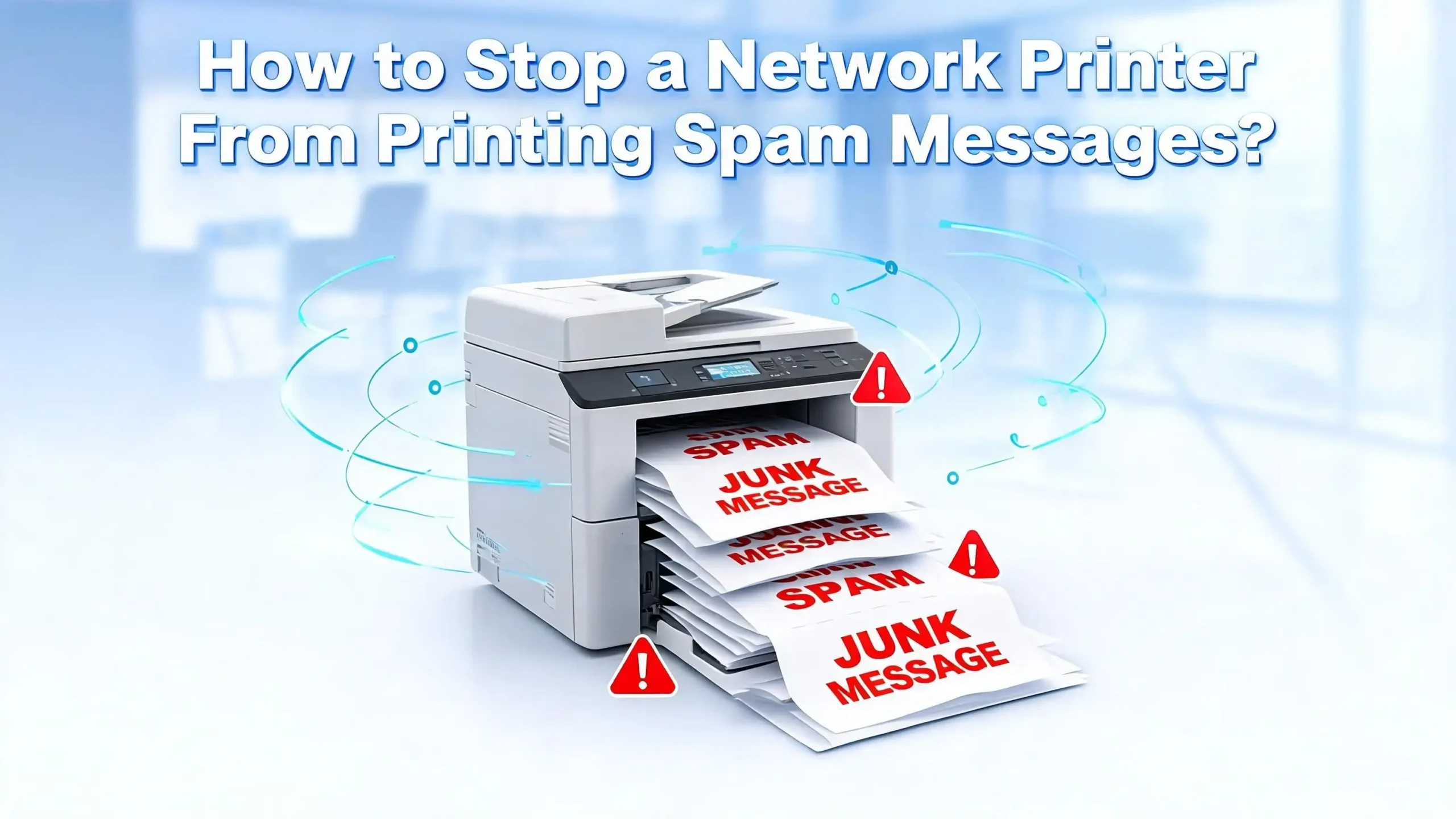
You walk into the office, and your printer tray is full of pages you never sent. Strange messages, gibberish text, or even offensive content keeps pouring out of your network printer. This is more common than you think. Attackers and automated bots scan the internet for printers with open ports.
Once they find one, they send print jobs directly to the device. The result is wasted paper, wasted ink, and a serious security concern. Your printer is a full computer connected to your network. If someone can send it spam, they may also be able to access other data on your network.
This guide walks you through every practical step to stop a network printer from printing spam messages. You will learn what causes this problem, how to block unauthorized access, and how to lock down your printer for good. Whether you manage a home office printer or a fleet of business devices, these solutions apply to you.
Key Takeaways
- Port 9100 is the most common entry point. Most printer spam attacks happen because port 9100 (the RAW printing port) is exposed to the internet. Attackers use scanning tools to find open ports and send print data directly to your device. Closing or restricting this port stops most spam immediately.
- Your router firewall is your first line of defense. A properly configured firewall blocks all unsolicited traffic from reaching your printer. You should never allow external internet traffic to reach printer ports on your local network.
- Default admin passwords are a major weakness. Most printers ship with factory passwords like “admin” or “1234.” Changing these passwords immediately prevents unauthorized users from accessing the printer’s control panel and changing settings.
- Unnecessary services increase your attack surface. Printers often have Telnet, FTP, HTTP, and other protocols enabled by default. Each enabled service is a potential door for attackers. Disable every service your printer does not need.
- Network segmentation isolates your printers. Placing printers on a separate VLAN or subnet limits what an attacker can do, even if they reach the printer. This also prevents a compromised printer from spreading threats across your main network.
- Firmware updates patch known security holes. Printer manufacturers release firmware updates that fix vulnerabilities. Keeping your printer firmware current closes gaps that attackers actively search for.
Why Your Network Printer Is Printing Spam Messages
A network printer receives print jobs from any device that can communicate with it over the network. The RAW printing protocol on port 9100 accepts data and prints it without any authentication or verification. This means anyone who can reach your printer’s IP address on that port can send a print job. Attackers use tools like Shodan to scan millions of IP addresses and find printers with port 9100 exposed to the public internet. Once found, they send text or PostScript files directly to the printer.
This type of attack does not require special skills. A single command from a remote computer can push text to your printer. The printer sees it as a legitimate print job and processes it. In 2018, a well known incident saw over 50,000 printers worldwide receive spam messages through this exact method. The attackers simply connected to port 9100 on each discovered printer and transmitted their message.
Your printer might also receive spam through other channels. Some printers have email printing features (like HP ePrint) that accept jobs sent to a printer specific email address. If that address is guessed or leaked, anyone can email documents to your printer. Cloud printing services, open Wi-Fi configurations, and misconfigured print servers all create additional paths for unwanted print jobs to arrive.
Check If Your Printer Port Is Exposed to the Internet
The first step is to determine whether your printer is visible from the public internet. If your printer has a public IP address or your router forwards traffic to it, external attackers can reach it directly. Most home networks use NAT (Network Address Translation), which hides internal devices behind one public IP. This provides some default protection, but it is not a guarantee.
Log into your router’s admin panel and check the port forwarding settings. Look for any rules that forward traffic to your printer’s internal IP address. Pay special attention to ports 9100, 515 (LPD), 631 (IPP), and 80 or 443 (web interface). If any of these ports are forwarded, remove those rules immediately unless you have a specific and well secured reason to keep them.
You can also check from the outside. Visit an online port scanning tool and enter your public IP address. Test port 9100 specifically. If it shows as open, your printer is reachable from the internet. This is the single most critical vulnerability to fix. Close that port forwarding rule in your router, and the spam should stop almost immediately.
For business networks with public IP ranges, the situation is different. Each device might have its own public address. In this case, a network firewall must sit between the internet and your printer to block all inbound traffic on printing ports. Talk to your IT team or network administrator to verify this protection is in place.
Close Port 9100 and Other Printing Ports on Your Firewall
Your firewall is the barrier between your internal network and the outside world. Configuring it to block inbound traffic on printing ports is the fastest and most effective fix for printer spam. The key ports to block from external access are port 9100 (RAW printing), port 515 (LPR/LPD), port 631 (IPP), and ports 161/162 (SNMP). You should also block port 80 and 443 if your printer’s web interface does not need to be accessible remotely.
On most home routers, these ports are blocked by default unless you have manually created forwarding rules. Go to your router’s configuration page (usually accessed at 192.168.1.1 or 192.168.0.1 in a browser) and navigate to the port forwarding section. Delete any rules that point to your printer’s IP address.
For business firewalls, create explicit deny rules for inbound traffic on these ports from any external source. Allow traffic only from your internal subnets. If remote printing is necessary, use a VPN connection so that remote users join the local network securely before sending print jobs. Never expose printer ports directly to the internet, even with password protection on the printer itself.
Also check UPnP (Universal Plug and Play) settings on your router. UPnP allows devices to automatically open ports on the firewall without your knowledge. Some printers use UPnP to make themselves accessible for cloud services. Disable UPnP on your router to prevent any device from punching holes in your firewall without your approval.
Change the Default Admin Password on Your Printer
Every network printer has an administrative control panel accessible through a web browser. You reach it by typing the printer’s IP address into your browser’s address bar. The problem is that most printers ship with factory default credentials that are publicly documented. Common defaults include “admin/admin,” “admin/password,” or simply no password at all.
If an attacker gains access to this admin panel, they can change network settings, redirect print jobs, install malicious firmware, or use the printer as a launch point for attacks against other devices on your network. Changing the default password is a simple step that provides significant protection.
Open a browser and enter your printer’s IP address. Log into the admin panel using the current credentials (check the printer’s manual or the manufacturer’s website for the factory defaults). Navigate to the security or administrator settings section. Set a strong, unique password that includes a mix of uppercase letters, lowercase letters, numbers, and special characters. Write it down and store it in a secure location.
While you are in the admin panel, check whether the printer supports HTTPS access. If it does, enable it and access the panel through https:// instead of http://. This encrypts the connection between your browser and the printer, preventing anyone on the network from intercepting your admin password. If SSH is available, use it instead of Telnet for command line access.
Disable Unnecessary Network Services on the Printer
Printers often enable many network services by default. These include Telnet, FTP, HTTP, SNMP, Bonjour, AirPrint, and cloud printing protocols. Each active service is a potential entry point for attackers. A practical rule is to disable every service you do not actively use.
Access your printer’s web admin panel and look for a section labeled “Network Services,” “Protocols,” or “Security.” Review each enabled protocol and ask yourself whether you actually need it. If you print only from computers on your local network using a standard driver, you likely need only the RAW or IPP protocol. Everything else can be turned off.
Telnet is especially dangerous because it transmits data without encryption. An attacker who connects via Telnet can read and modify printer settings in plain text. FTP on a printer allows file storage and retrieval, which attackers have used to host illegal content on compromised printers. SNMP (Simple Network Management Protocol) can expose detailed information about your printer and network configuration.
If your printer supports HP ePrint, Google Cloud Print (now discontinued), or email printing, disable these features unless you rely on them daily. These services create pathways for print jobs to arrive from outside your local network. An ePrint email address that is guessed or shared publicly becomes a direct channel for spam. Turn these services off in the printer’s settings menu or web panel to close that channel completely.
Set Up an Access Control List on Your Printer
Many business and enterprise printers include a built in Access Control List (ACL) feature. An ACL lets you specify exactly which IP addresses or IP ranges are allowed to send print jobs to the printer. Every other address is rejected. This is one of the most effective ways to stop unauthorized printing from both external and internal sources.
Open your printer’s web admin panel and look for ACL, IP filtering, or host access settings. Enter the IP addresses or subnet ranges of the computers and print servers that should be able to print. For example, if your office network uses the 192.168.1.0/24 range, add that entire subnet. Any device outside that range will be blocked from sending jobs to the printer.
Be precise with your entries. If you add too broad a range, you reduce the effectiveness of the ACL. If your network has multiple subnets, add only the ones that contain users who need to print. You can typically add up to 10 or 20 address and mask combinations on most printers.
After configuring the ACL, test it. Try printing from an authorized device to confirm it works. Then, if possible, try from a device outside the allowed range to verify the block is active. Some printers log blocked connection attempts, which can help you monitor whether unauthorized access attempts continue. Review and update the ACL whenever you change your network configuration or add new devices that need printing access.
Place Your Printer on a Separate VLAN
Network segmentation is a powerful security technique. A VLAN (Virtual Local Area Network) logically separates devices on your network, even if they share the same physical switches and cables. Placing your printers on a dedicated VLAN isolates them from workstations, servers, and other devices. This limits the damage an attacker can do if they compromise a printer.
To set up a printer VLAN, you need a managed network switch that supports VLAN tagging. Create a new VLAN (for example, VLAN 20) and assign the switch ports connected to your printers to that VLAN. Configure your router or layer 3 switch to route traffic between the printer VLAN and your user VLAN, but apply firewall rules or ACLs that permit only print traffic (ports 9100, 515, 631) from the user VLAN to the printer VLAN.
Block all other traffic between the VLANs. This means that even if someone compromises a printer, they cannot use it to scan or attack devices on the main user network. The printer also cannot initiate connections to the internet unless you explicitly allow it, which prevents it from being used as a relay for outbound attacks.
For home users, full VLAN setup may not be practical without advanced networking equipment. A simpler alternative is to connect the printer directly to a single computer via USB and share it through that computer. This removes the printer from the network entirely and eliminates all network based attack paths. The shared printer appears to other computers through the host machine, which controls all access.
Update Your Printer Firmware Regularly
Printer manufacturers release firmware updates that fix security vulnerabilities, improve performance, and add new features. Outdated firmware is one of the most common reasons printers remain vulnerable to attacks. Attackers study known vulnerabilities in specific printer models and scan the internet for devices running old firmware versions.
Check your printer manufacturer’s support website for available firmware updates. Most major brands (HP, Canon, Epson, Brother, Xerox, Lexmark) maintain download pages organized by printer model. Download the latest firmware file and follow the manufacturer’s instructions to install it. Some printers allow you to update directly from the web admin panel by uploading the firmware file.
Enable automatic update checks if your printer supports this feature. Many modern business printers can check for updates on a schedule and notify the administrator when new firmware is available. This removes the burden of manually checking for updates and ensures you do not miss critical security patches.
Before updating, note your current settings. Some firmware updates reset the printer to factory defaults, which means you will need to reconfigure network settings, passwords, and ACLs afterward. Keep a written record of your printer’s configuration so you can restore it quickly after an update. Schedule firmware updates during off hours to minimize disruption to users.
Disable Wi-Fi Direct and Open Access Points
Many modern printers create their own Wi-Fi Direct access point that allows nearby devices to print without connecting to the main network. This feature is convenient, but it can be a significant security risk. If the Wi-Fi Direct connection has no password or uses a weak default password, anyone within range can connect and send print jobs.
Check your printer’s wireless settings in the control panel or web admin interface. Look for Wi-Fi Direct, Wireless Direct, or similar options. If you do not use this feature, turn it off. If you need it, make sure it requires a password and change the default password to something strong. Also check if the printer allows you to set it so that each connection requires manual approval on the printer’s control panel.
Some printers also broadcast an open wireless network with a name like the printer’s model number. This is separate from Wi-Fi Direct and is intended for initial setup. If this network remains active after setup, it creates an open door for anyone nearby. Access the printer’s wireless configuration and verify that only the intended connection methods are active.
For office environments, the safest approach is to use wired Ethernet connections for all network printers and disable the wireless radio completely. Wired connections are faster, more reliable, and inherently more secure because an attacker must have physical access to the network cable to connect. If wireless printing is necessary, ensure the printer connects only to your secured Wi-Fi network with WPA3 or WPA2 encryption.
Configure a Dedicated Print Server
A print server sits between your users and the printers on your network. Instead of every computer sending jobs directly to the printer, all print jobs go through the print server first. This gives you centralized control over who can print, what they can print, and when they can print.
On Windows, you can set up the Print and Document Services role on a server. On Linux, CUPS (Common Unix Printing System) provides similar functionality. The print server communicates with the printer, and user workstations communicate only with the print server. This means the printer never needs to accept connections from multiple sources, reducing its exposure.
With a print server in place, you can remove the printer’s default gateway from its IP configuration. Without a default gateway, the printer cannot communicate with anything outside its own local subnet. If the print server is on the same subnet, it can still send jobs to the printer. But any device outside that subnet, including anything on the internet, cannot reach the printer at all.
Print servers also provide logging and auditing. You can track who printed what, when, and how many pages. If spam jobs appear, you can trace them to a source. Many print server solutions support job quotas, content filtering, and approval workflows. This level of control is especially valuable in business environments where print security and cost management matter. Configure user authentication on the print server so that only authorized accounts can submit print jobs.
Monitor Print Logs for Suspicious Activity
Most network printers maintain internal logs of print activity. These logs record job submissions, source IP addresses, timestamps, and sometimes the job content or title. Regularly reviewing these logs helps you spot unauthorized access early before it becomes a persistent problem.
Access your printer’s web admin panel and navigate to the logs or event history section. Look for print jobs from unfamiliar IP addresses, jobs submitted at unusual hours, or jobs with strange names. These are signs that someone outside your organization is sending jobs to your printer. Document the source IP addresses and check whether they belong to your network or come from an external source.
If your printer does not keep detailed logs, your print server or network firewall can fill that gap. Firewall logs show connection attempts to your printer’s IP address, including blocked attempts. Enable logging on your firewall for traffic directed at printer ports. Review these logs weekly or set up alerts for repeated connection attempts from unknown sources.
For larger organizations, a SIEM (Security Information and Event Management) system can collect printer logs along with other network device logs and correlate events automatically. This helps identify patterns such as a single external IP attempting to reach multiple printers across your network. Automated alerts save time and ensure you respond quickly to potential threats. Even without a SIEM, a simple habit of checking printer and firewall logs once a week makes a meaningful difference.
Use IPP with Authentication Instead of RAW Printing
The RAW printing protocol on port 9100 has no built in authentication. Any device that connects to that port can print. IPP (Internet Printing Protocol) is a more modern alternative that supports authentication, encryption, and job management. Switching from RAW to IPP gives you much better control over who can send print jobs to your printer.
IPP runs on port 631 and can be secured with TLS encryption (sometimes called IPPS or IPP over HTTPS). When authentication is enabled, users must provide a username and password before the printer accepts their job. This completely prevents anonymous printing from unauthorized sources.
To switch to IPP, access your printer’s admin panel and look for the protocol settings. Disable the RAW 9100 protocol and enable IPP. Configure IPP to require authentication and enable TLS if your printer supports it. Then update the printer driver settings on each workstation to use the IPP connection string (usually ipp://printer-ip-address/ipp/print or ipps:// for encrypted connections).
Not all printers support IPP with full authentication. Older or consumer grade printers may offer only basic IPP without authentication options. In that case, use the other protections described in this guide (firewall rules, ACLs, VLANs) to restrict access. For organizations purchasing new printers, select models that support IPP with authentication and encryption as standard features. This future proofs your print infrastructure against the growing number of network based threats.
What to Do If Your Printer Has Already Been Compromised
If your printer is currently printing spam, act quickly. First, disconnect the printer from the network by unplugging the Ethernet cable or turning off Wi-Fi. This immediately stops new spam jobs from arriving. Go to the printer’s control panel and cancel all pending print jobs in the queue.
Next, perform a factory reset on the printer. This removes any modified settings an attacker may have applied. After the reset, reconfigure the printer from scratch using the security steps outlined in this guide. Change the admin password, disable unnecessary services, configure the ACL, and update the firmware to the latest version before reconnecting it to the network.
Check your router and firewall settings to determine how the attacker reached the printer. Look for open ports, UPnP rules, or port forwarding entries that exposed the printer. Remove any rules that allowed external access. If your printer has a hard drive, consider performing a secure erase. Compromised printers may have had malicious firmware installed or may store data from the spam jobs.
After securing the printer, monitor it closely for the next several weeks. Check the print logs daily for any unusual activity. Review firewall logs for connection attempts to the printer’s ports. If spam returns after you have taken all these steps, the issue may be coming from inside your network, which could indicate a compromised workstation or an unauthorized device. Run antivirus scans on all devices that connect to the same network and investigate any findings.
Frequently Asked Questions
Why does my printer keep printing random pages I did not send?
Your printer is likely receiving unauthorized print jobs from the internet or from an unsecured network connection. The most common cause is port 9100 being exposed to external traffic, allowing anyone who finds your printer’s IP address to send a print job. Closing this port on your firewall and restricting access to your printer through ACLs will stop the random pages.
Can someone hack my printer remotely?
Yes. If your printer is accessible from the internet through open ports or forwarded traffic, remote attackers can send print jobs, change settings, and potentially install malicious firmware. Printers with default passwords and outdated firmware are the most vulnerable. Securing your printer with a strong password, current firmware, and proper firewall rules greatly reduces this risk.
Is printer spam dangerous or just annoying?
Printer spam is more than an annoyance. It signals that an unauthorized party can reach your printer, which means they may also be able to access data stored on the printer’s hard drive, intercept print jobs, or use the printer to attack other devices on your network. Treat printer spam as a security warning and take steps to close the vulnerability immediately.
How do I find out if my printer port 9100 is open?
You can test this from outside your network using an online port scanning tool. Enter your public IP address and scan port 9100. If the result shows the port as open, your printer is reachable from the internet. You should also check your router’s port forwarding settings for any rules directing traffic to your printer’s internal IP address.
Should I disable Wi-Fi on my network printer?
If your printer is connected via Ethernet cable, there is no reason to keep Wi-Fi active. Disabling the wireless radio eliminates an entire category of potential attacks. If you must use Wi-Fi, ensure the printer connects to your secured network with WPA2 or WPA3 encryption and that Wi-Fi Direct is turned off or password protected.
Will a VPN help protect my network printer?
A VPN protects your printer by ensuring that remote users must authenticate and join your local network before they can access any internal devices, including printers. Instead of exposing printer ports to the internet, a VPN creates an encrypted tunnel that provides secure access. This is the recommended approach for anyone who needs to print remotely.

I’m the voice behind Device Dossier. As a printing technology enthusiast, I spend my time testing printers, comparing specs, and writing honest reviews to help you find the perfect printing solution. When I’m not geeking out over print quality and page yields, you’ll find me exploring the latest in tech.